

Appearance
HORILLA GDRIVE BACKUP AUTOMATION DOCUMENTATION
Horilla GDrive Backup is a feature designed to automate the backup of important files, including media and databases, using a Google service account and a Google Drive shared folder ID. This functionality ensures that critical data is securely and consistently backed up to Google Drive, leveraging the reliability and accessibility of Google's cloud storage. Horilla GDrive Backup can perform backups without direct user intervention by utilizing a service account, providing a seamless and efficient data protection and recovery solution. This feature is handy for maintaining up-to-date backups, safeguarding against data loss, and facilitating easy access to important files.
Google Service Account Creation
Step 1: Create a Project
- Go to the Google Cloud Console.
https://console.cloud.google.com/apis/library
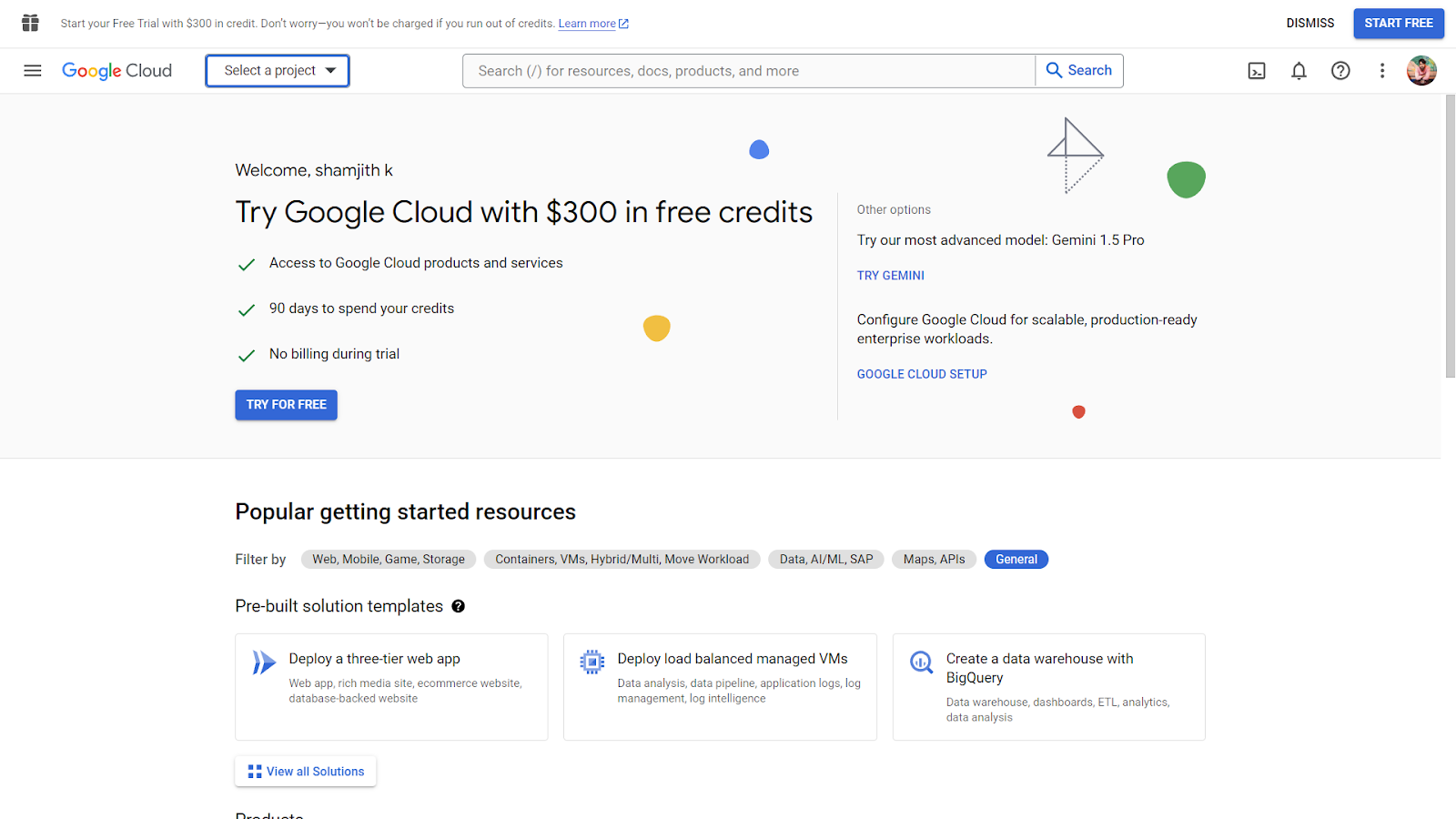 2. Select or create a new project:
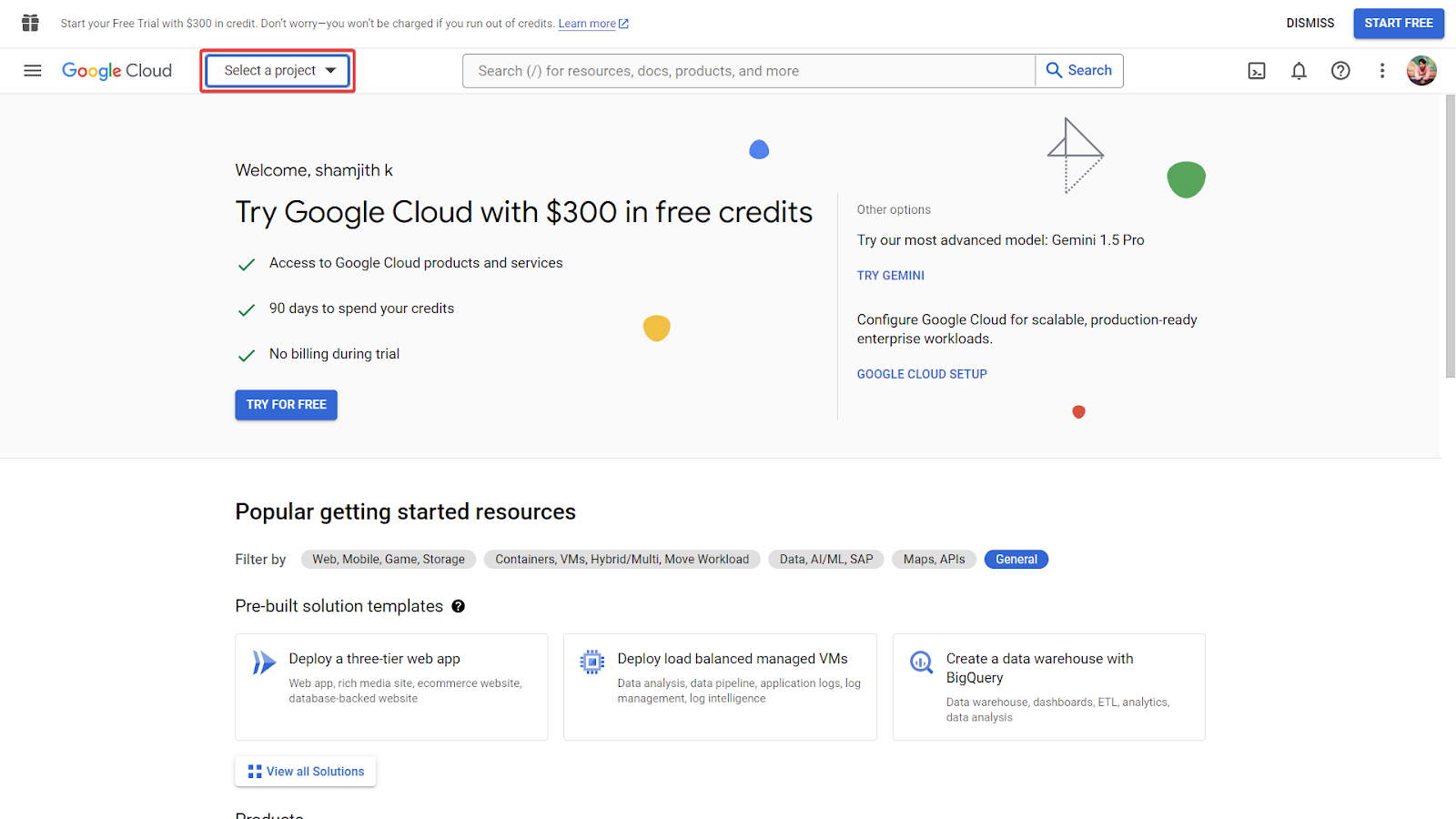
- Click the project drop-down and select "New Project."
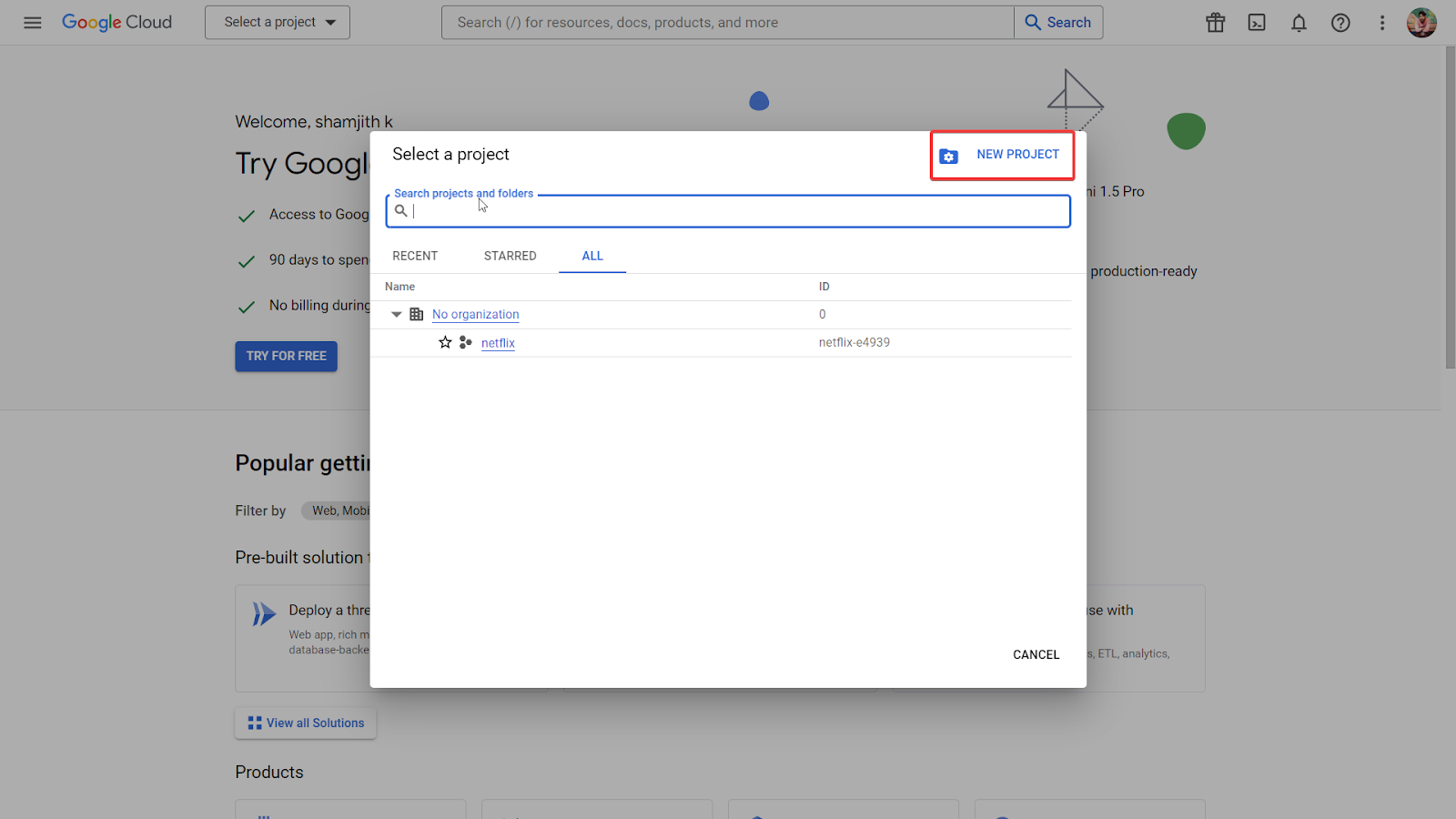
- Name your project and click "Create."
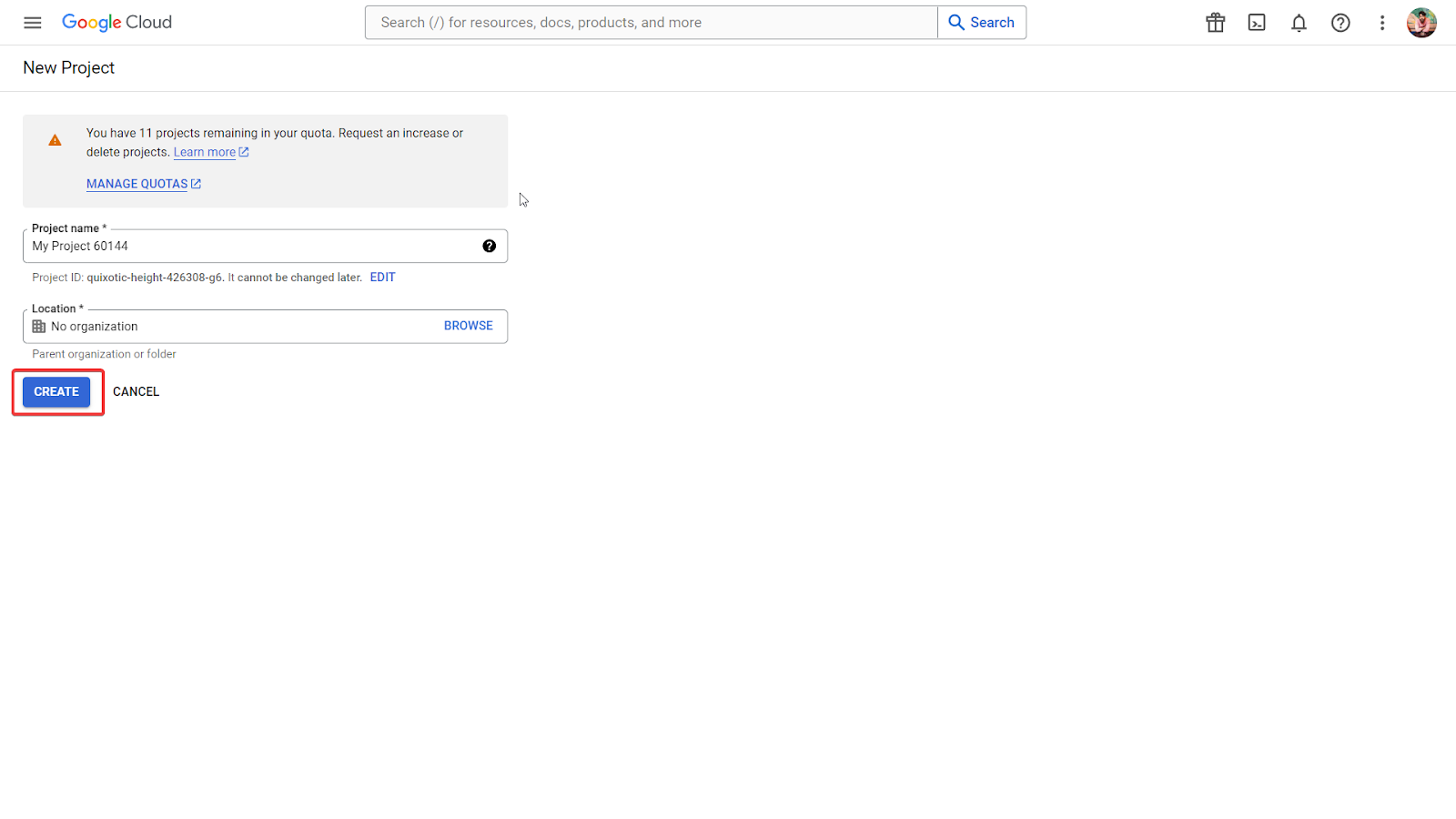
Step 2: Enable the APIs
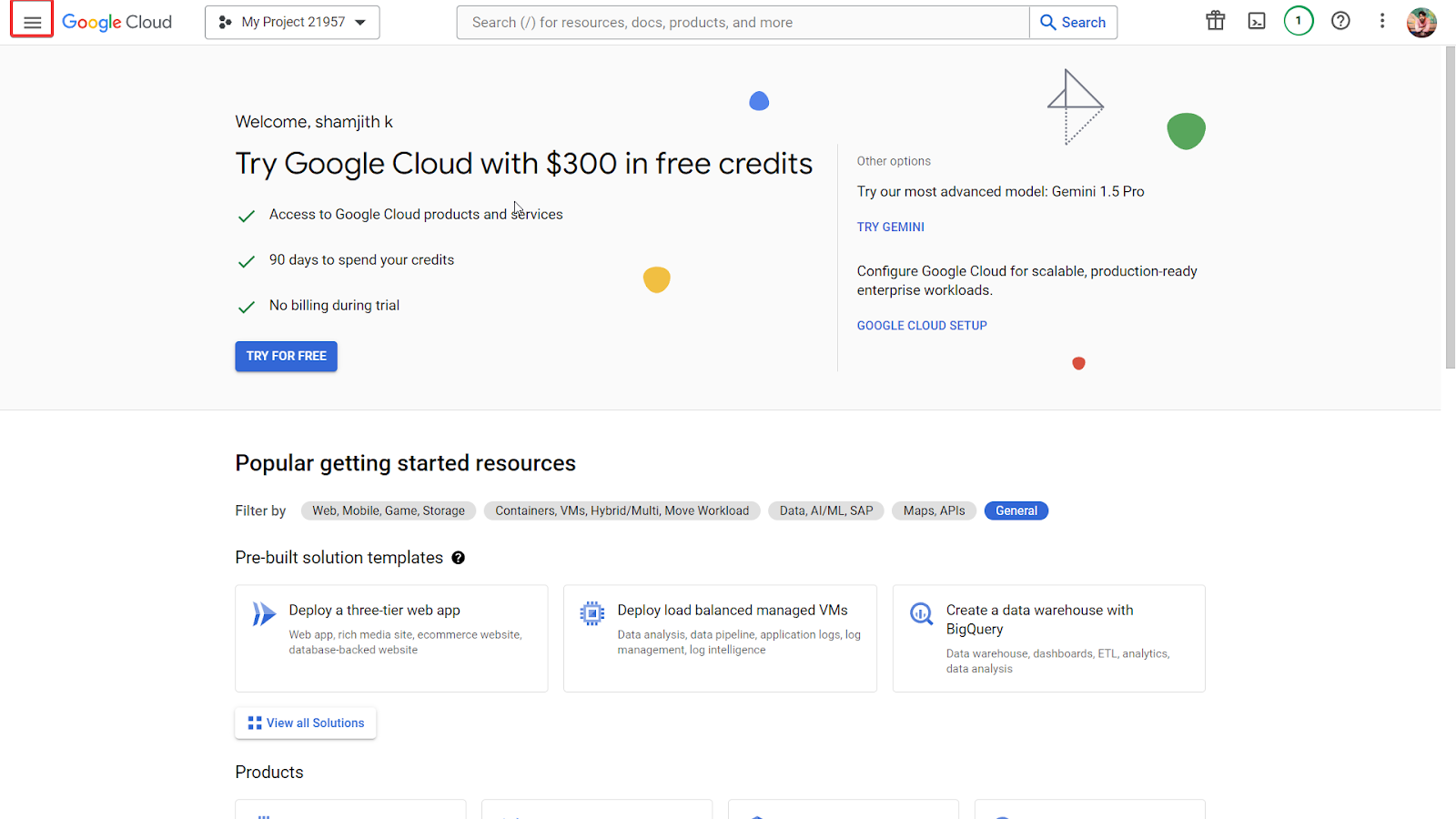
- In the Google Cloud Console, go to the "APIs & Services" > "Library."
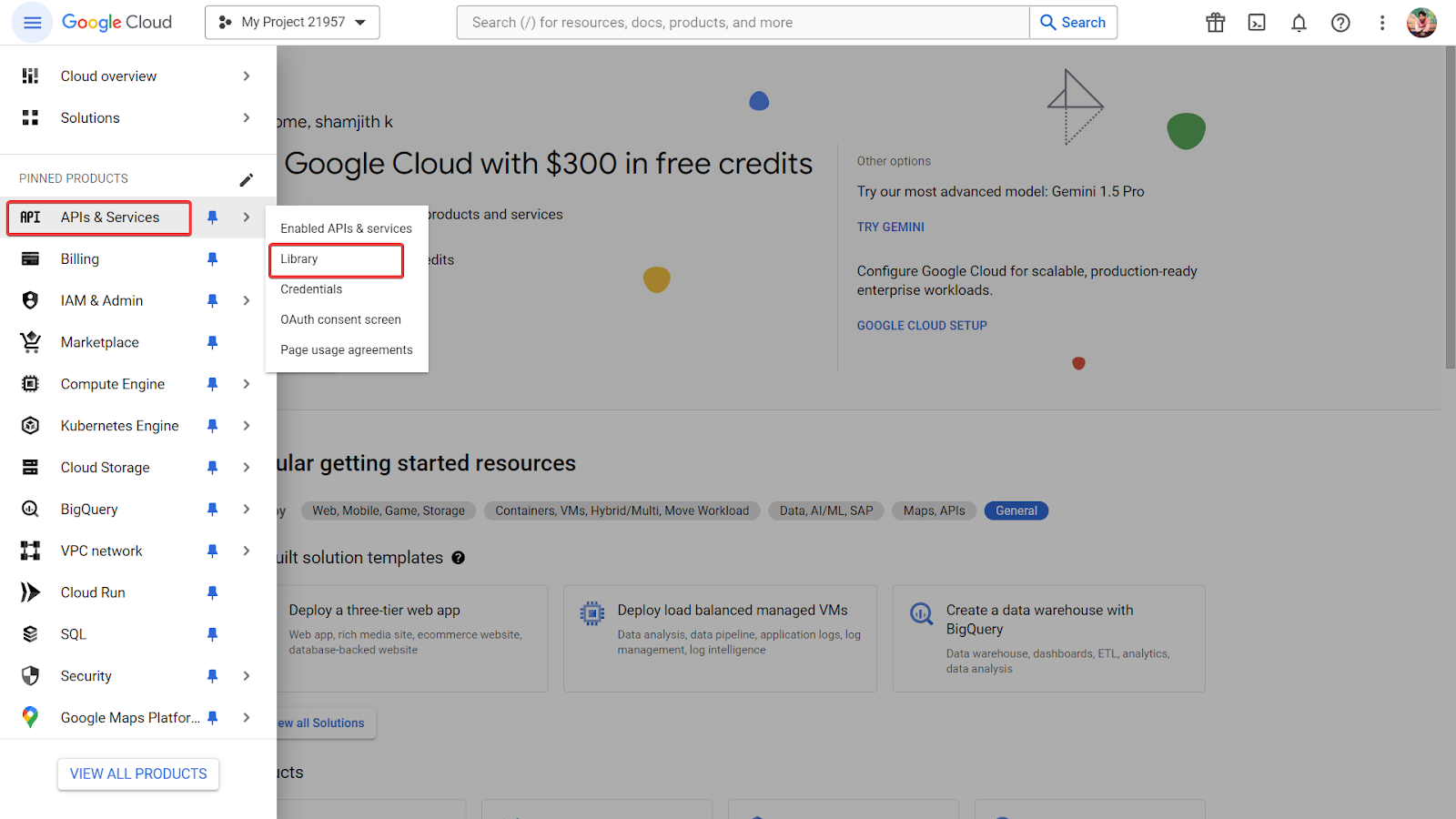
- Search for the Gdrive API and enable the API.
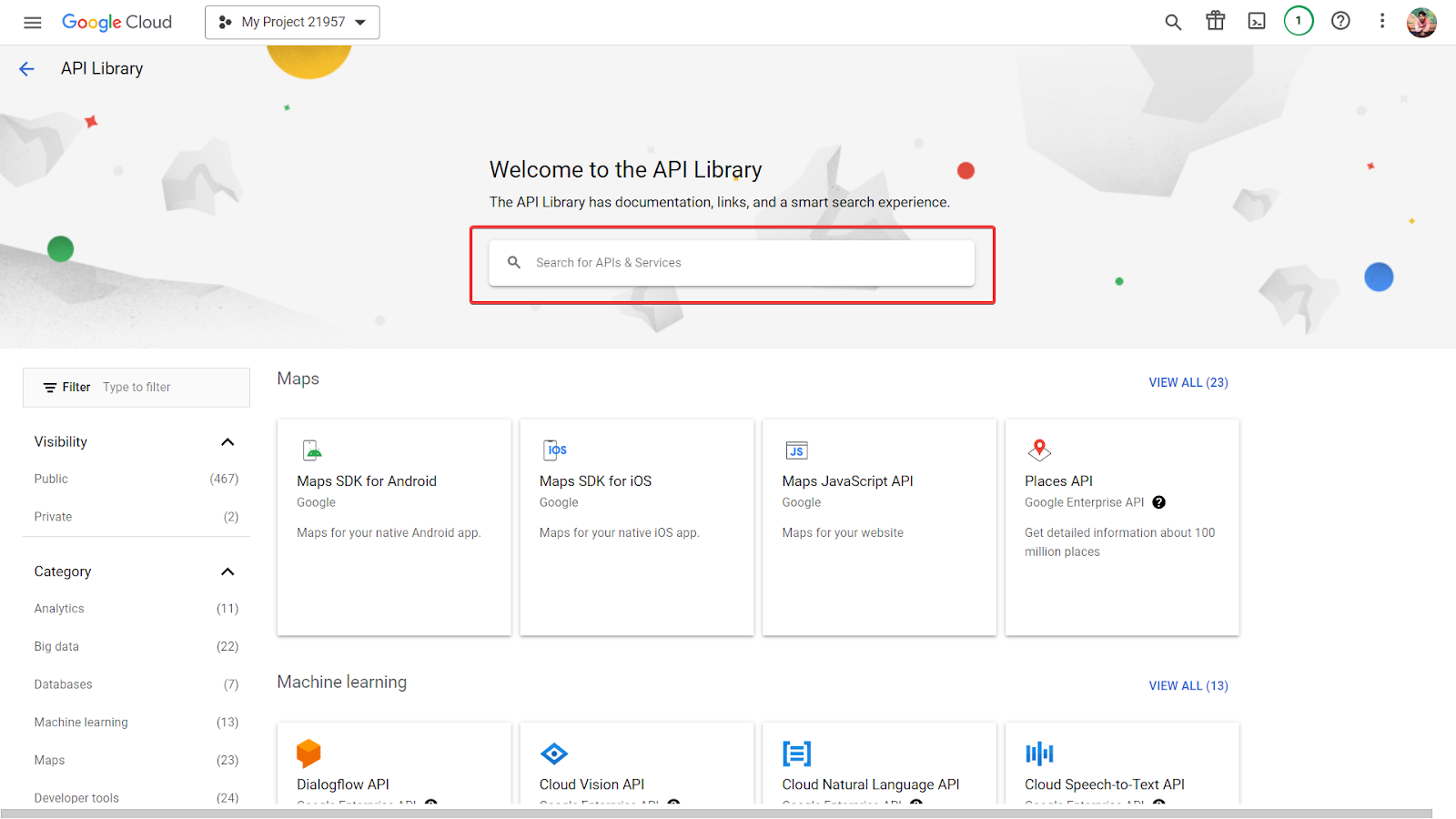
- Search for the Google Drive API in the search bar.
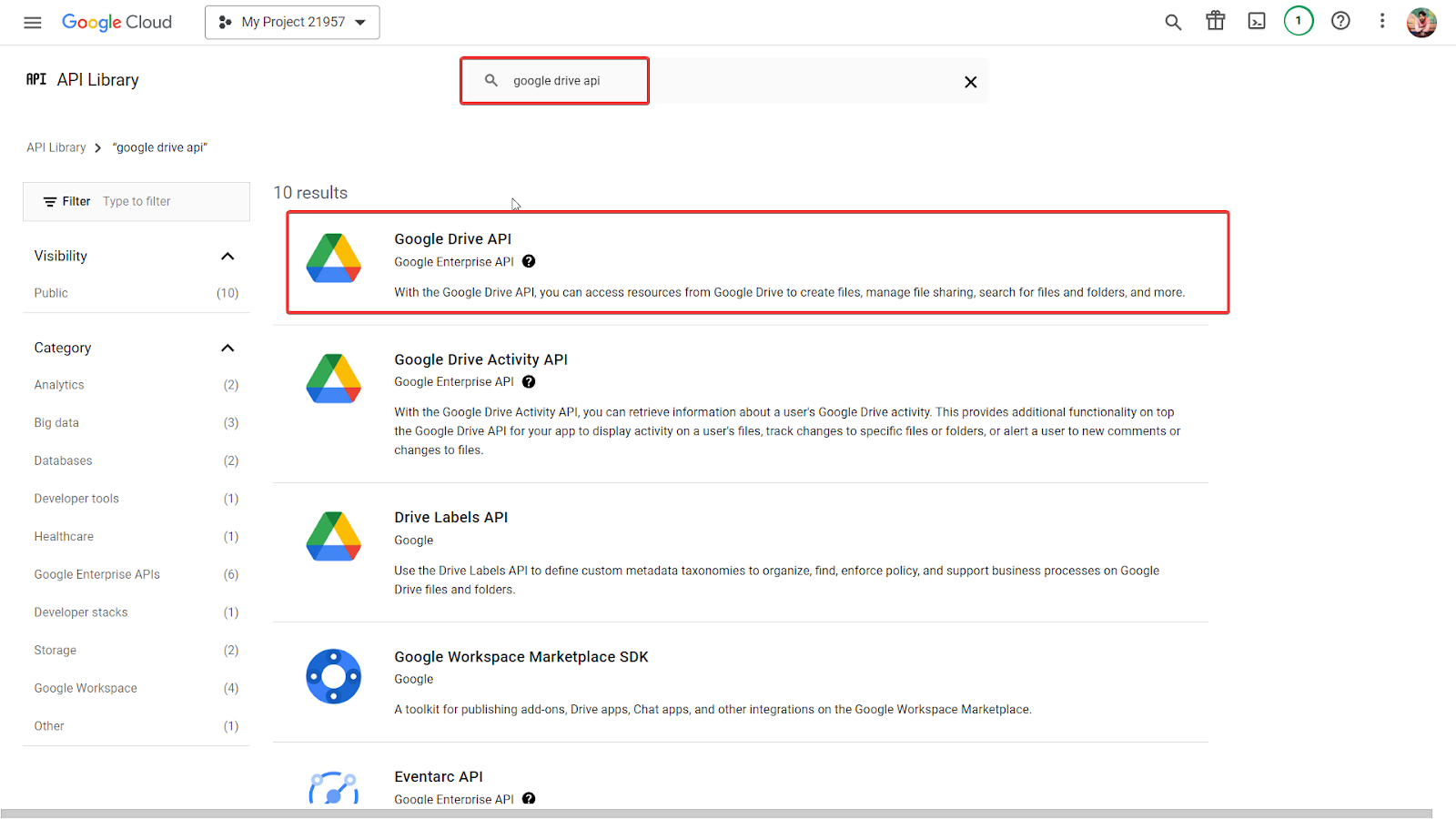
- Open the first option, Google Drive API.
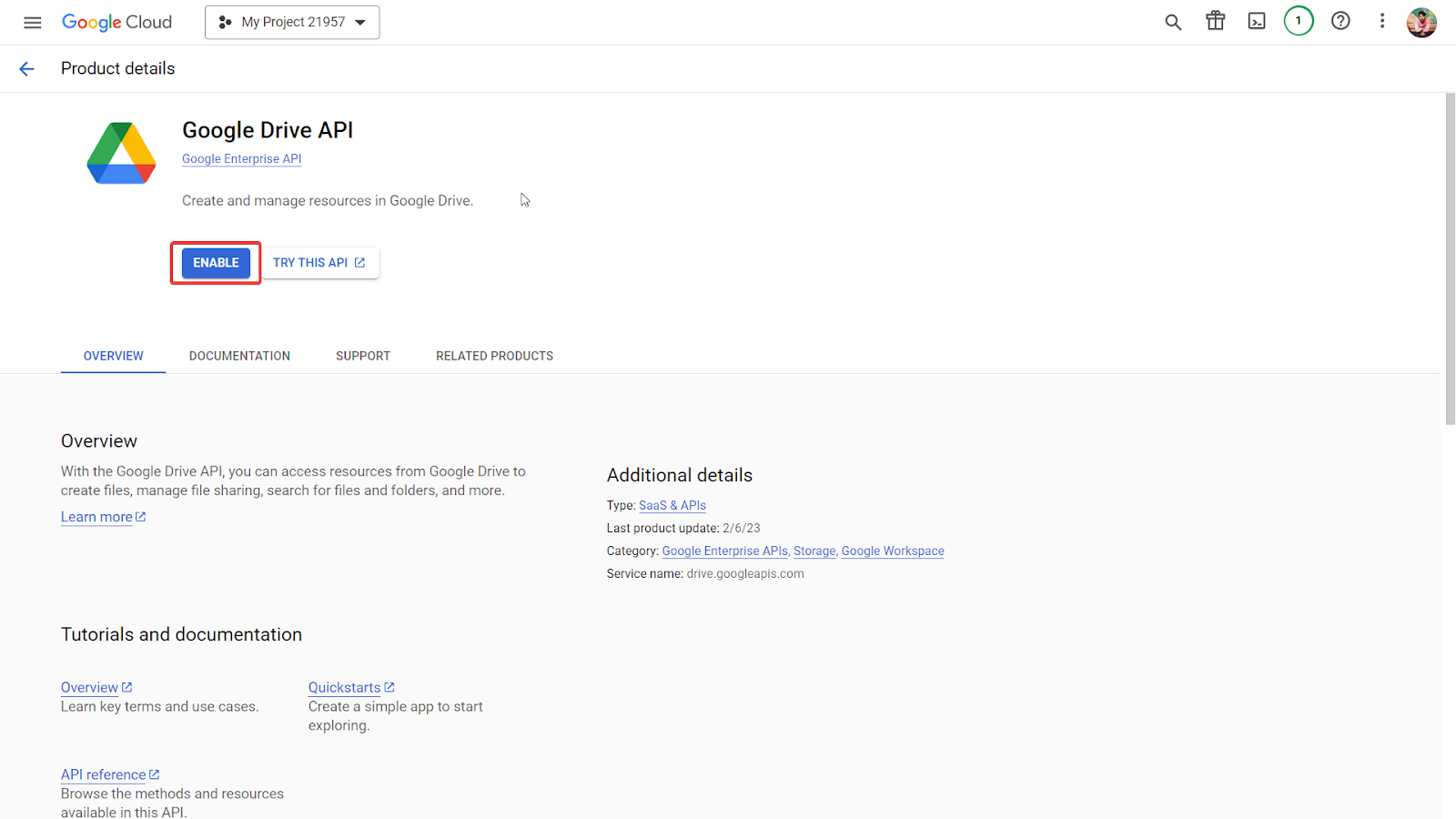
- Enable the Google Drive API by clicking the ENABLE button.
Step 3: Create a Service Account
- Navigate to "APIs & Services" > "Credentials."
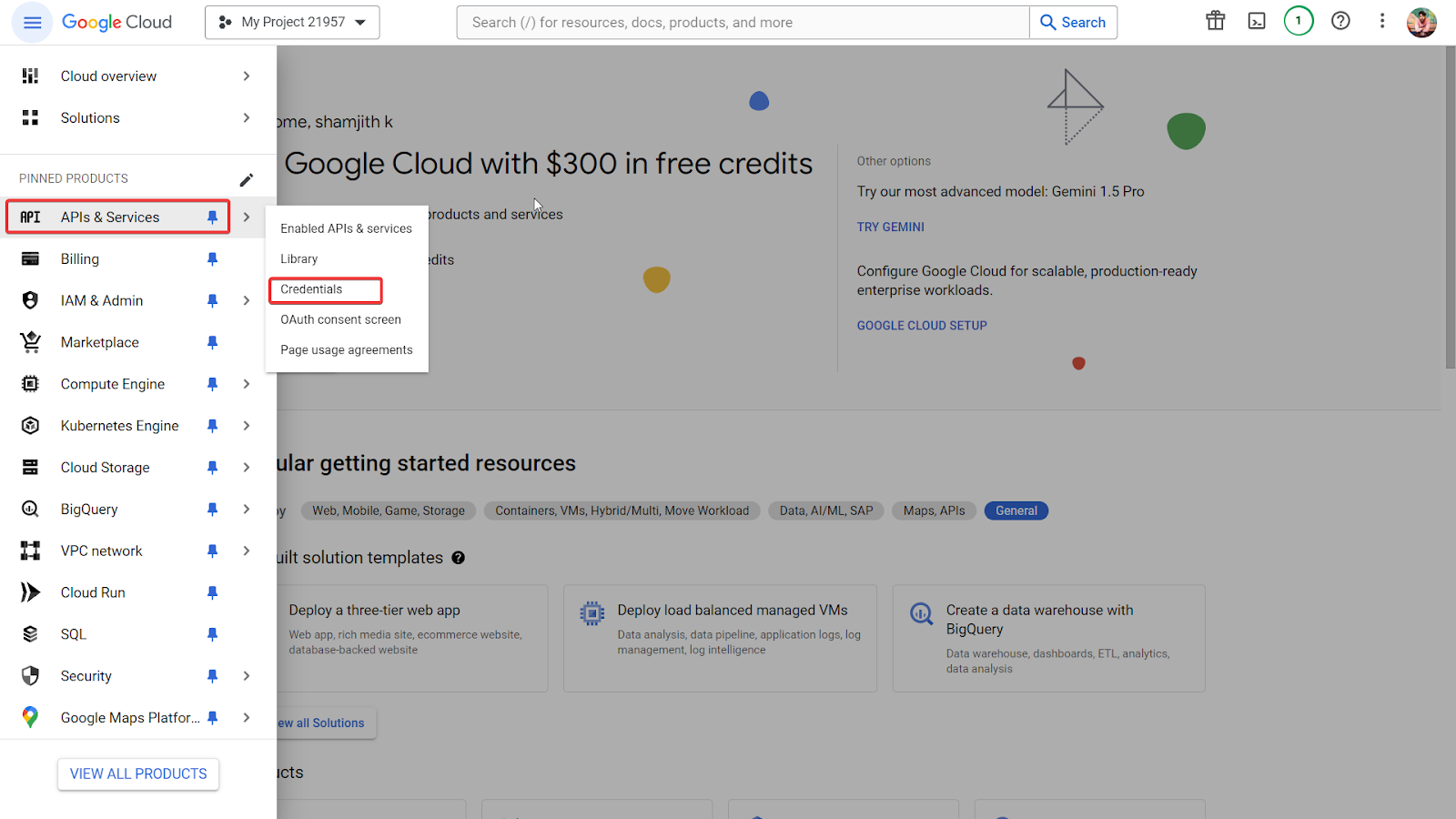
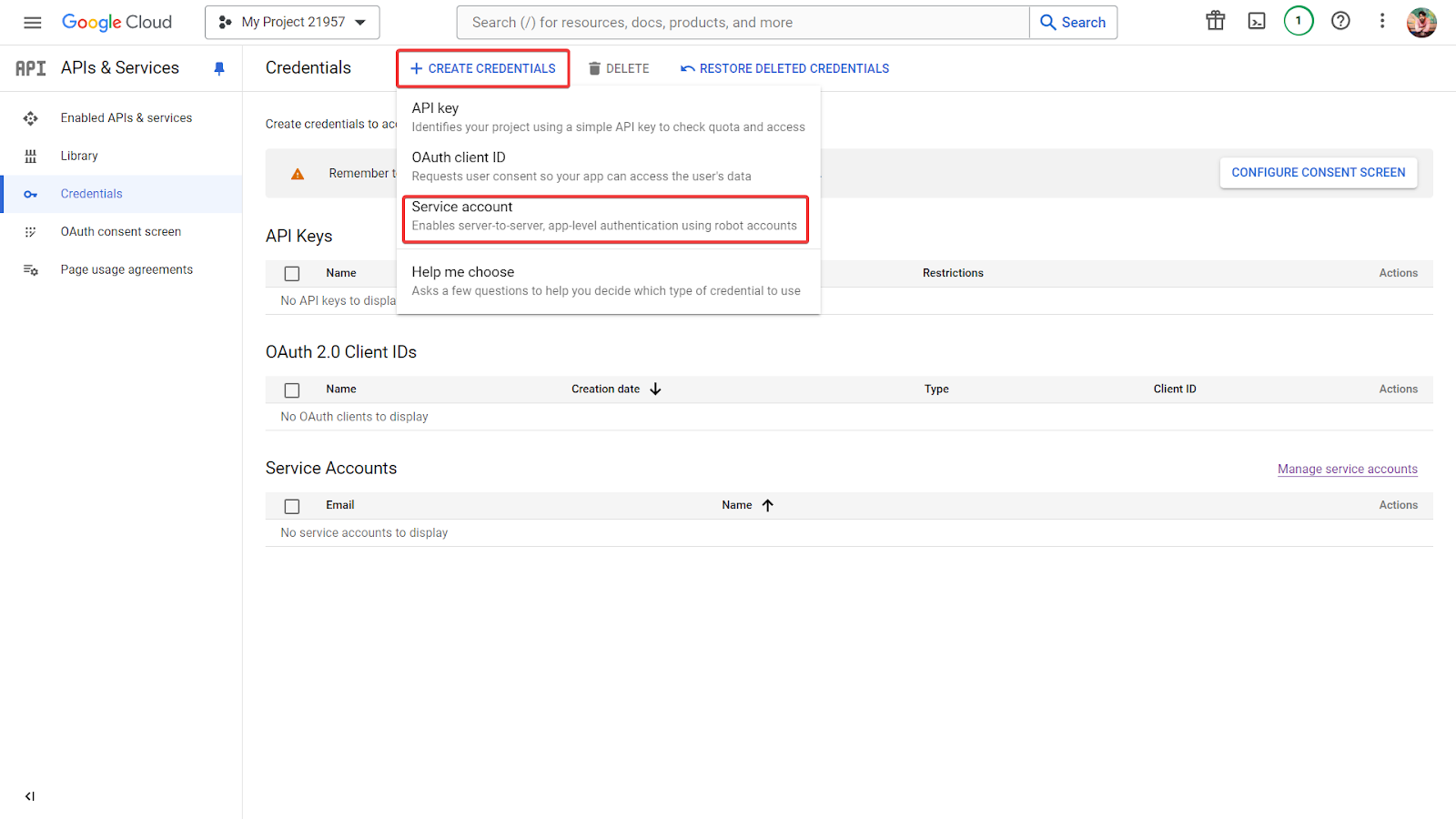
- Click on "Create Credentials" and select "Service Account."
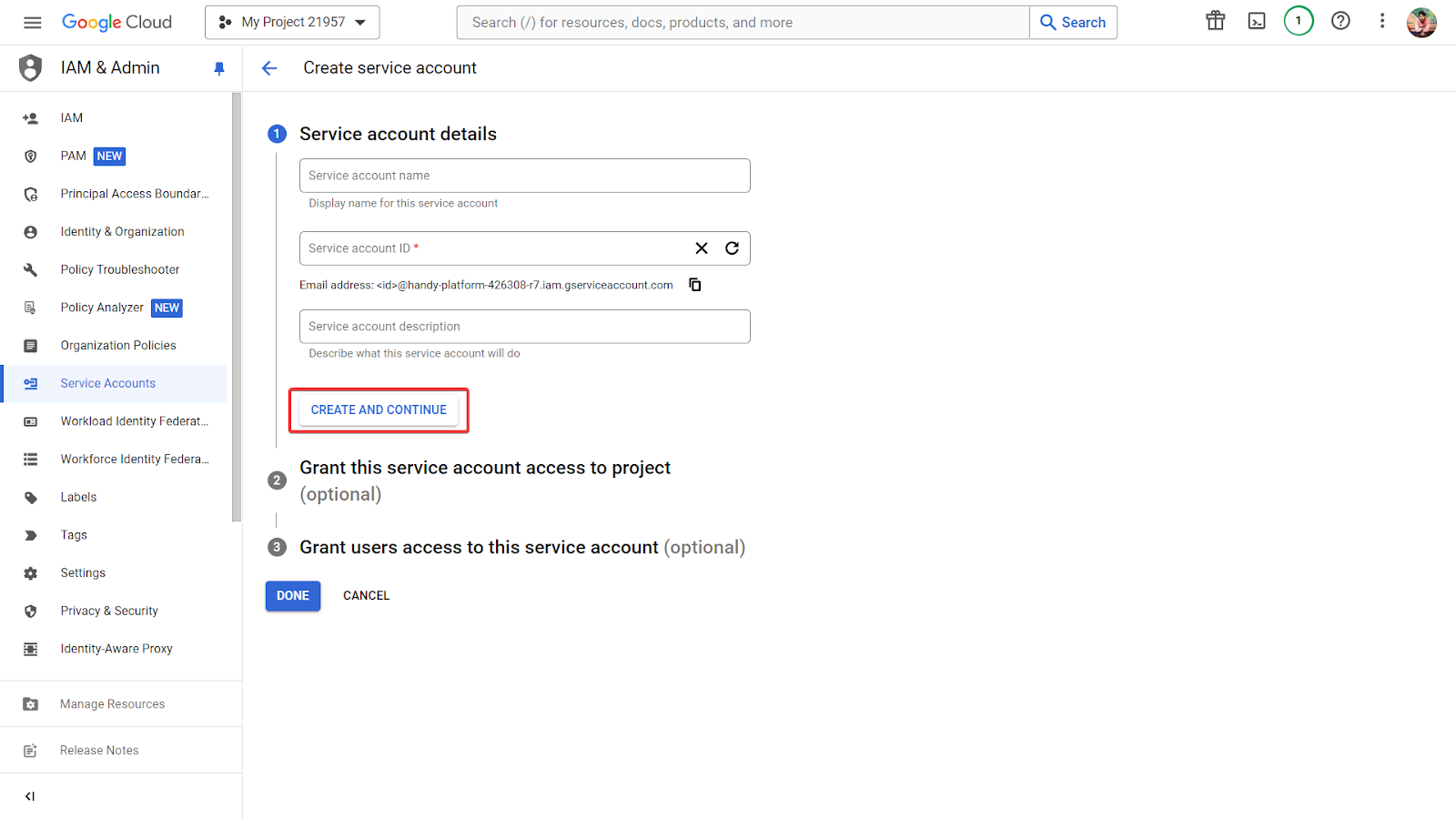
- Fill in the service account details:
- Service account name: [Your Service Account Name]
- Service account ID: [auto-generated]
- Service account description: [Description]
- Click "Create and Continue."
Step 4: Grant Permissions to the Service Account
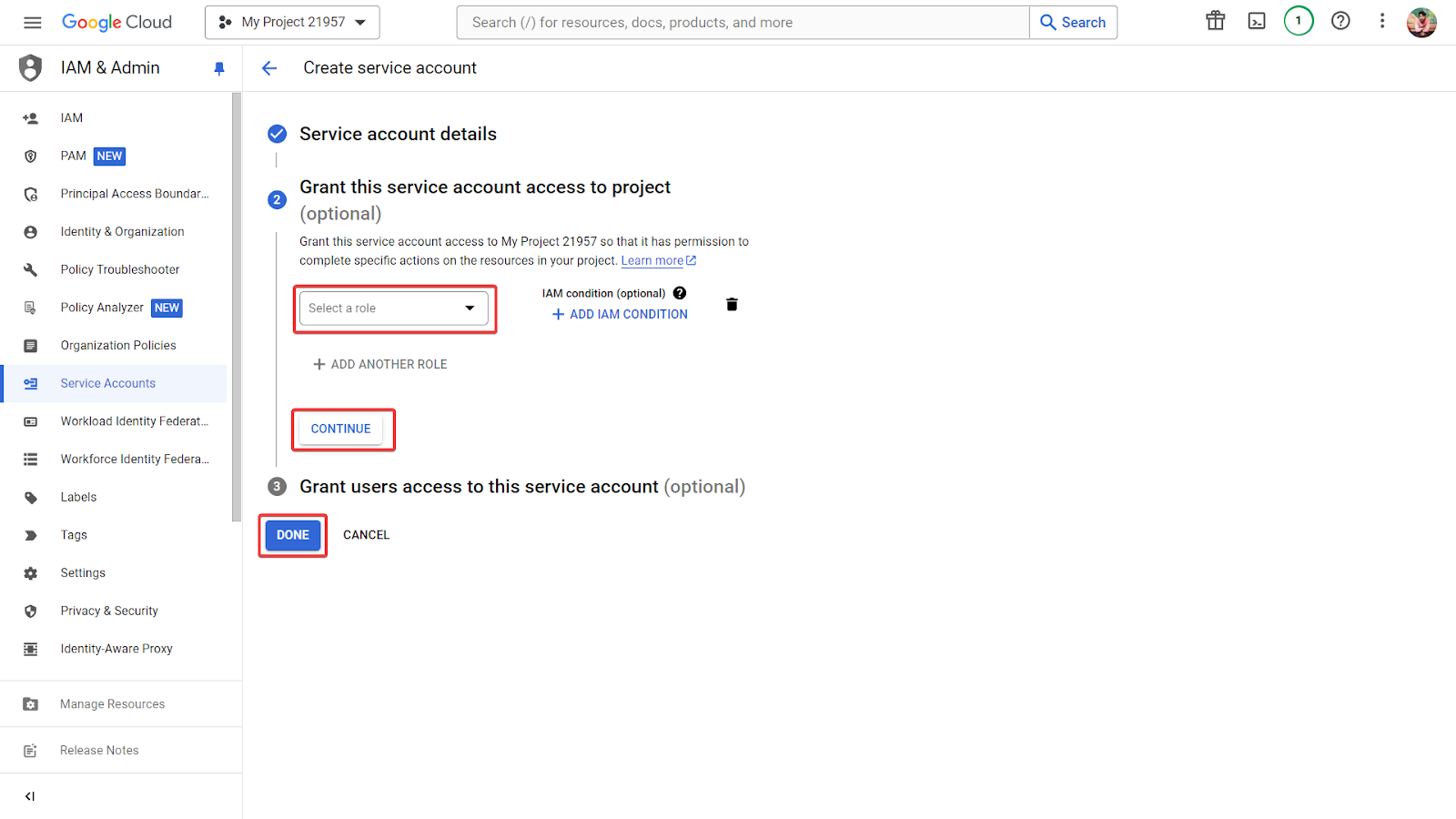
- In the "Grant this service account access to project" section, assign the necessary roles (e.g., Viewer, Editor, specific API roles).
- Click "Continue."
Step 5: Create a JSON Key
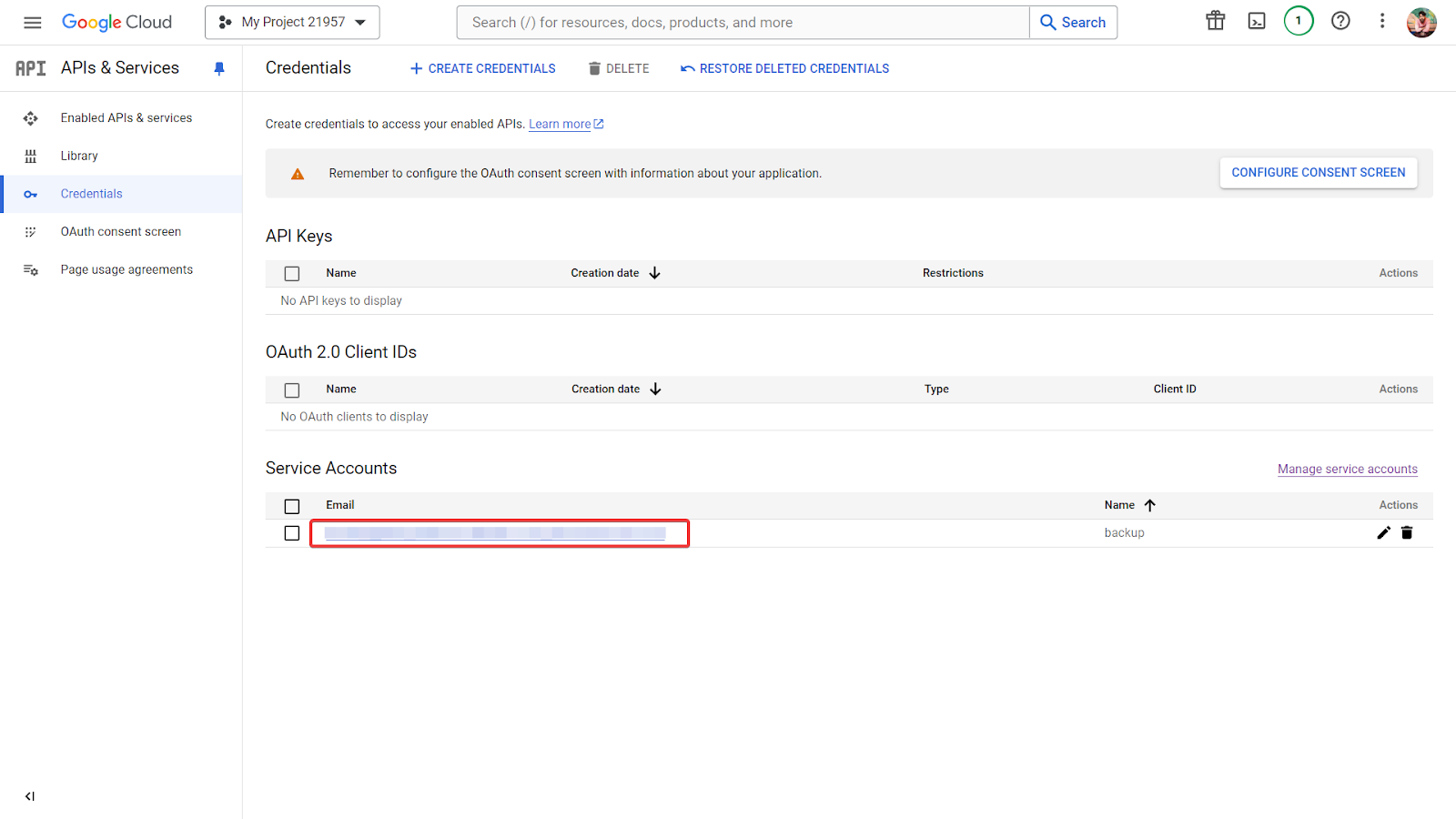
- Click to open the newly created service account in the service account section.
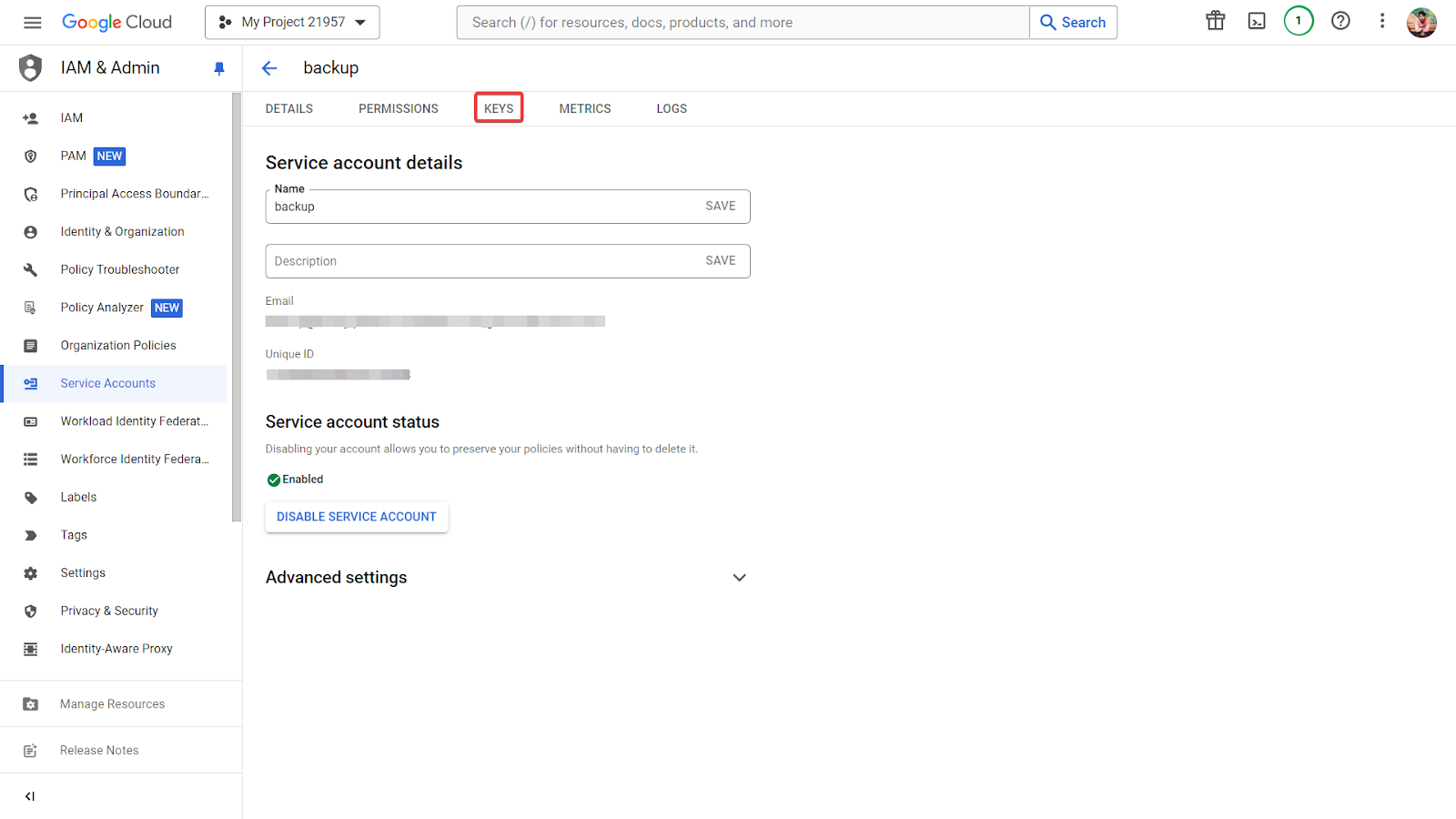
- In the "Create Key" section, click "Create Key."
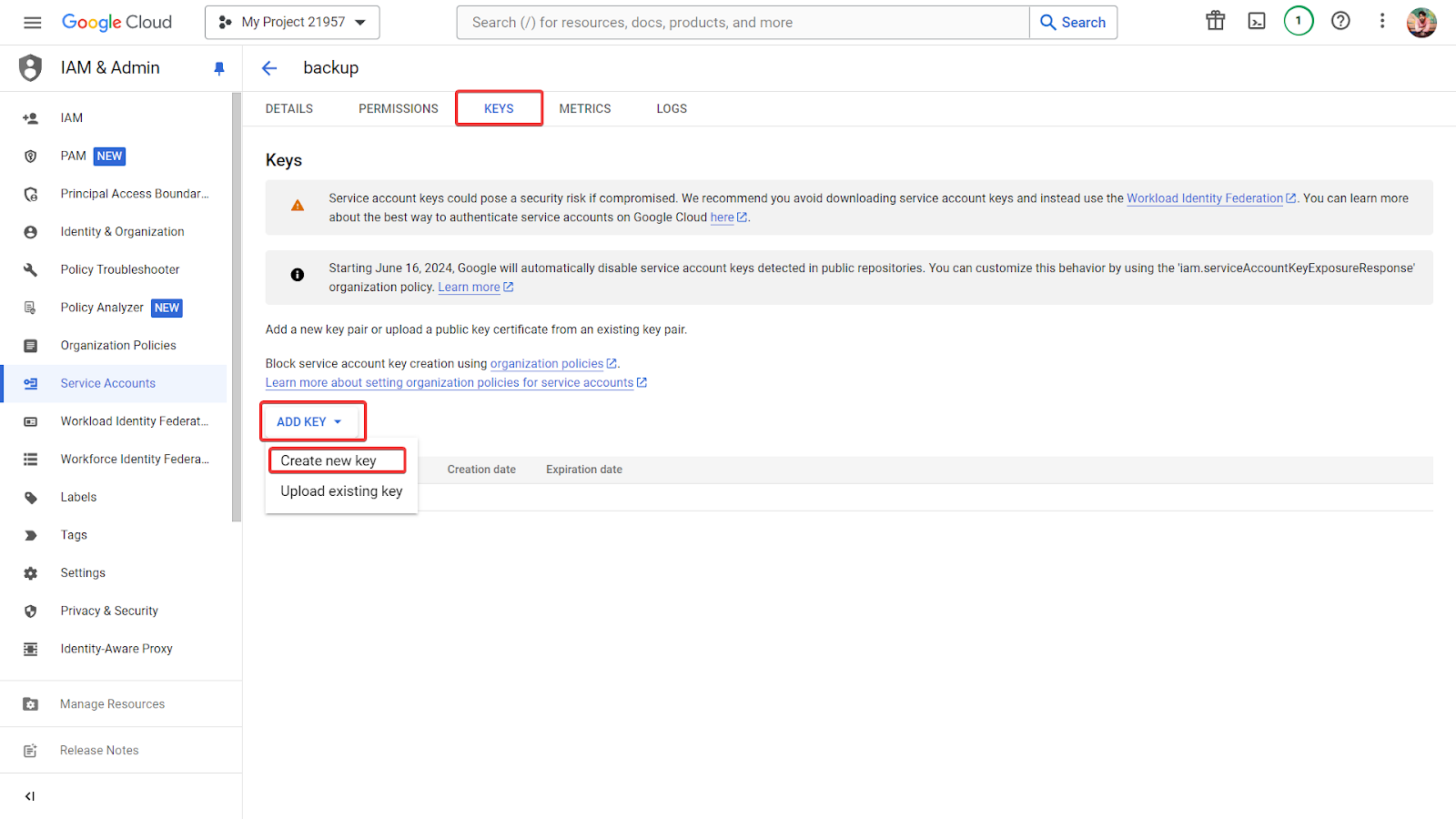
- Select "JSON" and click "Create."
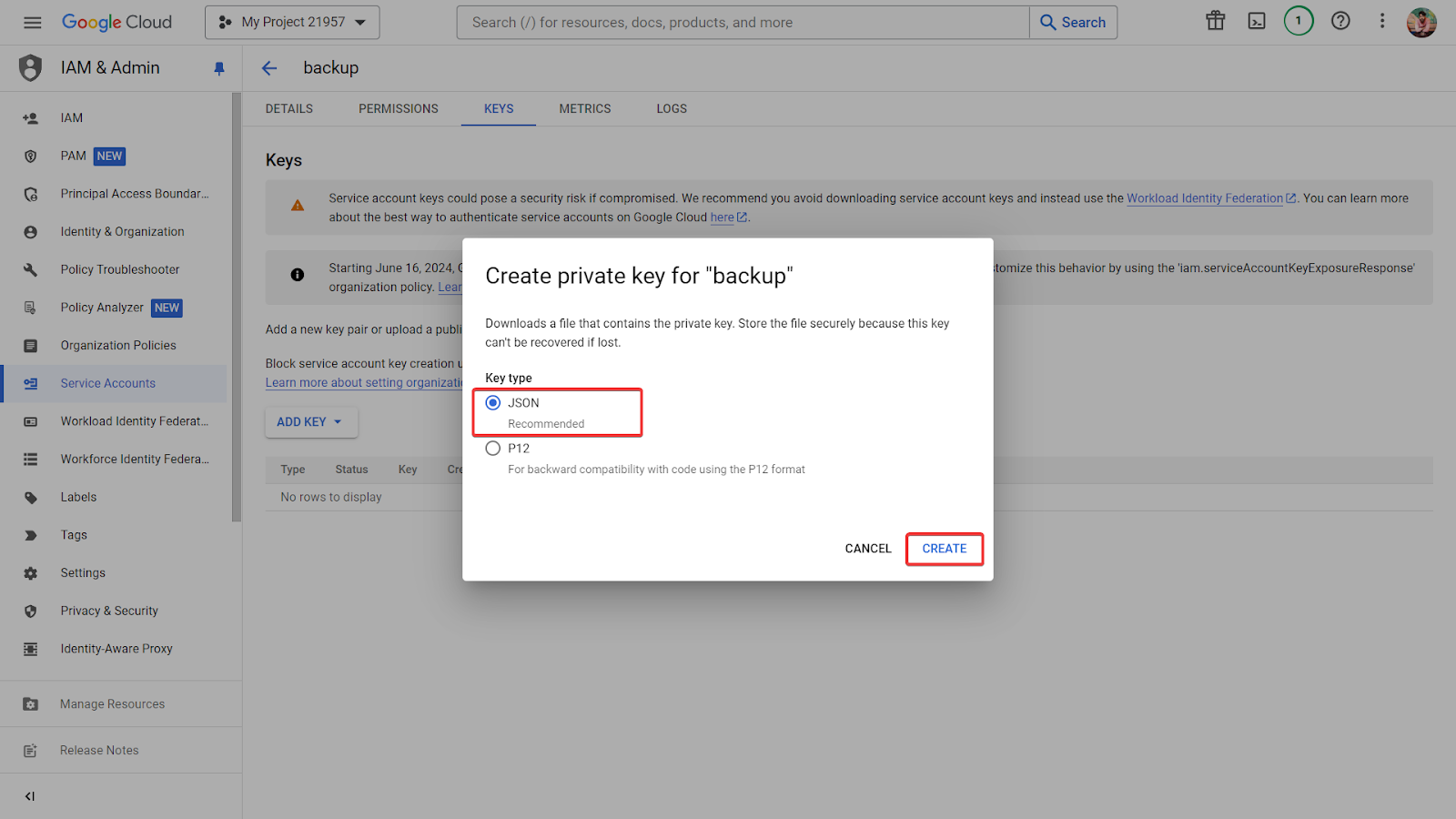
- The JSON key file will be downloaded automatically to your computer.
Example of JSON Key File
The JSON file will look something like this:
json
{
  "type": "service_account",
  "project_id": "your-project-id",
  "private_key_id": "your-private-key-id",
  "private_key": "-----BEGIN PRIVATE KEY-----\nYOUR-PRIVATE-KEY\n-----END PRIVATE KEY-----\n",
  "client_email": "your-service-account-email@your-project-id.iam.gserviceaccount.com",
  "client_id": "your-client-id",
  "auth_uri": "https://accounts.google.com/o/oauth2/auth",
  "token_uri": "https://oauth2.googleapis.com/token",
  "auth_provider_x509_cert_url": "https://www.googleapis.com/oauth2/v1/certs",
  "client_x509_cert_url": "https://www.googleapis.com/robot/v1/metadata/x509/your-service-account-email%40your-project-id.iam.gserviceaccount.com"
}
Share Google Drive Folder
- Log in to Google Drive with the Google account that owns the folder where you want to back up the files.
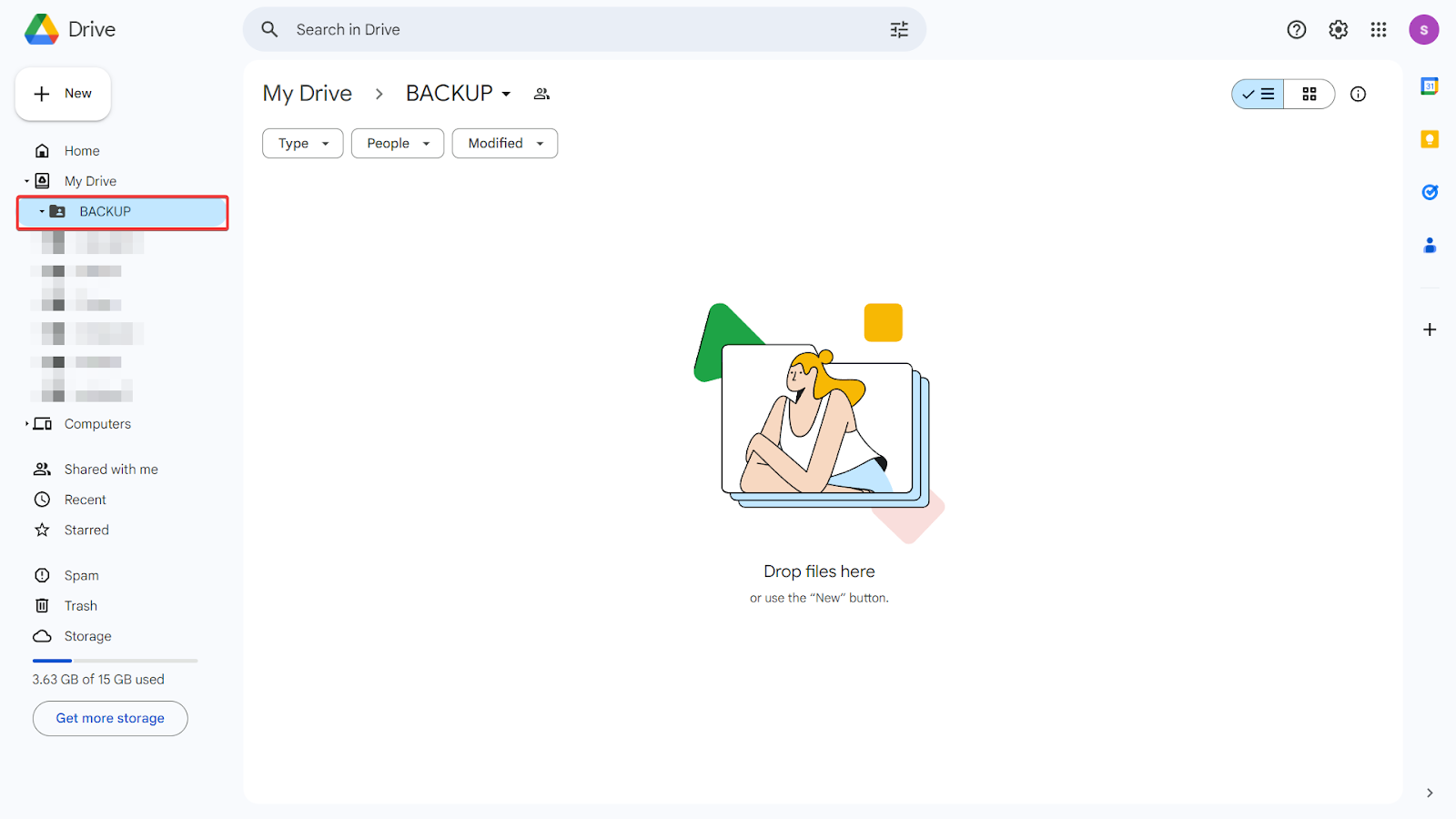
- Right-click on the folder and select "Share".
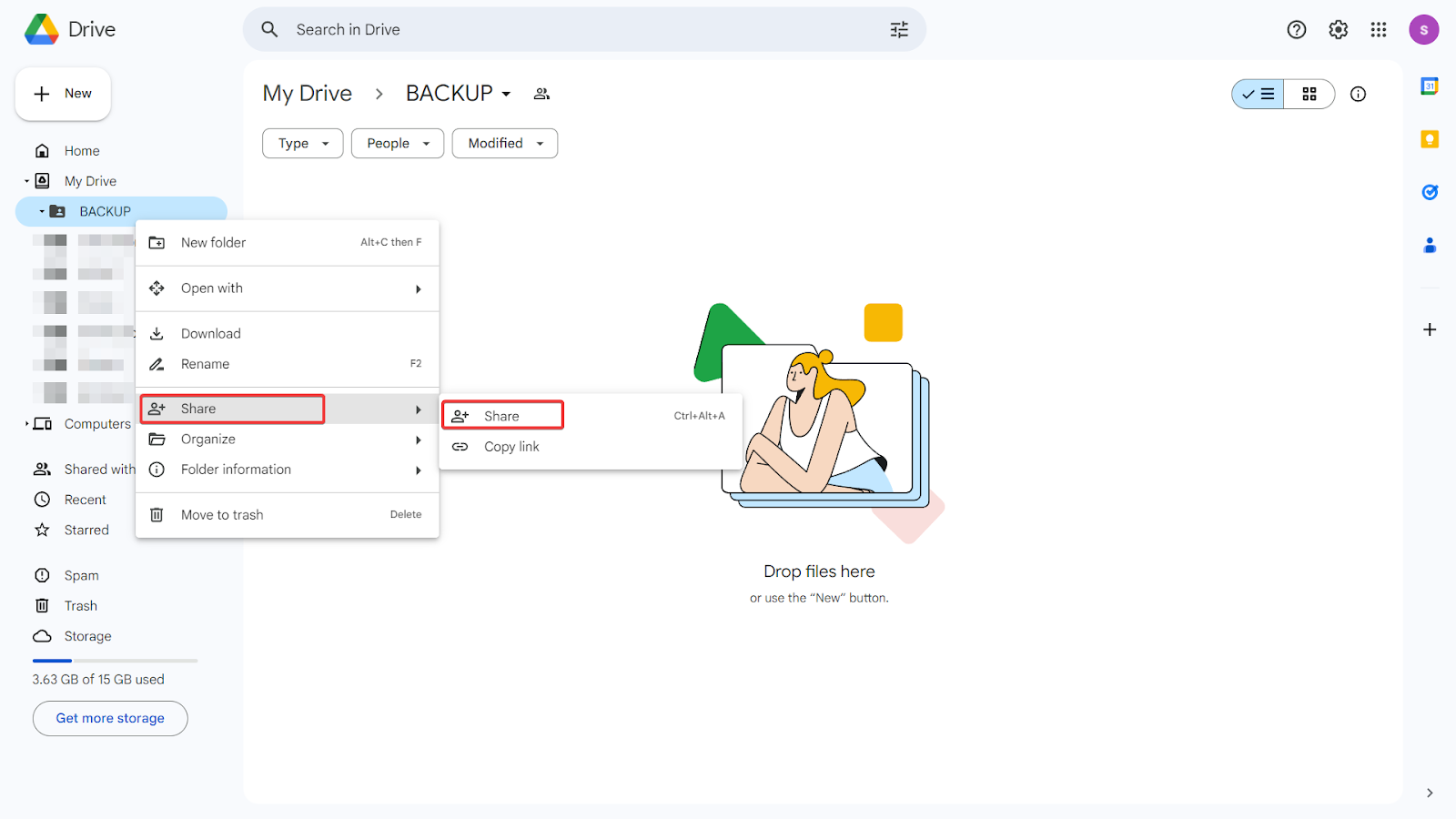
- In the sharing settings, enter the email address associated with the service account. By default, this will look like
your-service-account-name@your-project-id.iam.gserviceaccount.com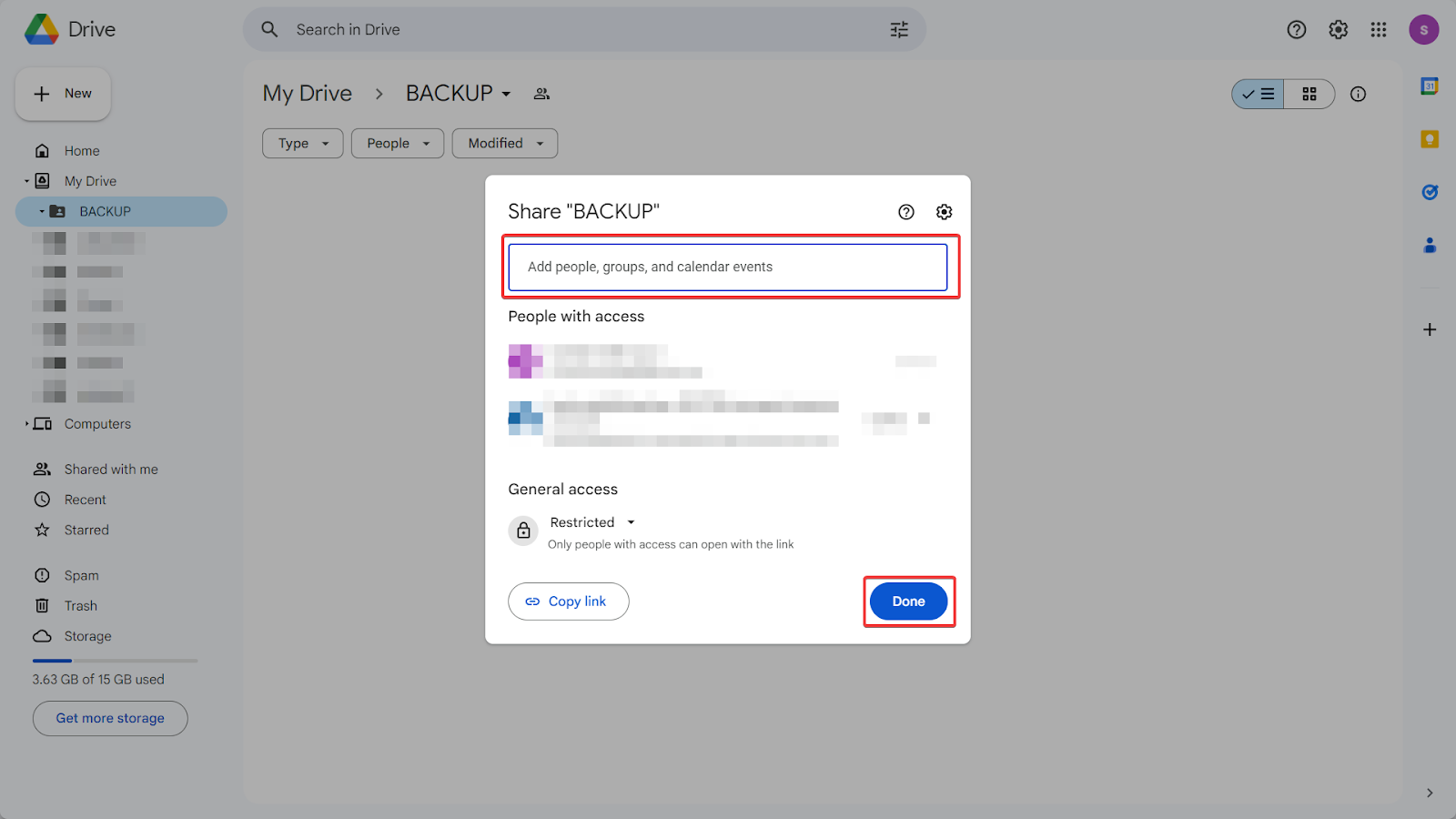
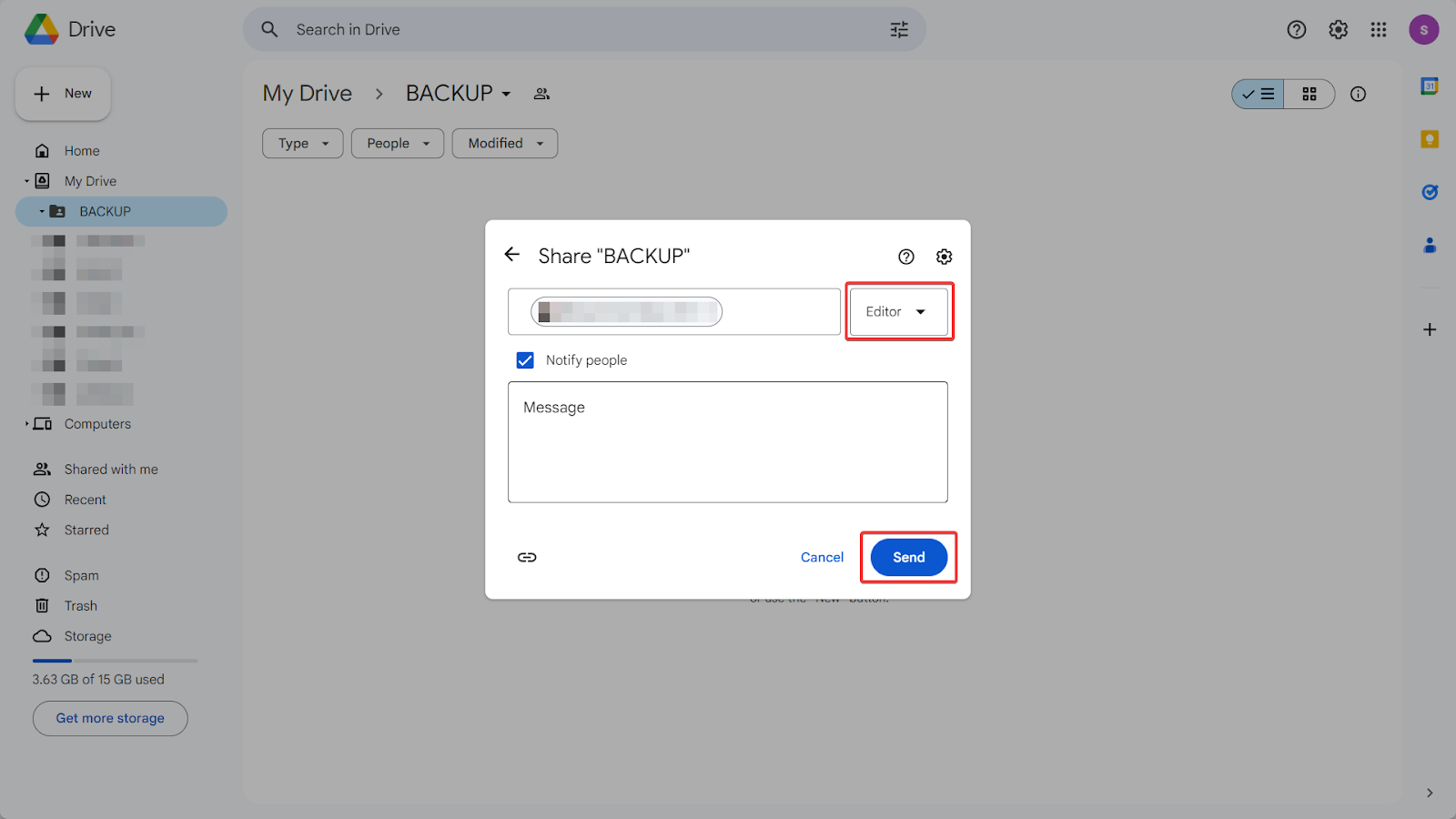
- Set the permissions (e.g., Viewer, Editor) for the service account as needed.
- Click "Send" to share the folder or file with the service account.
Horilla Setup
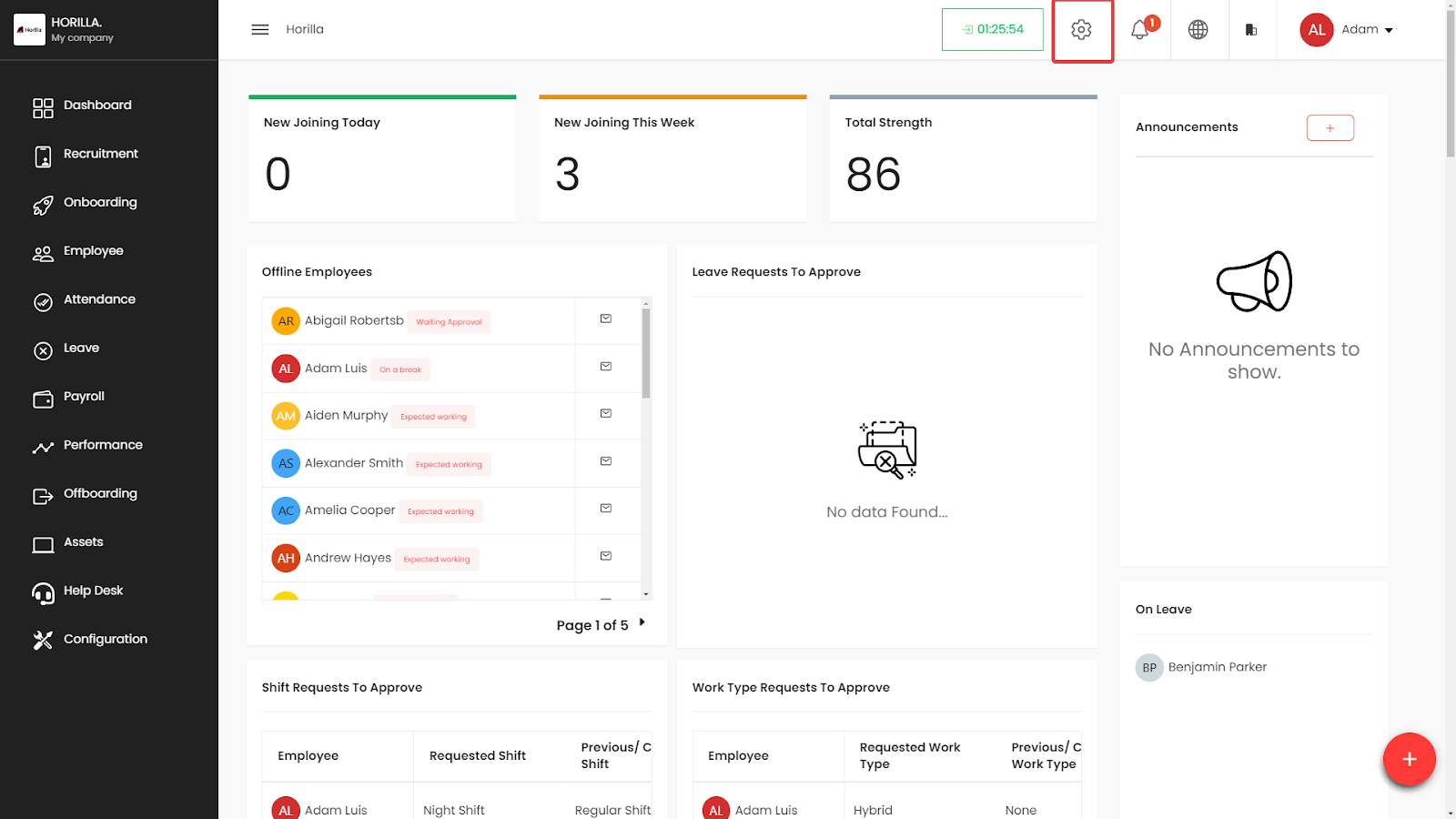
- Navigate to Horilla Settings:
- Open the Horilla application or web interface.
- Go to the settings menu, usually found in the top right corner.
- General Settings:
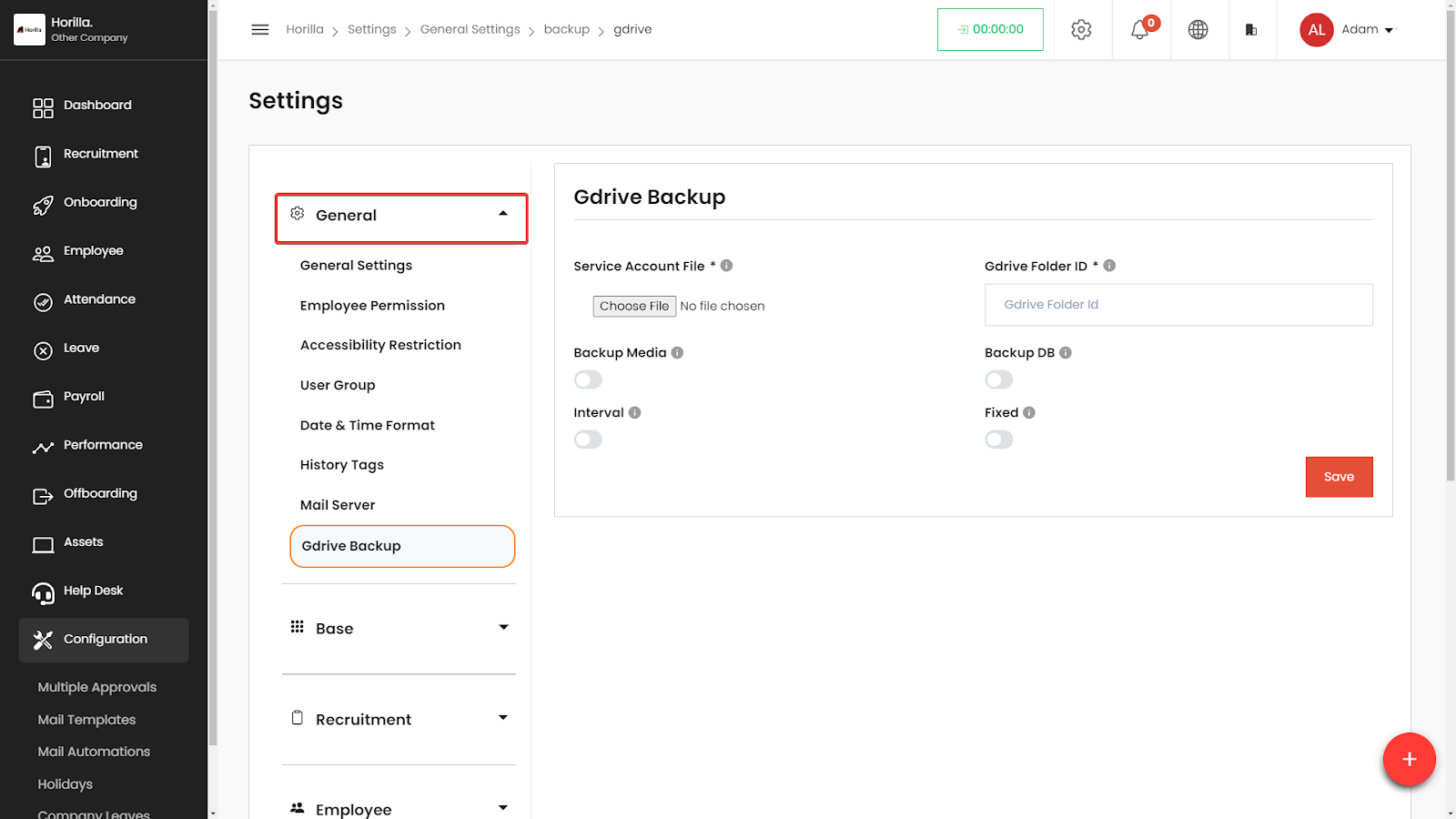
- Within the settings menu, find and select "General.”
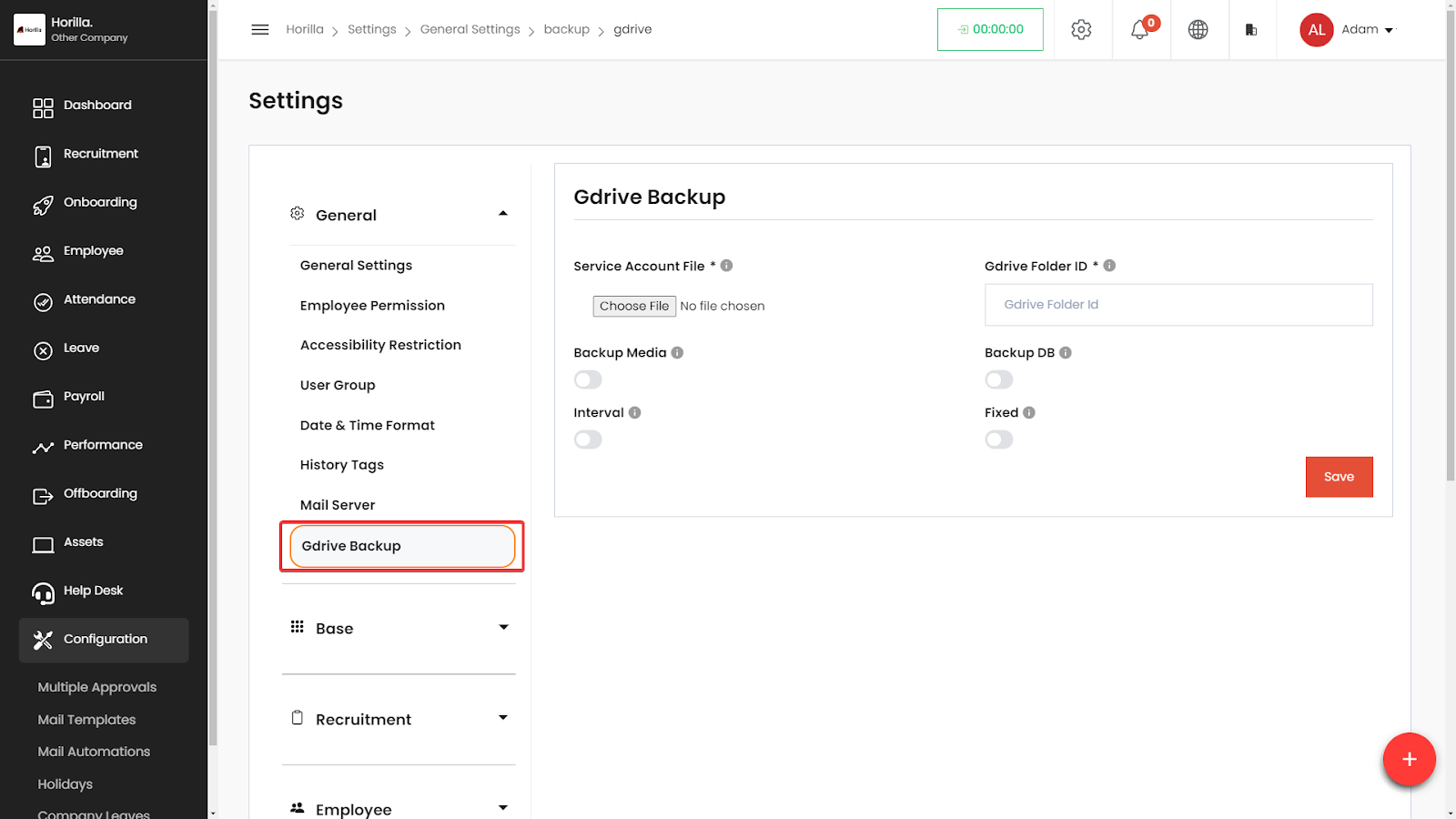
- Drive Backup Settings:
- Locate the "Gdrive Backup" section within the General.
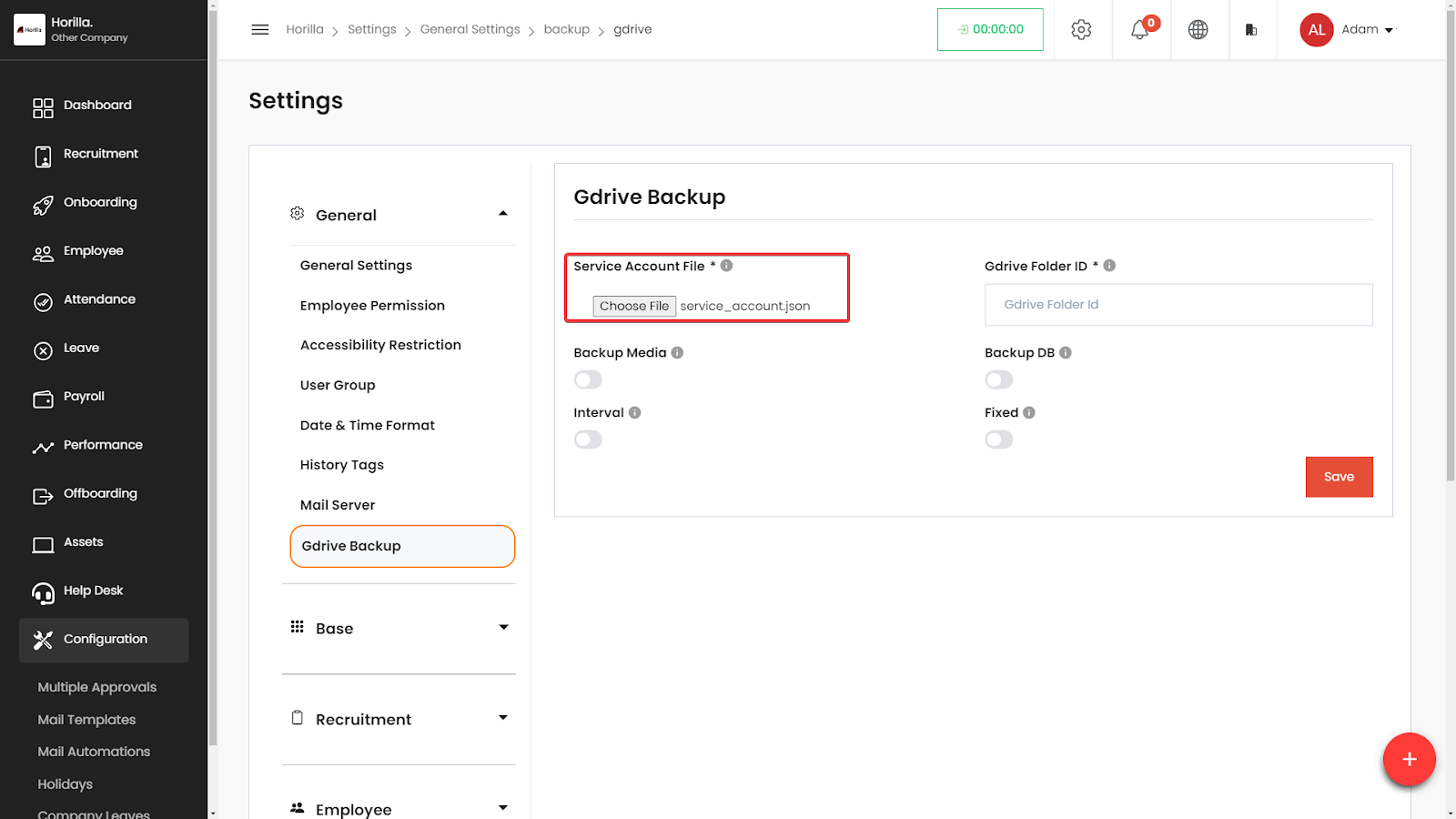
- Add Google Service Account JSON:
- Find the field labeled "Service Account File."
- Click on the field or a "Browse" button next to it.
- Upload the Google service account JSON file to this field. This file typically has a .json extension and contains credentials for your Google service account.
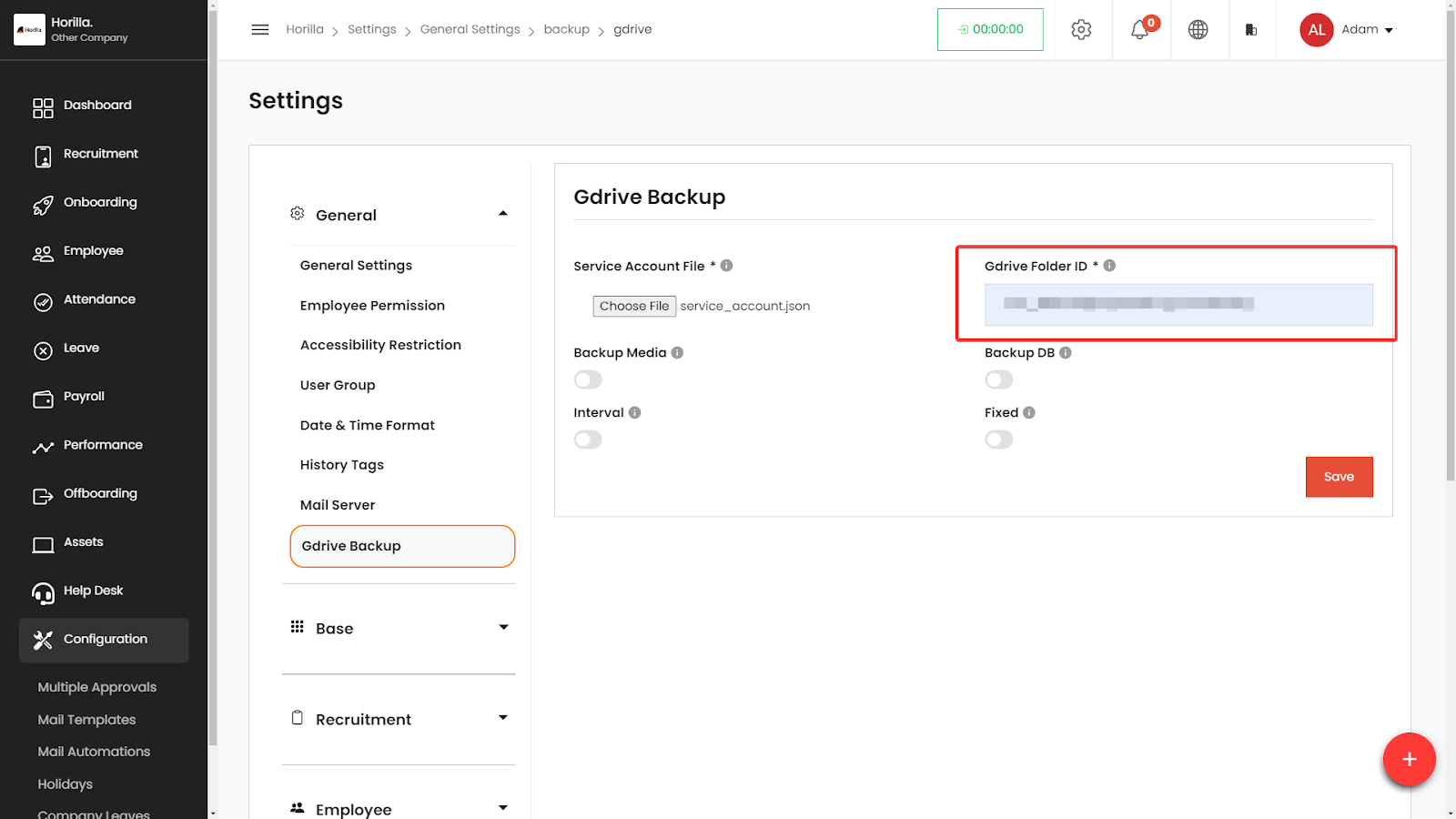
- Add Shared Google Drive Folder ID:
- Locate the field labeled "Gdrive Folder ID."
- Enter the ID of the shared Google Drive folder where you want backups to be stored. This ID can be found in the URL of the Google Drive folder.
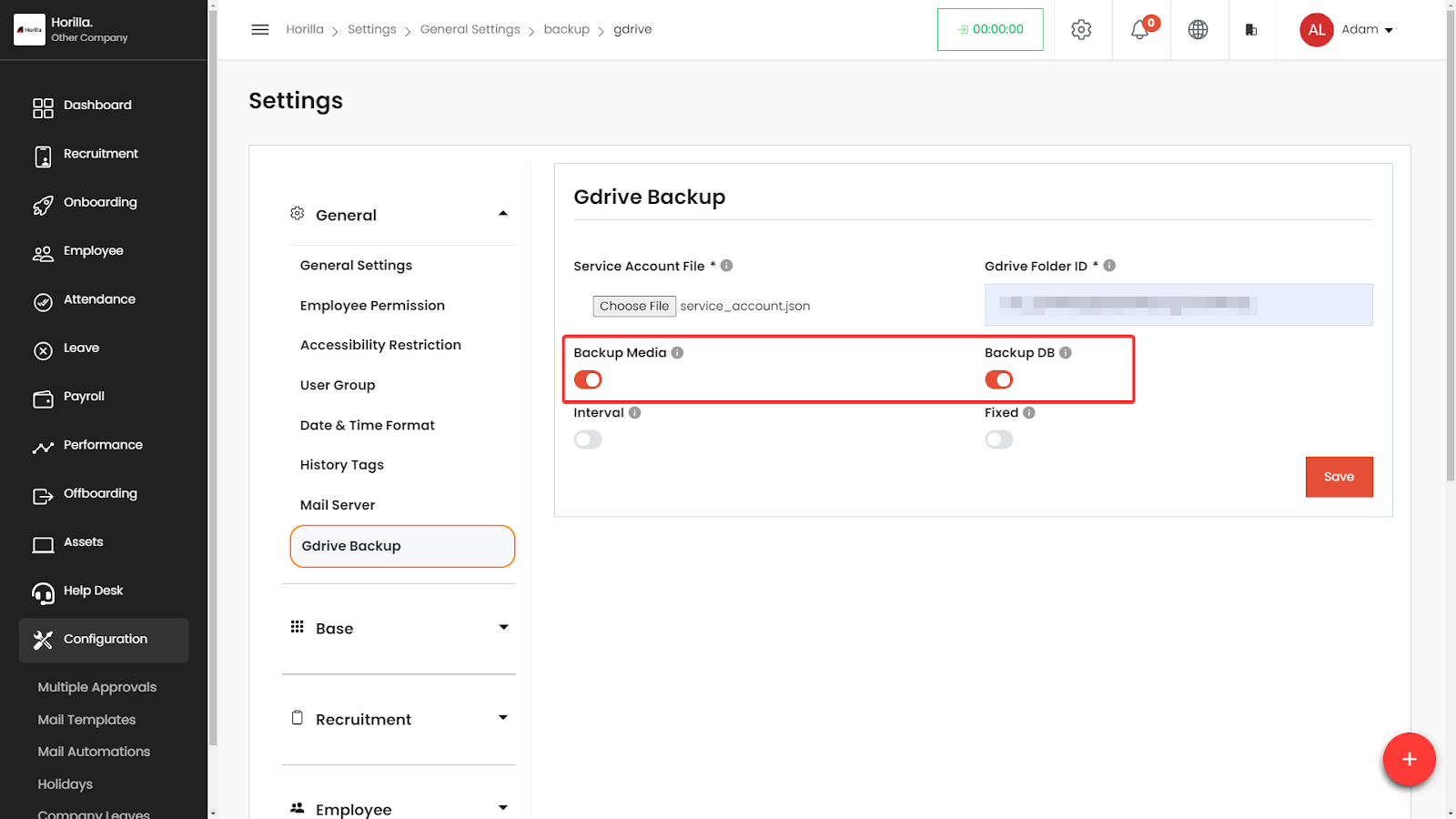
- Enable Backup Options:
- Look for "DB Backup" and "DB Media."
- Enable one or both of these options depending on your backup needs. "DB Backup" typically refers to database backups, while "DB Media" refers to media files.
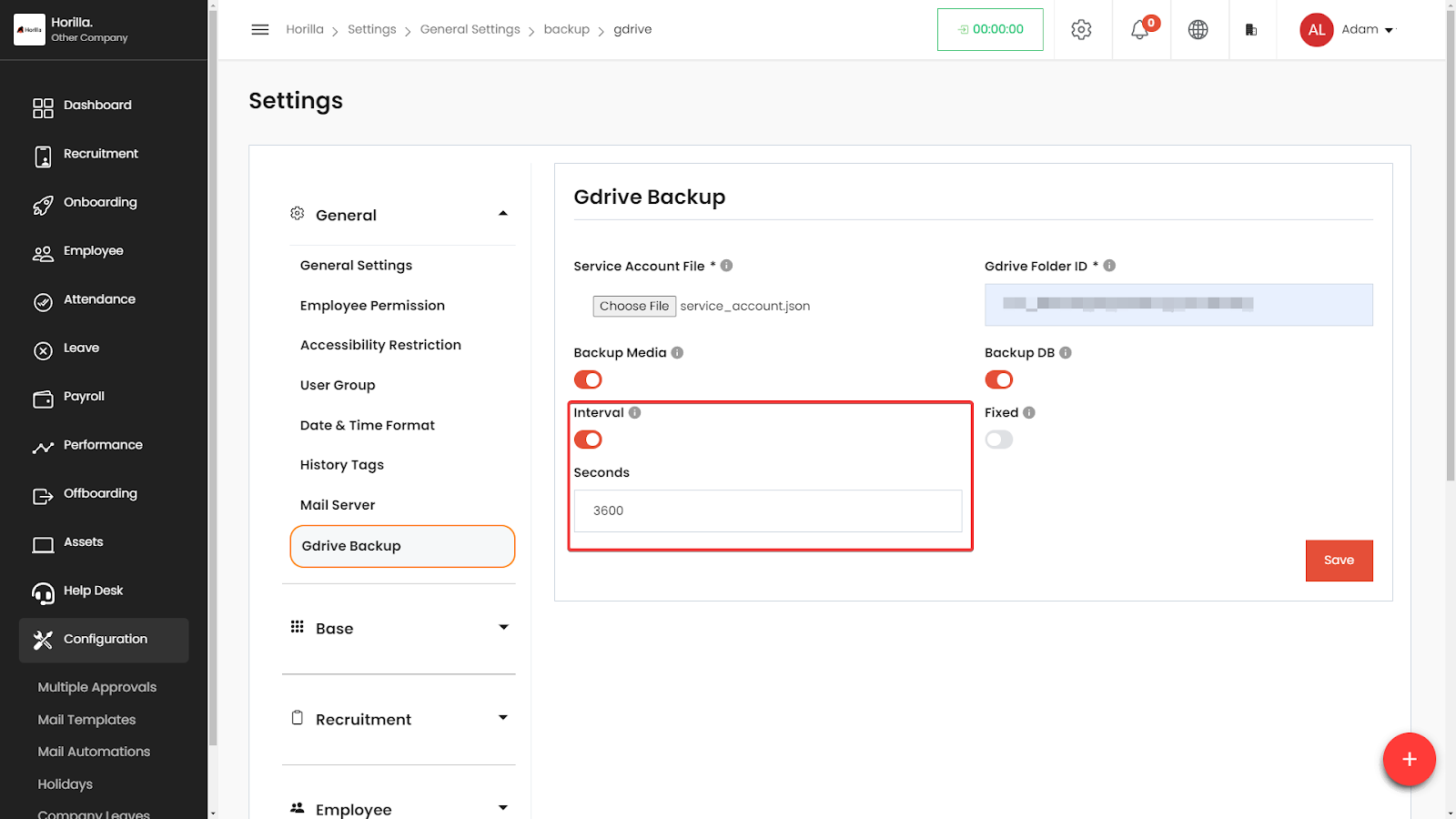
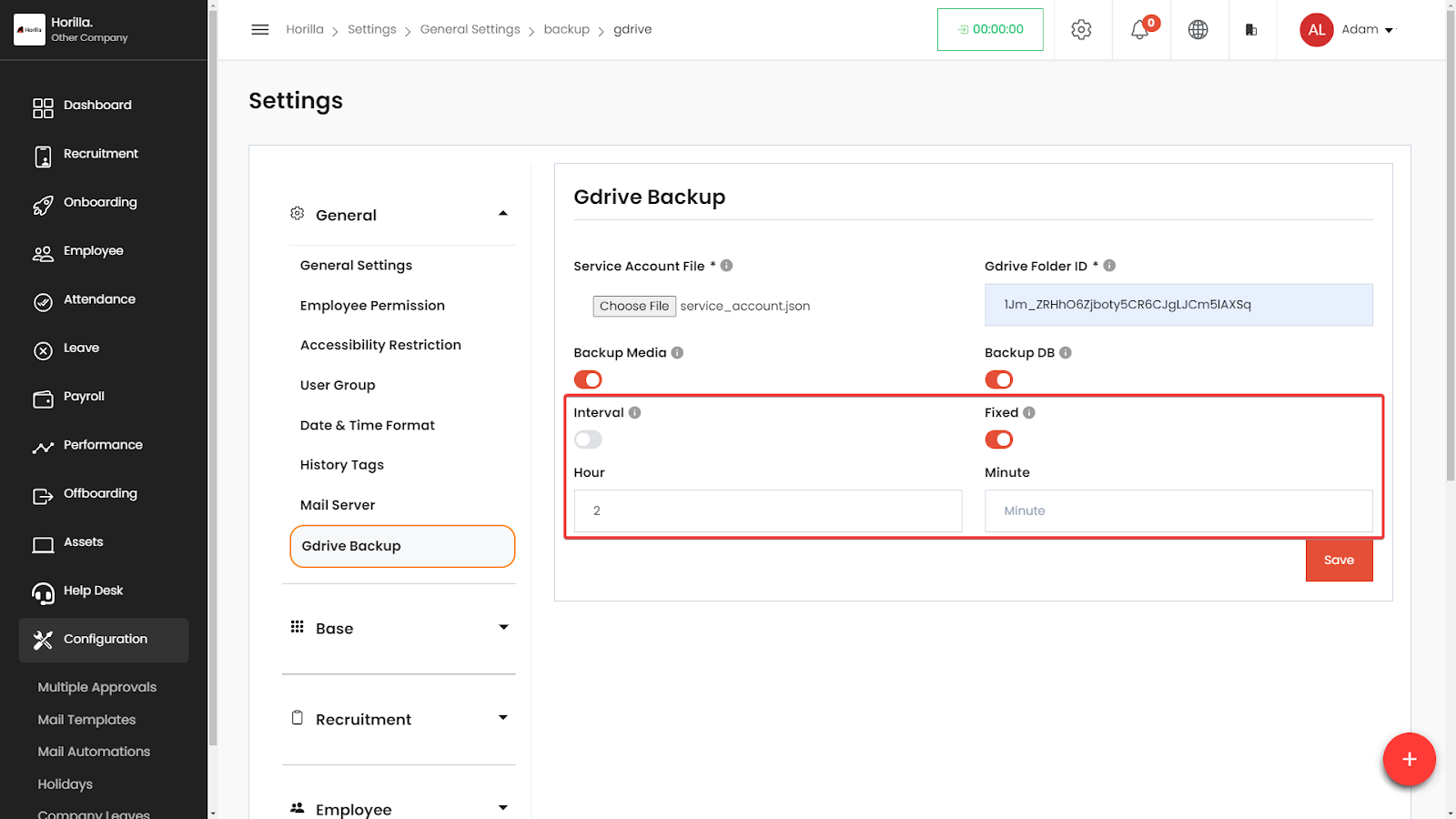
- Set Interval or Fixed Time for Automated Backup:
- If you choose "Interval":
- Specify the number of seconds between each backup. For example, enter 3600 for hourly backups.
- If you choose "Fixed":
- Specify the hour and minute for the daily backup in a 24-hour format. For example, enter 02:00 for a backup at 2:00 AM every day.
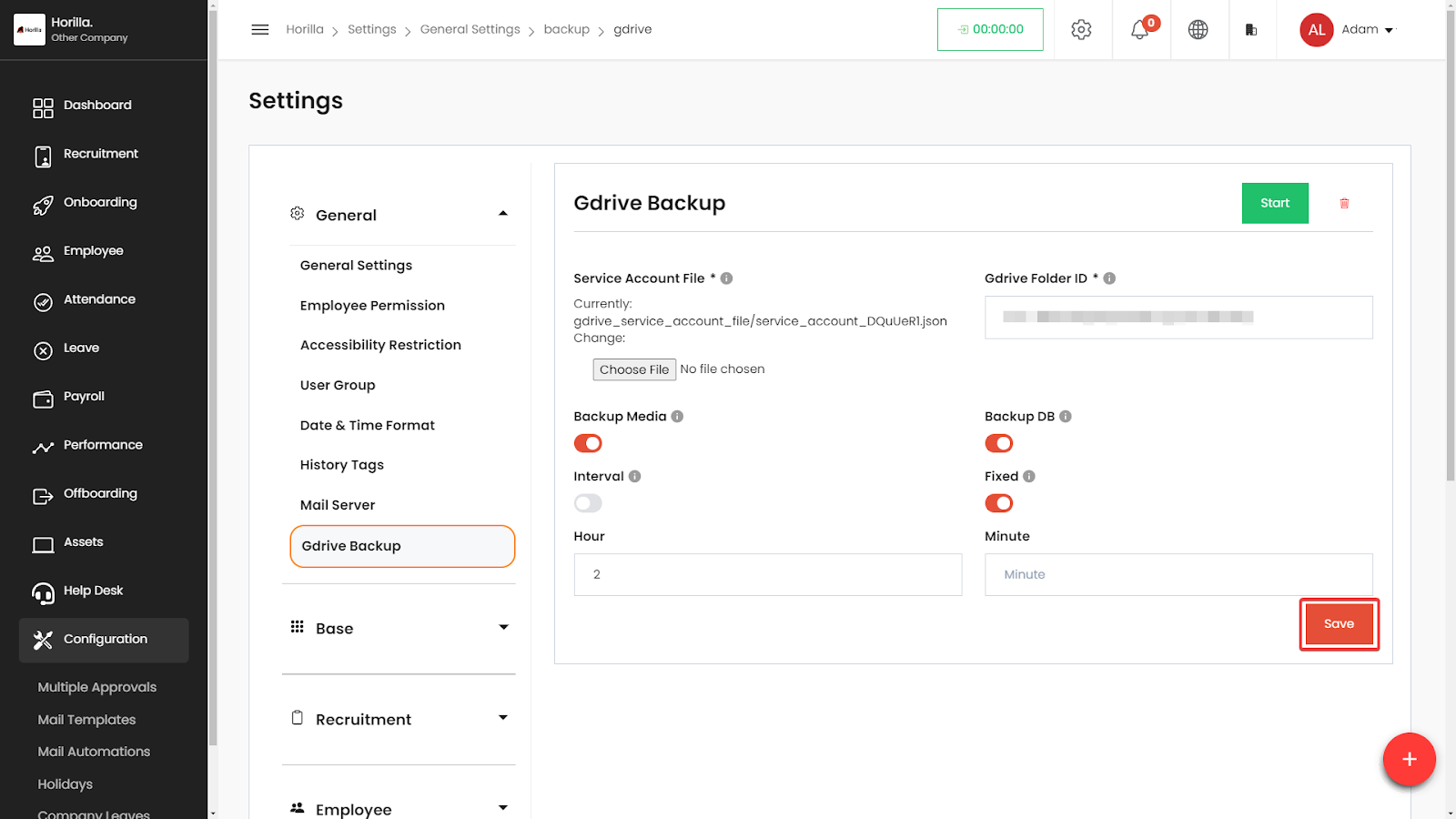
- Save Settings:
- After configuring the settings, make sure to save your changes. A "Save" button is typically at the bottom of the setup form.
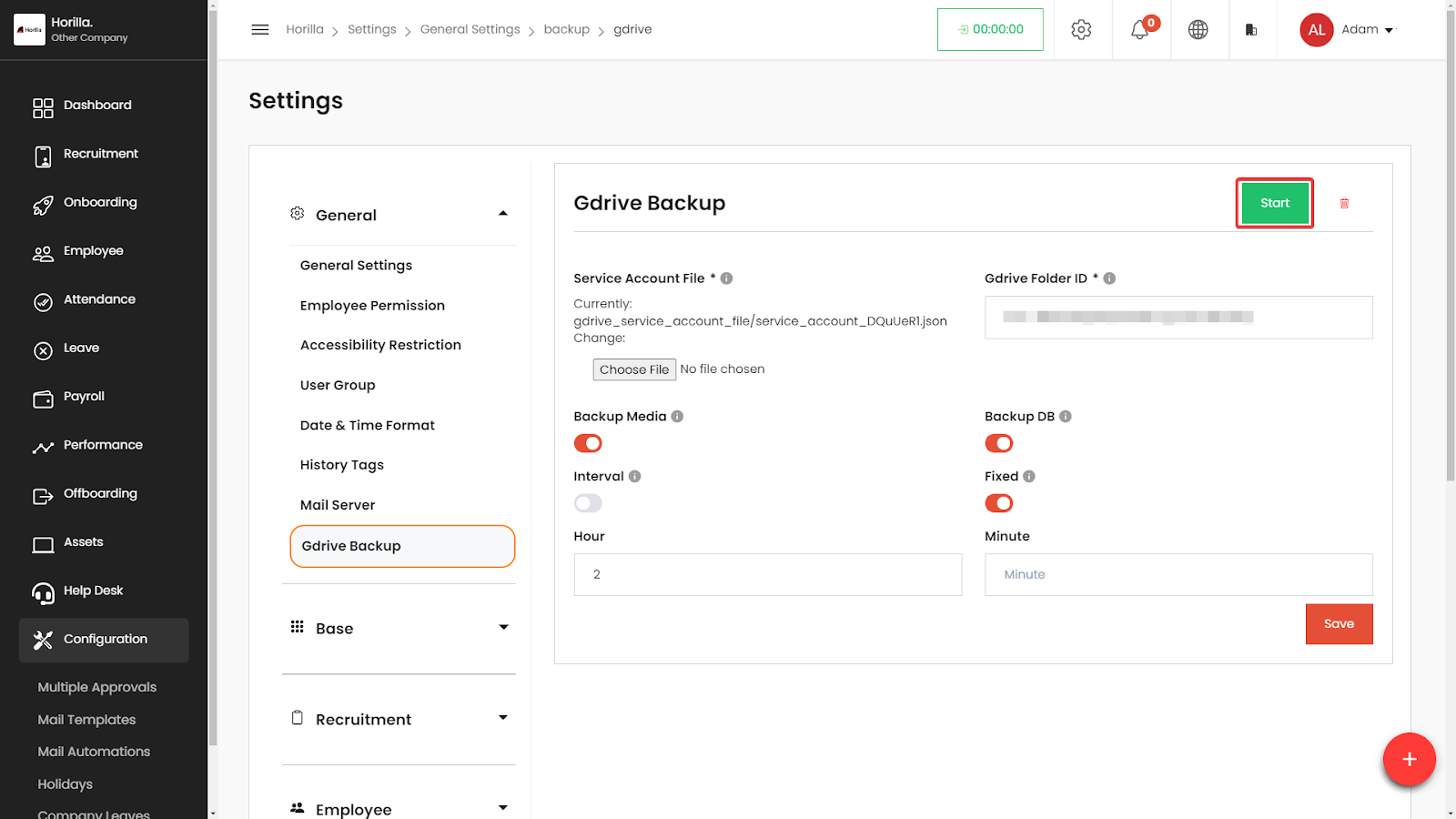
- Start Backup Automation:
- In the top right corner of the settings page, locate the "Start" button.
- Click this button to initiate the backup automation process. This will start the scheduled backups based on your configured settings.
In conclusion, Horilla GDrive Backup is a highly efficient and user-friendly tool for automating the backup of essential files, such as media and databases, to Google Drive. It simplifies the backup process by using a Google service account and a shared Google Drive folder, ensuring that files are backed up consistently without requiring manual intervention from the user. This feature saves time and provides peace of mind, knowing that important data is securely stored in the cloud. Horilla GDrive Backup offers reliable protection against data loss, ensuring you can always access up-to-date backups when needed. By leveraging Google's reliable cloud storage infrastructure, it guarantees both the safety and accessibility of your critical data. This makes it a perfect solution for businesses and individuals looking to automate their backup processes while ensuring data is always available for emergency recovery.