

Appearance

Reimbursement
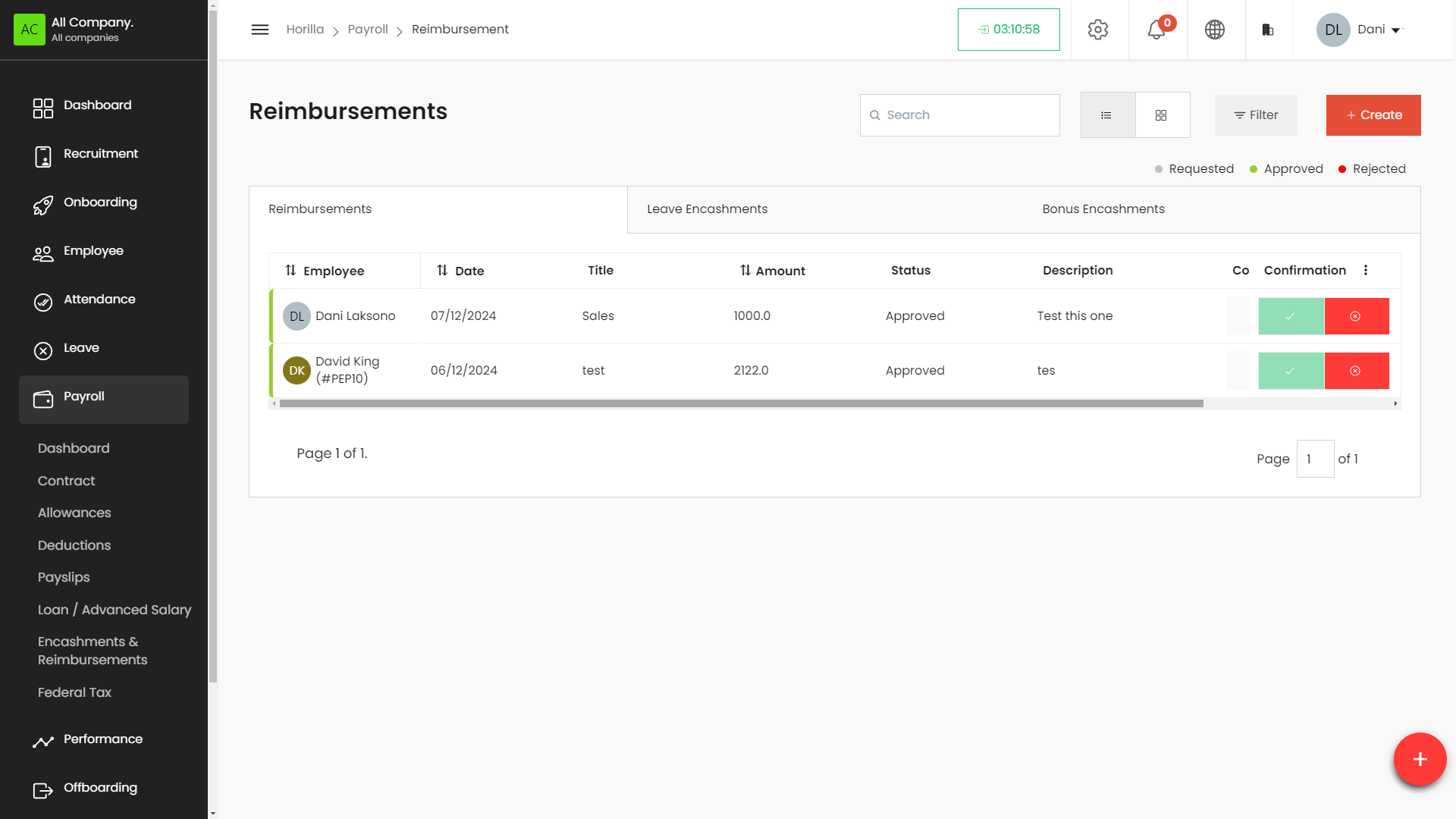 The Reimbursement, Bonus Point, and Leave Encashment sections within the Payroll module of the HRMS enable HR professionals to manage employee-related financial transactions efficiently. Users can create, view, edit, and delete records related to reimbursements, bonus points, and leave encashments, ensuring all related details are accessible and organized.
Accessing the Reimbursement Section
- Navigate to Payroll:
- On the left side menu, click on Payroll.
- Select Encashments & Reimbursements from the dropdown list.
- Switch to the Reimbursements tab.
Working with the Reimbursement Table
The Reimbursement table provides a detailed view of all defined reimbursements, with columns for:
- Title: The title or description of the reimbursement.
- Employee: The employee receiving the reimbursement.
- Amount: The total amount of the reimbursement.
- Request Date: The date when the reimbursement was requested.
- Status: Indicates whether the reimbursement is approved, pending, or rejected.
- Actions: Buttons to view, edit, or delete the reimbursement entry.
Filtering and Grouping Reimbursements
- Filter Reimbursements:
- Click on the Filter button to narrow down reimbursements based on specific criteria such as status, employee, or date.
Creating a New Reimbursement
- Click on the + Create Button:
- Located at the top-right corner of the Reimbursement page.
- Fill in the Reimbursement Details:
- Title: Enter the title or description of the reimbursement.
- Type: Choose reimbursement.
- Employee: Select the employee receiving the reimbursement.
- Allowance on: In which monthly payslip should reflect this amount.
- Amount: Enter the total reimbursement amount.
- Description: Provide a detailed description of the reimbursement.
- Attachments: Upload any relevant documents.
- Save the Reimbursement:
- Click the Save button to finalize the reimbursement entry.
Editing and Deleting Reimbursements
- To Edit a Reimbursement:
- Click the Edit icon next to the reimbursement in the Actions column.
- Make the necessary changes and save.
- To Delete a Reimbursement:
- Click the Delete icon next to the reimbursement in the Actions column.
- Confirm the deletion.
Confirmation
- To Approve a Reimbursement:
- Click on the Approve button next to the reimbursement in the Confirmation column
- To Reject a Reimbursement:
- Click the Reject button next to the reimbursement in the Confirmation column.