Appearance
Schedule – Functional Guide
Introduction
The Horilla CRM Schedule Section provides users with an integrated workspace to manage all time-based activities within the CRM. It combines the Calendar and Activities modules to enable seamless scheduling, tracking, and organization of meetings, calls, tasks, events, emails, and availability. Together, these modules ensure efficient time management, prevent scheduling conflicts, and maintain a 360° view of all customer and business engagements.
1. Schedule Section Overview
Purpose: Provide a unified access point to view and manage all CRM-related schedules and activities.
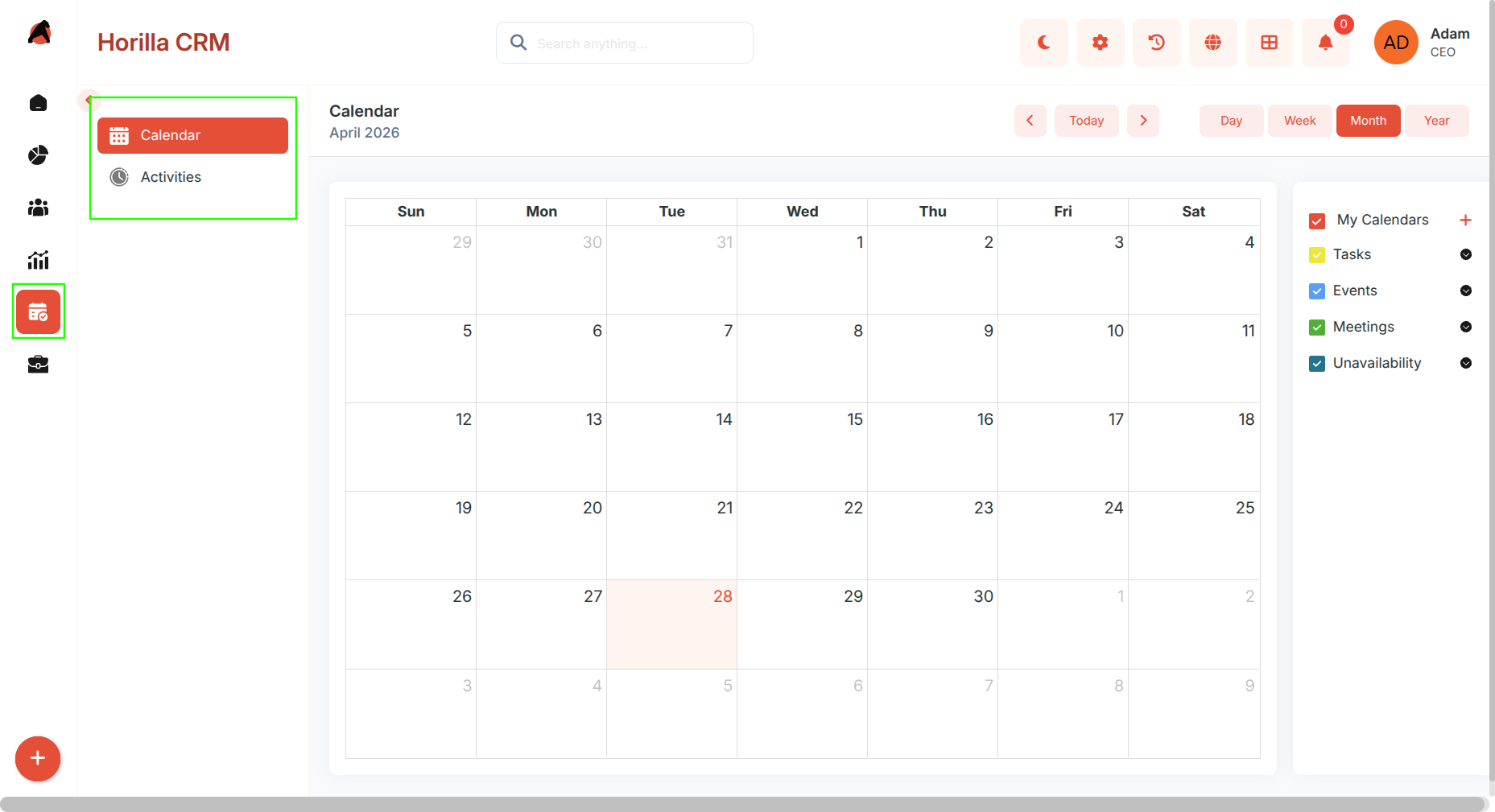
Access: Navigate to the Schedule section in the sidebar, which includes two sub-sections: Calendar and Activities.
Key Features:
- Centralized control of all CRM activities and schedules.
- Support for multiple activity types: Task, Meeting, Event, Call, Email, Unavailability.
- Quick creation, editing, and tracking of activities from any interface.
1.1 Calendar Module
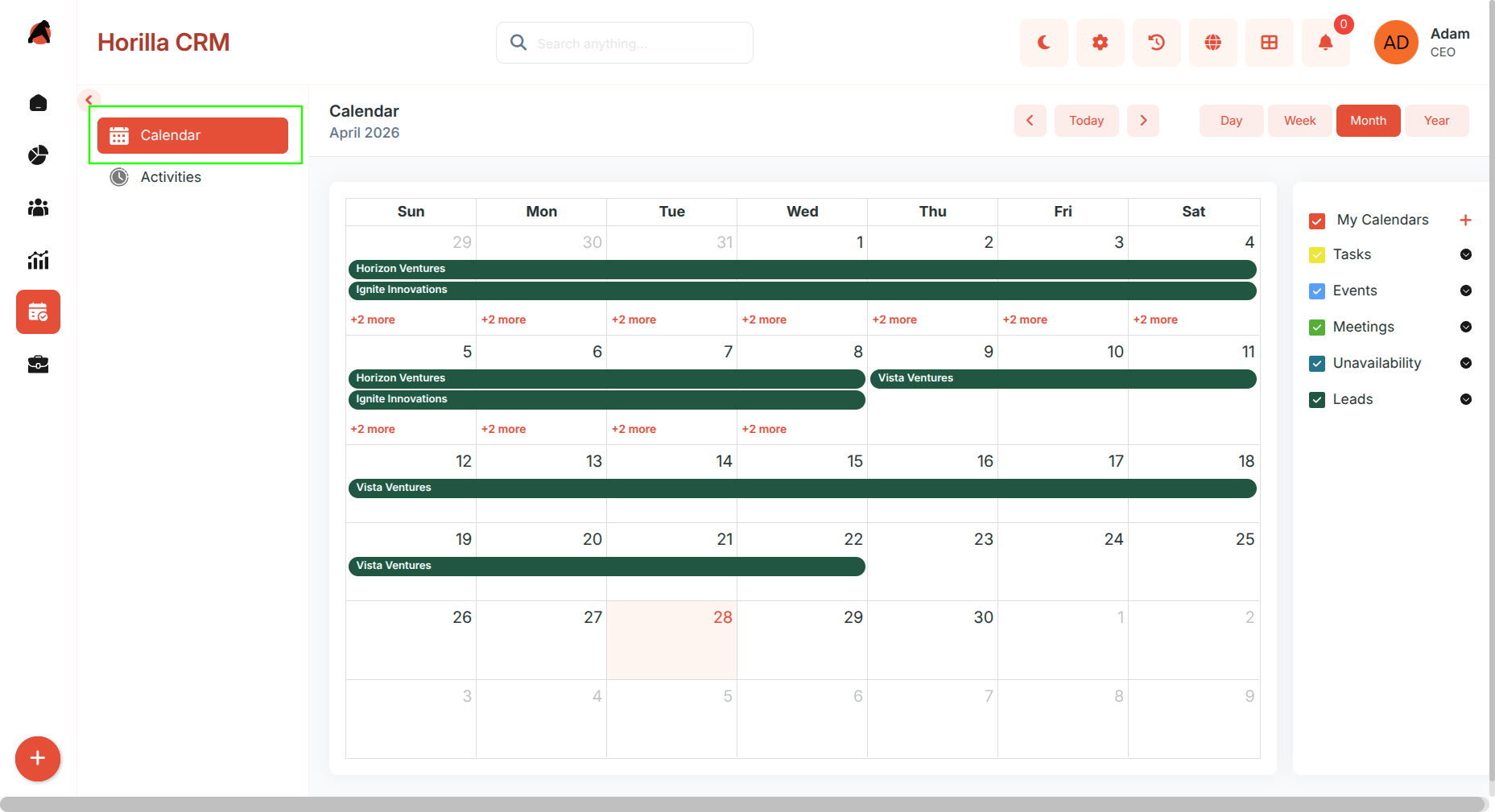
Purpose: Manage all CRM-related activities in a visual, time-based calendar format.
Access: Schedule → Calendar
Calendar Views
- Month View — Displays all activities for the month in a grid layout.
- Week View — Shows detailed scheduling for each week.
- Day View — Focused display of a single day's activities.
- Year View — High-level overview of yearly activity distribution.
Navigation tools: Today, Previous, Next for quick movement between periods.
Custom Calendars
- Users can create Custom Calendars linked to any CRM module (Leads, Opportunities, Contacts, etc.).
- Each custom calendar maps a module's date field to the calendar view with a chosen color and display name field.
- Multiple custom calendars can be active simultaneously, overlaying data from different modules on the same calendar.
- Custom calendars are created and managed via the calendar settings panel.
Google Calendar Integration
- Users can connect their Google Calendar account from My Settings → Google Calendar.
- Supports one-way (Horilla → Google) and two-way (Horilla ↔ Google) sync.
- Changes sync in real time when the app is served over HTTPS using Google push notifications.
- See the Google Calendar Integration guide for full setup steps.
Activity Preferences
- Color-coded activity visualization — each activity type has a user-configurable color.
- Filters to display selected activity types only.
- Activities appear on their respective start and end times.
Creating a New Activity
- Add activities directly from the calendar using quick-add or full-form creation.
- Once saved, the activity instantly appears in the selected view.
Activity Detail View
- Quick Detail Popup — Displays subject, description, assigned user, dates, and status. Quick actions: Edit, Delete, Mark Complete, View Full Info.
- Full Detail View — All activity fields with inline editing and a history tab.
Unavailability Management
- Users can mark themselves unavailable for specific dates or time slots.
- Appears on the calendar as a dedicated activity type with optional notes.
1.2 Activities Module
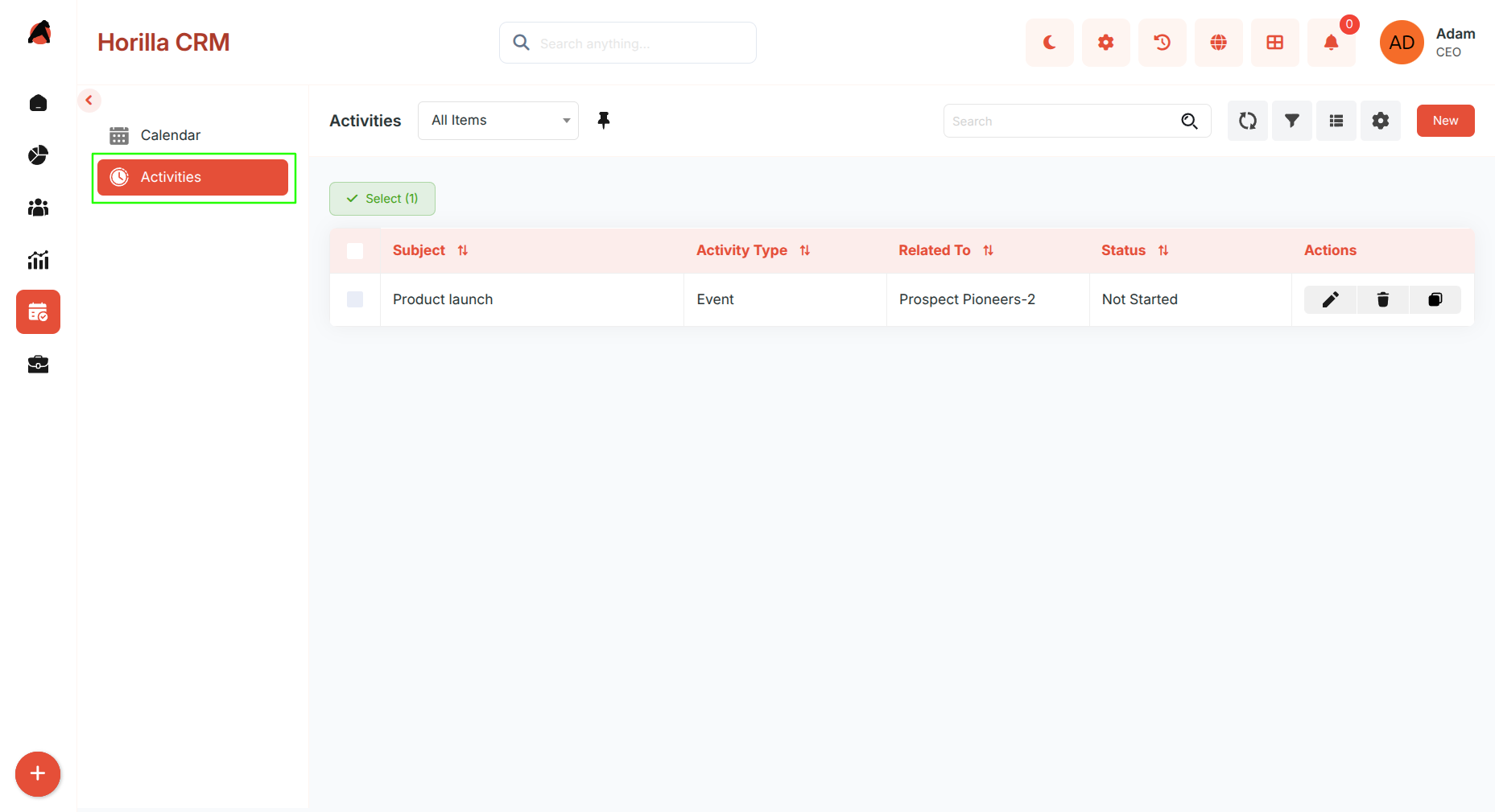
Purpose: Track, schedule, and manage all CRM-related engagements and follow-ups.
Access: Schedule → Activities
Activities Overview
- Displays all activity types in a consolidated list.
- Search and filter for quick access to specific activities.
- Key fields: Subject, Type, Source, Related To, Status.
- Bulk actions: Edit, Delete, Export.
Activities Kanban Display
- Visual board showing activities grouped by status (e.g., Pending, Completed).
- Drag-and-drop cards to update activity status directly.
- Cards display subject, activity type, and related record.
Creating a New Activity
- Click New to open the creation form.
- Core fields include: Activity Type, Subject, Description, Source, Related Record, Status, Start Date, End Date, Location, Assigned To.
- Click Save to register the activity.
Activity Detail View
- Details Tab — All activity fields with inline editing. Fields shown are specific to the activity type.
- History Tab — Tracks every change including subject edits, reassignments, and status transitions.
- Status Tracking — Progress bar visually represents the activity stage (Pending → Completed).
- Update activity status directly from the detail view.