Appearance

Activities – Functional Guide
Introduction
The Horilla CRM Activities Module is designed to streamline the tracking, scheduling, and management of all account-related and contact-related interactions. It provides users with a structured interface to create, view, and manage activities such as calls, meetings, tasks, and events. This ensures that follow-ups are completed on time, progress is monitored, and team productivity is optimized. Activities can be linked to various records in CRM (Accounts, Contacts, Opportunities, etc.) to provide a 360° view of engagements.
Key Features and Functionalities
2.1 Activities Overview
Purpose: Display all activities in a consolidated list format for quick tracking and updates.
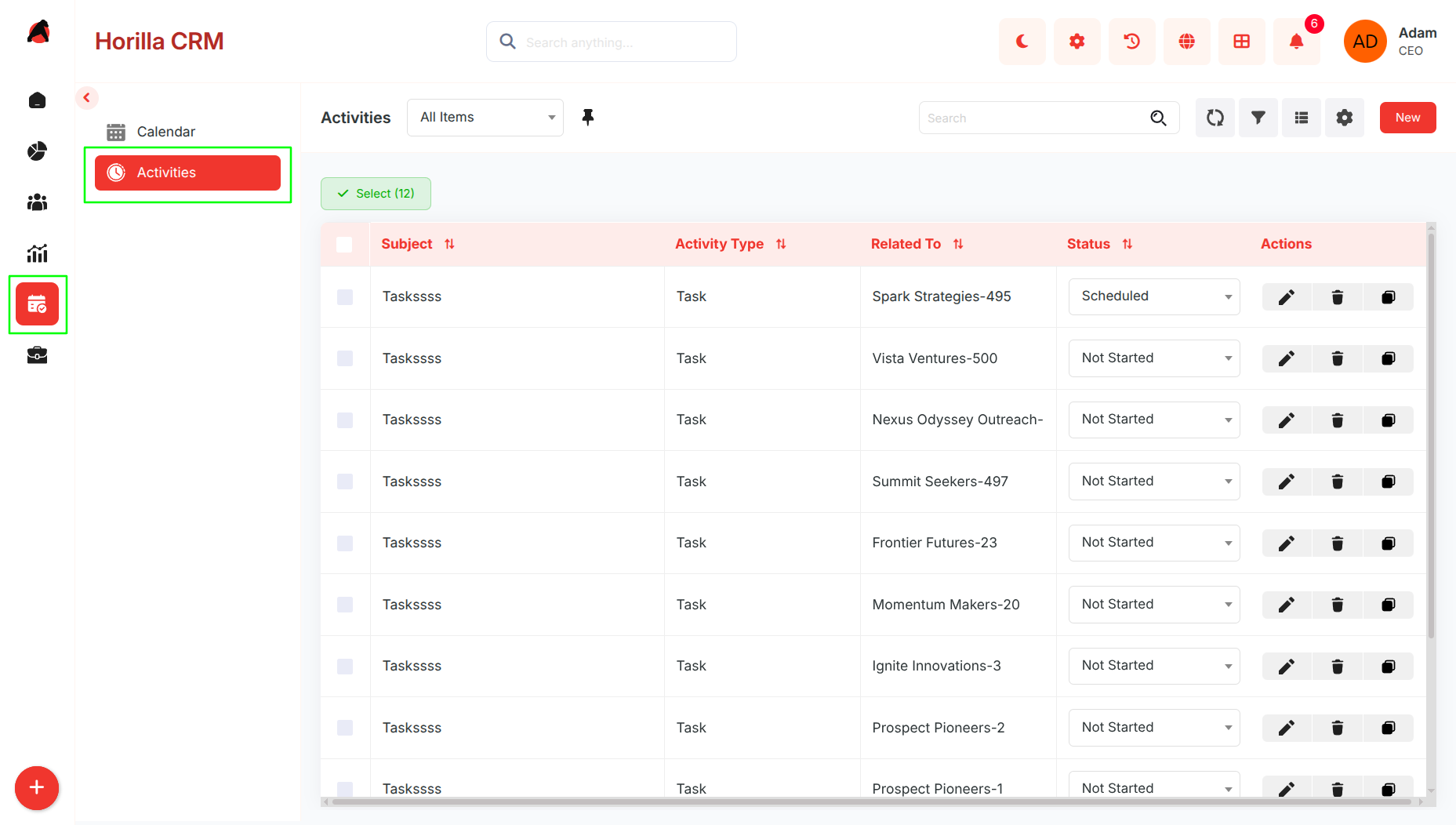
- Accessible from the sidebar menu under the Activities option.
- Provides search and filter options for locating specific activities by subject, type, or related record.
- List view includes essential fields such as Subject, Description, Activity Type, Source, Related To, and Status.
- Bulk selection supported for editing, deleting, or exporting activities.
2.2 Kanban View
Purpose: Offer a visual representation of activities based on their status.
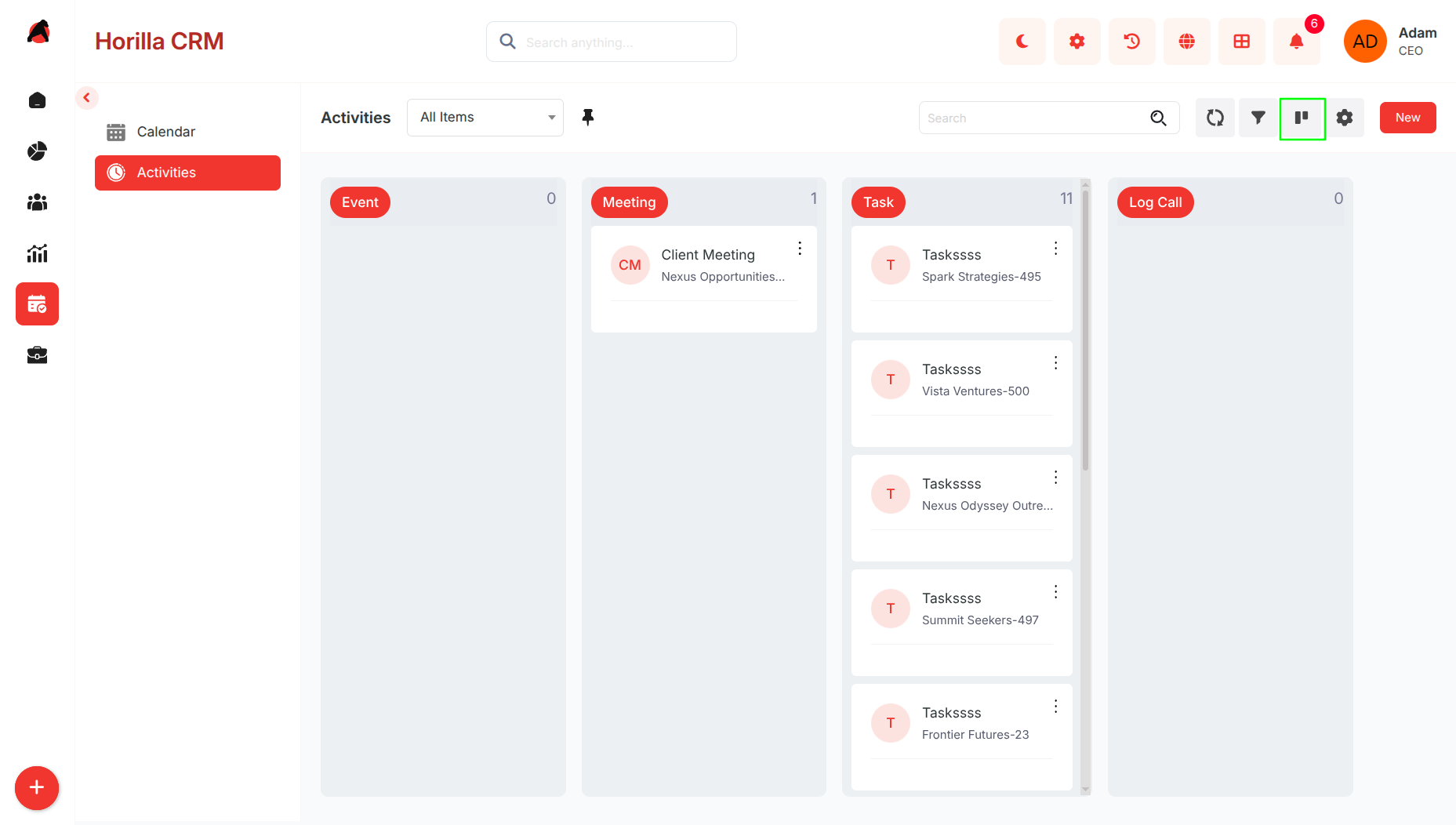
Activities are grouped into columns such as Pending and Completed.
Users can drag and drop activities across columns to update status.
Each activity card shows details like Subject, Type, Source, and Related Record for quick insights.
Helps users monitor progress in a more interactive and clear format.
Kanban settings can be customized based on business requirements.
1.3 Creating a New Activity
Purpose: Enable users to add new activities for effective engagement management.
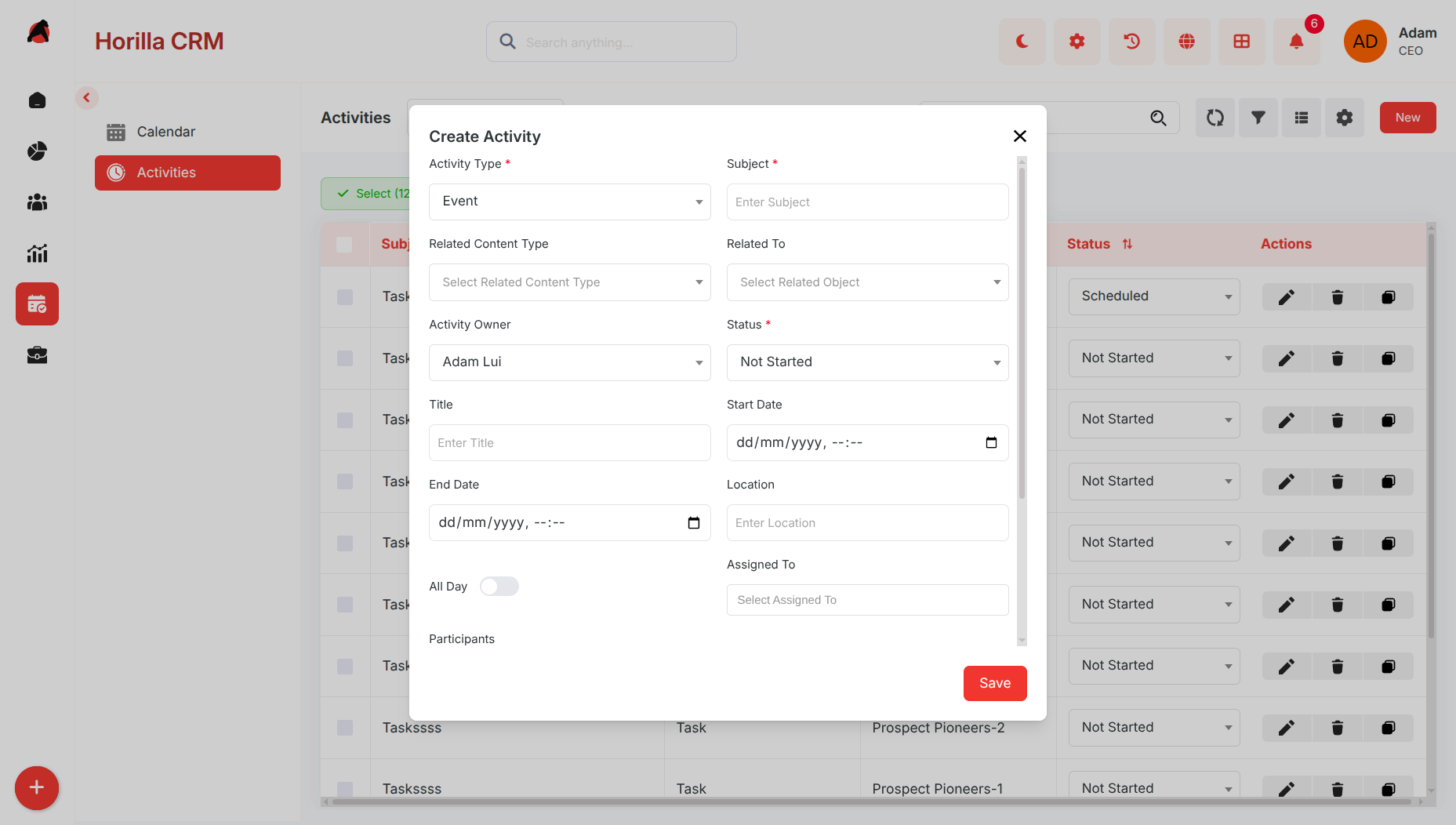
- Click the New button in the Activities page to open the creation form.
- Core fields include:
- Activity Type (Task, Event, Call, Meeting, etc.)
- Subject, Description, Title
- Source
- Related Record (Account, Contact, Opportunity, etc.)
- Status (Pending / Completed)
- Start Date, End Date, Location, Assigned To
- Save to register the activity, which then becomes visible in both List and Kanban views.
2.4 Activity Detailed Information
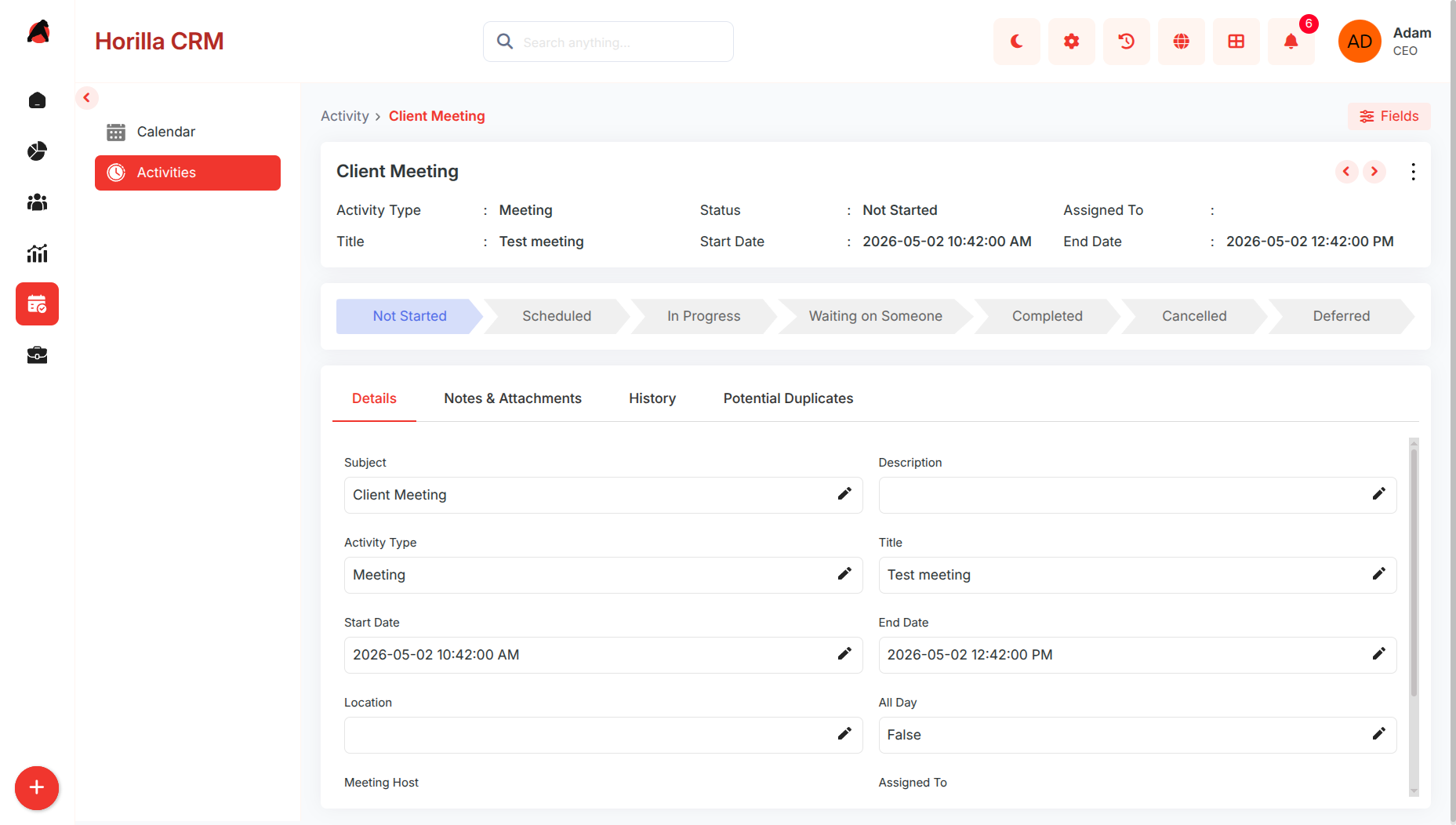
Purpose: Provide a complete view of an activity, along with tracking and editing options.
Details Tab
Displays all activity fields (Subject, Type, Status, Dates, Source, etc.).
Fields can be edited individually using inline editing.
History Tab
Maintains a log of changes made to the activity.
Tracks updates like subject changes, status transitions (Pending → Completed), and re-assignments.
Status Tracking
A progress bar visually shows the current stage of the activity.
Users can update the activity status directly from the detailed view.