

Appearance

Company Information Settings – Functional Guide
Introduction
The Company Information module in Horilla CRM Settings provides a centralized interface for managing essential organizational data and system configurations. Found under the General settings section, this module enables administrators to configure company details, fiscal year settings, business hours, holidays, currency management, and data retention policies.
This module acts as the foundation for system-wide configurations, impacting reporting, scheduling, financial calculations, and operational workflows across the CRM.
Key Features and Functionalities
Accessing Company Information
Navigate to: Settings → General → Company Information
Here, administrators can view and manage organizational details and configurations.
1. Company Details Tab
Purpose: Manage core organizational profile information.
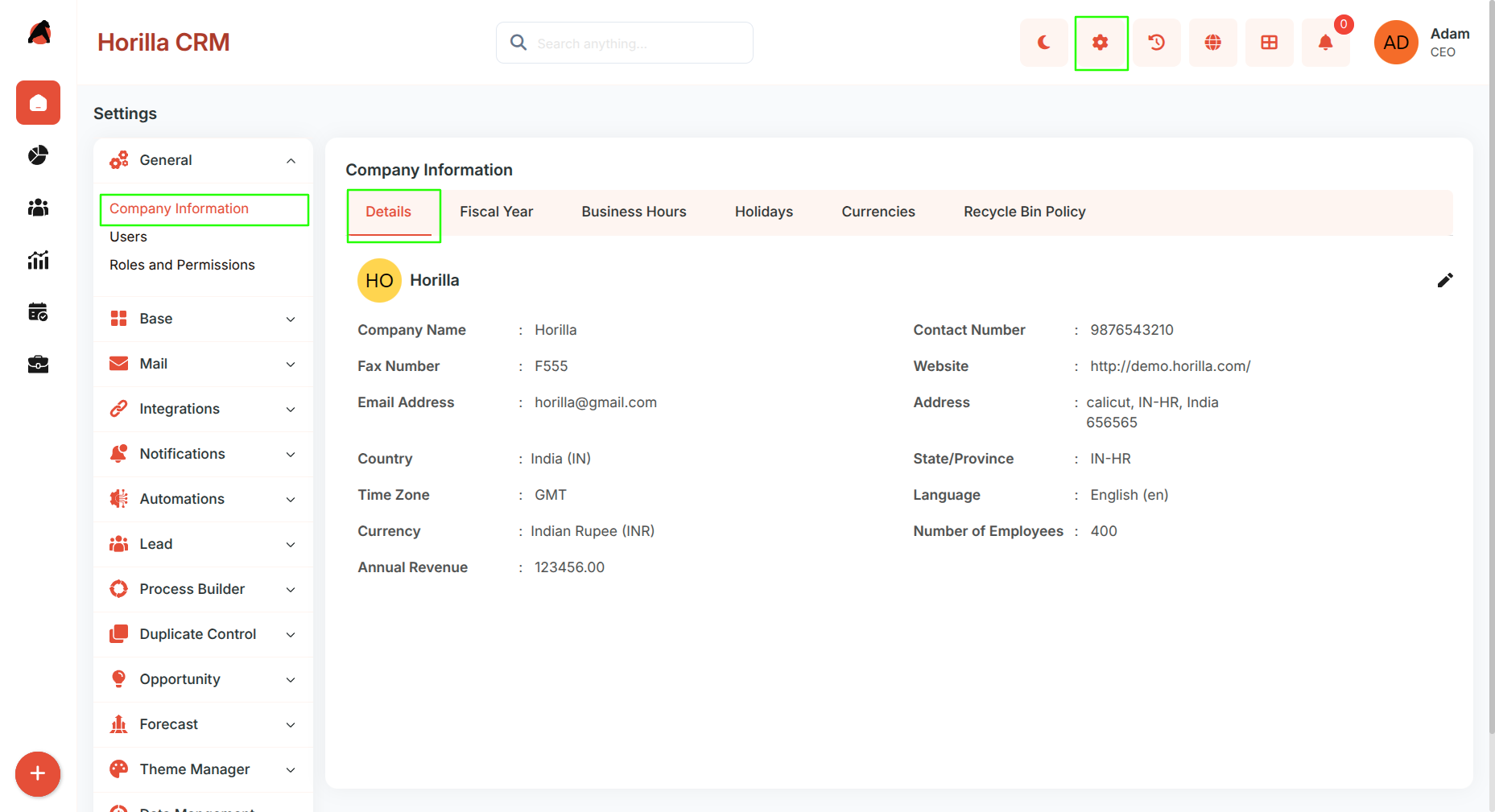
Company Profile: Configure logo, name, phone, fax, email, website, and address (country, state/province, city, postal code).
Operational Details: Define timezone, language, currency, number of employees, and annual revenue.
Edit Functionality:
- Use the pencil icon (top-right corner) to edit company details.
2. Fiscal Year Tab
Purpose: Configure financial year settings for reporting and forecasting.
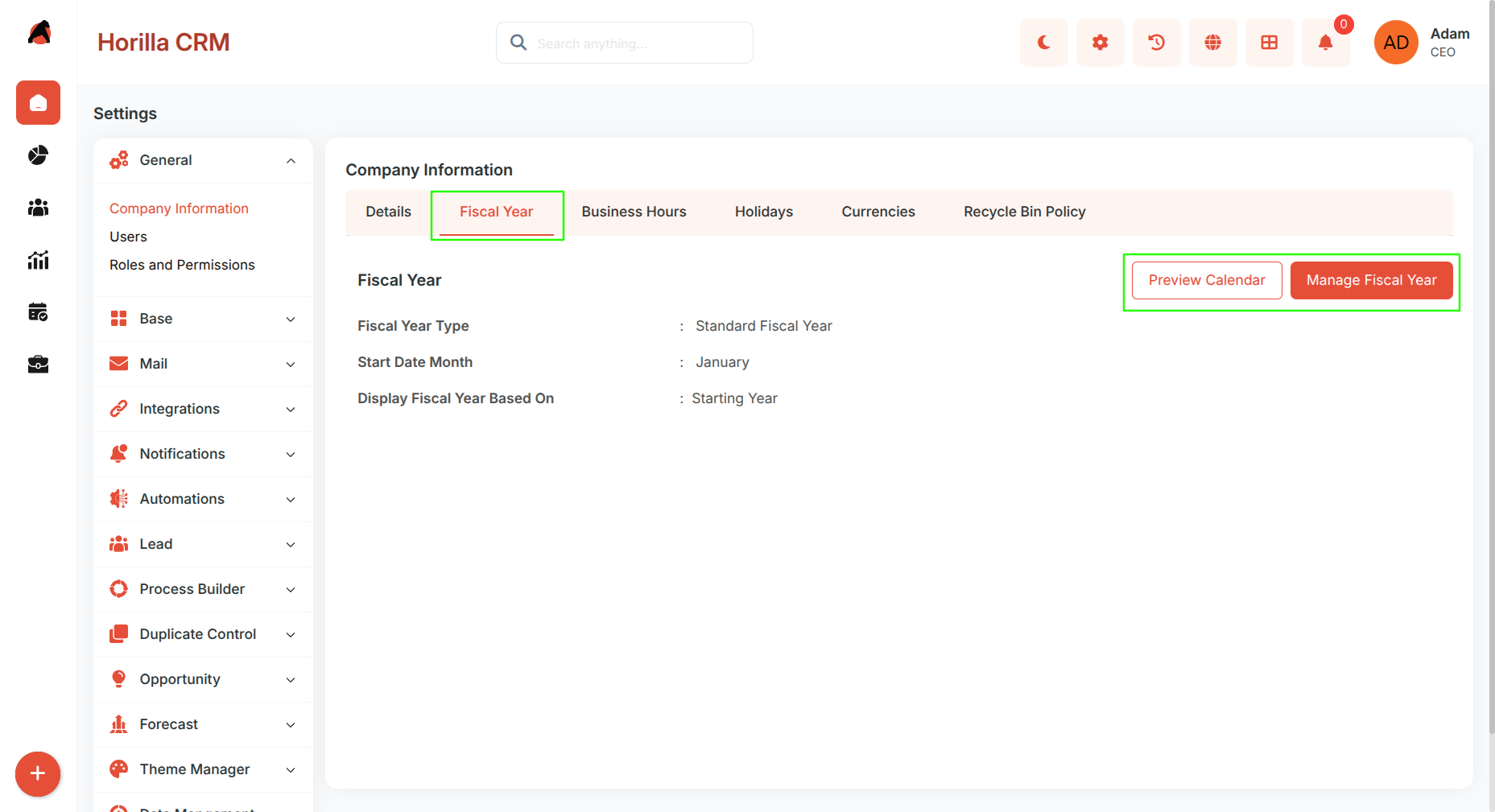
Fiscal Year Type:
Standard Fiscal Year (default).
Custom Fiscal Year – configurable via Manage Fiscal Year button.
Start Date Month: Default = January (can be changed).
Display Fiscal Year Based On: Choose Starting Year or Ending Year.
Preview Calendar Button: View fiscal year layout.
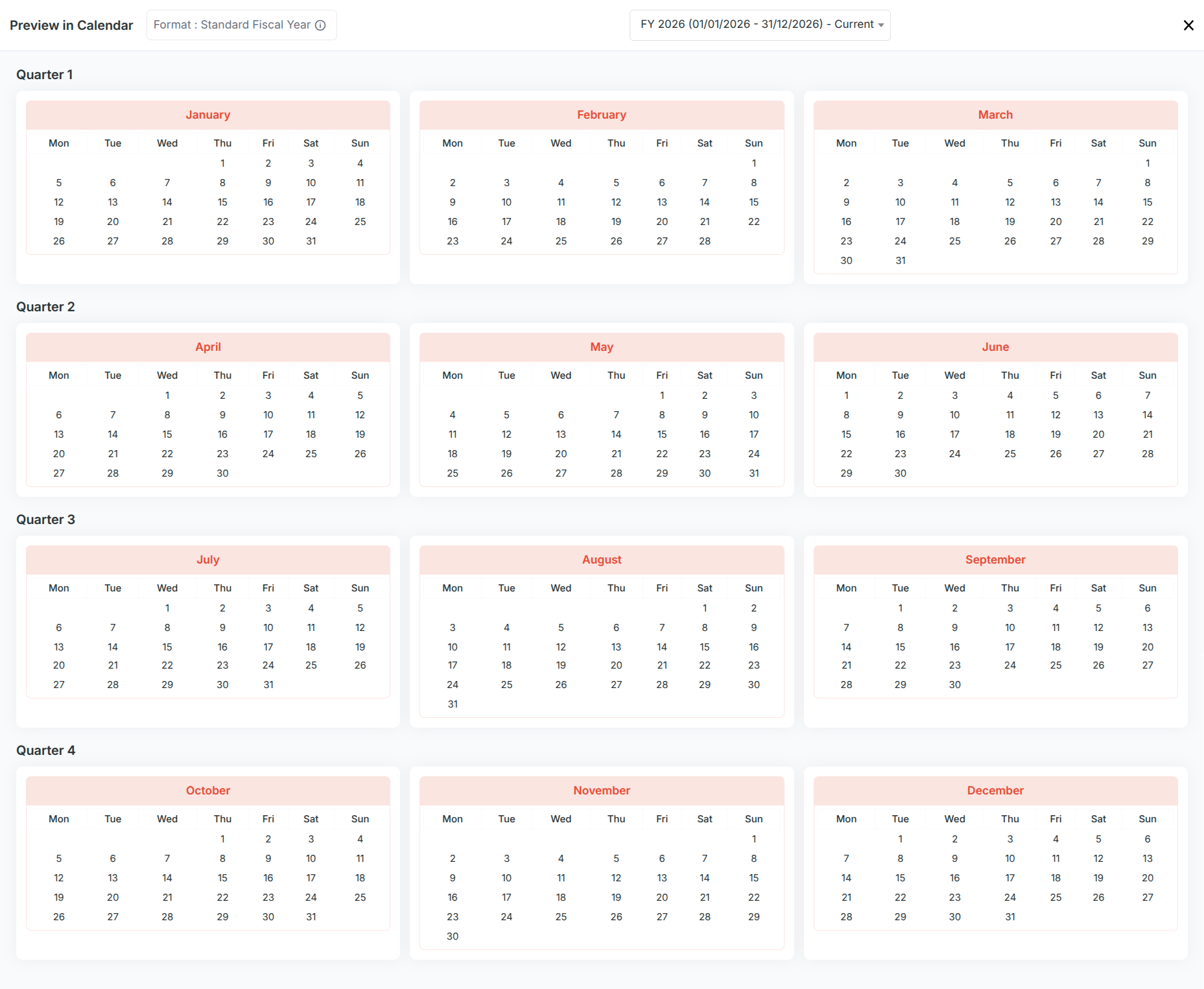
- Manage Fiscal Year Button: Switch between Standard and Custom fiscal year.
Custom Fiscal Year Options
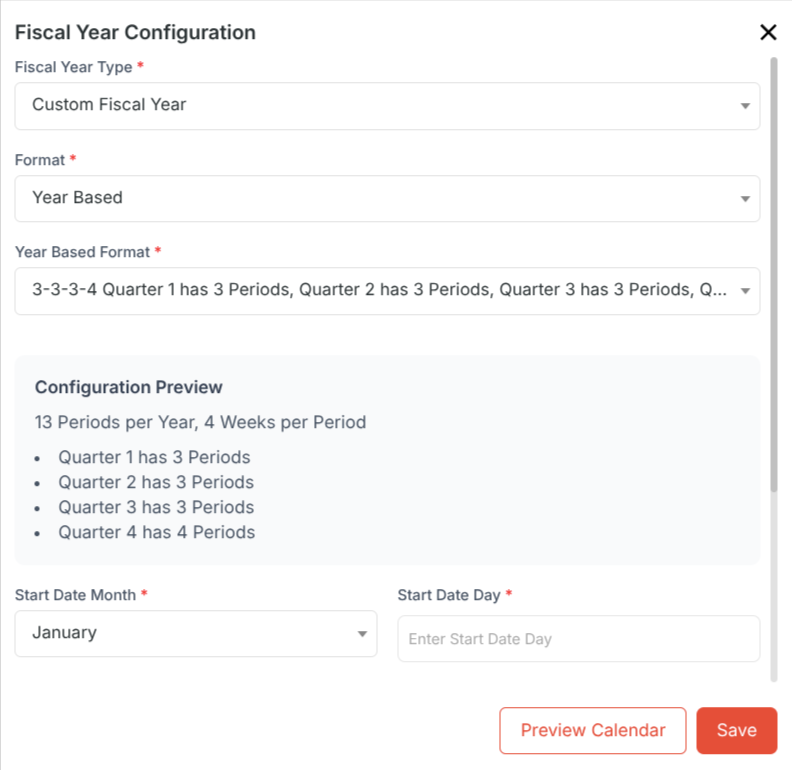
When selecting Custom Fiscal Year, administrators can configure the fiscal calendar using Year-Based or Quarter-Based patterns.
Year-Based Patterns
3-3-3-4 → Q1 (3 periods), Q2 (3), Q3 (3), Q4 (4)
3-3-4-3 → Q1 (3), Q2 (3), Q3 (4), Q4 (3)
3-4-3-3 → Q1 (3), Q2 (4), Q3 (3), Q4 (3)
4-3-3-3 → Q1 (4), Q2 (3), Q3 (3), Q4 (3)
Quarter-Based Patterns
4-4-5 → Each quarter has 3 periods: 4 weeks, 4 weeks, 5 weeks
4-5-4 → Each quarter has 3 periods: 4 weeks, 5 weeks, 4 weeks
5-4-4 → Each quarter
Fill Fields
Start Date Month → Select the starting month of the fiscal year.
Start Date Day → Define the exact starting day.
Week Start Day → Choose the first day of the week (e.g., Sunday, Monday).
Display Fiscal Year Based On → Choose Starting Year or Ending Year.
Number of Weeks By → Define how weeks are calculated (monthly/quarterly).
Period Display Option → Select display format for periods in reports.
has 3 periods: 5 weeks, 4 weeks, 4 weeks
3. Business Hours Tab
Purpose: Define organizational working hours and schedules.
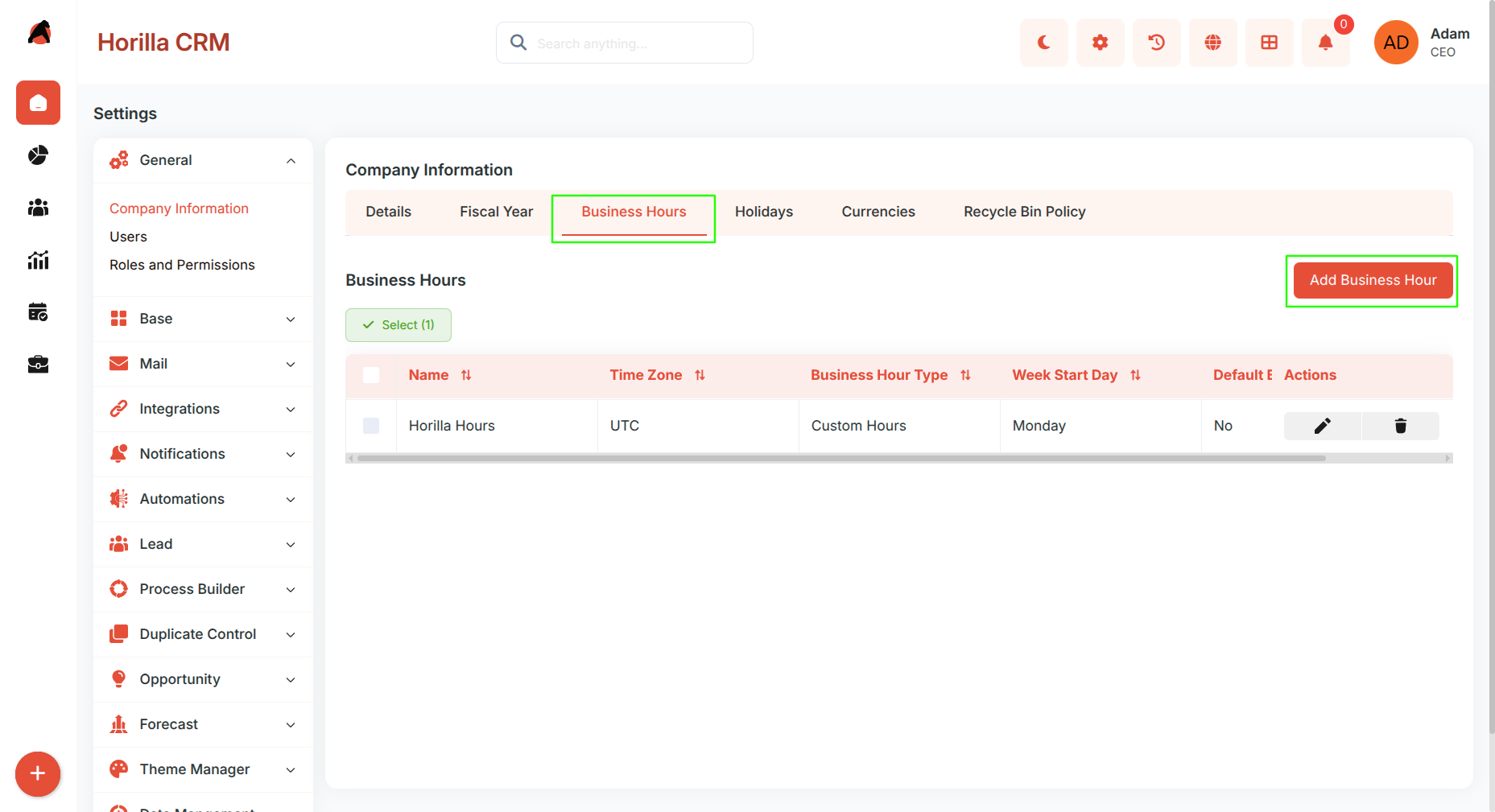
Business Hours Management Table:
Columns → Name, Time Zone, Business Hour Type, Week Start Day, Is Default, ActionsSupports multiple schedules (e.g., 24x7, standard office hours).
Configurable timezone and week start day.
One schedule can be marked as Default.
Actions Available:
Edit business hours
Delete business hours
Create new business hours
Create Business Hours:
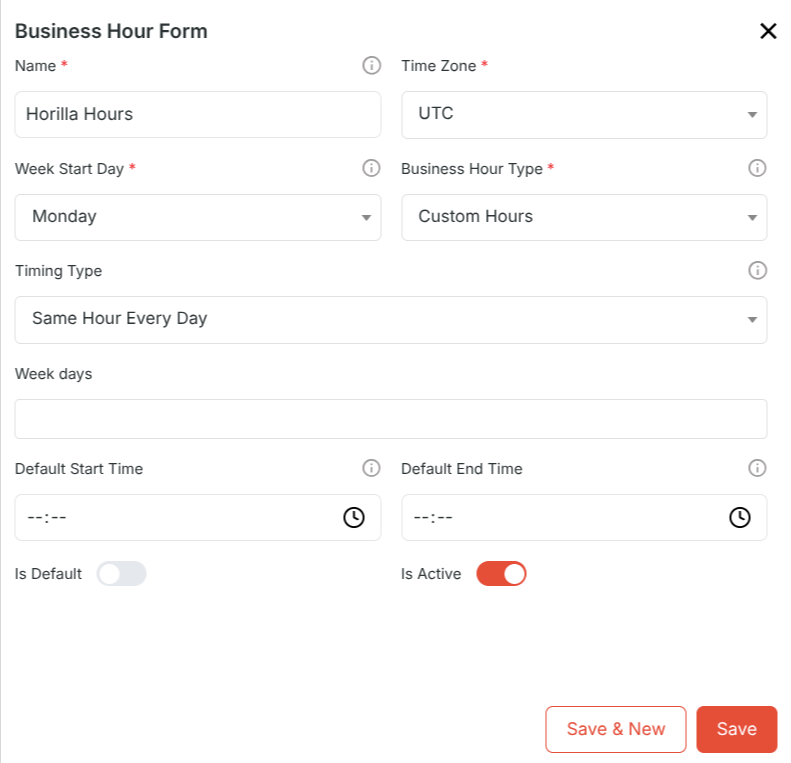
Name: Enter a descriptive schedule name.
Time Zone: Select relevant timezone.
Week Start Day: Choose day (e.g., Sunday, Monday).
Business Hour Type: e.g., 24x7, office hours.
Is Default
Is Active
4. Holidays Tab
Purpose: Manage the company holiday calendar.
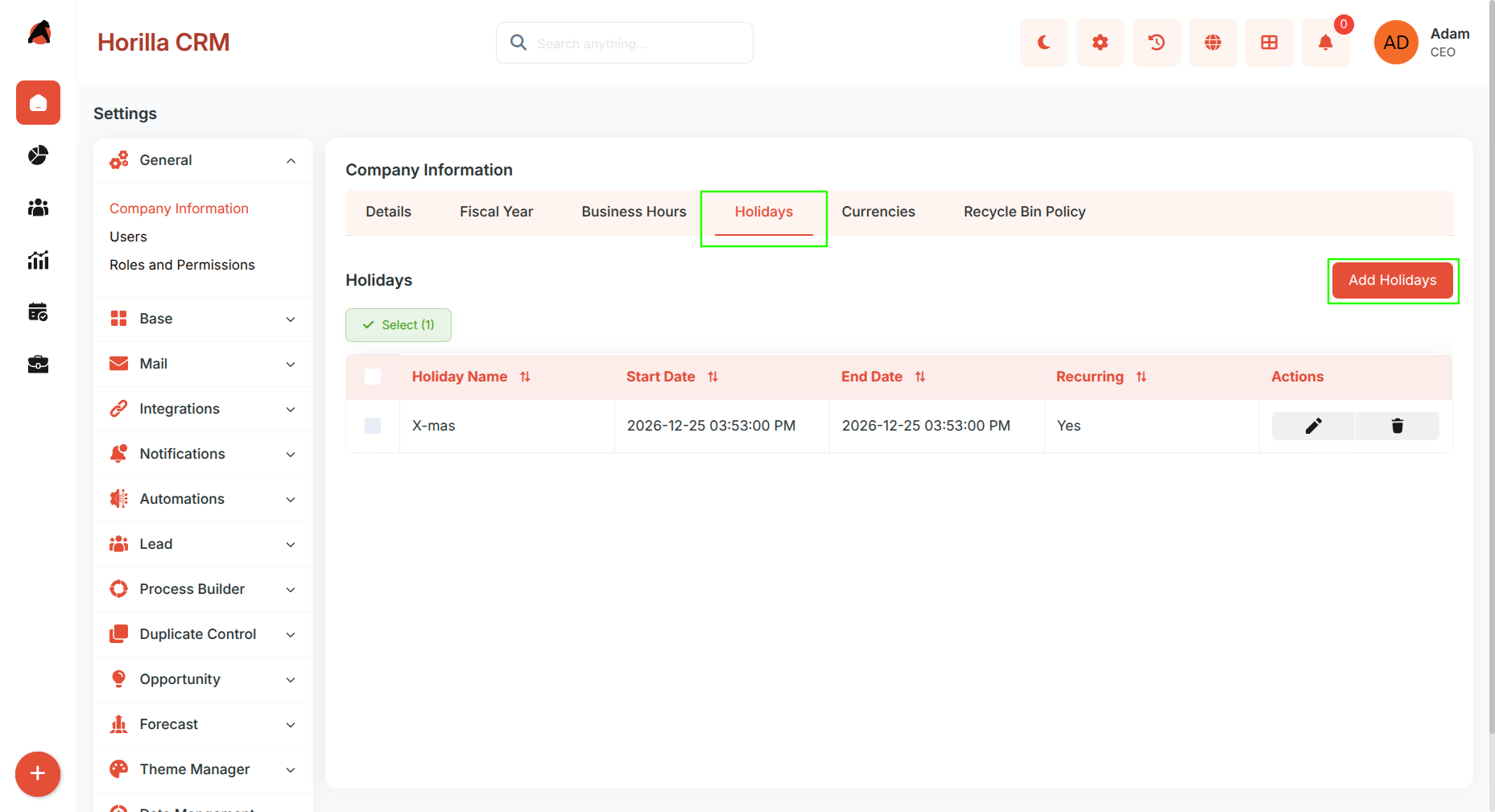
Holiday Management Table:
Columns → Holiday Name, Start Date, End Date, Recurring, ActionsSupports single-day or multi-day holidays.
Allows recurring annual holidays (e.g., New Year, Independence Day).
Actions Available:
Edit holiday
Delete holiday
Create holiday
Create Holiday:
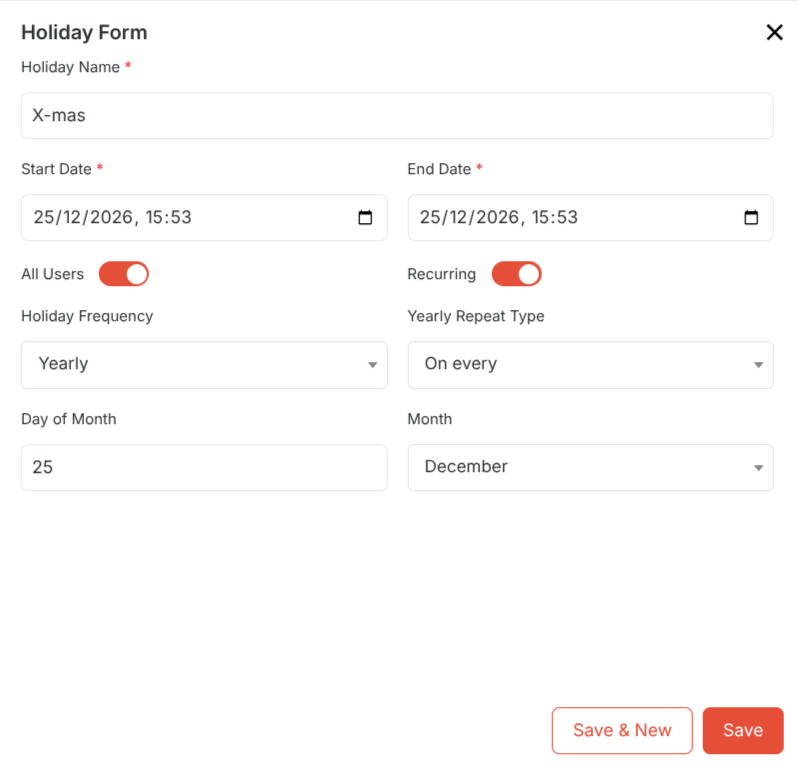
Holiday Name: Enter holiday name.
Start Date / End Date: Define duration.
All Users: Apply to all users.
Specific Users: Assign to selected users only.
Recurring: Enable annual repetition.
Holiday Frequency & Yearly Repeat Type: Configure repeat pattern.
5. Currencies Tab
Purpose: Manage multi-currency settings and exchange rates.
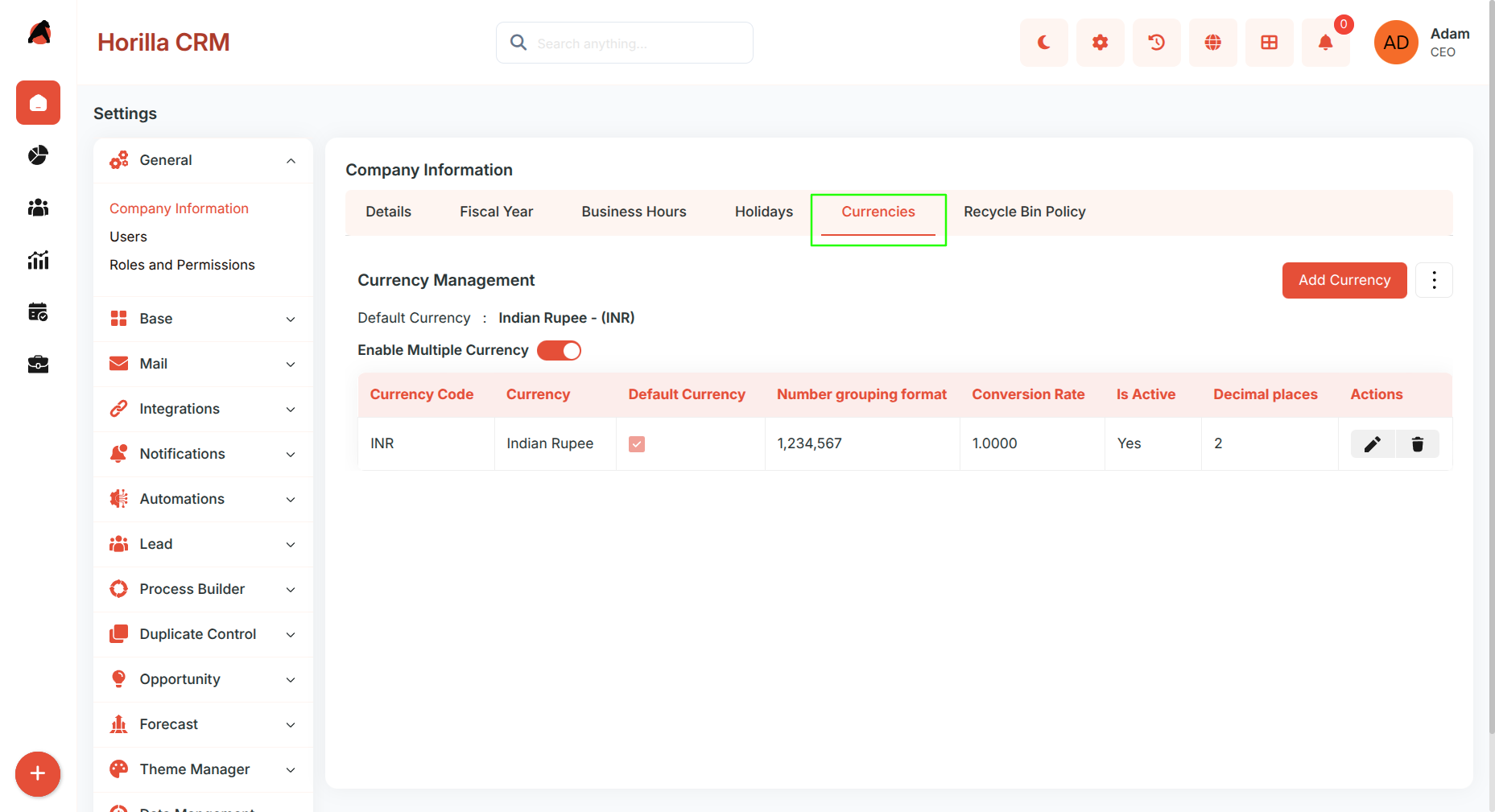
Default Currency: Company’s primary currency.
Enable Multiple Currencies: Toggle ON to support multiple currencies.
Currency Management Table:
Columns → Currency Code, Name, Default Currency, Conversion Rate, Decimal Places, Number Grouping Format
Add New Currency:
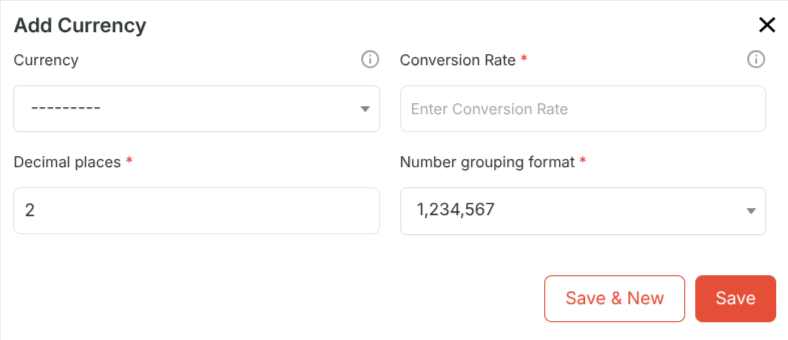
Currency: Select from dropdown.
Conversion Rate: Define against default currency.
Decimal Places: Specify precision.
Number Grouping Format: e.g., 1,234,567.
Actions Available:
Edit currency (pencil icon)
Delete currency (trash icon)
Additional Currency Features:
Change Default Currency: Update via form or checkbox. System recalculates rates automatically.
Update Conversion Rates: Change conversion rate across currencies.
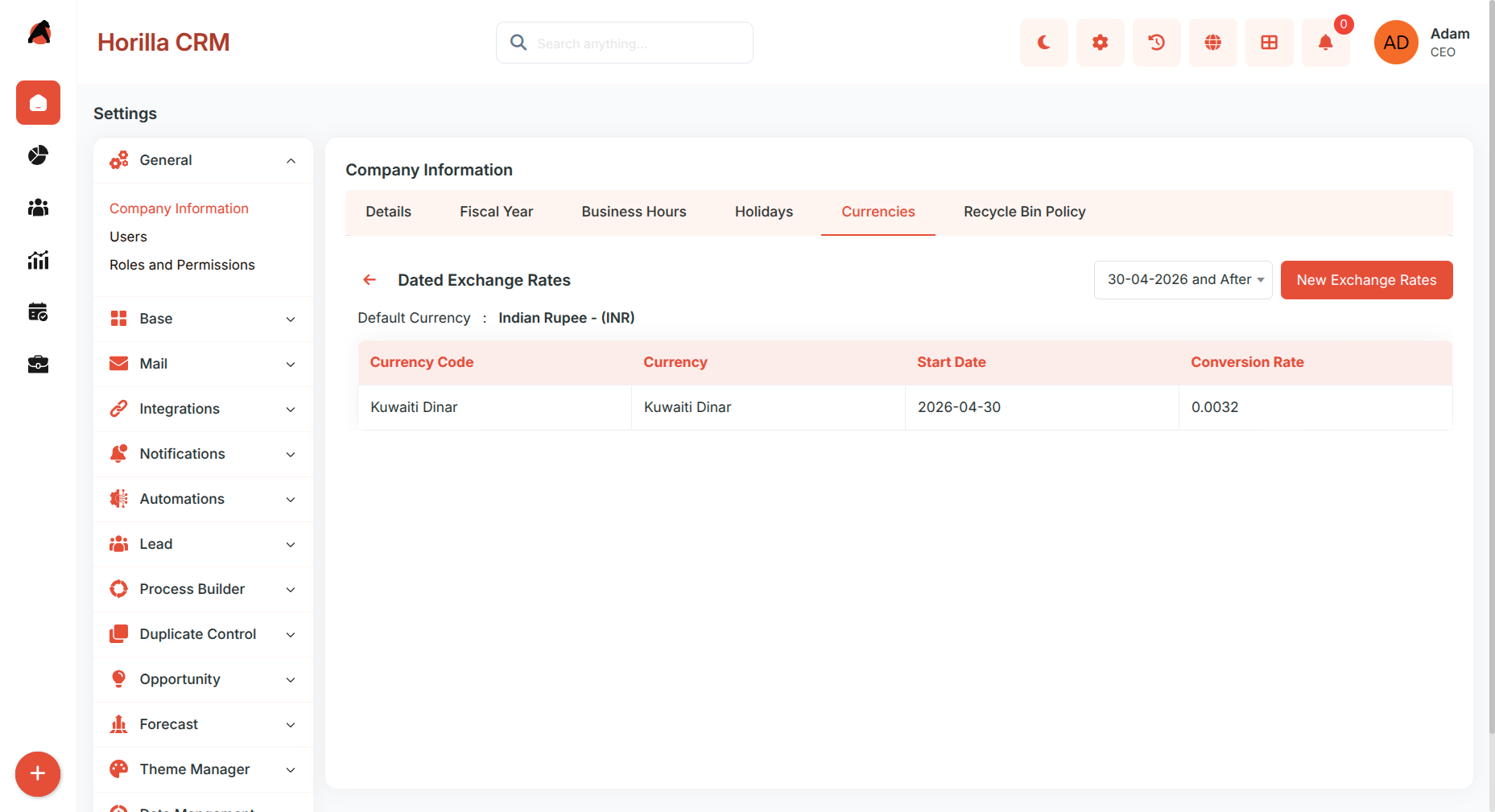
Dated Exchange Rates: Add exchange rates valid for specific dates.
6. Recycle Bin Policy Tab
Purpose: Configure record retention and recovery policy.
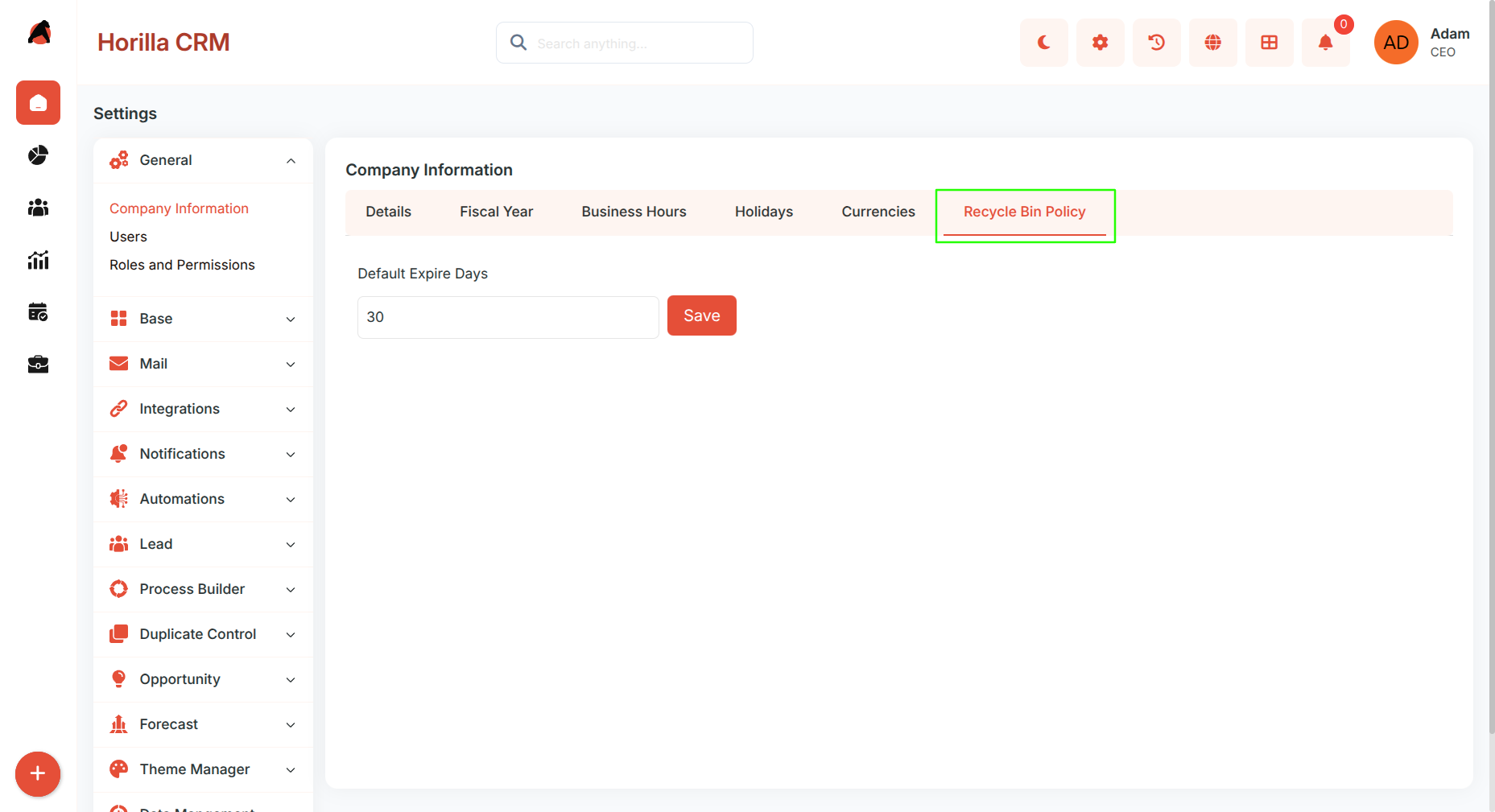
Default Expire Days: Specify how long deleted records remain recoverable (default = 30 days).
Save Button: Apply updated retention settings.
Benefits
Centralized Configuration: One place for all organization-level settings.
Multi-Currency Support: Handle global operations with flexible exchange rates.
Flexible Scheduling: Define multiple business hours and holiday calendars.
Financial Integration: Fiscal year settings integrated with analytics and forecasting.
Data Governance: Control over retention periods for compliance.
User-Friendly Design: Tab-based layout with clear action buttons.
System-Wide Impact: Configurations apply across all CRM modules.
Scalable Management: Supports growth with multiple currencies, schedules, and policies.