

Appearance

User Profile Settings – Functional Guide
Introduction
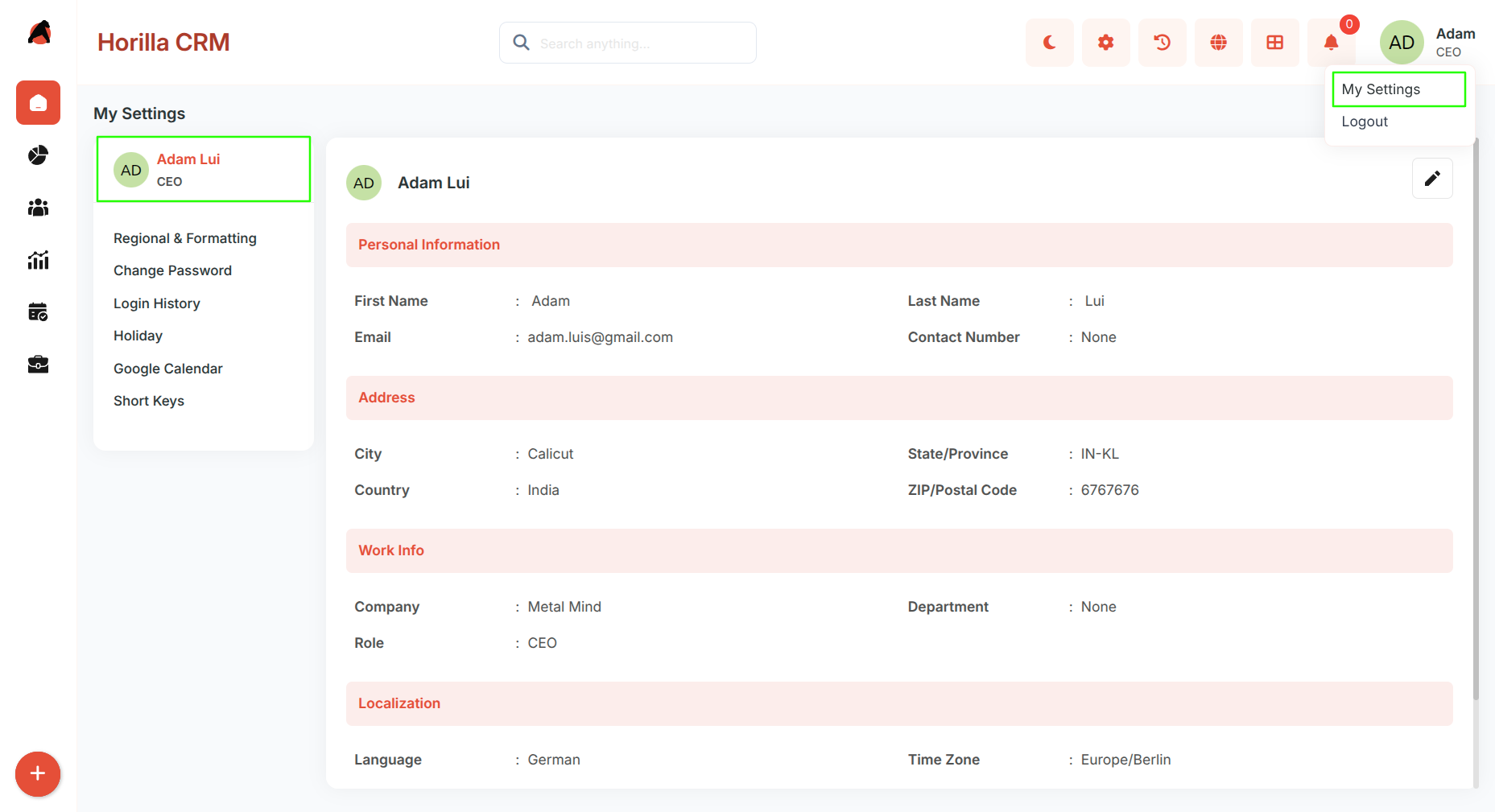
The User Profile Settings Module in Horilla CRM provides users with comprehensive control over their personal information, work details, and system preferences. By offering a centralized interface for managing account details, localization settings, and contact information, it ensures users can maintain accurate profiles while customizing their system experience. Users can easily update their information, configure display preferences, and manage their professional details within the organization.
Key Features and Functionalities
1.1 Personal Information Management
Purpose: Enable users to maintain accurate personal identification and contact details for system-wide use. Accessible via My Settings → User Profile.
- Displays and manages First Name, Last Name, Email Address, and Contact Number.
- Email validation ensures proper format and uniqueness across the system.
- Contact information integrates with notification systems and organizational directory.
1.2 Address Configuration
Purpose: Allow users to specify their geographical location for regional customization and compliance.
- Captures City, State/Province, Country, and ZIP/Postal Code information.
- State/Province uses standardized ISO codes (e.g., IN-KL for Kerala, India).
- Address validation ensures proper formatting based on selected country standards.
1.3 Work Information Setup
Purpose: Maintain professional details and organizational hierarchy within the CRM system.
- Manages Company, Department, and Role assignments for proper access control.
- Company field links to organizational master data for consistency.
- Department and Role selections integrate with permission systems and reporting structures.
1.4 Localization Preferences
Purpose: Customize user interface display formats and regional settings for optimal user experience.
- Configures Language, Time Zone, Preferred Currency, Date Format, and Time Format.
- Language selection affects the entire interface display in real-time.
- Time zone settings impact all datetime displays, scheduling, and calendar integrations.
- Currency preference becomes default for financial reports and transaction displays.
- Date and time formats provide preview examples for user clarity (e.g., "Mon DD YYYY (Oct 25 2006)" and "HH:MM AM/PM (01:45 PM)").
1.5 Profile Image
Purpose: Personalize the user account with a profile photo displayed across the CRM.
- The profile page displays the user's current profile image or a generated avatar if no image has been uploaded.
1.6 Editing the Profile
Click the Edit icon (pencil) at the top right of the profile page to open the edit form.
Two form modes are available and can be switched between at any time:
Multi-Step Form
Breaks the profile into focused steps:
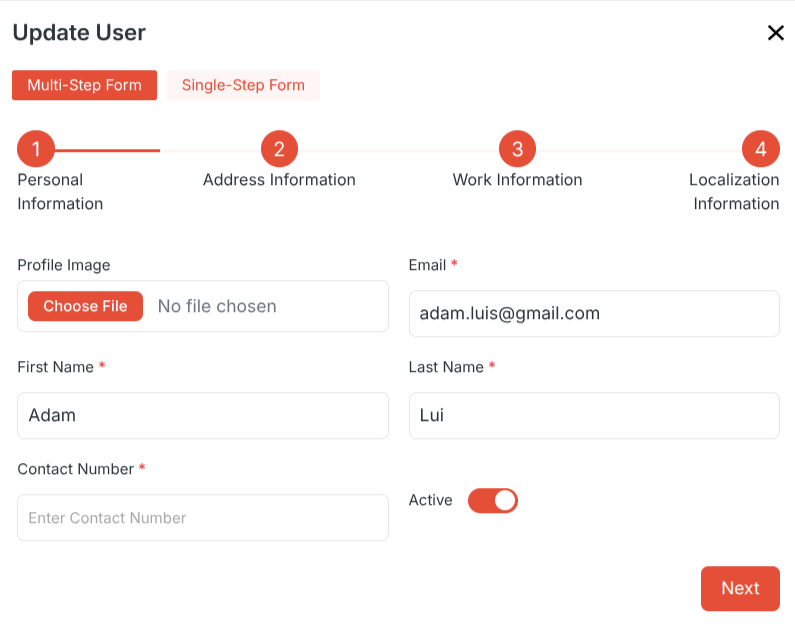
- Step 1 — Personal Information: First Name, Last Name, Email, Contact Number
- Step 2 — Address Information: City, State, Country, ZIP Code
- Step 3 — Work Information: Company, Department, Role
- Step 4 — Localization Information: Language, Time Zone, Currency, Date Format, Time Format
Use Next and Previous to navigate between steps. Click Save to apply changes.
Single-Step Form
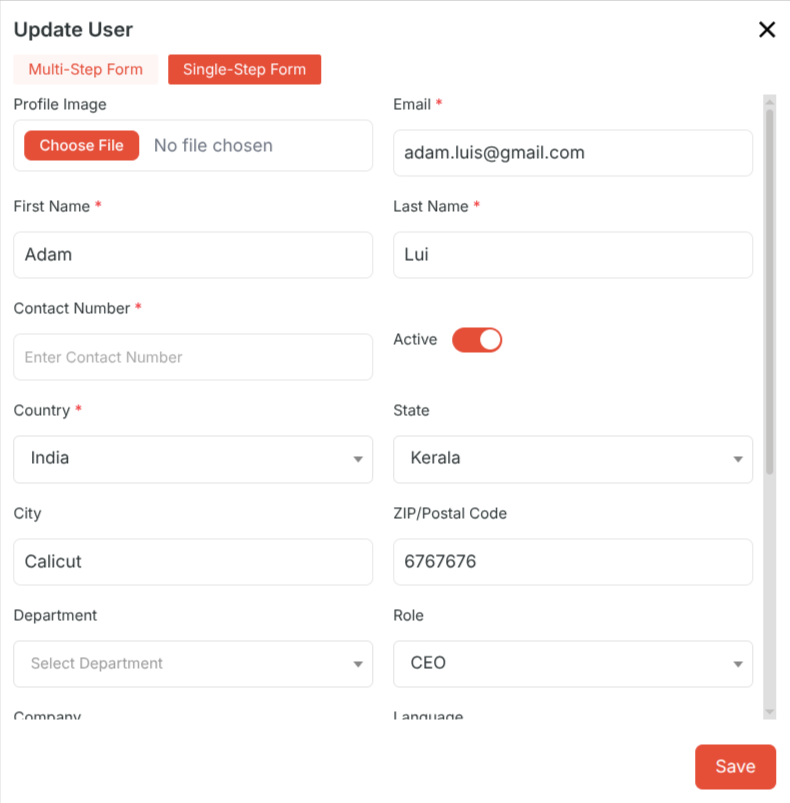
- Displays all profile fields on one page for faster editing.
- Click the toggle in the form header to switch to single-step mode.
- Click Save to apply changes or Cancel to discard.