

Appearance

Opportunities – Functional Guide
Introduction
The Opportunities module in Horilla CRM is designed to simplify and optimize the management of active sales deals. It provides a structured and efficient way to track opportunities through pipeline stages, monitor progress, and close deals. With a user-friendly interface and powerful features, the module helps teams organize deal information, manage related contacts and activities, and ensure timely follow-ups — enabling a seamless sales workflow from prospect to close.
Key Features and Functionalities
Opportunities Overview
Purpose: Provide a centralized view of all opportunities for efficient management.
Access: Sales → Opportunities
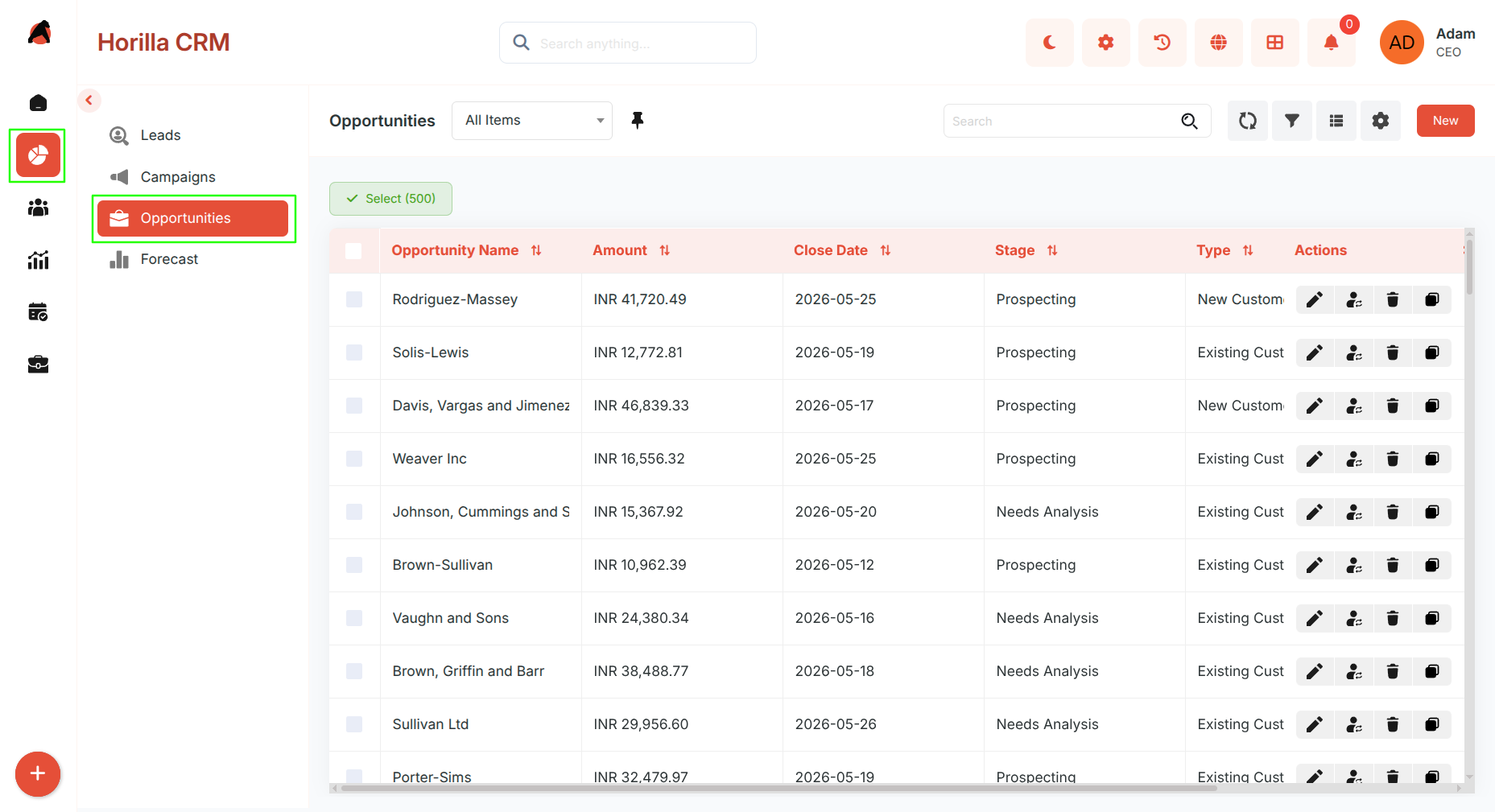
- View all opportunities in a structured tabular format.
- Use search and filters to quickly locate opportunities based on criteria such as name, stage, or owner.
- Columns are sortable and filters are customizable for better usability.
- Perform bulk actions by selecting opportunities using checkboxes: Update, Export, Bulk Delete.
Kanban View
Purpose: Offer a visual representation of opportunities organized by their current sales stage.
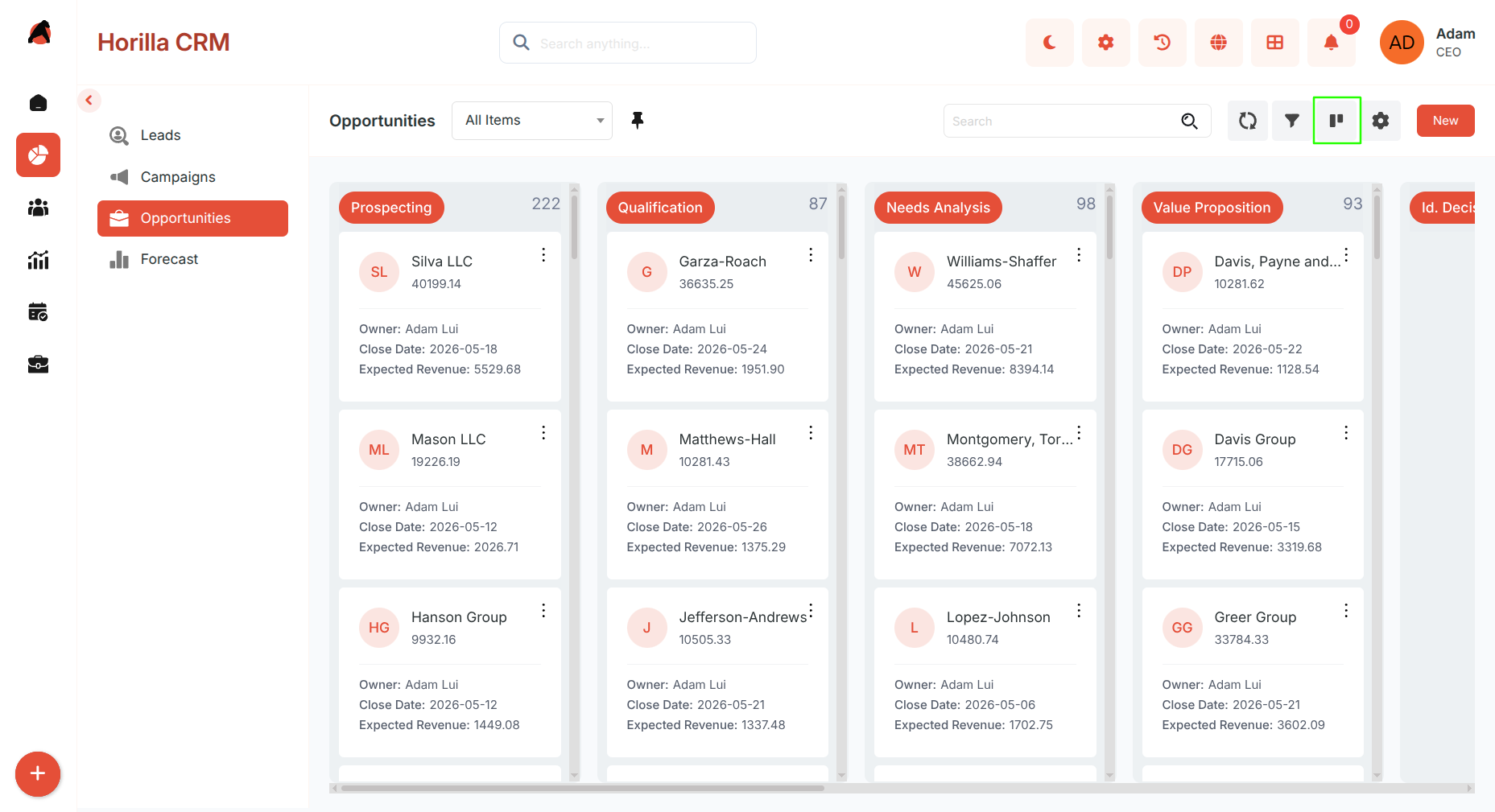
- View opportunities organized into columns representing different stages.
- Customize stage categorization through Kanban settings.
- Use drag-and-drop to move opportunities between stages.
- Easily track pipeline progress and movement.
Card View
Purpose: Present opportunities in a compact, easy-to-scan format.
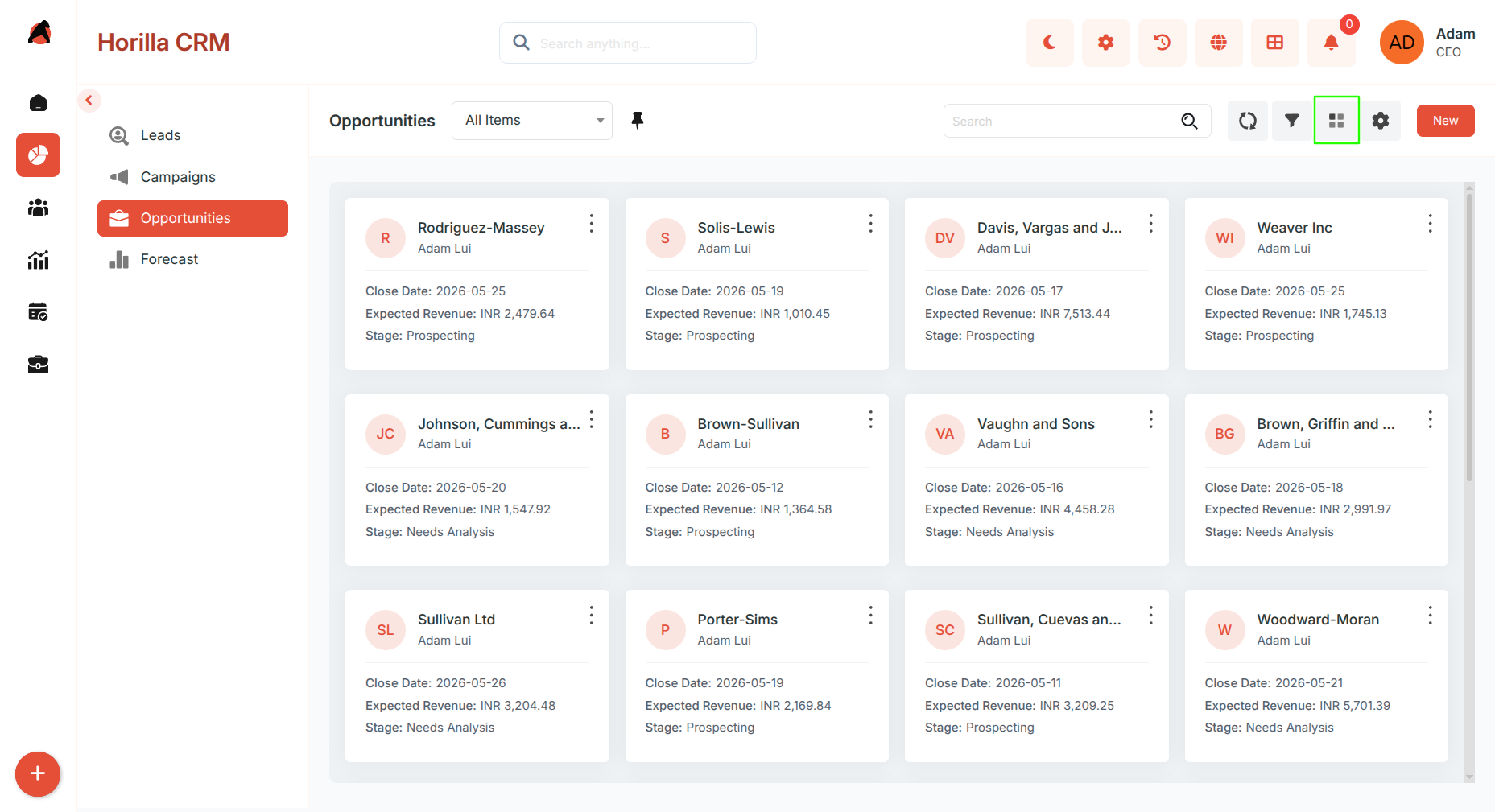
- Switch to Card View from the toolbar.
- Each card displays key details: Name, Stage, Amount, Owner.
- Supports the same search and filter options as List View.
Group By View
Purpose: Organize opportunities into categorized groups for better analysis.
- Switch to Group By View from the toolbar.
- Group opportunities by fields such as Stage, Owner, Lead Source, Account.
- View opportunities in collapsible sections for easier comparison.
- Helps identify trends, concentrations, and gaps across categories.
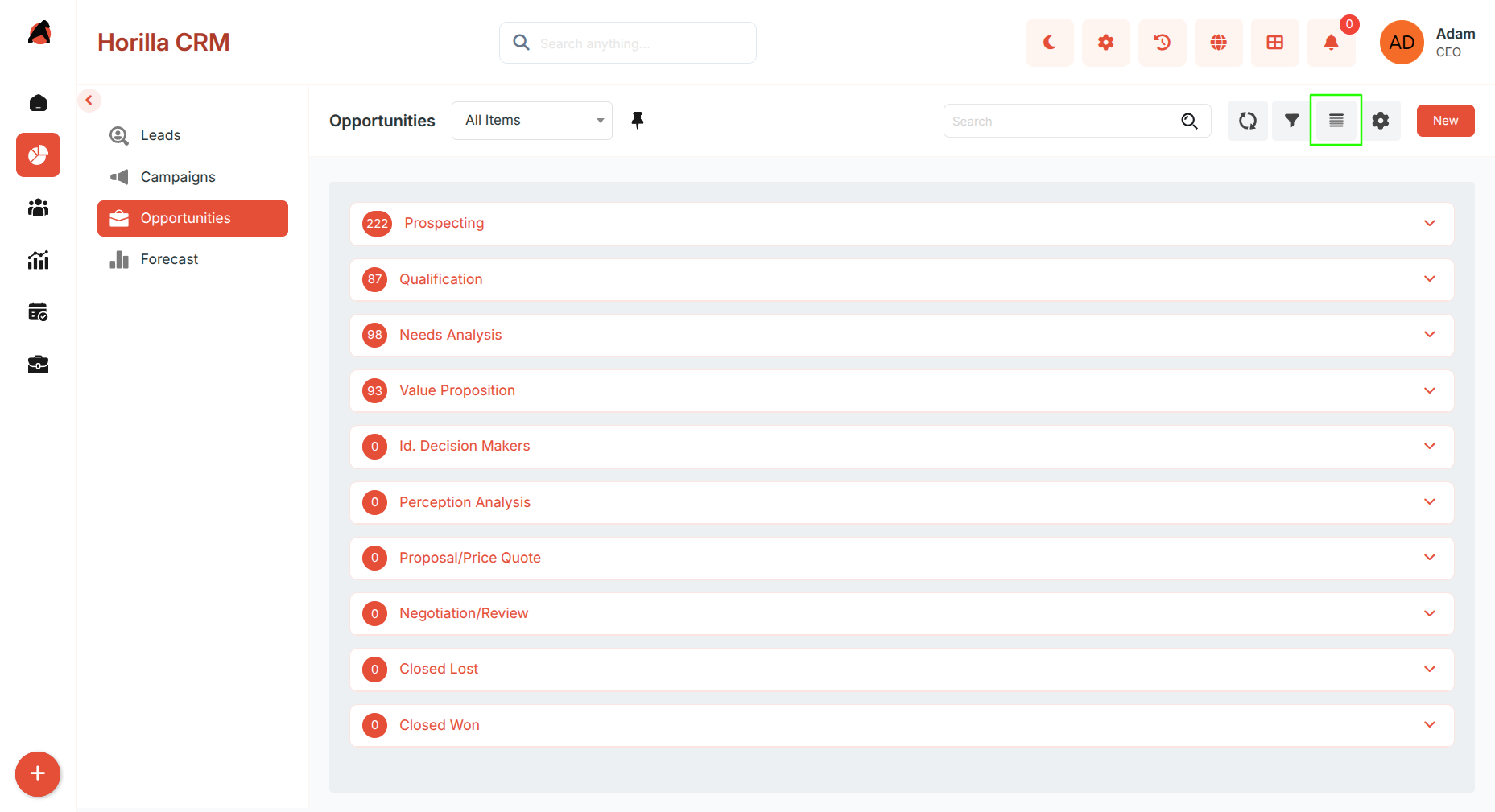
Chart View
Purpose: Visualize opportunity data for insights and reporting.
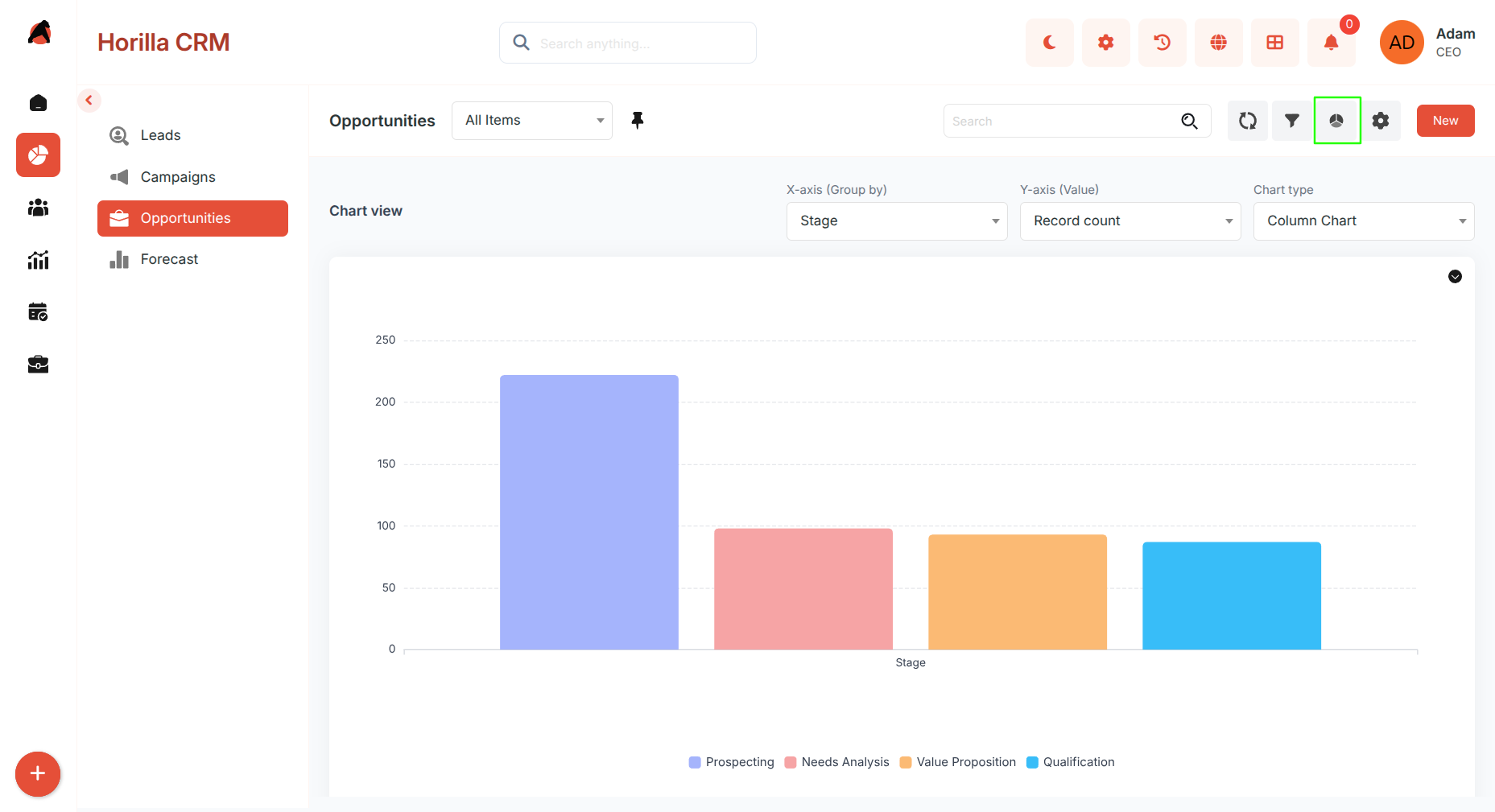
- Switch to Chart View from the toolbar.
- Displays graphical representations of opportunity stages, sources, and ownership.
- Useful for analyzing pipeline health and deal distribution trends.
Split View
Purpose: Improve efficiency by viewing list and details simultaneously.
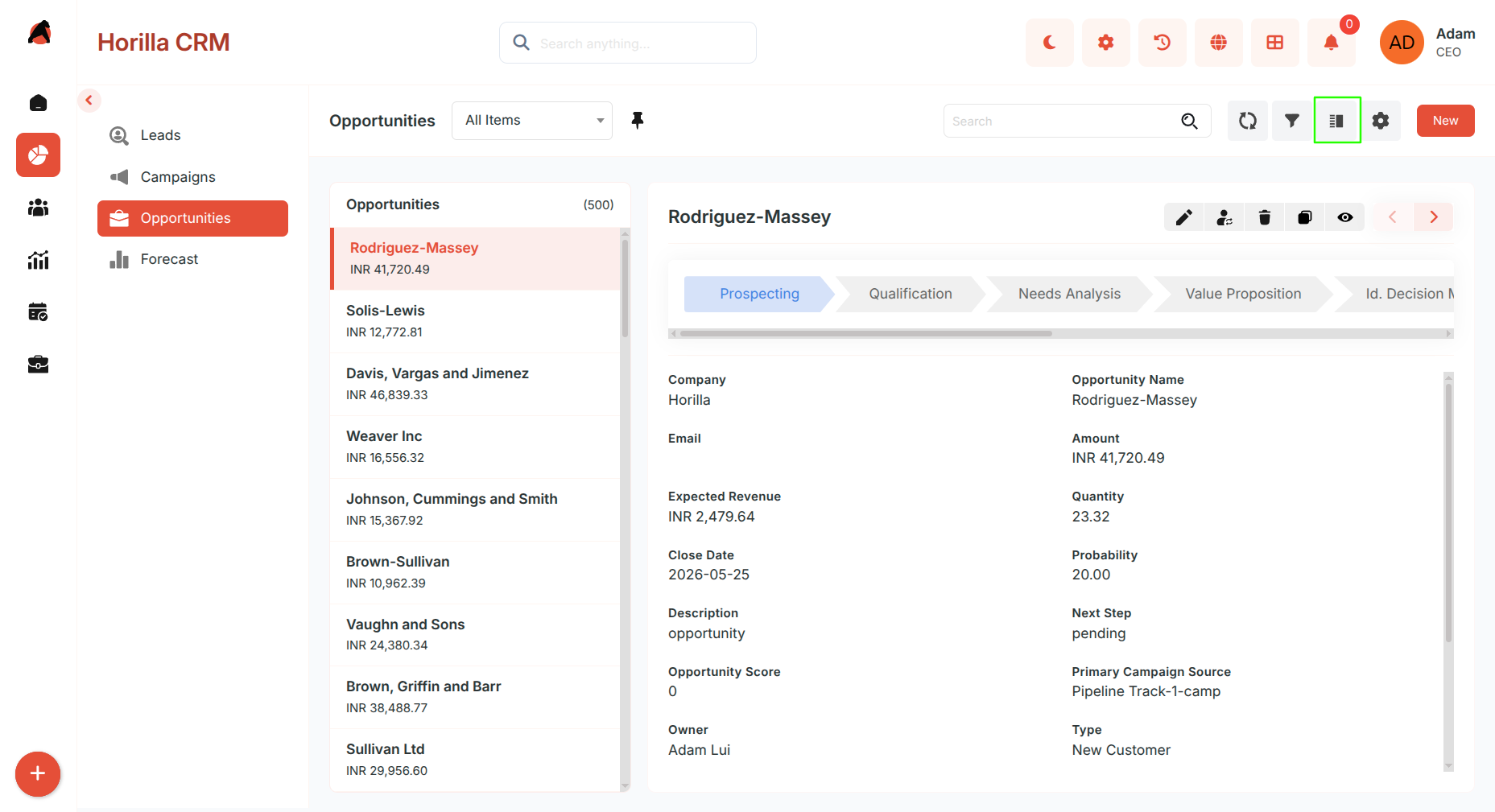
- Activate Split View from the toolbar.
- Left panel: Opportunity list.
- Right panel: Opportunity details.
- Clicking an opportunity instantly loads its details without page navigation.
Timeline View
Purpose: Display opportunities in chronological order.
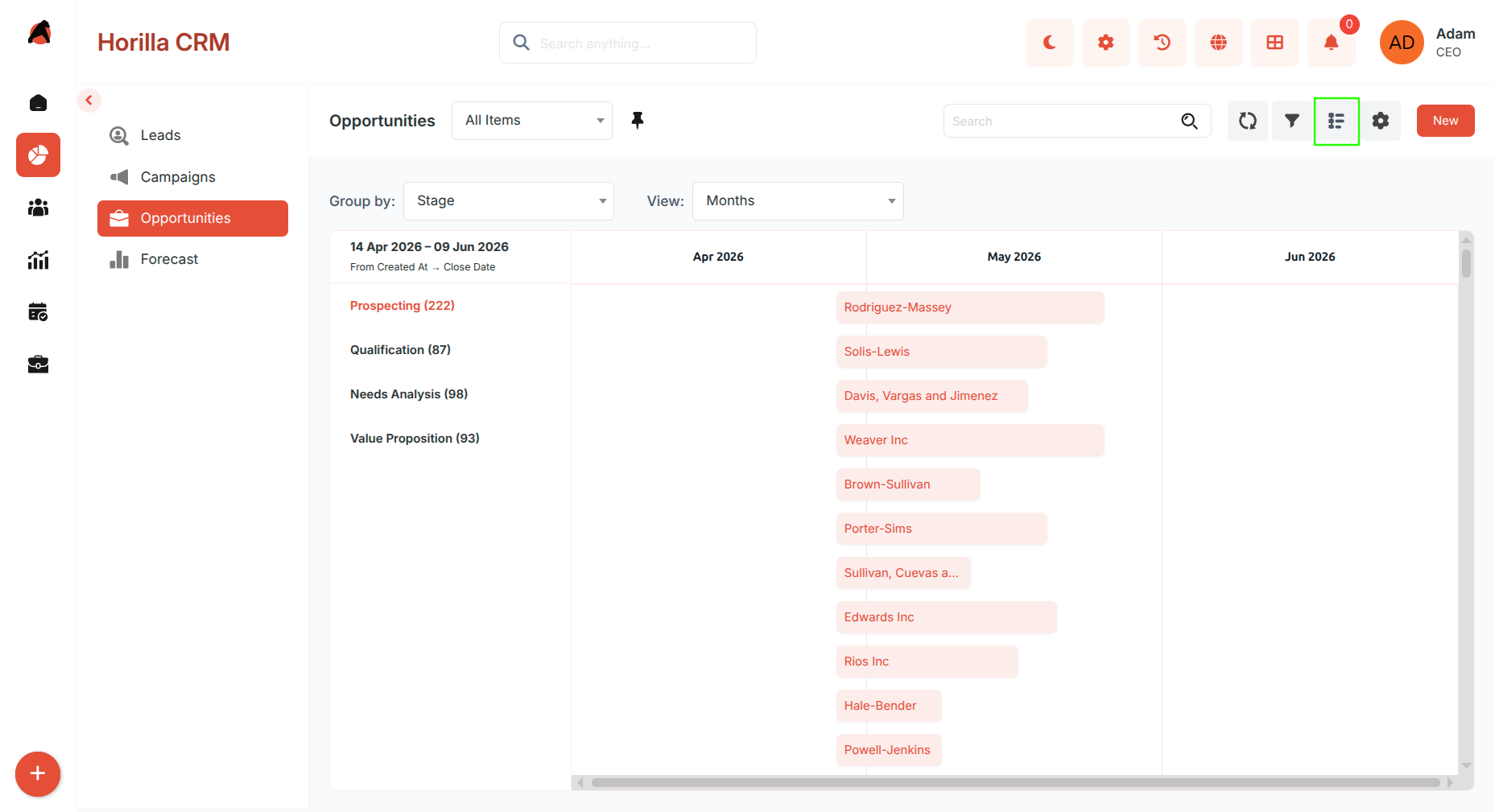
- Switch to Timeline View from the toolbar.
- Organizes opportunities based on creation or activity dates.
- Helps identify activity trends and peak sales periods.
Creating a New Opportunity
Purpose: Capture and store new opportunity information.
Click the New button on the Opportunities page to open the creation form. The form supports two modes, which can be switched at any time:
Multi-Step Form
Designed for guided and structured data entry divided into steps:
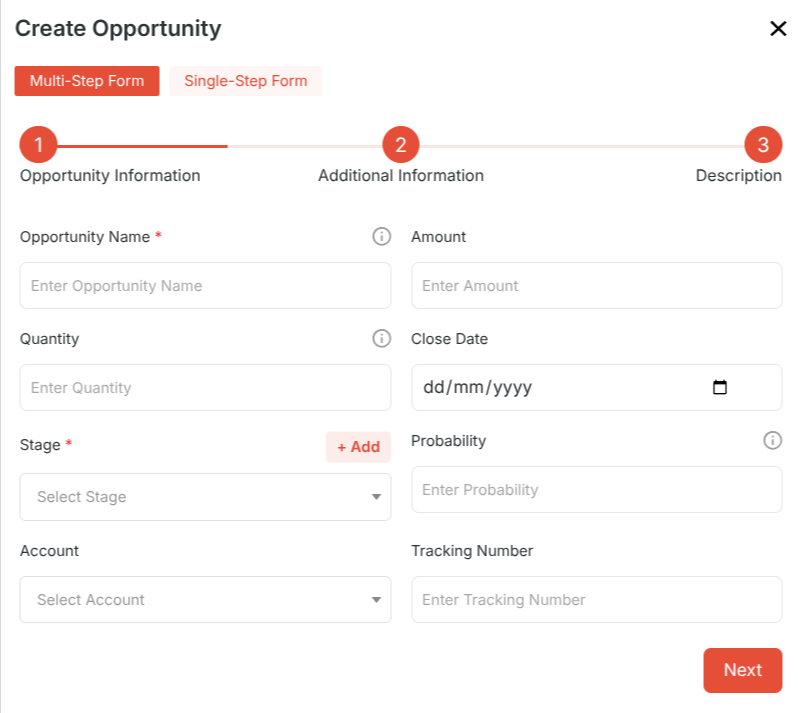
- Step 1 — Opportunity Information: Owner, Name, Account, Amount, Expected Close Date, Stage
- Step 2 — Additional Information: Probability, Lead Source, Campaign
- Step 3 — Description
Use Next and Previous to move between steps. Click Save to create the opportunity.
Single-Step Form
Designed for quick data entry when all information is readily available:
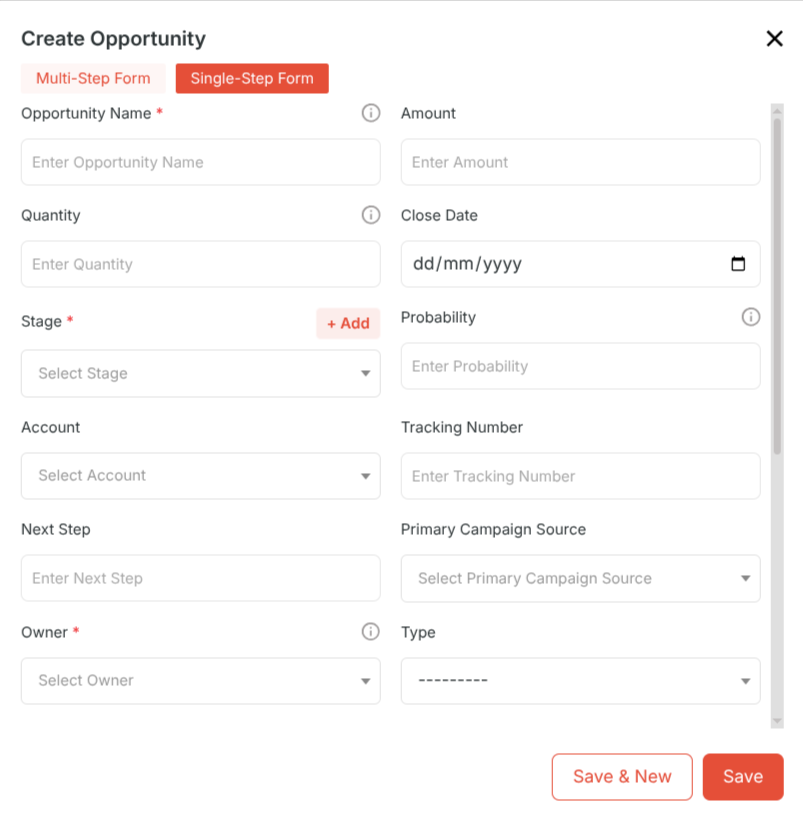
- Displays all opportunity fields on a single page.
- Allows faster input without step navigation.
- Use the toggle in the form header to switch to Single-Step mode.
- Click Save to create the opportunity.
Opportunity Detailed Information
Purpose: Provide a complete view and management interface for each opportunity.
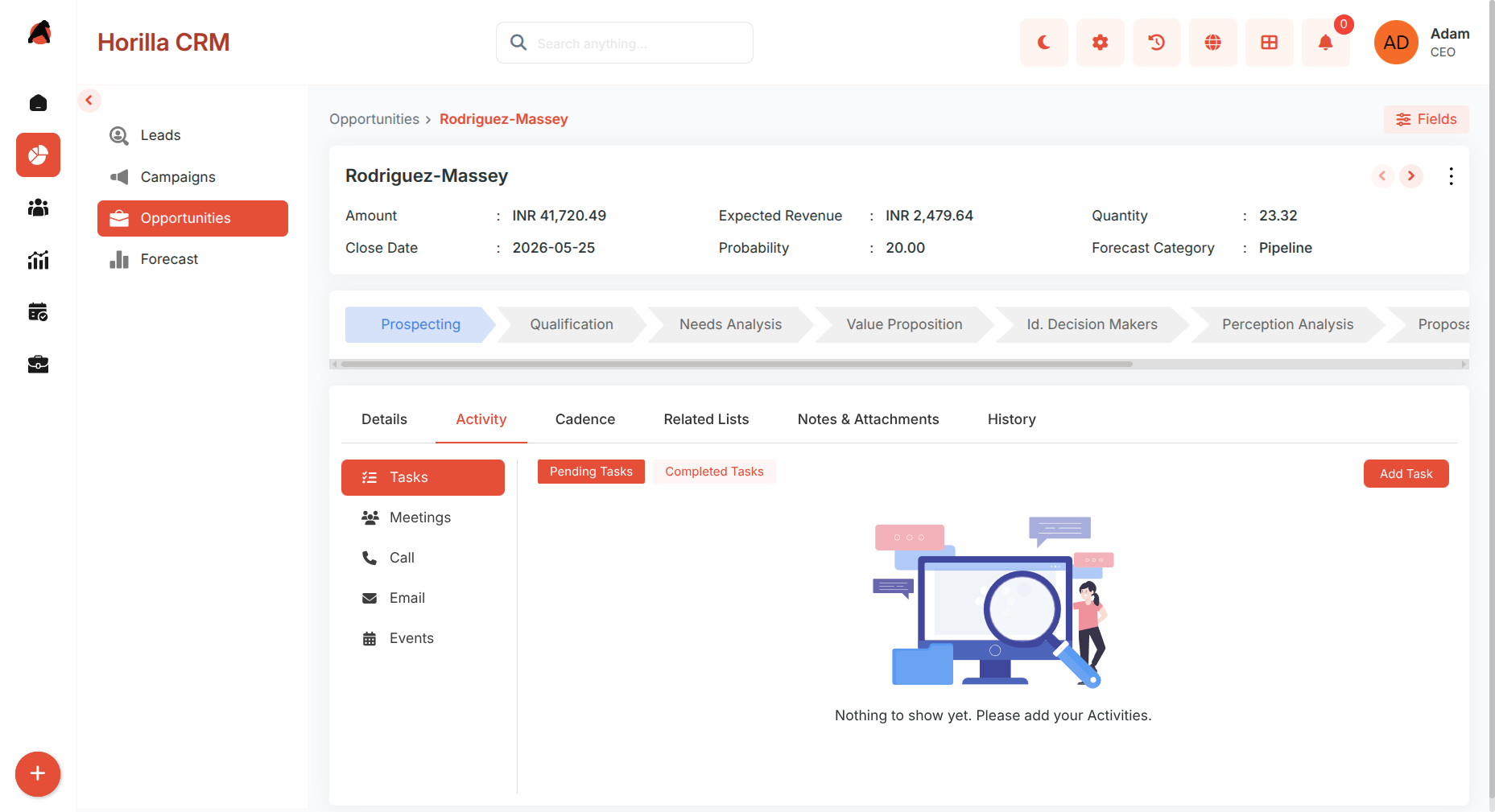
Open by clicking an opportunity from any view. Includes:
- Related lists (Contacts with roles, opportunity team,opportunity splits)
- Activities
- Cadences
- Notes and attachments
- History
Closing an Opportunity
Purpose: Mark an opportunity as won or lost when it reaches the final stage.
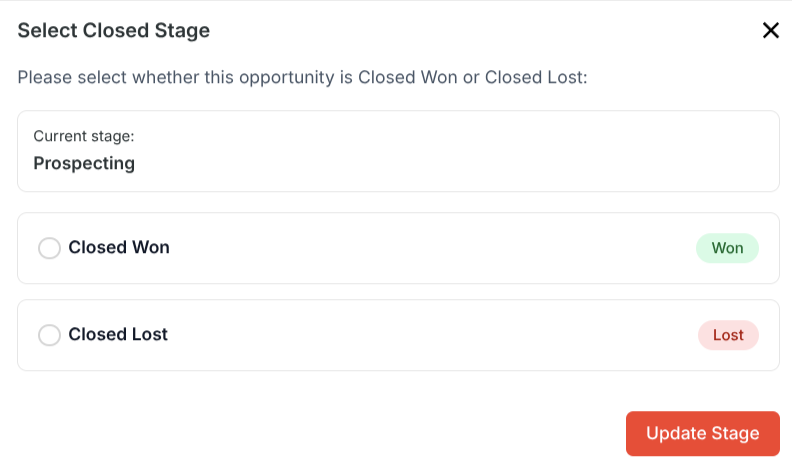
- Click the final stage in the progress bar on the opportunity detail view.
- A selection modal appears with two options:
- Closed Won — marks the deal as successfully closed.
- Closed Lost — marks the deal as lost.
- Select the appropriate outcome to finalize the opportunity.