

Appearance

Import Data – Functional Guide
Introduction
The Horilla CRM Import Data Module simplifies the process of transferring external data into the CRM system. It allows users to bring data from spreadsheets or other sources into CRM modules such as Leads, Accounts, Contacts, and Opportunities. With a structured import wizard, intelligent field mapping, value mapping for choice fields, and a downloadable template generator, this feature ensures accurate, duplicate-free data migration.
Key Features and Functionalities
1.1 Import Wizard Overview
Purpose: Guide users through a step-by-step process to import data efficiently.
Access: Settings → Data Management → Import Data
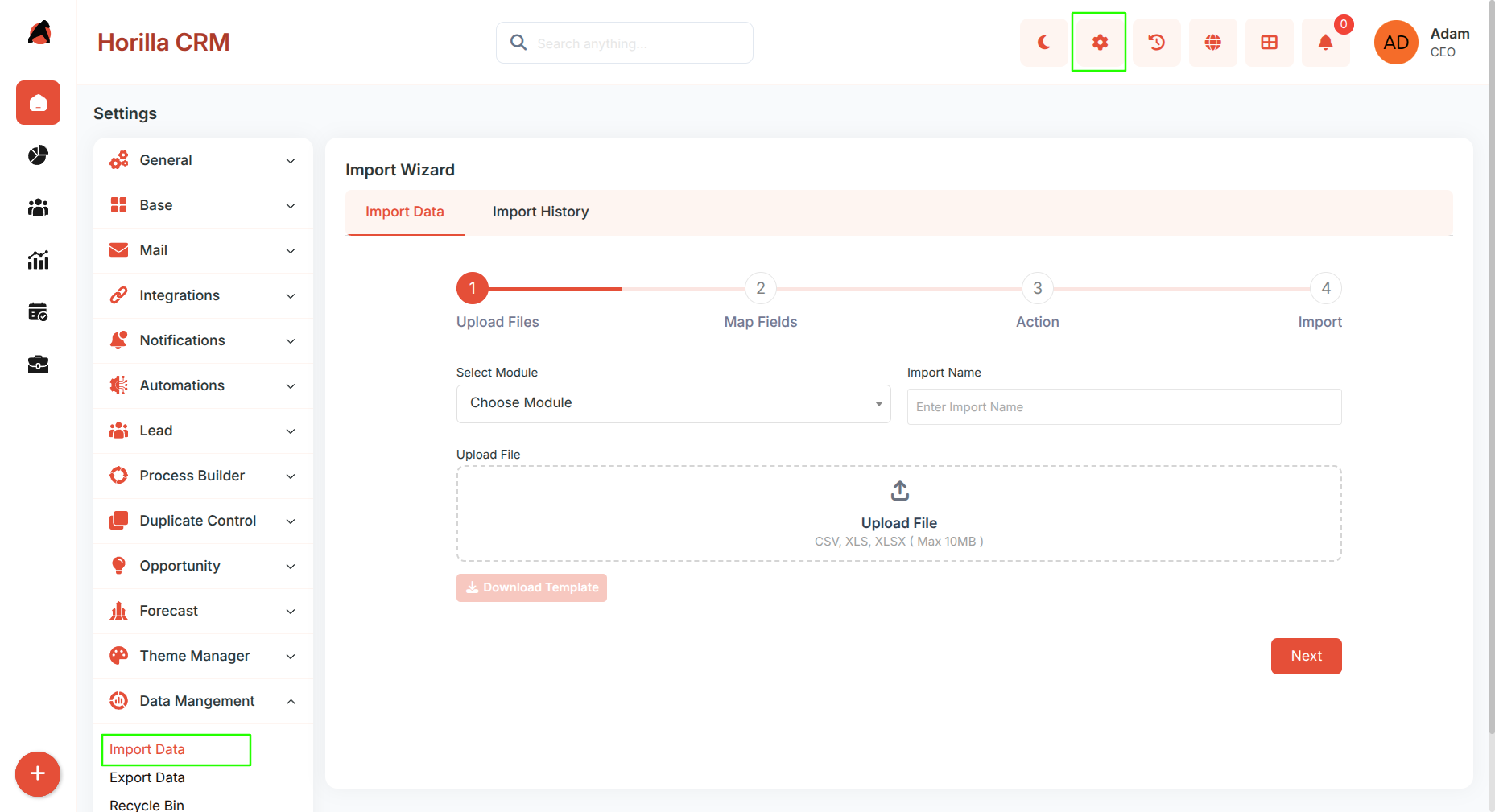
The Import Data interface includes two main tabs:
- Import Data — start a new import process.
- Import History — review past imports and logs.
1.2 Download Import Template
Purpose: Provide a pre-formatted file with the correct column headers for a selected module so users can prepare their data accurately before importing.
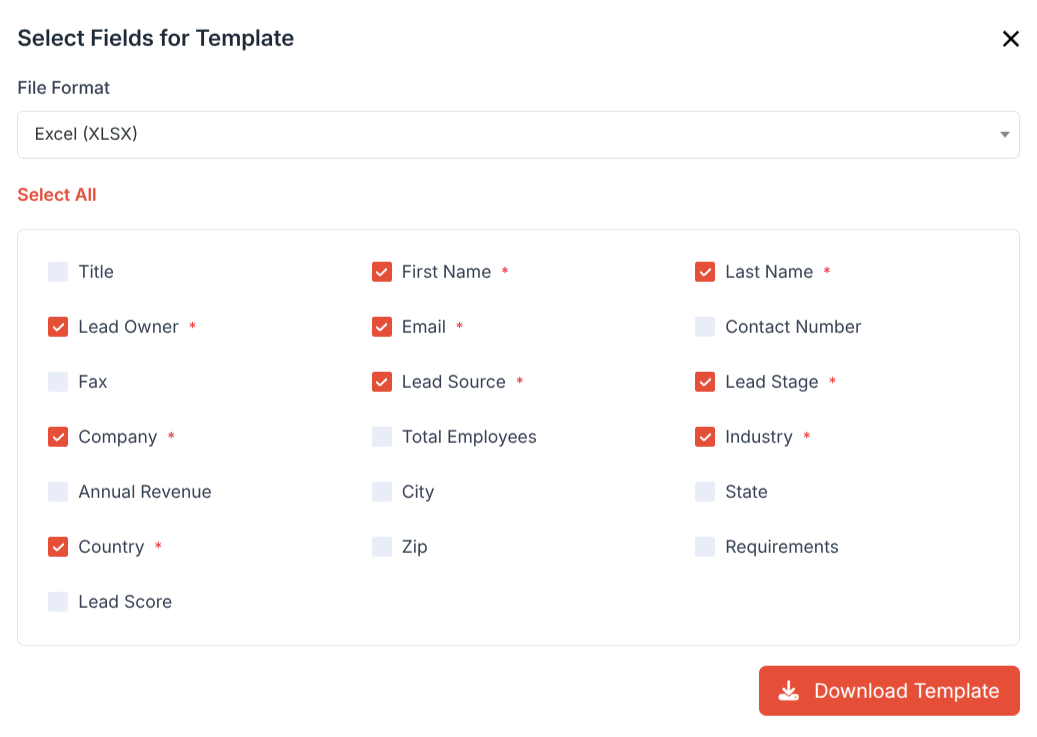
- Click Download Template on the Import Data page.
- Select the Module (Lead, Account, Contact, Opportunity, etc.).
- Choose which fields to include in the template — required fields are pre-selected and cannot be deselected.
- Select the file format: CSV or XLSX.
- Click Download to get the ready-to-fill template file.
1.3 Upload File
Purpose: Start the import by selecting the module and uploading the source file.
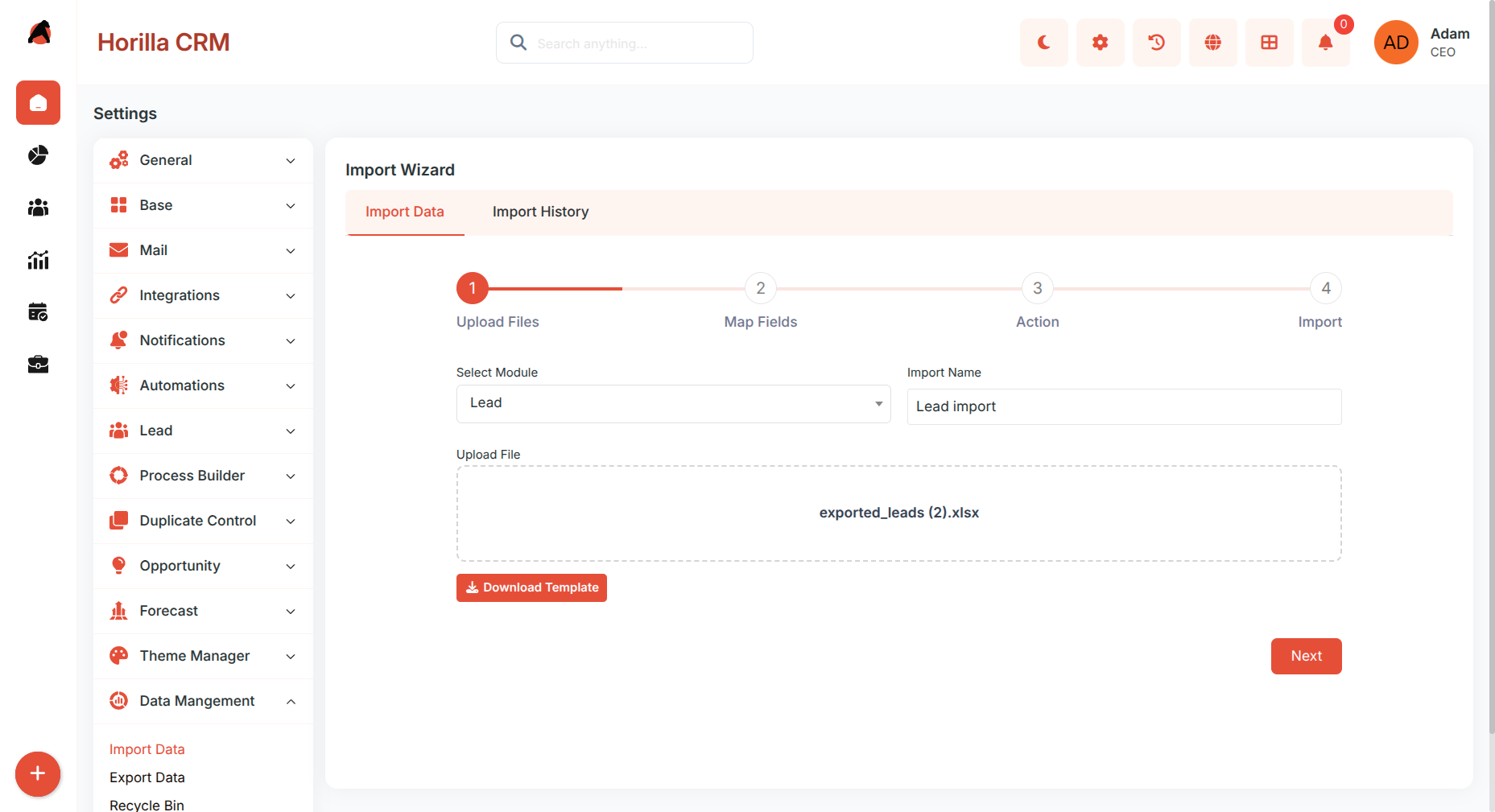
- Choose the Module.
- Enter a clear Import Name (e.g., "Q4 2025 Lead Import").
- Upload your data file. Supported formats:
CSV·XLS·XLSX. - Click Next to proceed after file validation.
1.4 Map Fields
Purpose: Match file columns with CRM fields to ensure correct data placement.
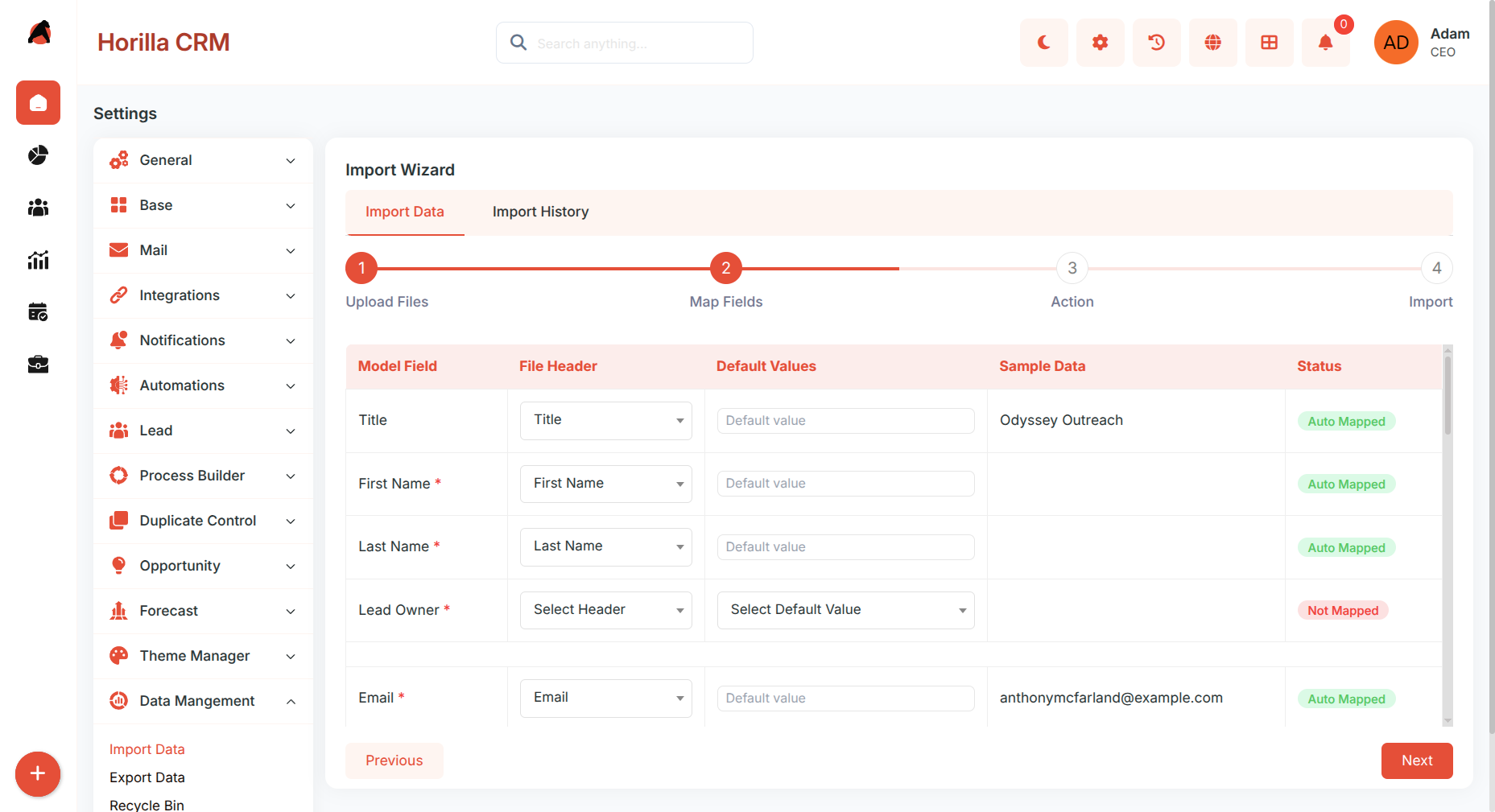
The mapping screen shows:
- Model Field — CRM field name.
- File Header — matching column from your uploaded file.
- Default Value — fallback for unmapped fields.
- Sample Data — preview from your file.
- Status — mapping progress.
- Fields marked with
*are required. - The system auto-maps fields with matching names.
- Fields marked as Not Mapped require manual mapping or a default value.
Value Mapping for Choice and Relation Fields:
- For fields with fixed choices (e.g., Lead Source, Industry) or foreign key fields, a Value Mapping panel appears.
- It lists the unique values found in your uploaded file and lets you map each one to the correct CRM option.
- The system attempts to auto-map values with matching names.
- Unmapped values can be manually assigned or left to use the default value.
Click Next after all required fields are mapped.
1.5 Action Configuration
Purpose: Define how the system should handle new and existing records.
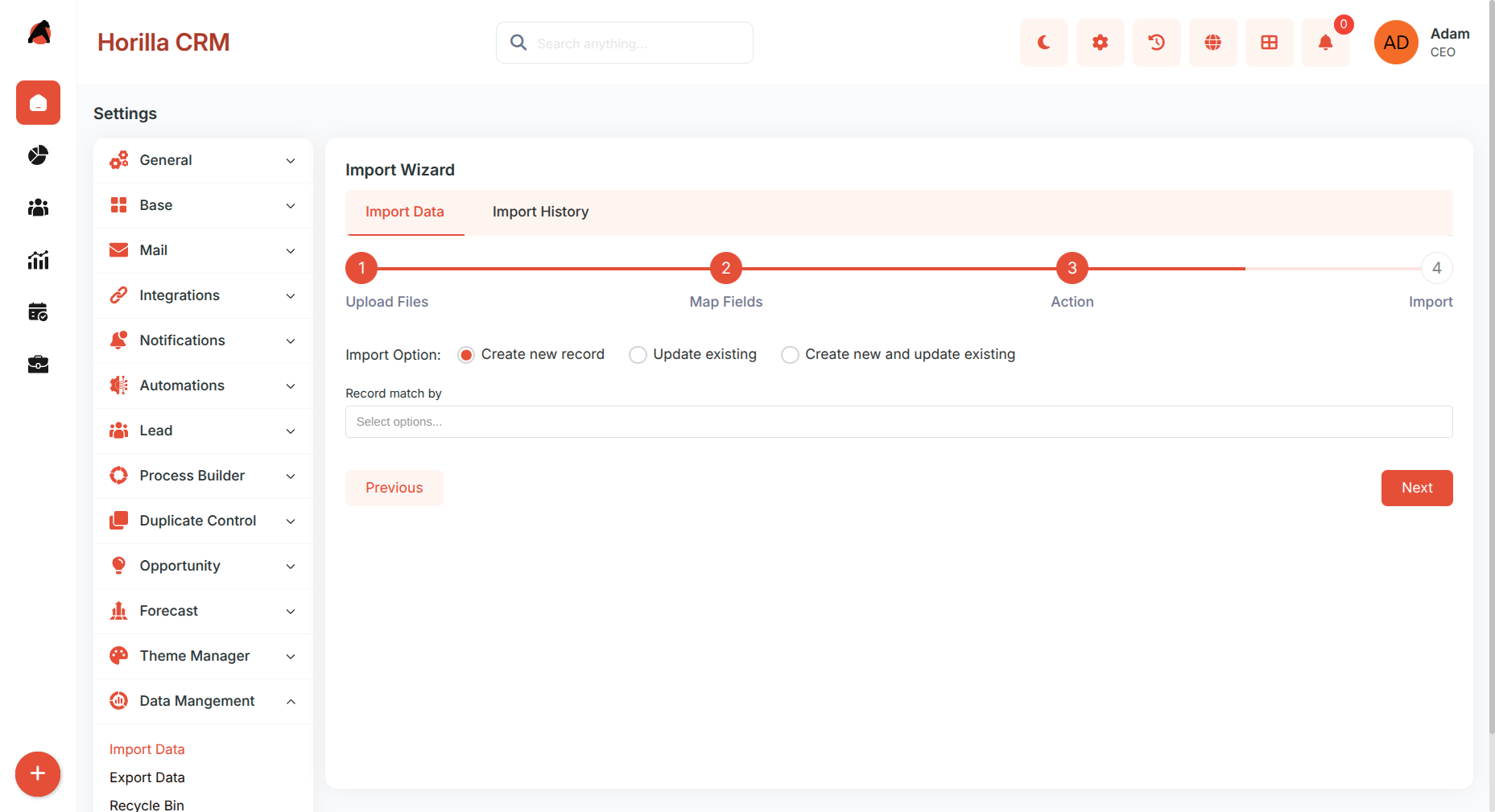
Import Options:
- Create New Records — adds all rows as new data.
- Update Existing — updates records that already exist.
- Create New and Update Existing — combines both intelligently.
Record Match By: Choose the matching field (Email, Company Name, Phone Number, Unique Identifier) when updating or combining.
Click Next to proceed.
1.6 Import Summary
Purpose: Review all import settings before execution.
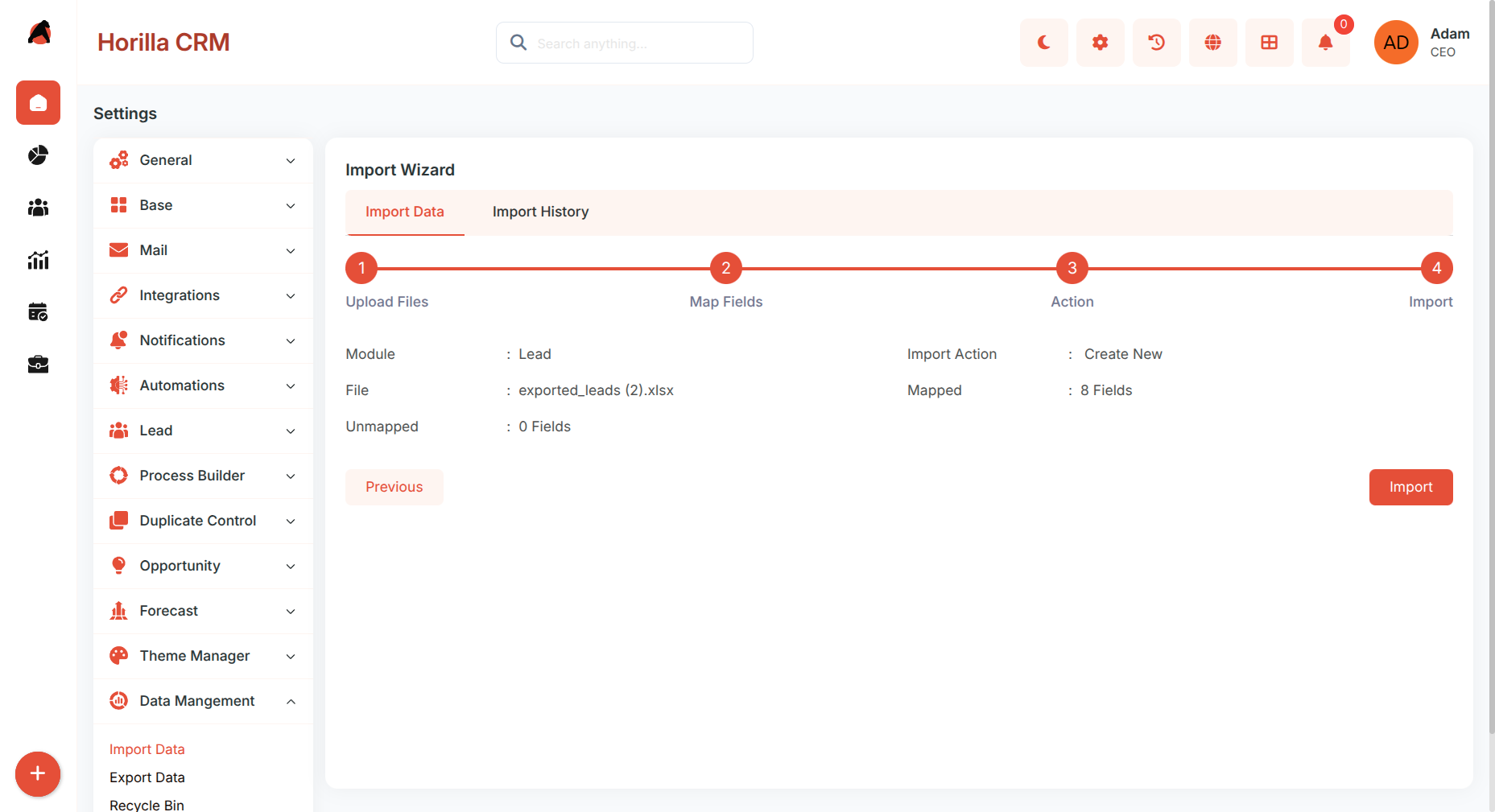
The summary displays:
- Selected Module, uploaded File Name, and chosen Import Action.
- Number of Mapped and Unmapped fields.
Click Import to start the process.
1.7 Import Completion
Purpose: Provide results and insights after the import process.
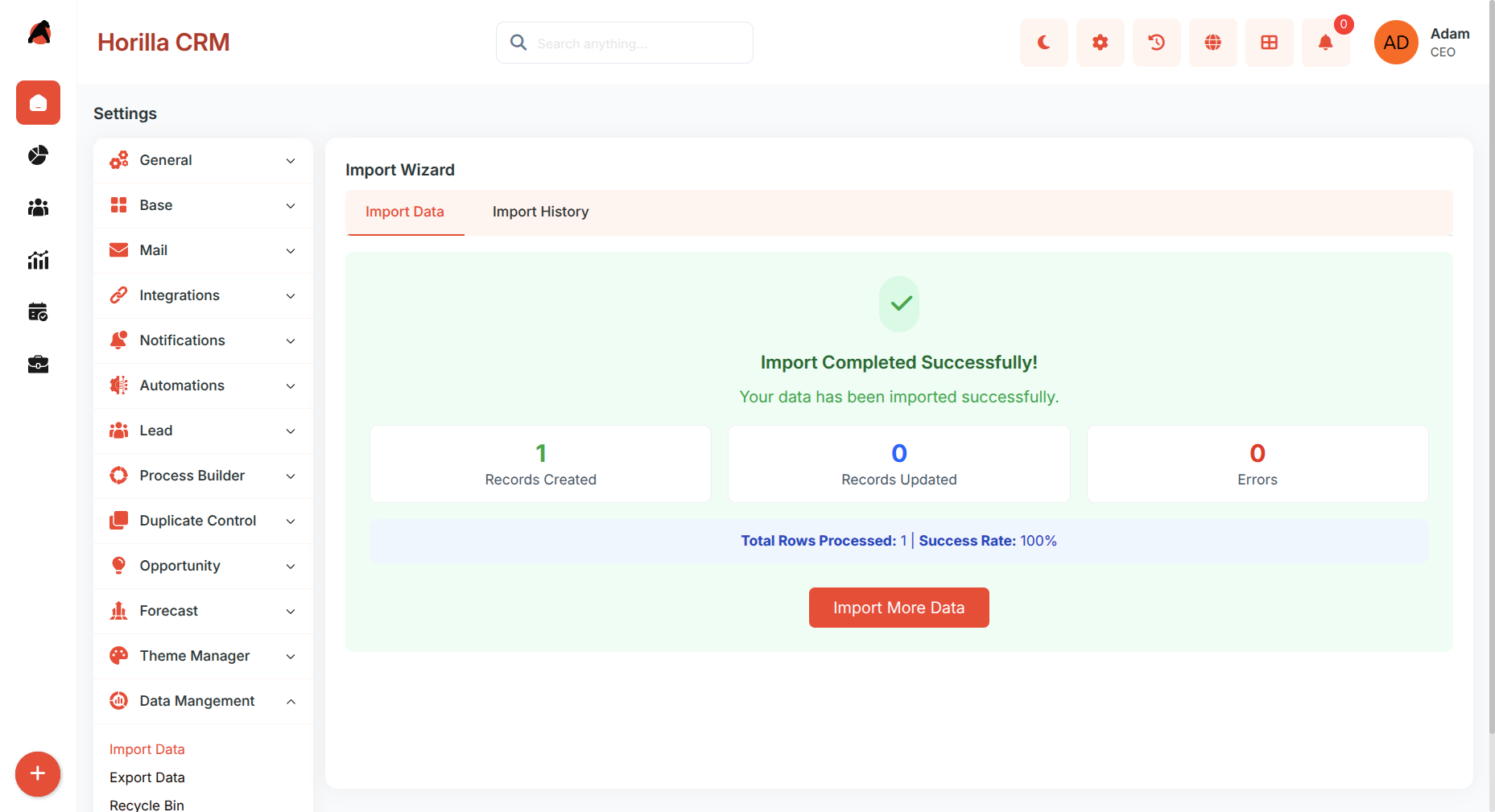
Once complete, the system shows:
- Import Statistics: Records Created · Records Updated · Errors.
- Processing Summary: Total rows processed and success rate.
Users can:
- Click Import More Data to begin another import.
- Visit the related module to review imported records.
- Check Import History for logs and detailed information.
1.8 Import History
Purpose: Track all import activities for review, auditing, and error recovery.
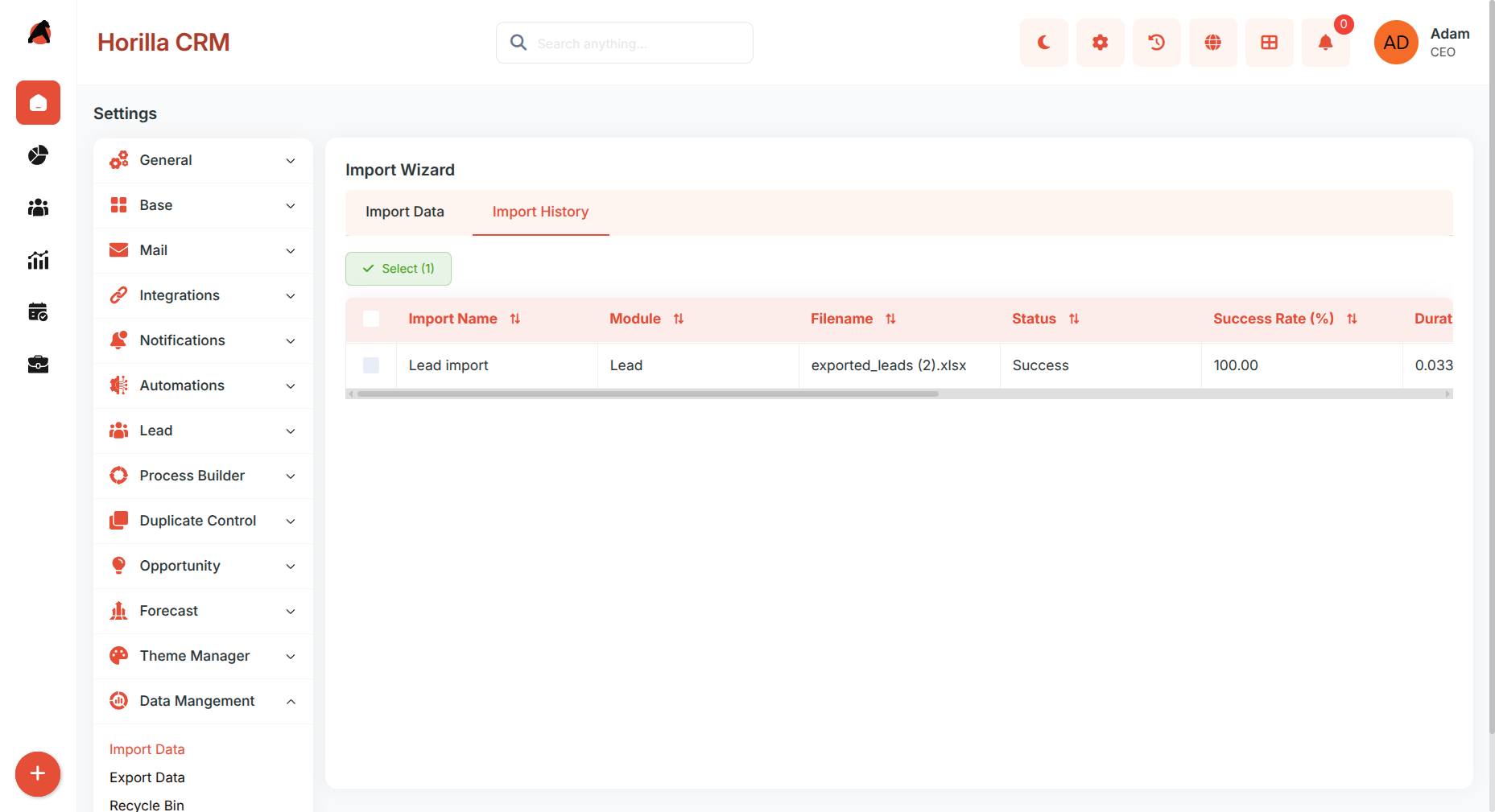
Access: Import History tab on the Import Data page.
Displays all completed imports with the following details:
- Import Name — name given at the time of import.
- Module — CRM module imported into.
- Original Filename — name of the uploaded file.
- Status — Completed or Failed.
- Success Rate — percentage of rows imported successfully.
- Duration — time taken to complete the import.
- Created At — date and time of the import.
- Created By — user who performed the import.
- Imported File — download the original uploaded file.
- Error File — download a file listing only the failed rows with error details for correction and re-import.