

Appearance

Mail Template – Functional Guide
1. Introduction
The Mail Template module enables users to create and manage reusable email templates for various CRM entities. These templates streamline communication by providing pre-formatted email content that can be associated with different models like Leads, Contacts, and Opportunities.
2. Key Features and Functionalities
2.1 Mail Templates Overview
Purpose: Display all configured mail templates in a centralized view for easy management.
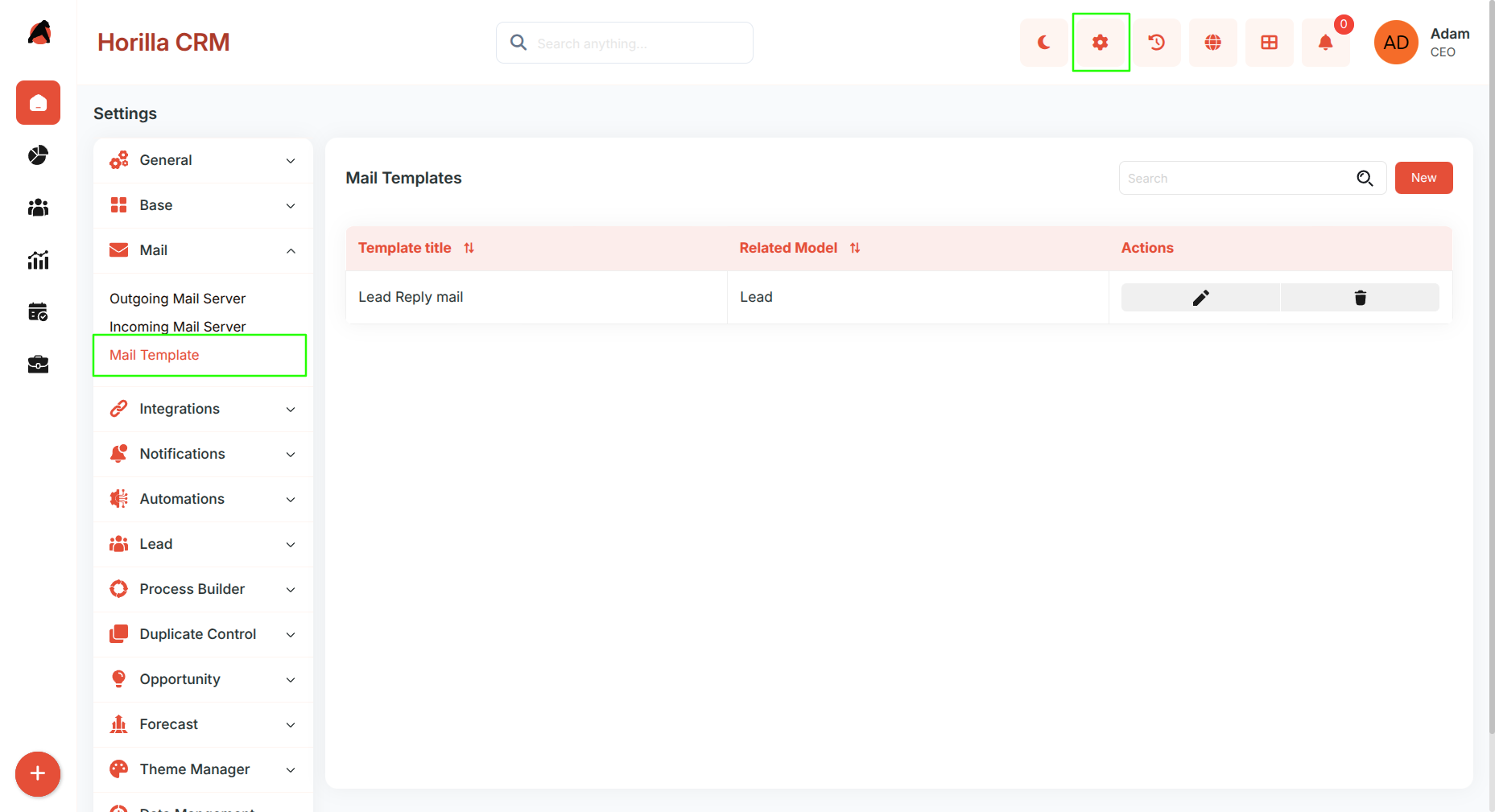
- Navigate to Settings > Mail > Mail Template
- The interface displays:
- Template title (sortable)
- Related Model (sortable)
- Actions (Edit and Delete icons)
- Includes search functionality to quickly locate templates
- "New" button in the top-right to create templates
2.2 Creating a New Mail Template
Purpose: Create reusable email templates for different CRM entities.
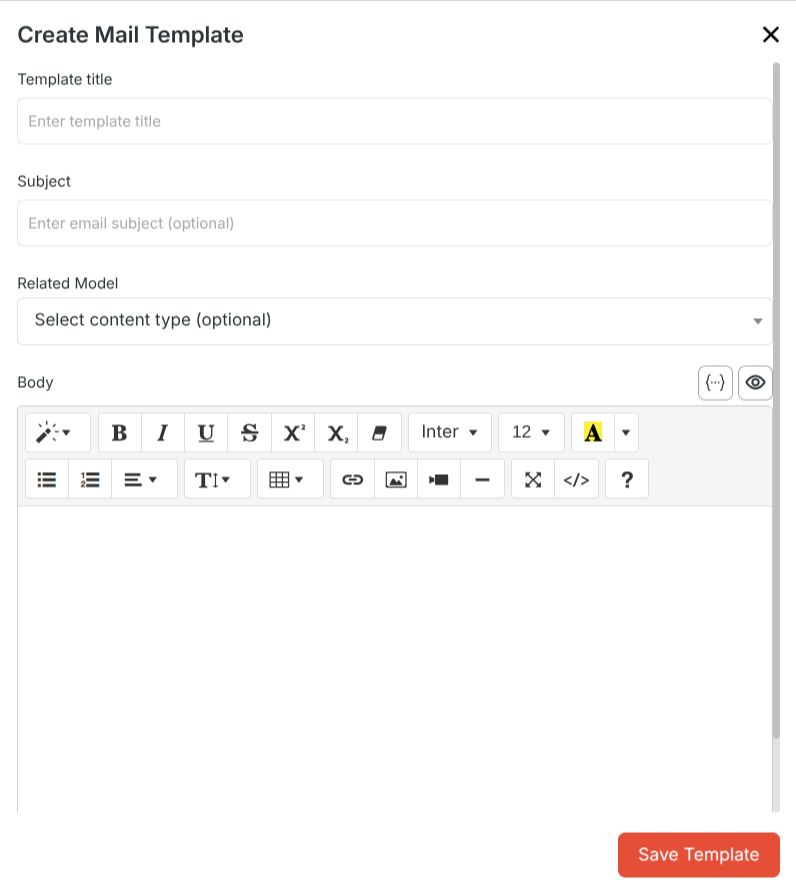
Click the "New" button to open the "Create Mail Template" modal.
Form Fields:
- Template title: Enter a descriptive name for the template
- Subject: Subject of the mail.
- Related Model: Select the CRM entity type (optional dropdown)
- Options: Lead, Contact, Opportunity, etc.
- Body: Rich text editor with formatting tools.
Click "Save Template" to finalize.
2.3 Managing Existing Templates
Purpose: Edit or remove mail templates as needed.
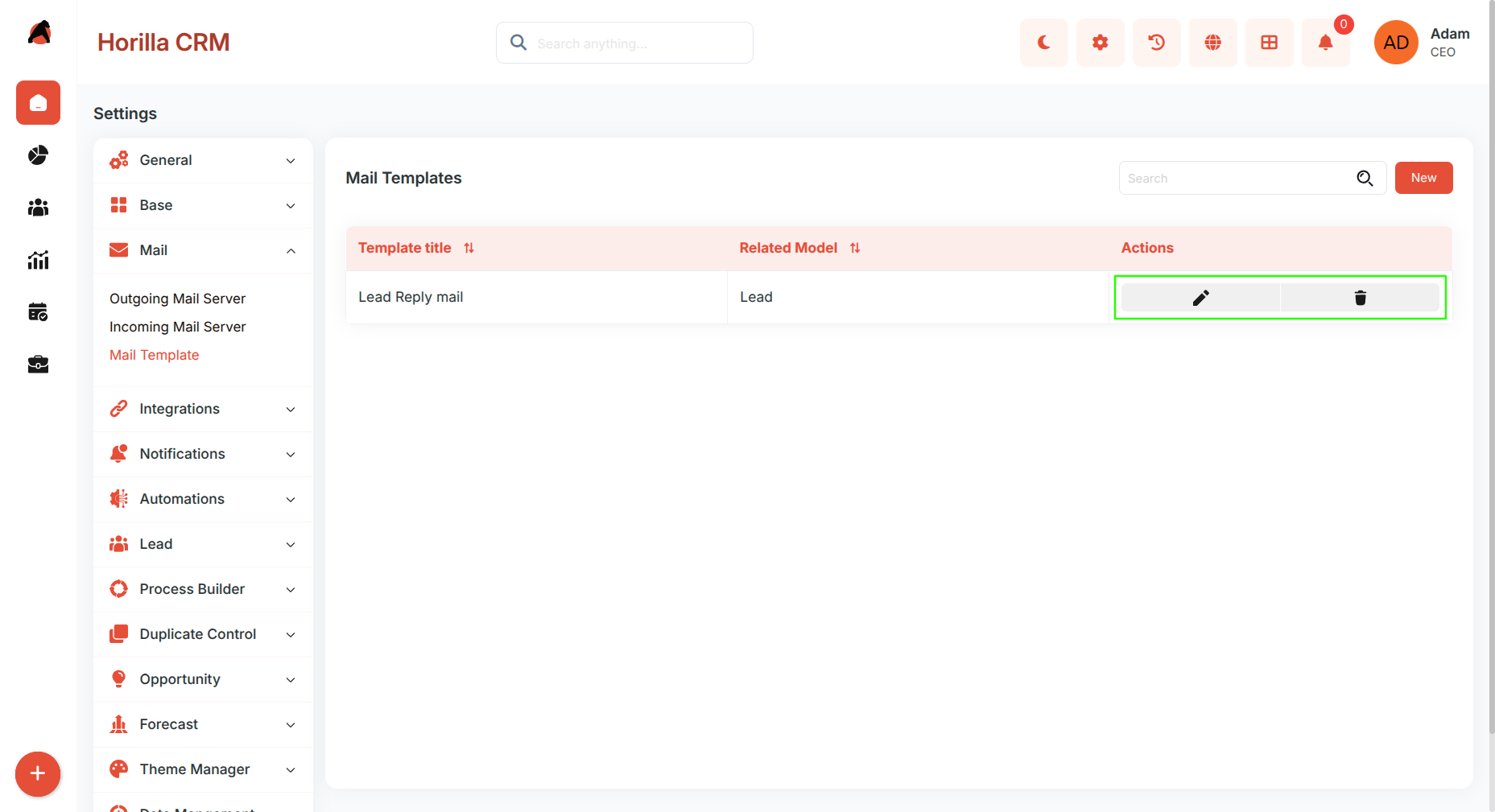
Each template row includes:
- Edit icon: Modify template content and settings
- Delete icon: Remove the template permanently
2.4 Template Detail View (Preview)
Purpose: View a rendered preview of the mail template content.
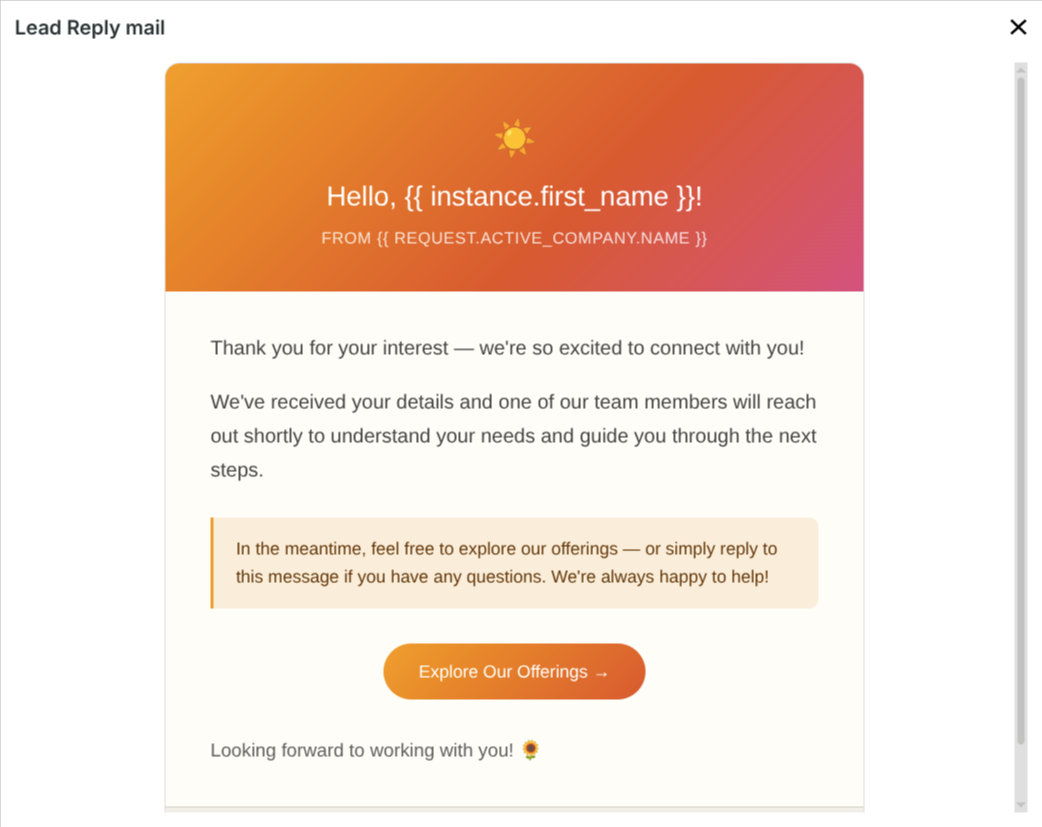
- Click on any template record in the list to open the detail view
- A modal displays the full visual preview of the email template.
- This preview reflects how the email will appear to the recipient, with live template variables shown in their placeholder form