

Appearance

Forecast – Functional Guide
Introduction
The Horilla CRM Forecast Module is a sophisticated feature designed to streamline sales forecasting and target management within the CRM ecosystem. It provides a comprehensive, intuitive interface that empowers businesses to set revenue and quantity targets, track performance against goals, and gain visibility into sales pipeline metrics. This module supports customizable forecast types, fiscal-year-based navigation, period-based target setting, role-based target assignment, and real-time achievement tracking.
Key Features and Functionalities
1. Forecast Types Management
Purpose: Define and manage different categories of forecasts to align with business objectives.
Accessing Forecast Types
- Navigate to Settings → Forecast → Forecast Type.
- Displays all configured forecast categories in a list.
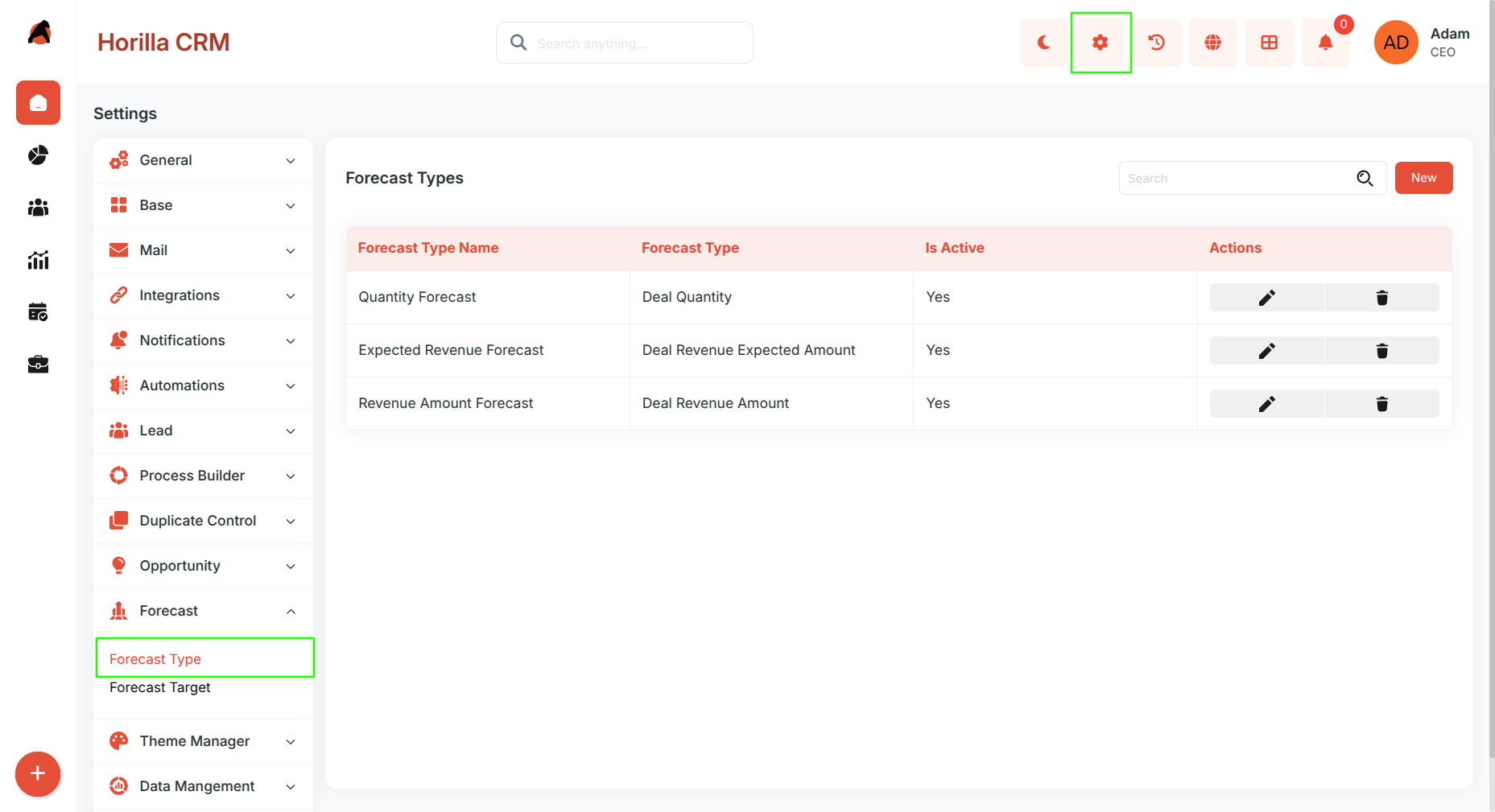
Viewing Forecast Types
- Columns displayed: Forecast Type Name, Forecast Type (Deal Quantity or Deal Revenue Amount), Is Active.
- Actions: Edit or Delete each forecast type.
Creating a New Forecast Type
- Click New to open the creation form.
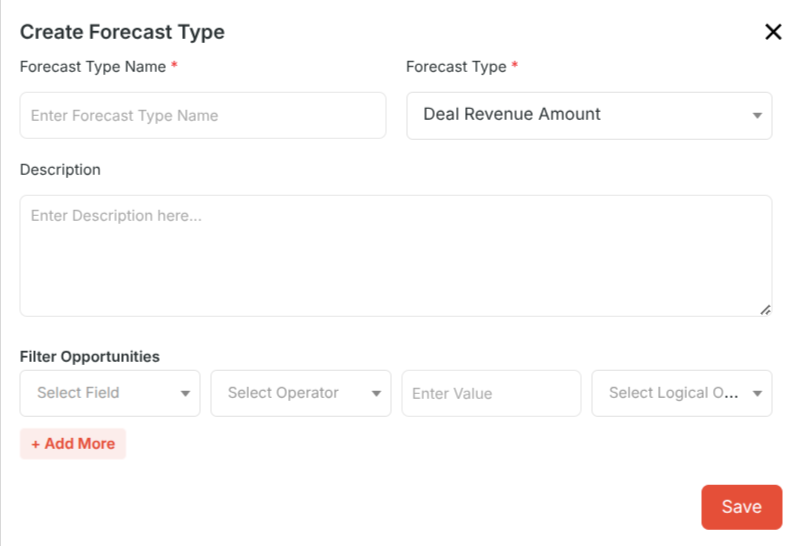
- Fill in:
- Forecast Type Name (required)
- Forecast Type (required) — Deal Revenue Amount or Deal Quantity
- Description (optional)
- Filter Opportunities — configure advanced filtering conditions using Field, Operator, Value, and Logical Operator. Click + Add More to add multiple conditions.
- Click Save.
Managing Existing Forecast Types
- Use the search bar to locate specific forecast types.
- Edit using the pencil icon or Delete using the trash icon.
2. Forecast Targets Configuration
Purpose: Set and manage performance targets for team members across specific periods and forecast types.
Accessing Forecast Targets
- Navigate to Settings → Forecast → Forecast Target.
- Filter the list using Forecast Type and Forecast Period dropdowns at the top.
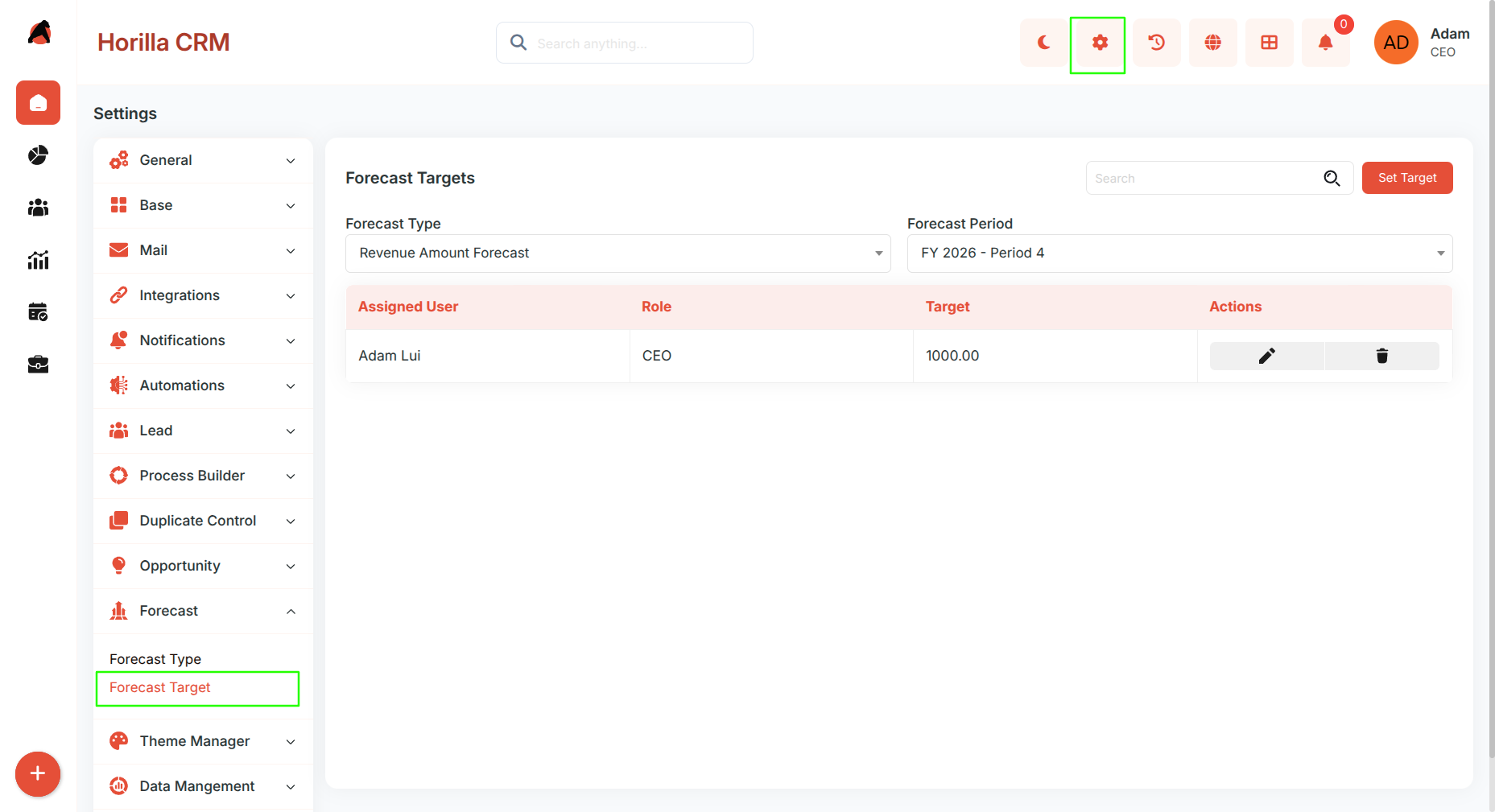
Viewing Forecast Targets
- Columns displayed: Assigned User, Role, Target, Actions.
Creating a New Forecast Target
- Click Set Target to open the target creation form.
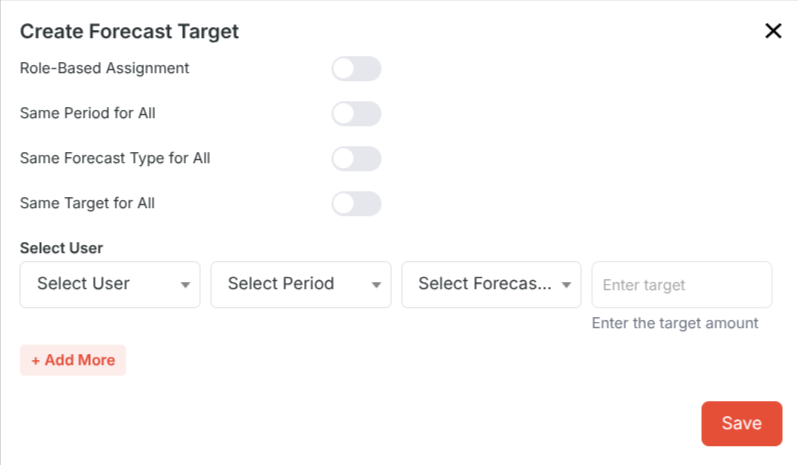
- Toggle options to simplify bulk entry:
- Role-Based Assignment — enable to assign targets by role; the user list filters to only users with the selected role.
- Same Period for All — apply a single period across all target rows.
- Same Forecast Type for All — use the same forecast type for all rows.
- Same Target for All — set a uniform target value for all rows.
- Per-row fields (shown when corresponding toggle is off):
- Select User
- Select Period
- Select Forecast Type
- Enter Target Amount
- Click + Add More to add additional rows for multiple users or periods.
- The system validates for duplicate combinations (same user + period + forecast type) and prevents saving duplicates.
- Click Save to finalize.
Managing Existing Targets
- Edit targets using the pencil icon or Delete using the trash icon.
3. Forecast Dashboard and Performance Tracking
Purpose: Provide real-time visibility into forecast achievement, pipeline health, and period-over-period performance.
Accessing the Forecast Dashboard
- Click Forecast from the main left sidebar.
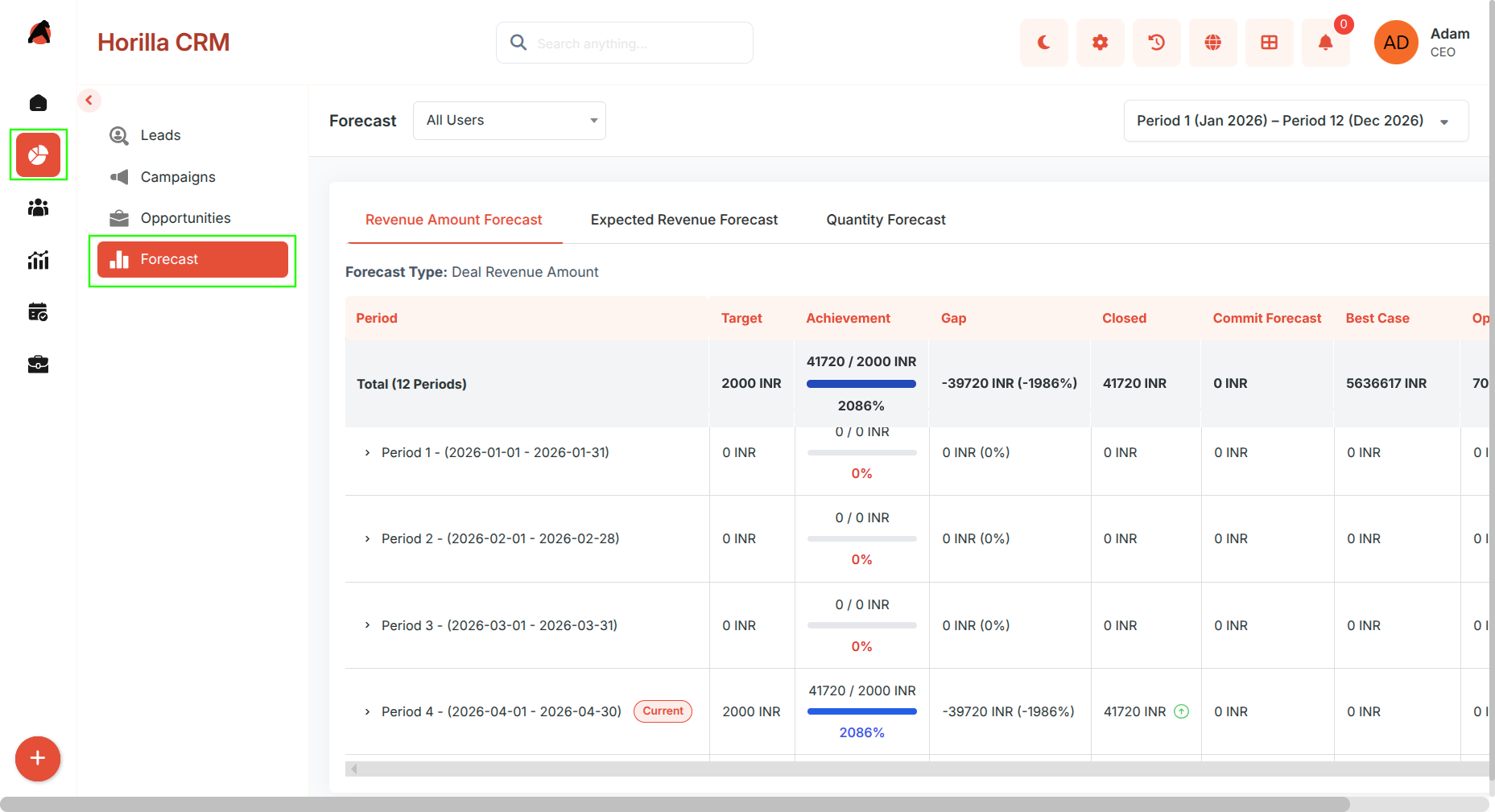
Dashboard Filters
- All Users dropdown — filter the dashboard to a specific user.
- Fiscal Year selector — navigate between fiscal year instances using Previous and Next controls. Defaults to the current active fiscal year.
- Forecast Type tabs — toggle between configured forecast types; each tab shows its own metrics.
Dashboard Metrics
Overview Row (Total — all periods):
- Target, Achievement (progress bar with closed amount / target and percentage), Gap, Closed, Commit Forecast, Best Case, Open Pipeline.
Period-by-Period Breakdown:
- Each period (e.g., January 2025, February 2025) is shown as an expandable row.
- Each row shows: Target, Achievement, Gap, Closed, Commit Forecast, Best Case, Open Pipeline for that period.
Expanded Period View:
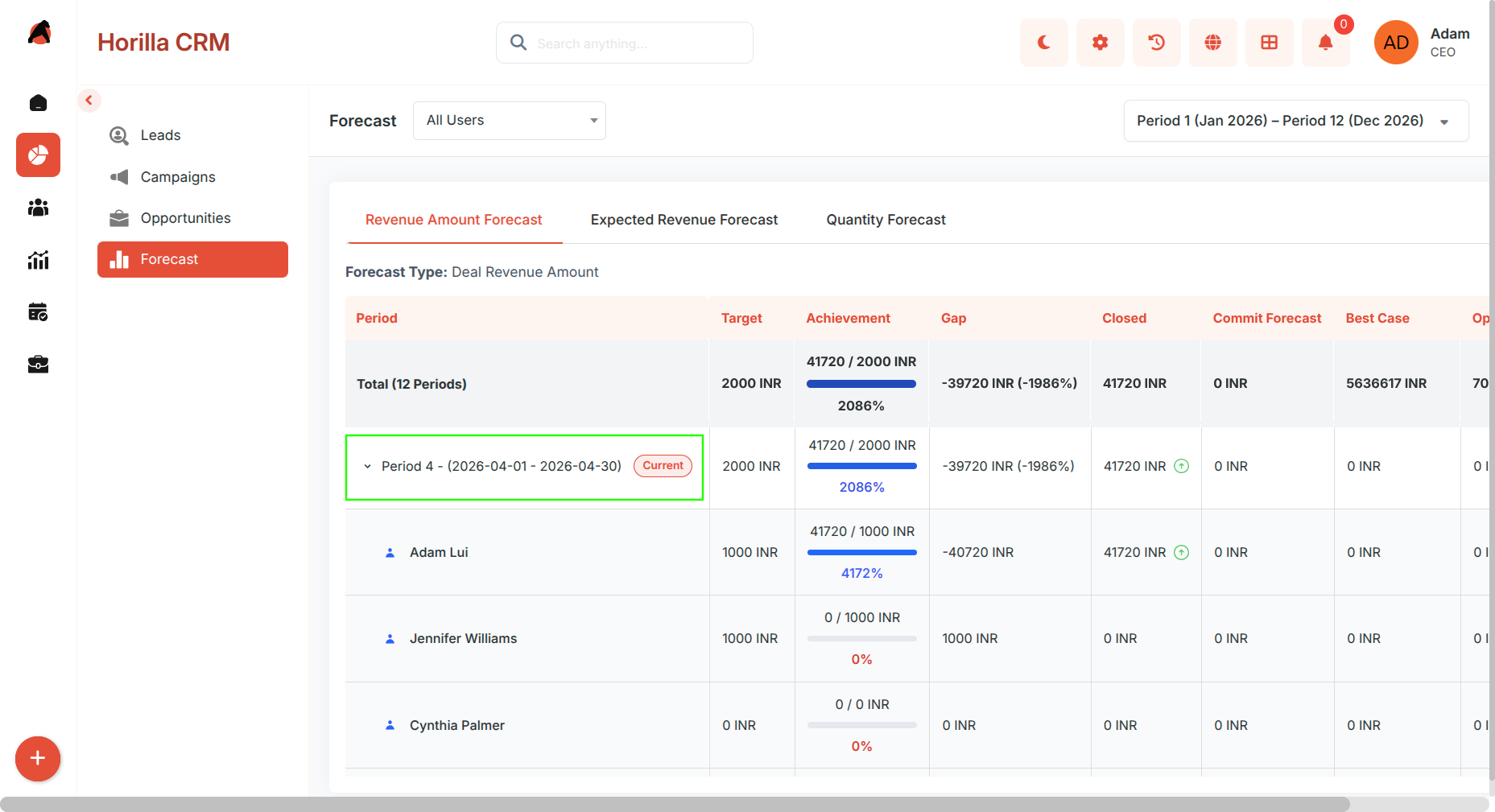
- Shows the period total in the first row.
- Lists each individual team member's contribution with their own Target, Achievement, Gap, Closed, Commit Forecast, Best Case, and Open Pipeline values.
Opportunity Detail Modal
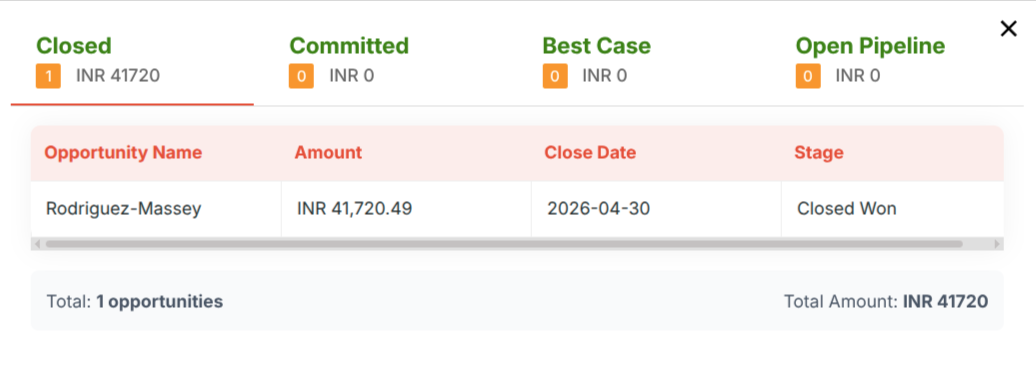
- Clicking any Closed, Commit Forecast, Best Case, or Open Pipeline value opens a modal popup listing the opportunities that make up that figure.
- The modal is organised into four tabs: Closed, Committed, Best Case, and Open Pipeline.
- Each tab displays the opportunity name and its amount (or quantity for quantity-based forecast types).
- Clicking an opportunity name navigates directly to that opportunity's detail view.
- This works at the total row level, at each period row level, and at the individual user level inside an expanded period.