Appearance

Horilla CRM User Management – Functional Guide
Introduction
The User Management Module in Horilla CRM is designed to streamline the administration of system users within an organization. It provides a centralized interface to manage user accounts, monitor access, and maintain security standards.
With the latest enhancements, the module now includes multiple data visualization options such as List View, Kanban View, and Group By View, enabling users to interact with data more efficiently based on their workflow needs.
Key Features and Functionalities
Users Overview
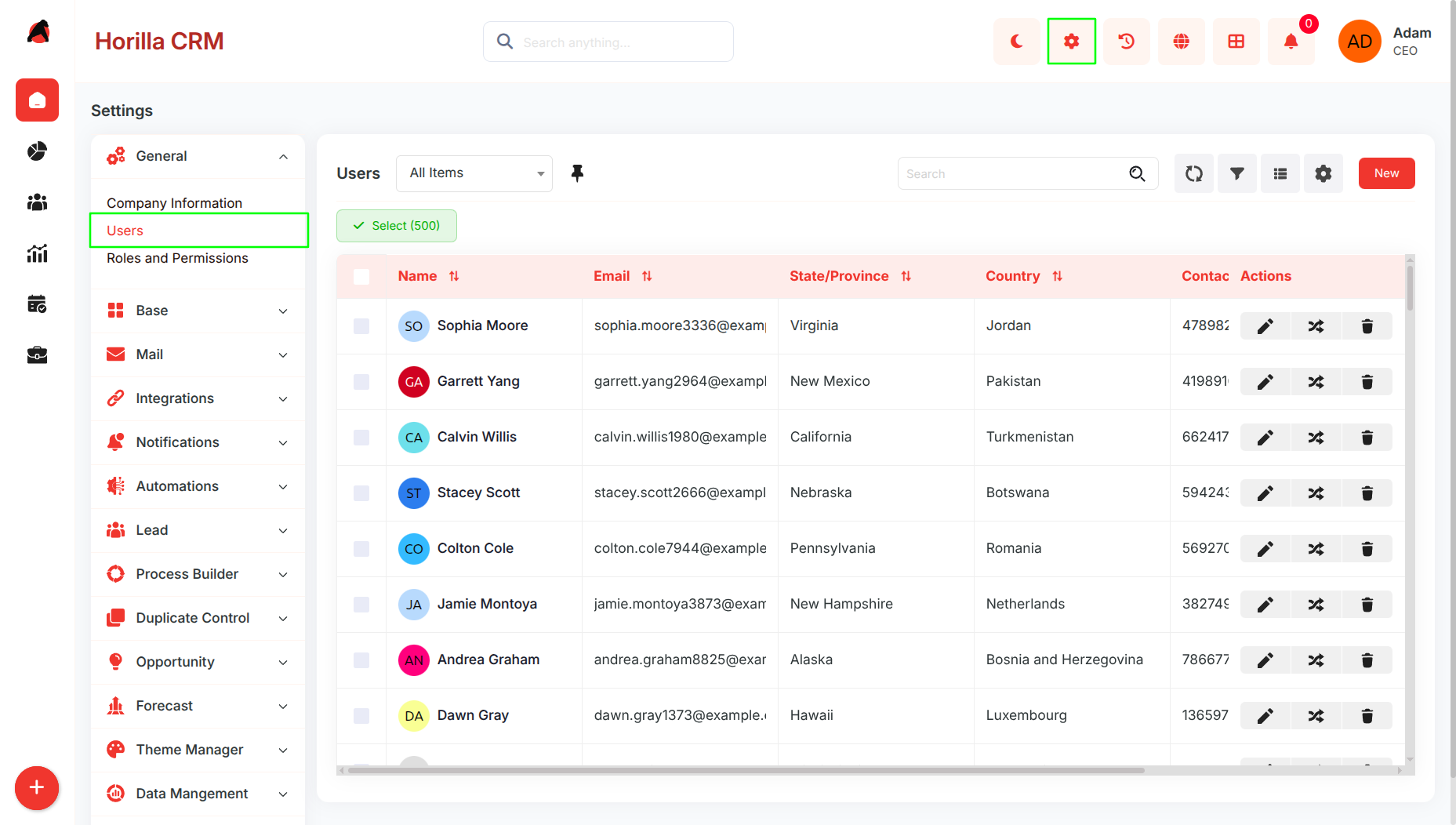
Purpose: Provide a centralized dashboard to view and manage all users.
Navigation: Settings → Users
Features:
- Displays user details such as Name, Email, Role, Contact Number, Country, and State/Province
- Search bar for quick filtering
- Bulk selection with multi-select checkboxes
- Action options (Edit, Delete) for each user
User Creation Workflow
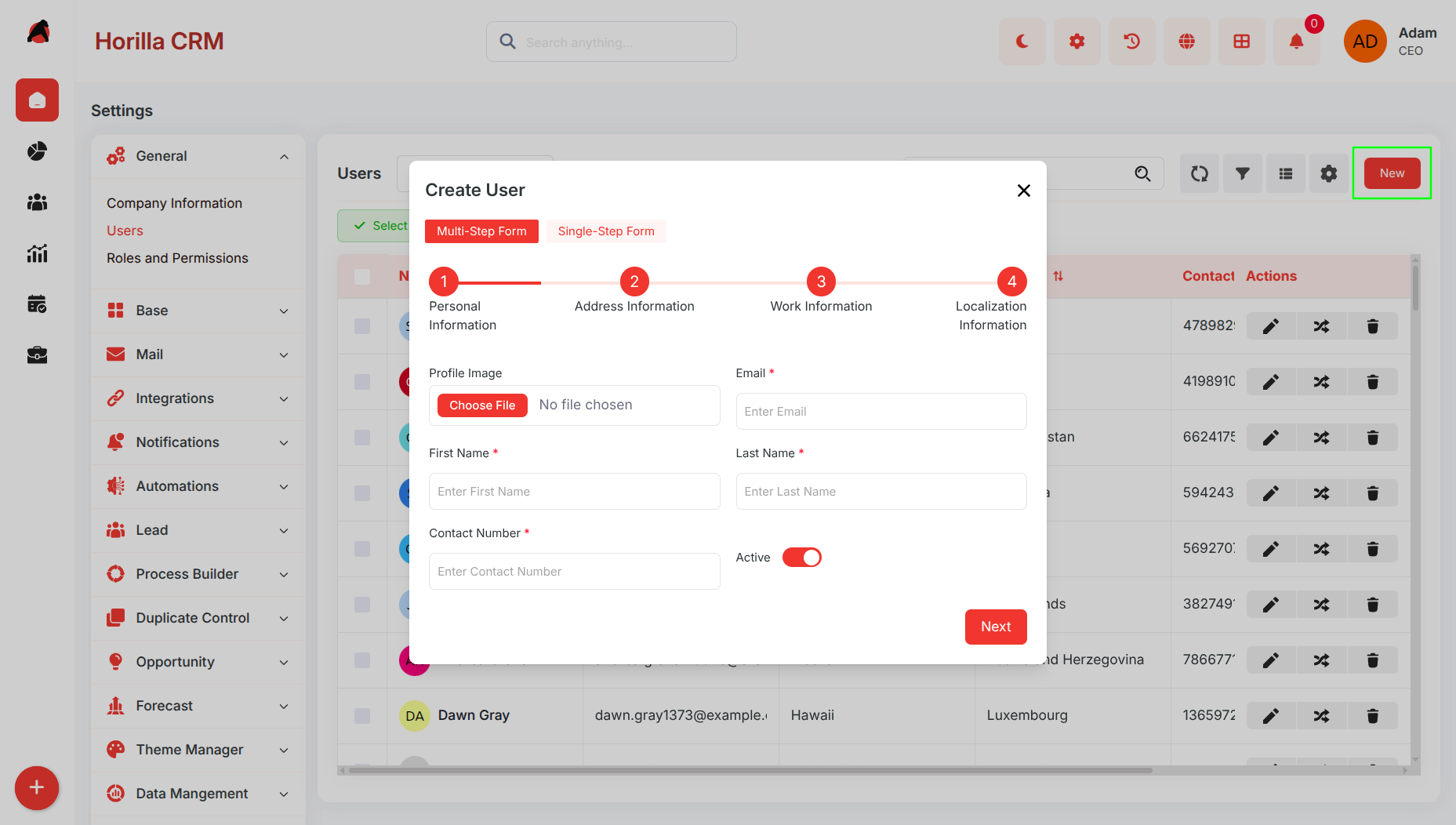
Purpose: Enable smooth onboarding of new users through a guided setup.
New users are added via the “New” button on the Users page.
A multi-step wizard streamlines the process, covering personal, address, work, and localization details.
Navigation controls allow moving between steps, and validation ensures data accuracy.
On completion, clicking Save creates and activates the user account.
View Modes
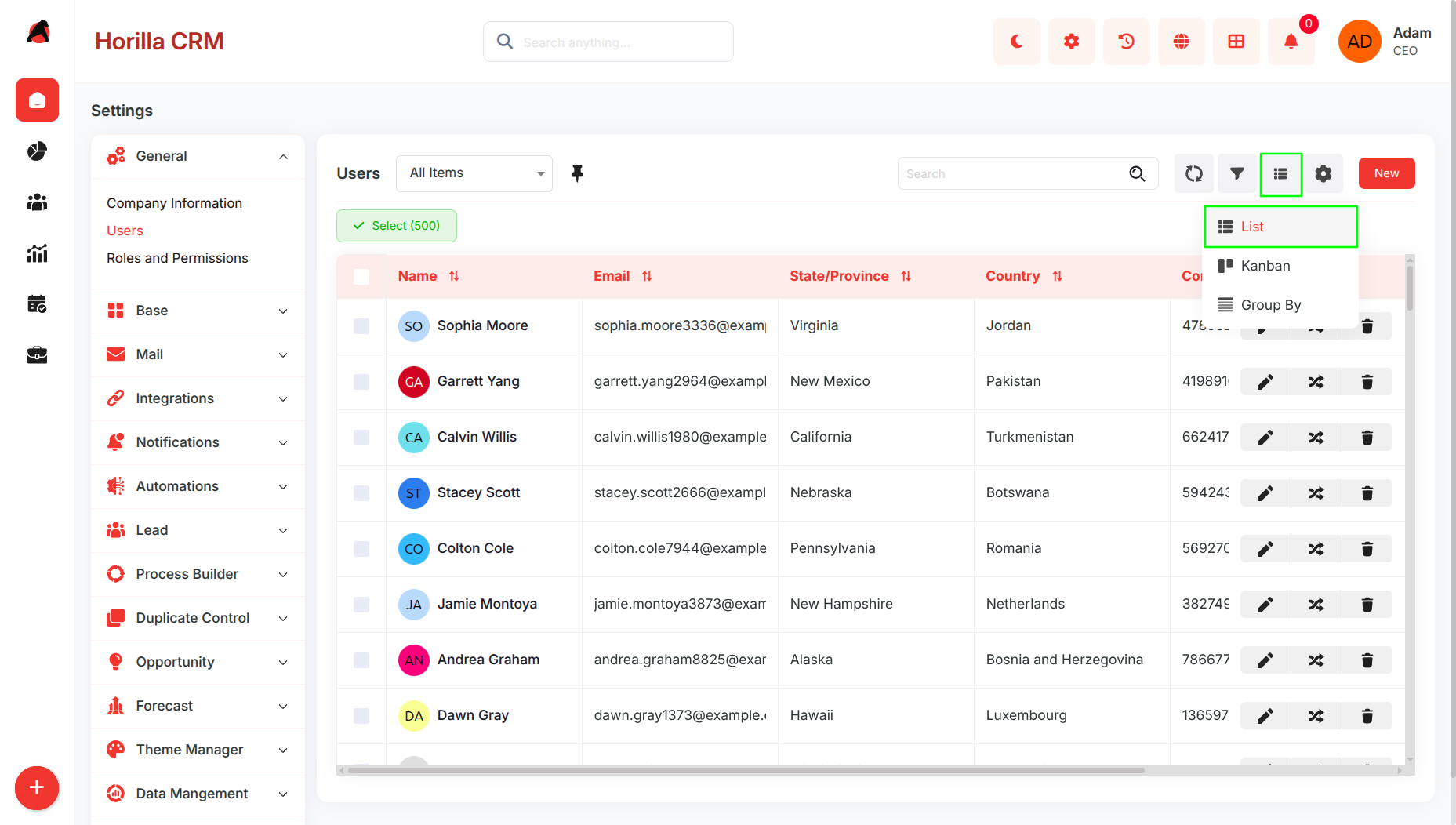
The User Management module now supports multiple view modes for better data visualization and usability.
Available Views:
- List View (Default)
- Kanban View
- Group By View
Users can switch between views using the View Selector icon available in the top-right corner of the Users page.
List View (Default)
Purpose:
Display users in a structured tabular format.
Features:
- Default view when opening the Users module
- Displays users in rows and columns
- Supports sorting and quick scanning
- Includes action buttons for each record
Kanban View
Purpose:
Provide a visual, card-based representation of users.
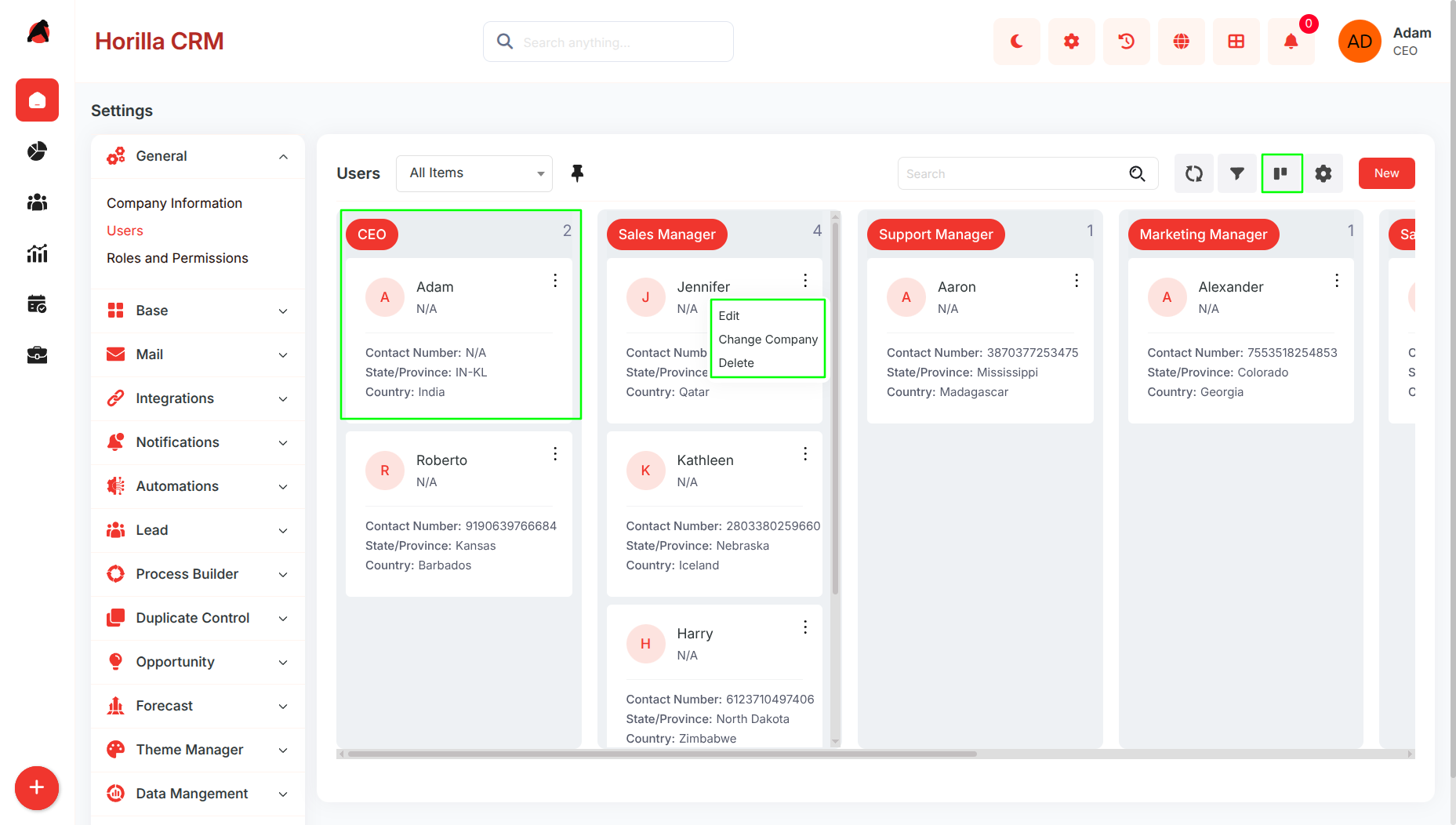
Features:
- Users are displayed as cards
- Cards grouped by a selected field (e.g., Role, Department)
- Each card shows key details:
- Name
- Role
- Contact info
- Supports drag-and-drop interaction (if enabled)
Kanban Settings
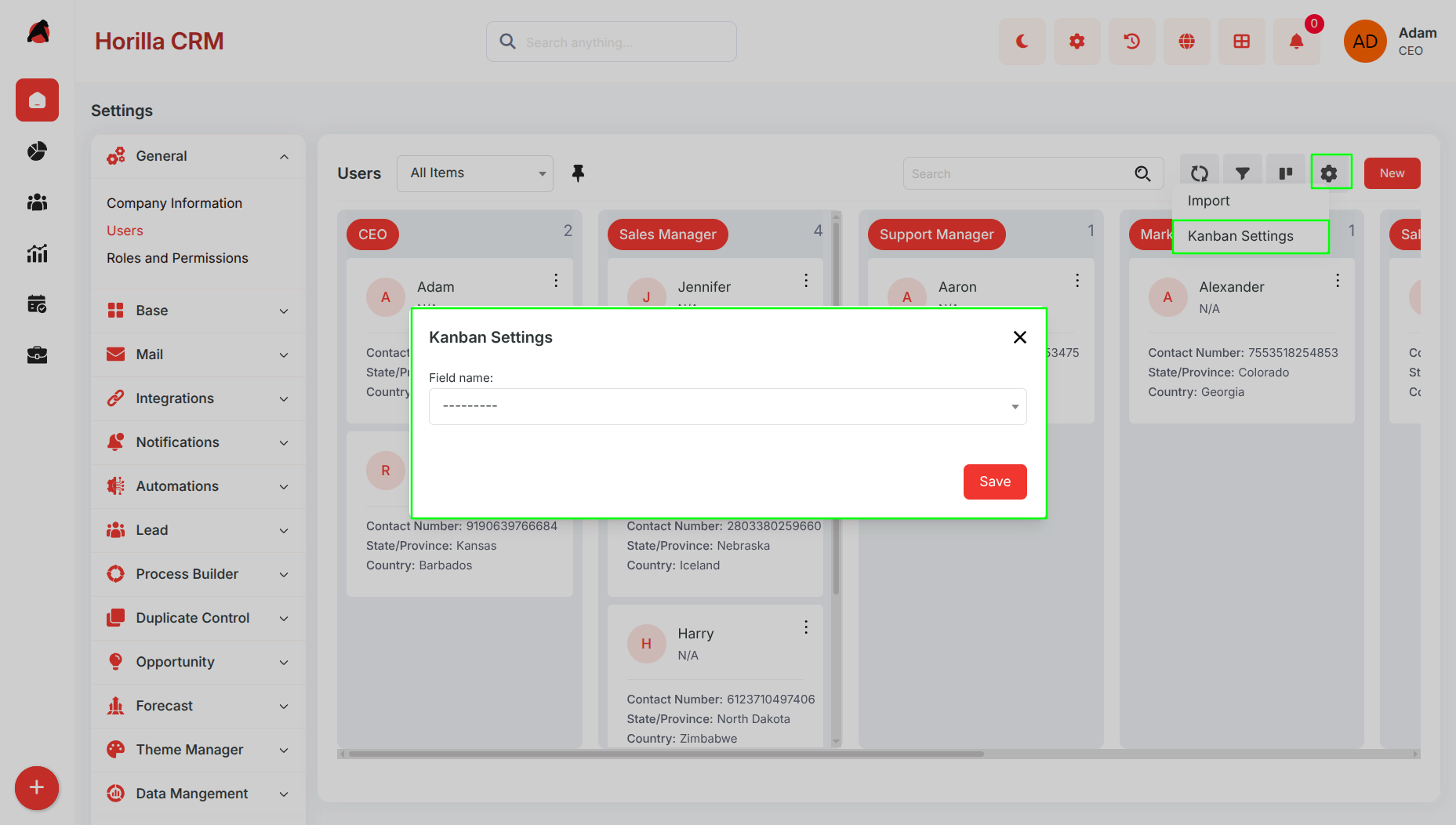
Purpose:
Customize how data is grouped in Kanban View.
Access:
- Click the Settings icon in the view toolbar
- Select Kanban Settings
Configuration:
- Select the field used for grouping (e.g., Role, Department)
Group By View
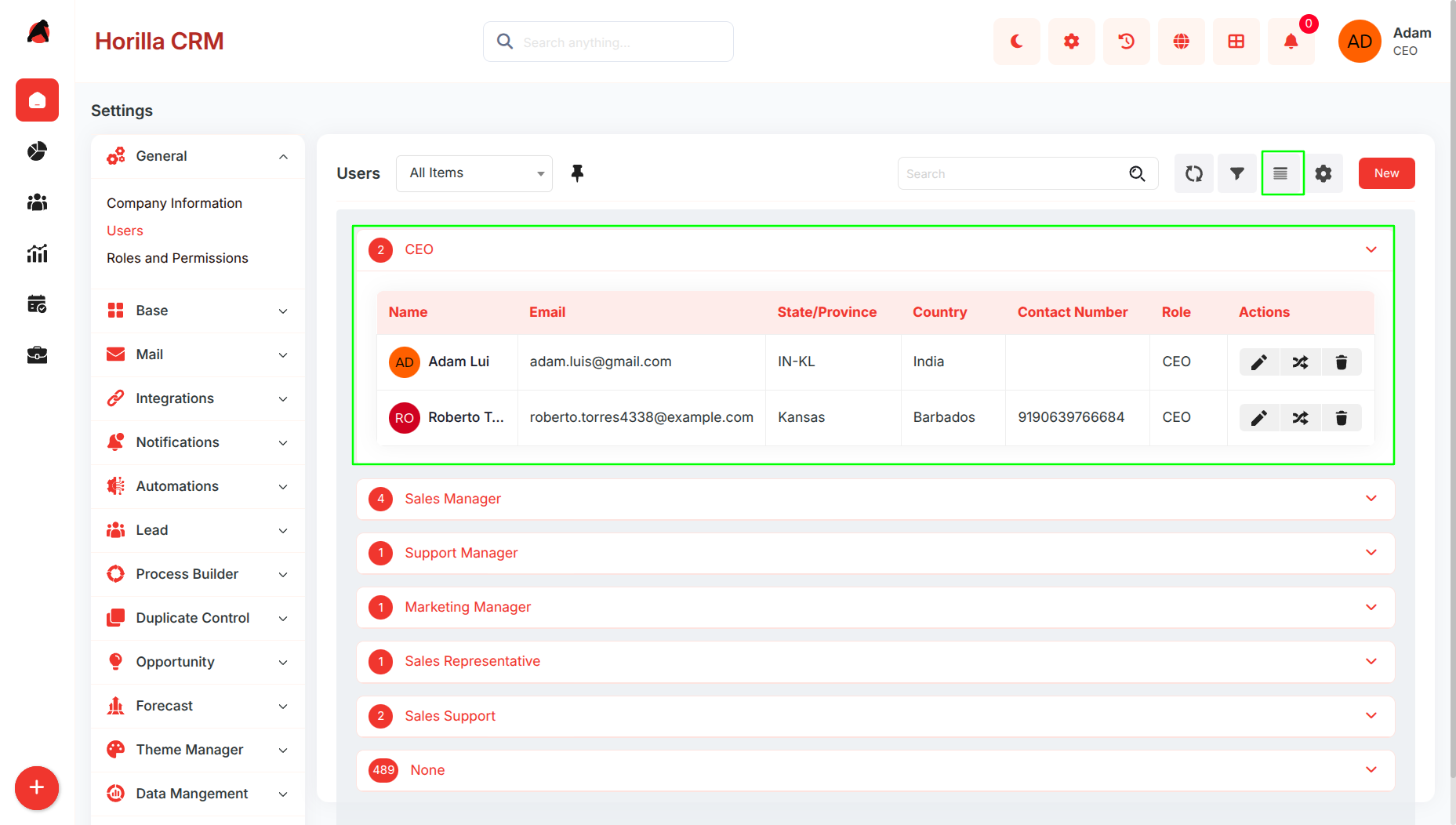
Purpose:
Organize users into expandable grouped sections.
Features:
- Users grouped based on selected criteria
- Each group can be expanded or collapsed
- Displays count of users in each group
- Maintains structured list format within groups
Group By Settings
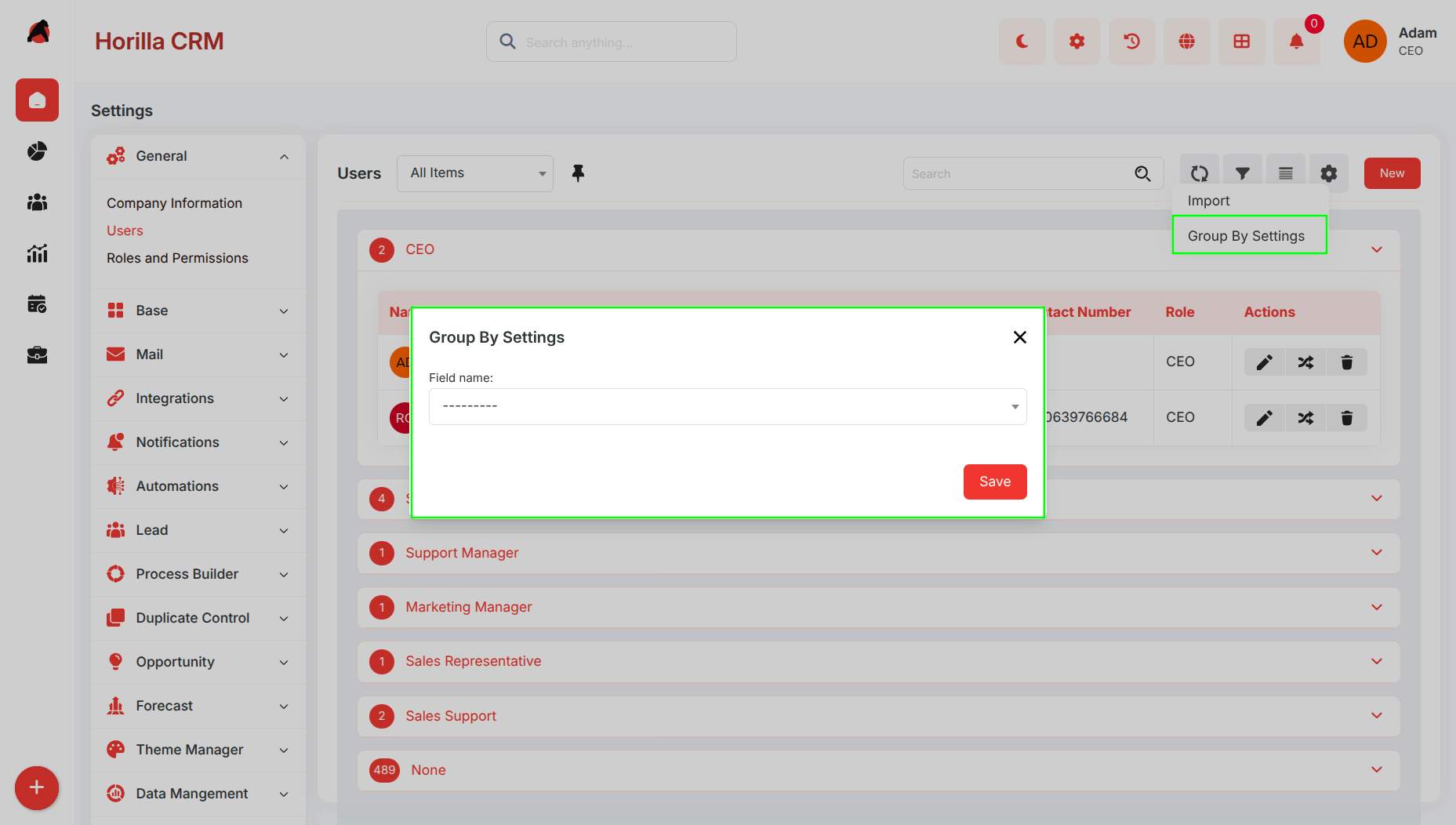
Purpose:
Define grouping logic for Group By View.
Access:
- Click the Settings (⚙️) icon
- Select Group By Settings
Configuration:
- Choose a field to group users (e.g., Role, Department)
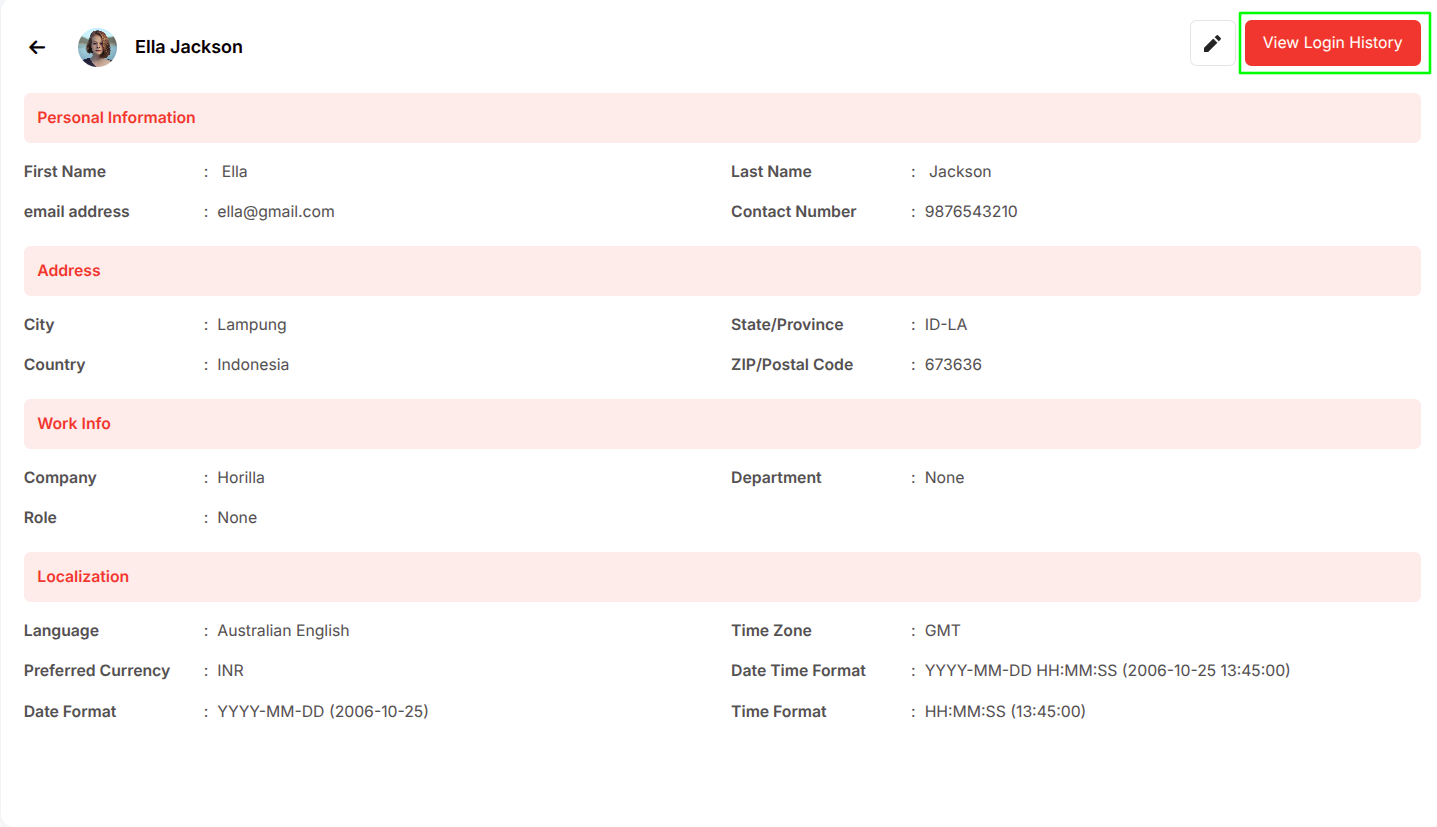
User Profile Management
Purpose: Provide detailed viewing and editing of individual user profiles.
Accessing the detailed view is possible by clicking a user's name from either the list or Kanban view.
Profiles include personal, address, work, and localization details.
Information is organized into clear sections for easy access.
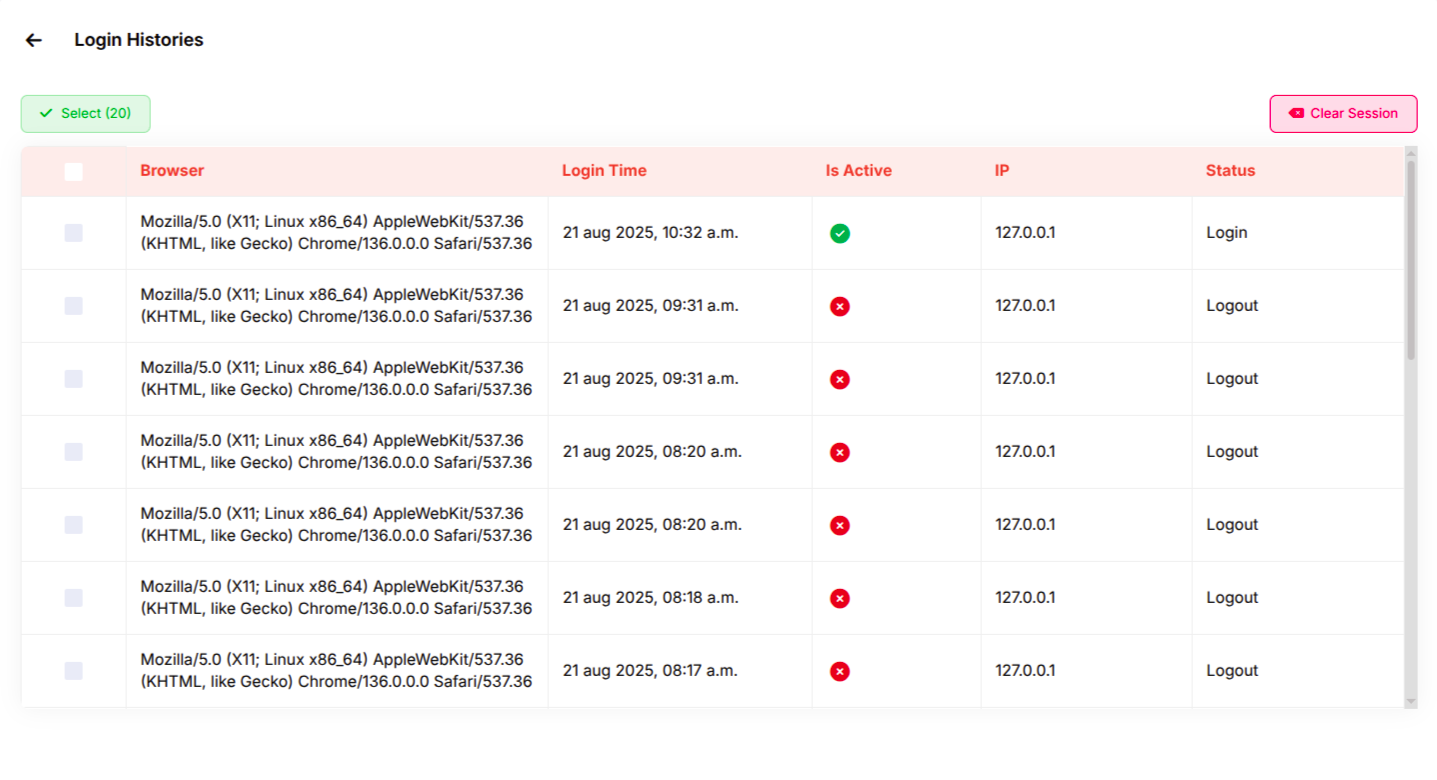
Login History Monitoring
Purpose: Track and review user login activities to enhance security and compliance.
Available in user profile under “View Login History”.
Displays:
Browser & OS Information
Login Timestamp
Active/Inactive Status (green/red indicators)
IP Address
Session Status (Login / Logout events)