Appearance

Contacts – Functional Guide
Introduction
The Horilla CRM Contacts Module serves as a central repository for managing individual contact information. It enables businesses to capture, organize, and maintain complete records of customers, prospects, and related individuals. With structured forms and detailed views, the module ensures all relevant information such as personal details, addresses, and additional notes are easily accessible. By integrating with other CRM modules such as Leads and Opportunities, the Contacts Module enhances customer relationship management, supports communication tracking, and helps build stronger client interactions.
Key Features and Functionalities
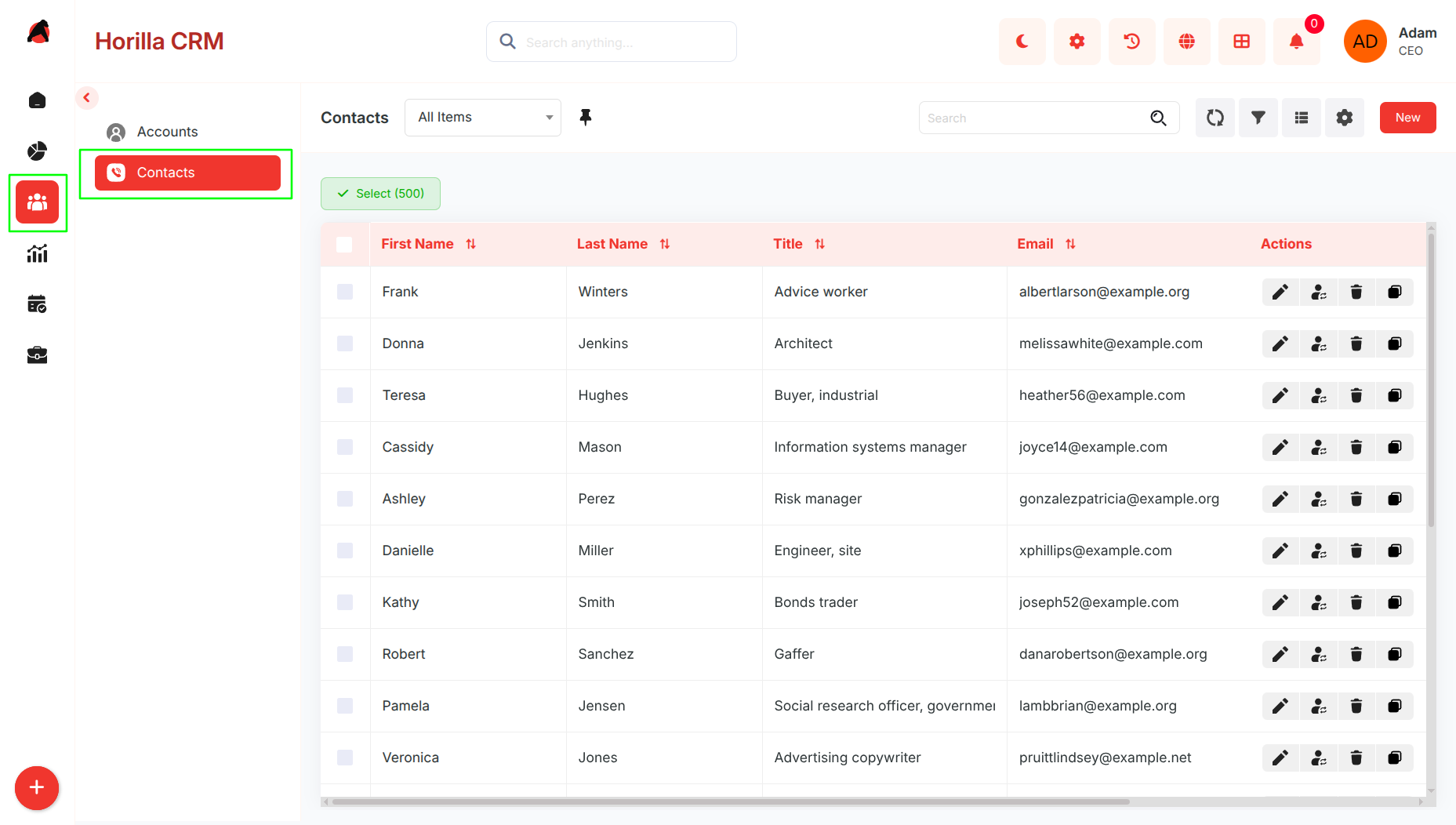
2.1 Contacts Overview
Purpose: Display all contacts in a centralized list view for quick access and management.
Navigate to the “People” section in the sidebar and select “Contacts.”
Includes search, sorting, and filtering to find contacts by name, job title, or email.
Bulk management is supported via checkboxes, with actions such as Update, Export, and Delete.
2.2 Kanban View
Purpose: Visualize and group contacts based on their source.
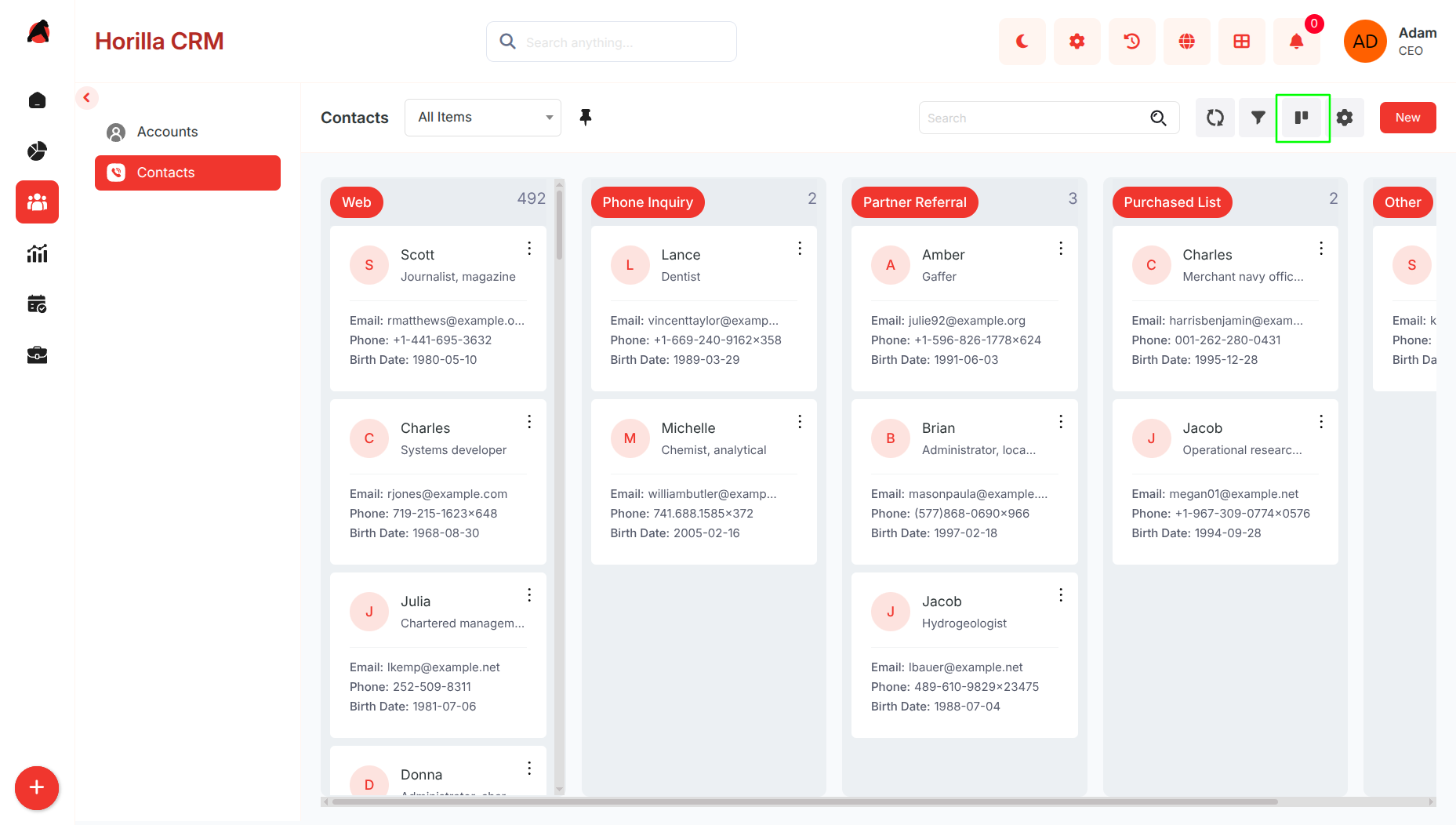
Categorization can be adjusted using Kanban settings.
Contacts are automatically grouped by Contact Source (e.g., Web, Referral, Social Media, Event, etc.).
Switch to Kanban View using the view toggle on the Contacts page.
Cards display essential details such as Name, Job Title, Email, and Phone.
Drag-and-drop functionality allows repositioning or reassigning contacts to different sources.
Helps in identifying which sources contribute the most valuable contacts.
2.3 Card View
Purpose: Present contacts in a compact, easy-to-scan format
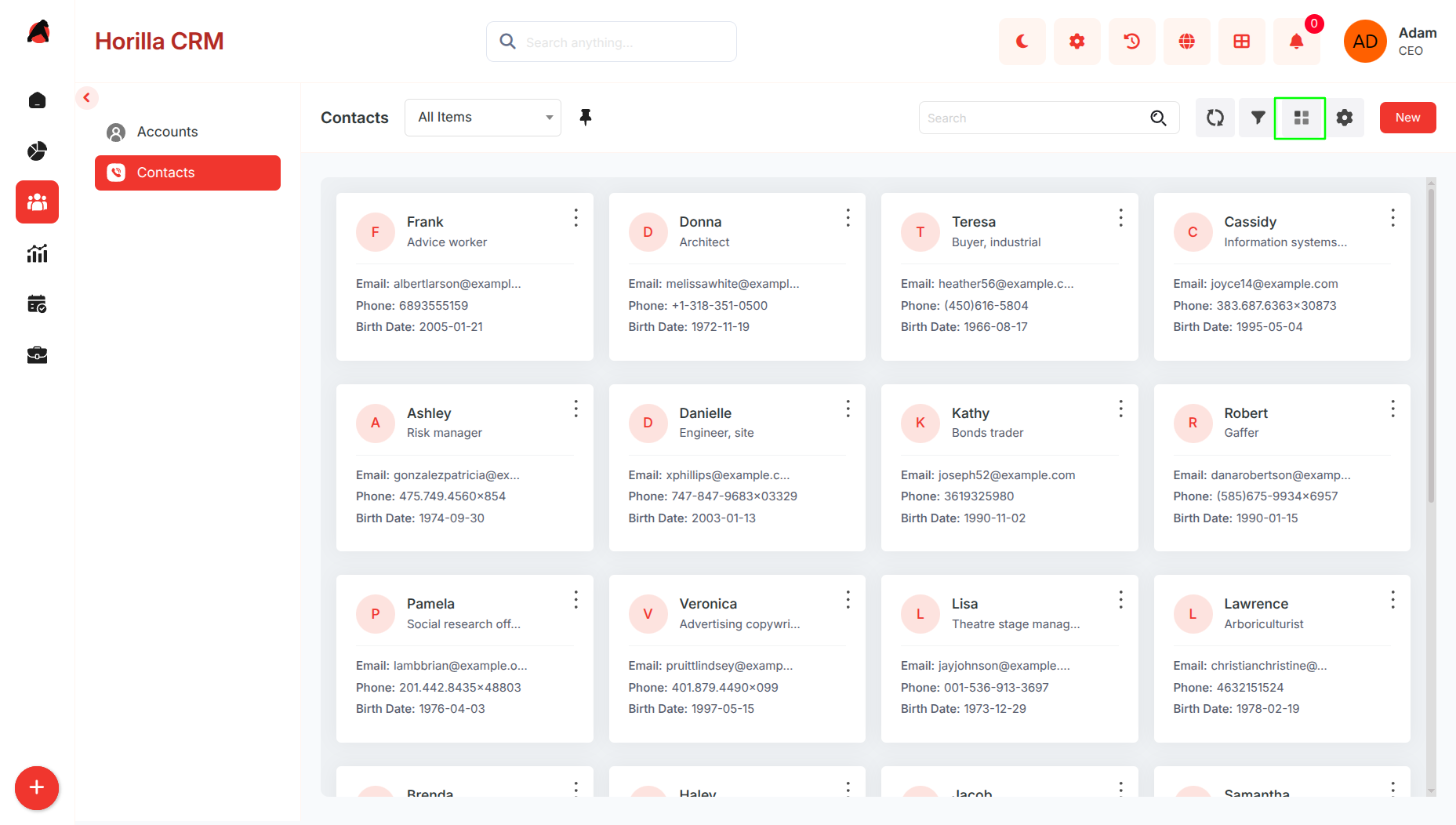
Switch to Card View from the toolbar
Each card displays:
- Name
- Job Title
- Phone
- Birth Date
Supports the same search and filter options as List View
2.4 Group By View
Purpose: Organize contacts into categorized groups for better analysis
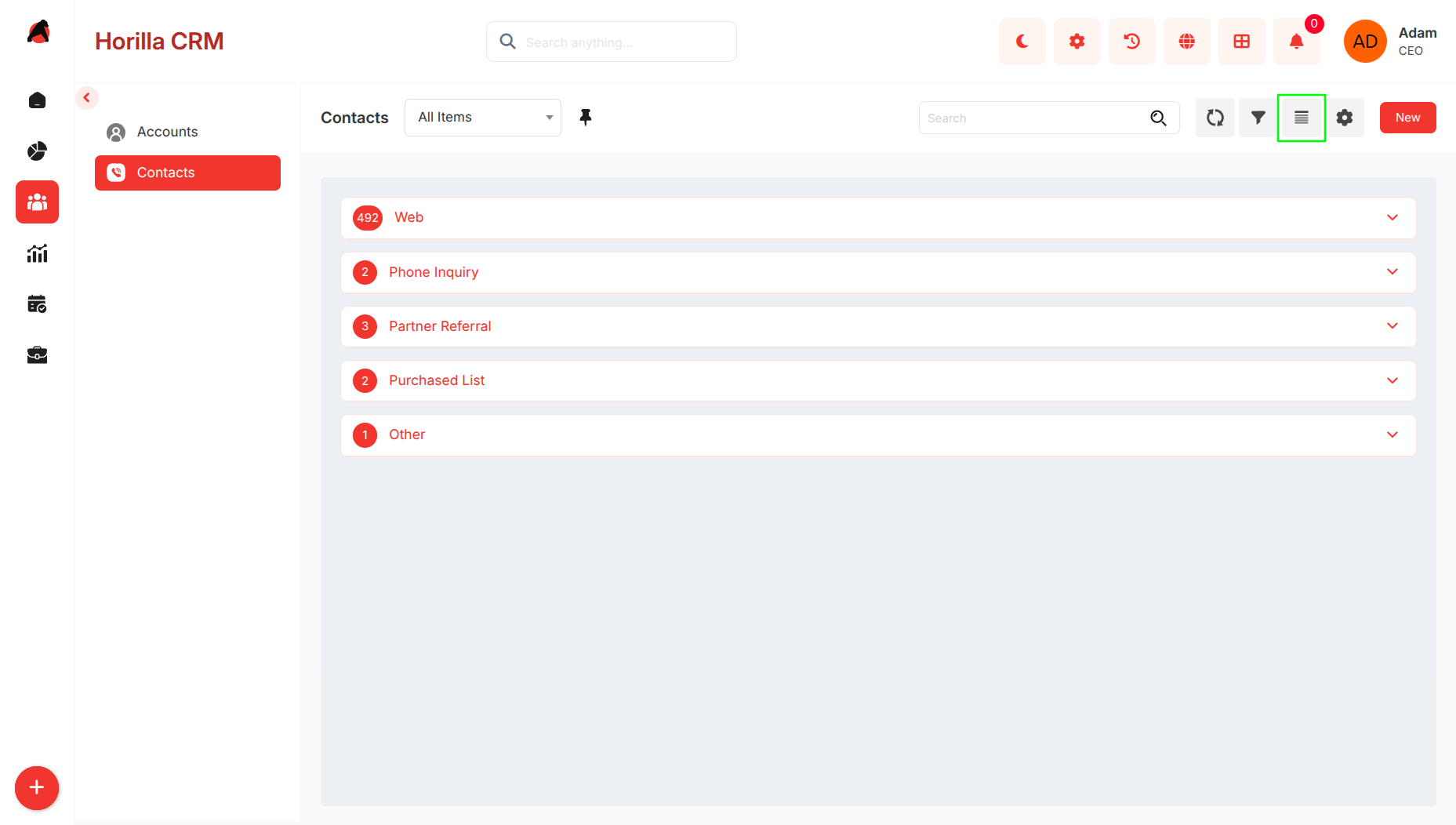
Switch to Group By View from the toolbar
Group contacts by:
- Contact Source
- Job Title
- Language
View contacts in collapsible sections for easier comparison
Helps identify trends and concentrations across contact sources
2.5 Chart View
Purpose: Visualize contact data for insights and reporting
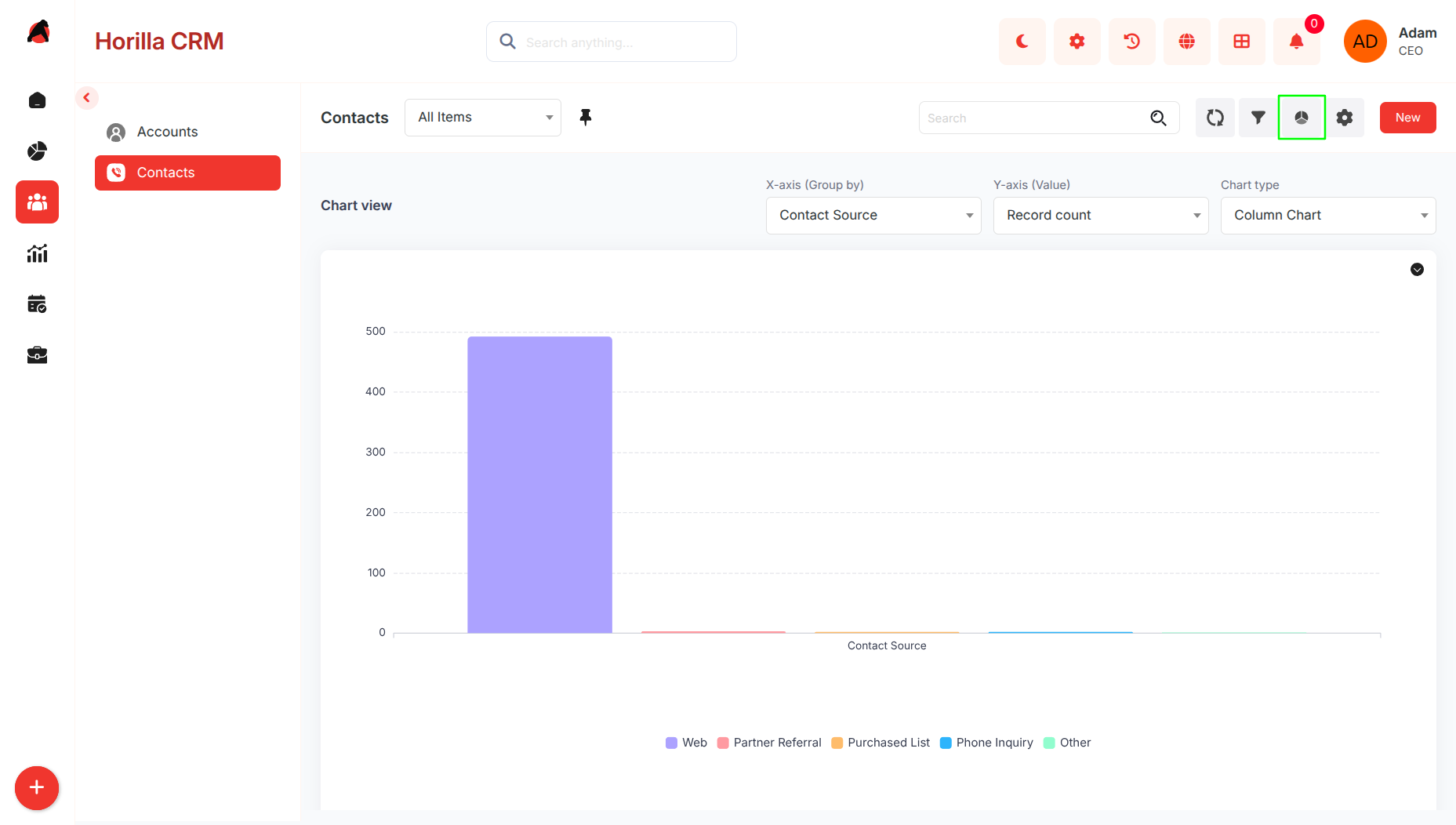
Switch to Chart View from the toolbar
Displays graphical representations of:
- Contact source distribution
- Contact ownership
Useful for analyzing contact origins and identifying sourcing gaps
2.6 Split View
Purpose: Improve efficiency by viewing contact list and details simultaneously
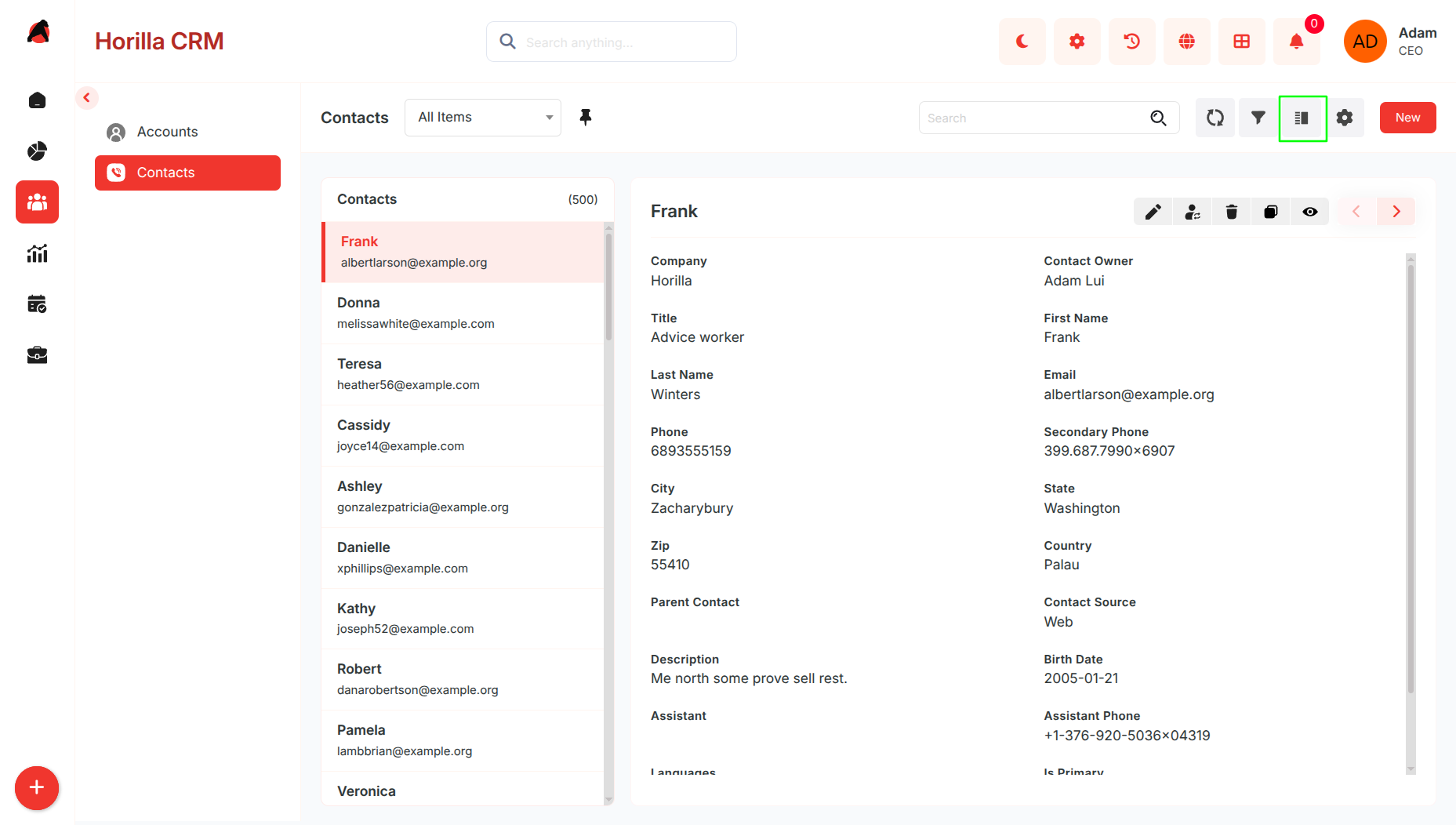
Activate Split View from the toolbar
Layout:
- Left panel: Contact list (Name, Email)
- Right panel: Contact details
Clicking a contact loads details instantly without page navigation
2.7 Timeline View
- Purpose: Display contacts in chronological order for activity tracking
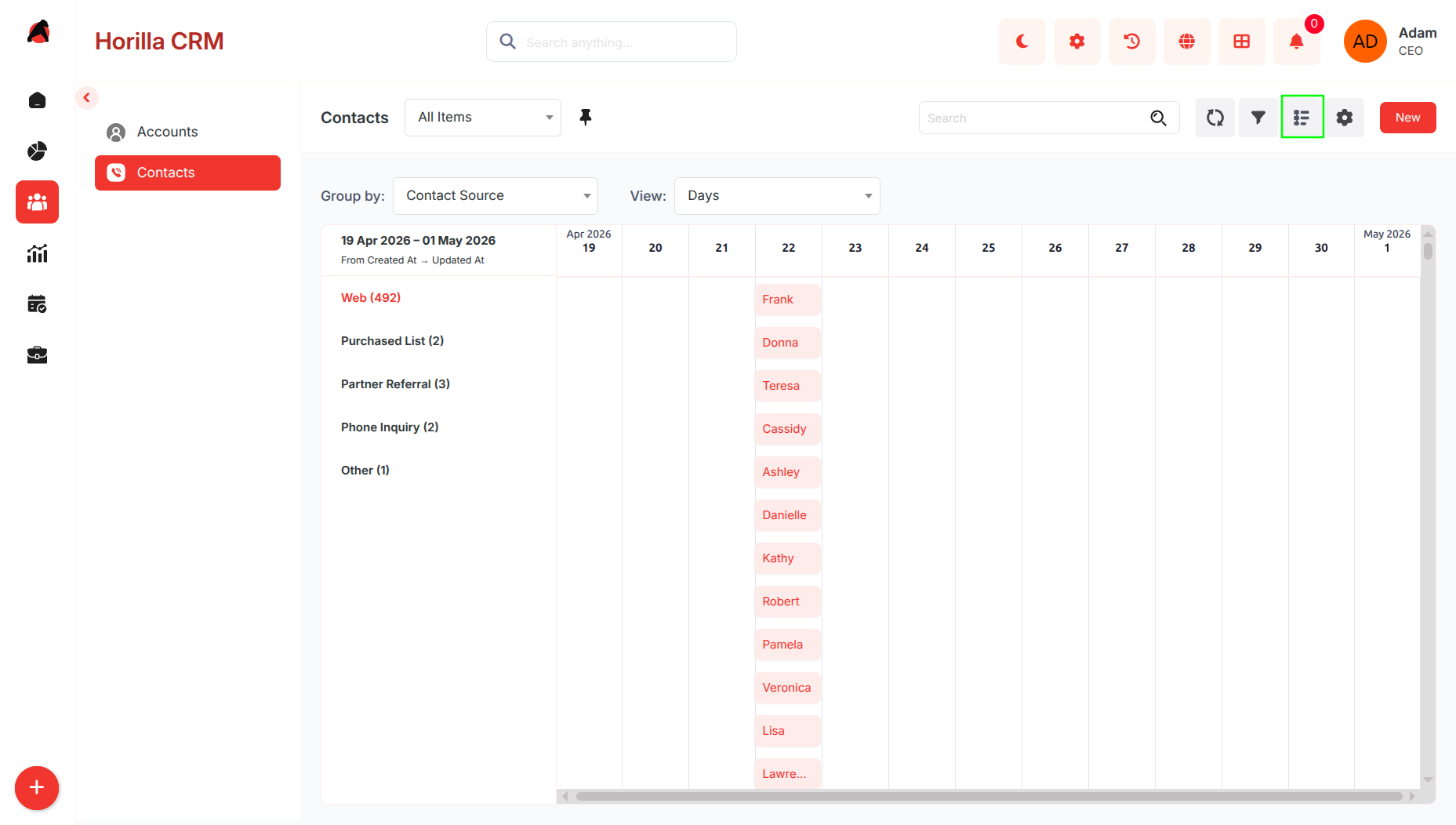
- Switch to Timeline View from the toolbar
- Organizes contacts based on:
- Creation date
- Last updated date
- Group rows by Contact Source
- Columns displayed:
- Name
- Last Name
- Job Title
- Contact Source
- Helps identify activity trends and high acquisition periods
2.8 Creating a New Contacts
Purpose: Enable the addition of new contacts with structured step-by-step forms.
Click “New” on the Contacts page to open a multi-step creation wizard.
The form supports two modes:
- Multi-Step Form
- Single-Step Form
Users can switch between modes at any time
Multi-Step Form
Purpose: Guided and structured data entry across multiple steps
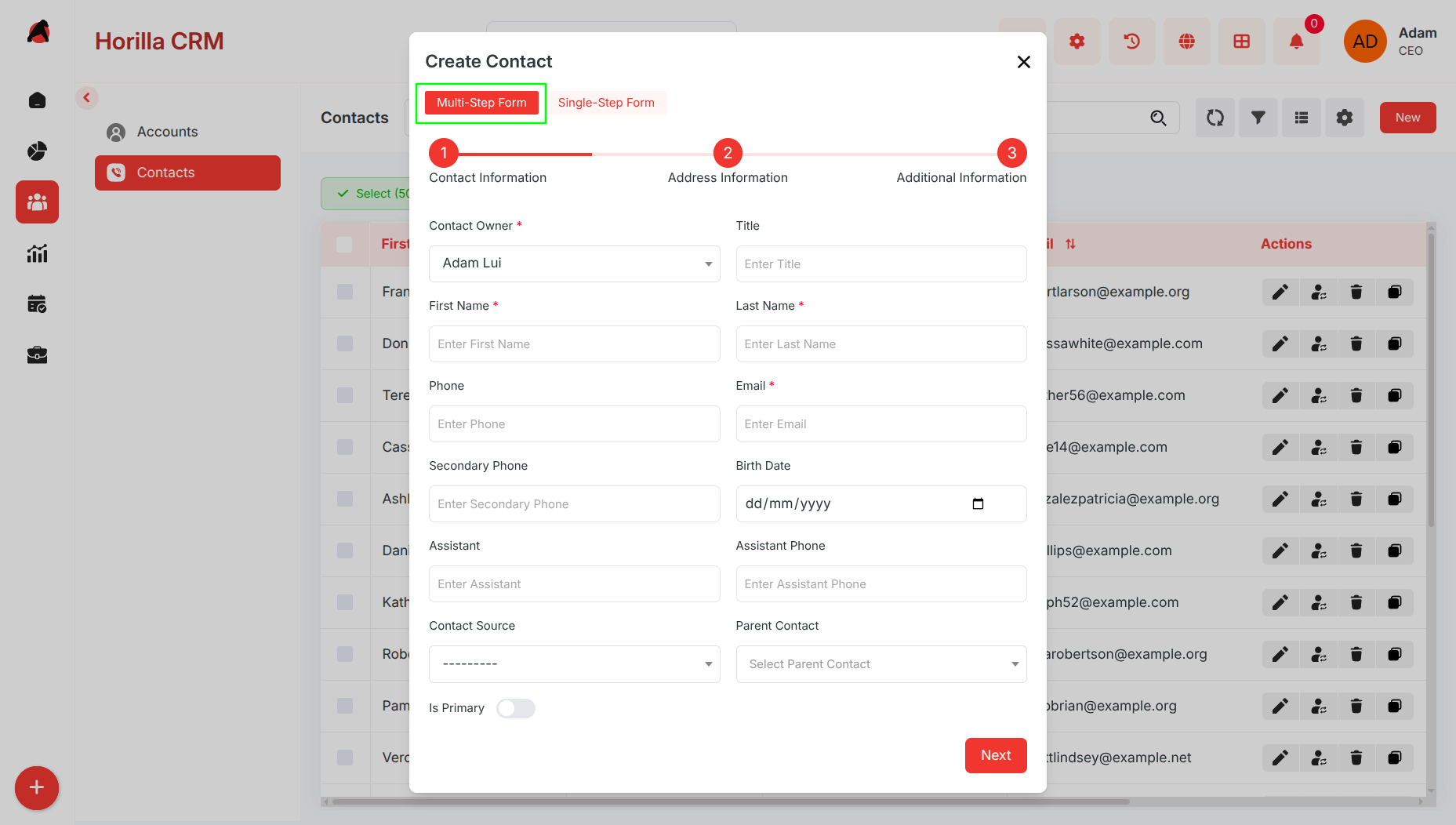
Step 1 – Contact Information
- Contact Owner
- Job Title
- First Name / Last Name
- Phone Numbers
- Assistant Details
- Parent Contact
- Contact Source
- Currency
Step 2 – Address Information
- City
- State
- Country
- Postal Code (Zip)
Step 3 – Additional Information
- Language
- Descriptive Notes
Navigation
Use Next and Previous to move between steps
Click Save to create the contact record
Single-Step Form
Purpose: Quick data entry when all information is available
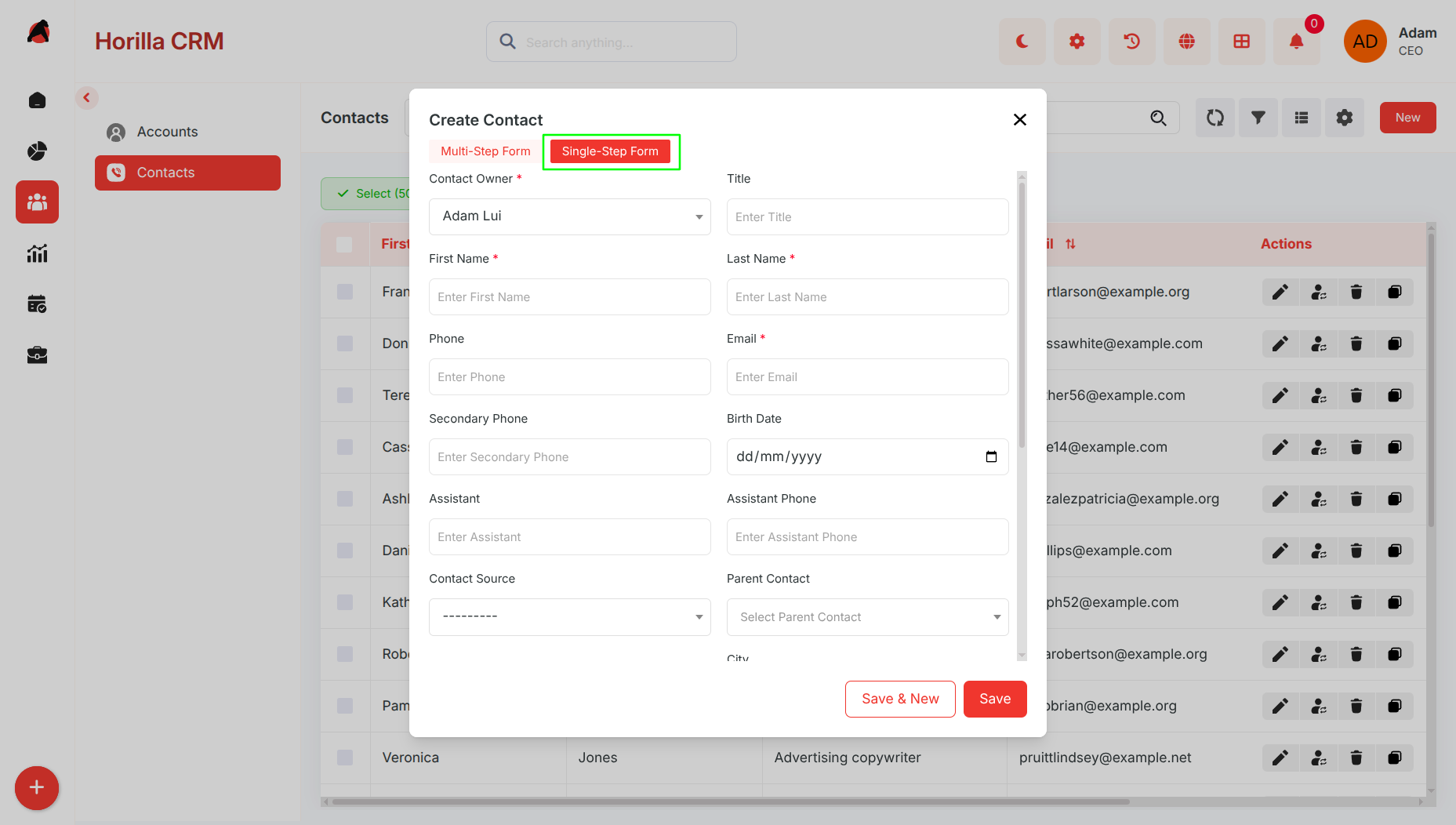
Features
- Displays all contact fields on a single page
- No step-by-step navigation required
- Faster data entry
Usage
- Use the toggle option in the form header to switch to Single-Step mode
- Click Save to create the contact record
- Step 1 – Contact Information: Enter owner, job title, first/last name, phone numbers, email, assistant details, parent contact, source, and currency.
- Step 2 – Address Information: Enter city, state, country, and postal code (Zip).
- Step 3 – Additional Information: Choose language and add descriptive notes if required.
- Navigate using Next / Previous.
- Click Save to create the contact record.
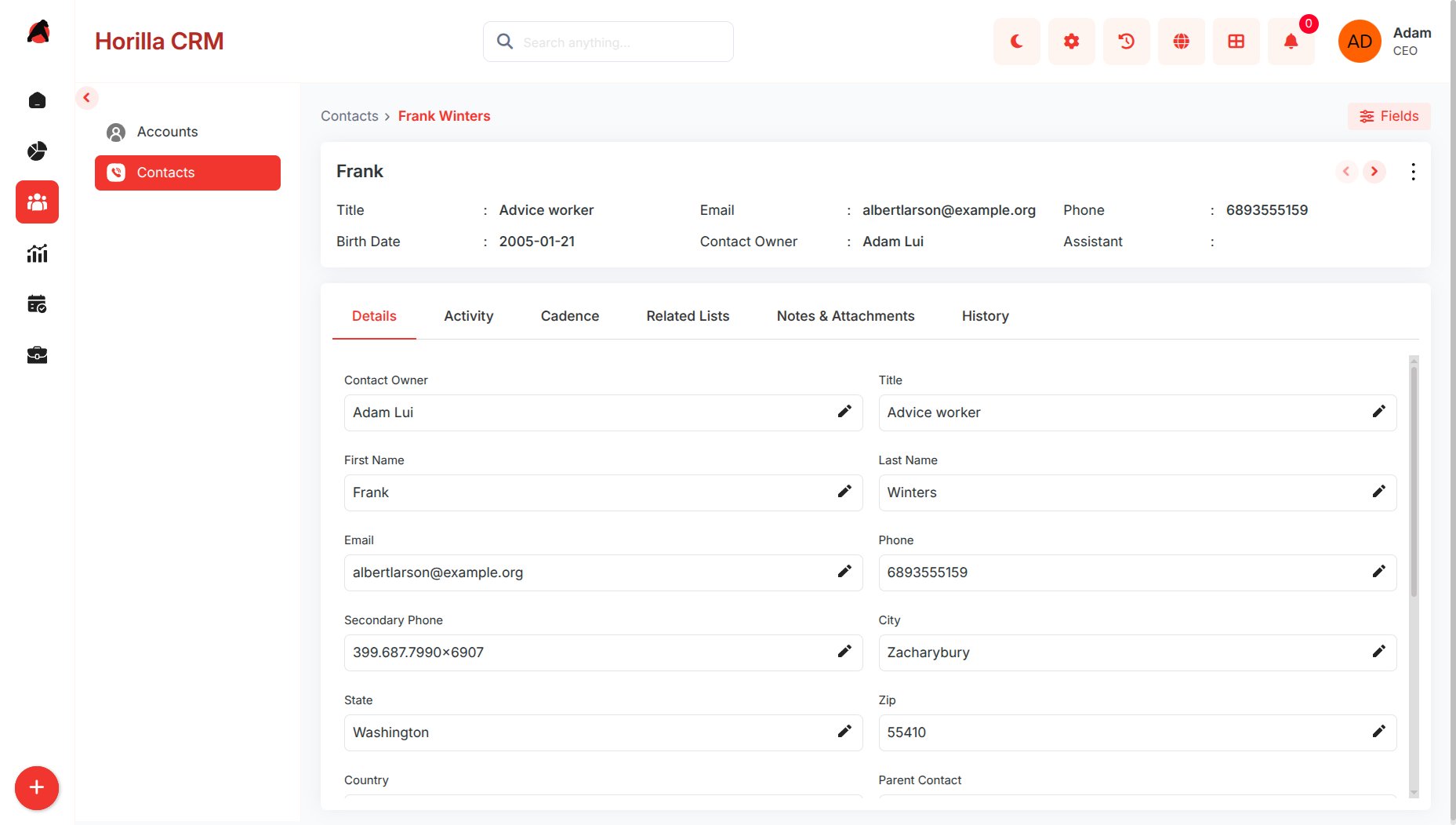
2.9 Contacts Detailed Information
- Purpose: Provide a complete and editable view of contact details.
- Open a contact by clicking their name in the Contacts list.
- Displays personal details (job title, phone, email, birth date, assistant, etc.) and address information.
- Tabs available for Details, Activity, Related Lists, and History.
- Fields can be updated directly from the detailed view using inline edit icons.
- Allows full visibility into interactions and relationship history with the individual