

Appearance

Google Calendar Integration — Functional Guide
Introduction
Horilla CRM's Google Calendar Integration enables seamless synchronization of CRM Activities and Unavailability blocks with a user’s Google Calendar in real time. This integration uses OAuth 2.0 authentication and Google push notifications to ensure fast, secure, and reliable data sync.
Admin: Enable the Integration
Steps:
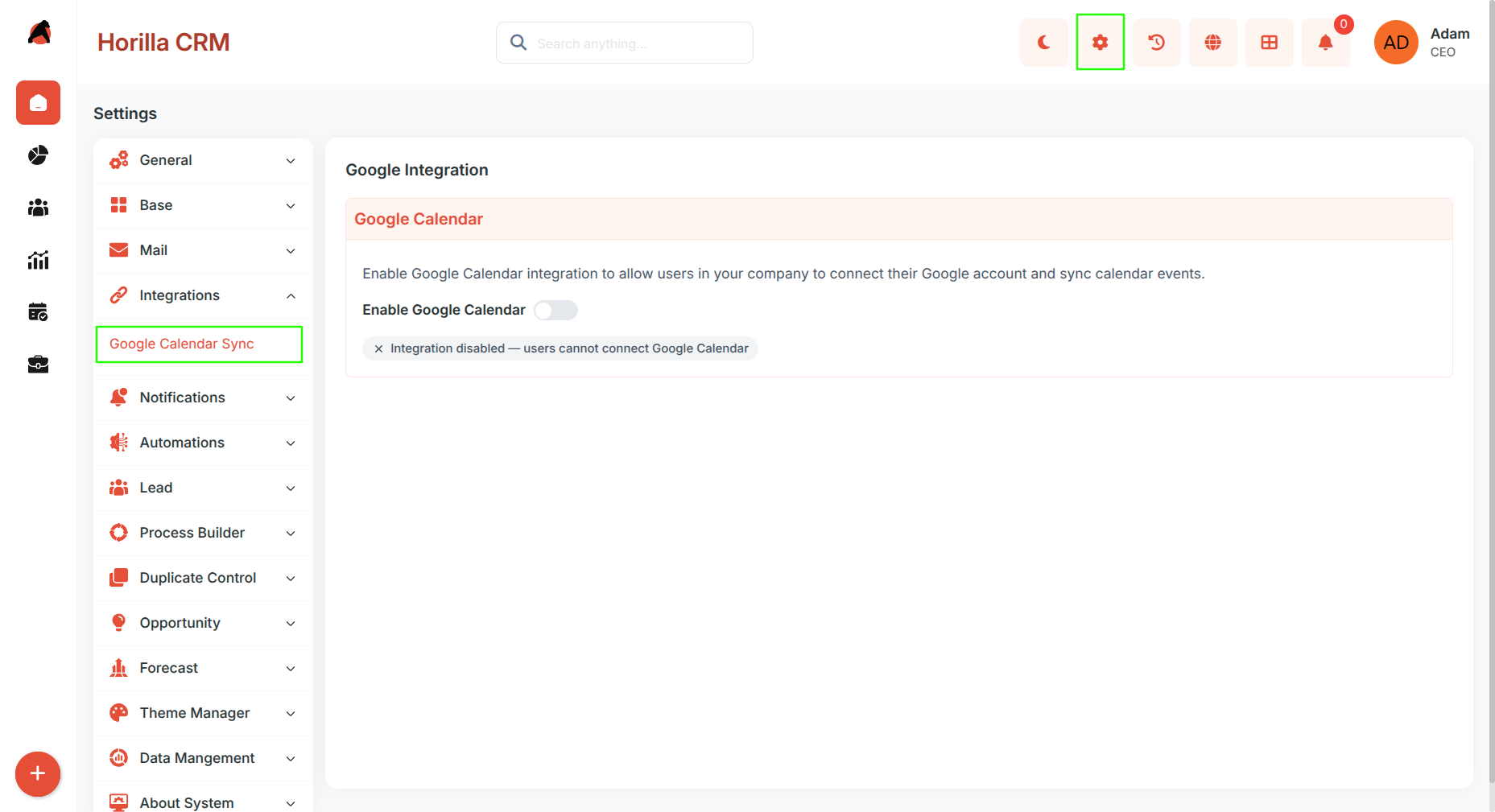
Navigate to Settings → Integrations → Google Integration
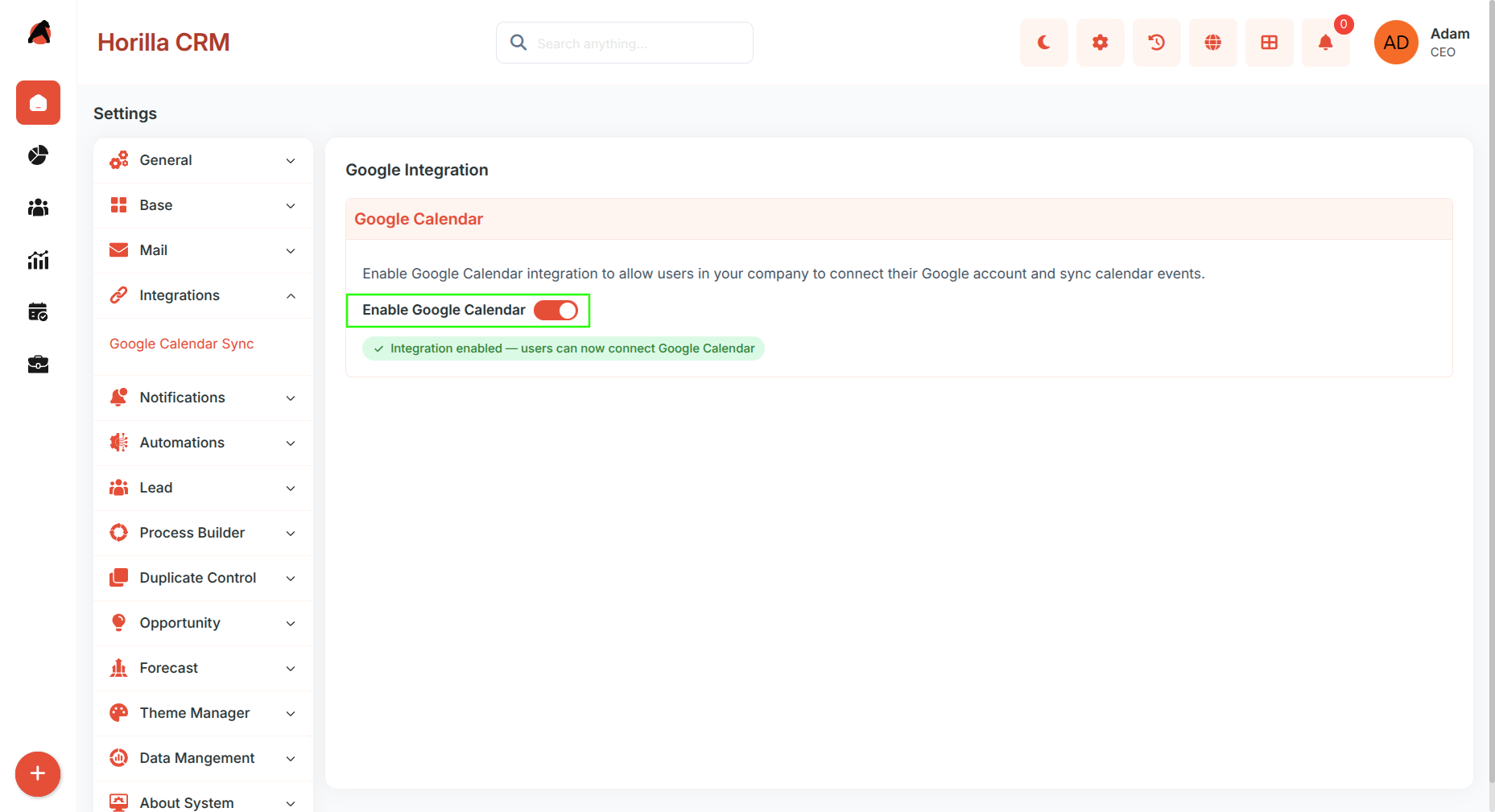
Toggle Enable Google Calendar Integration to On
Important Note:
- Disabling this setting will immediately revoke all user connections across the organization.
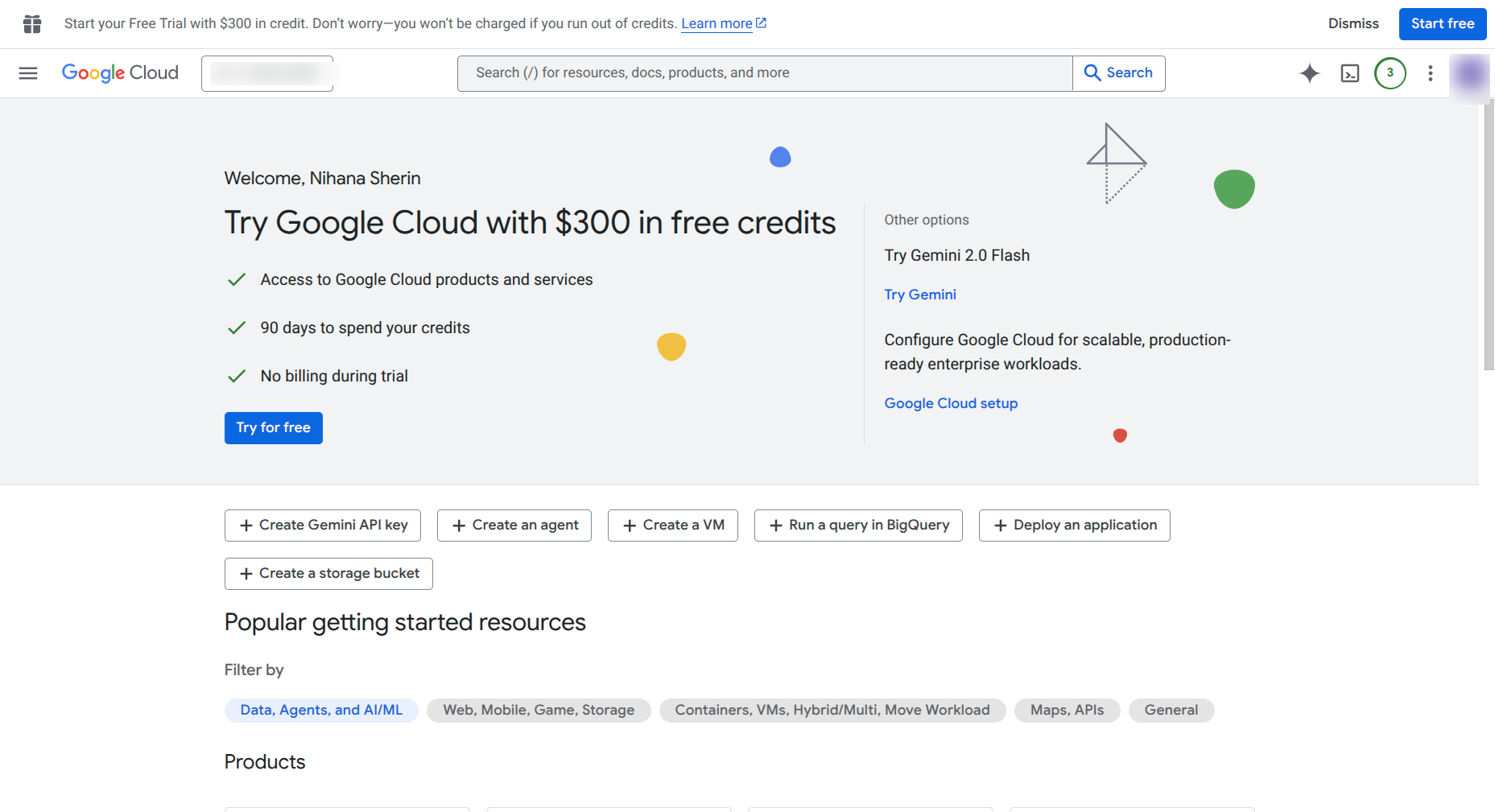
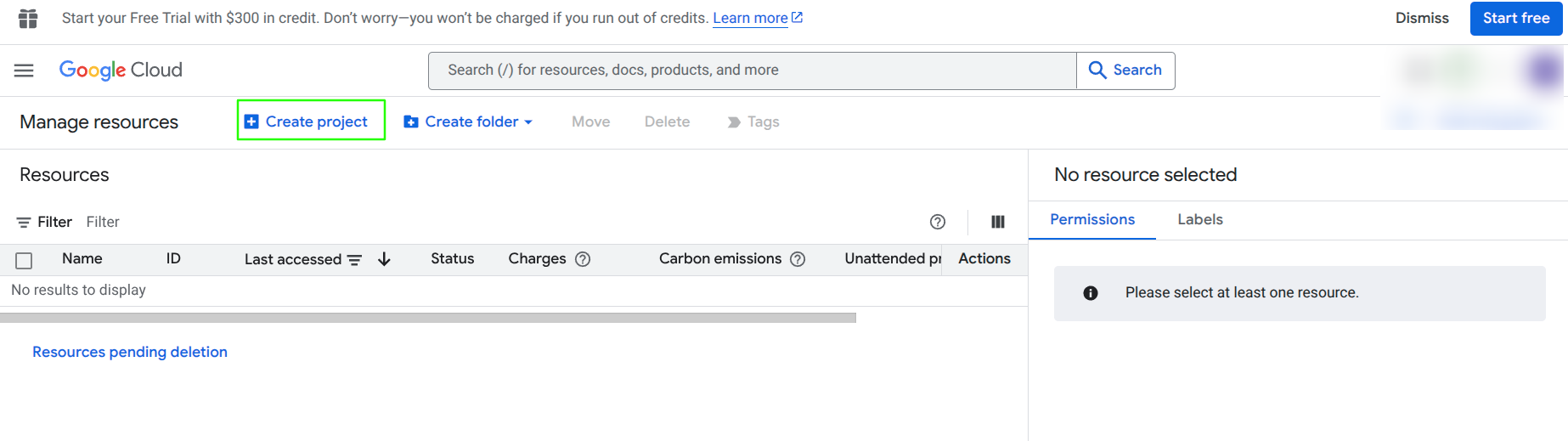
- Create or select a project — Click the project dropdown at the top → "New Project" (or choose an existing one).
Enable the required APIs — Navigate to "APIs & Services" → "Library". Search for and enable:
- Google Calendar API
- Tasks API
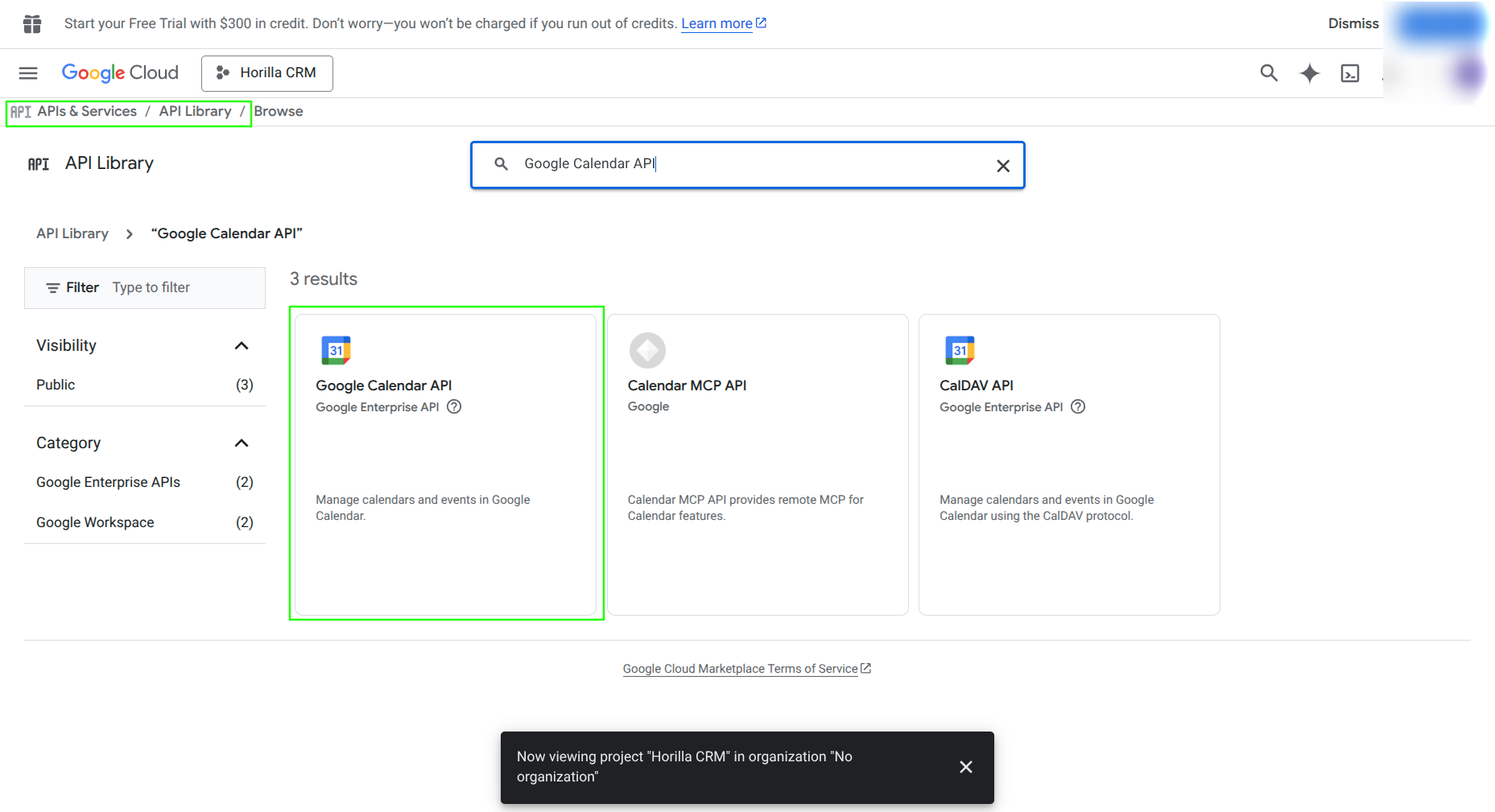
Configure the OAuth consent screen
- Go to "APIs & Services" → "OAuth consent screen".
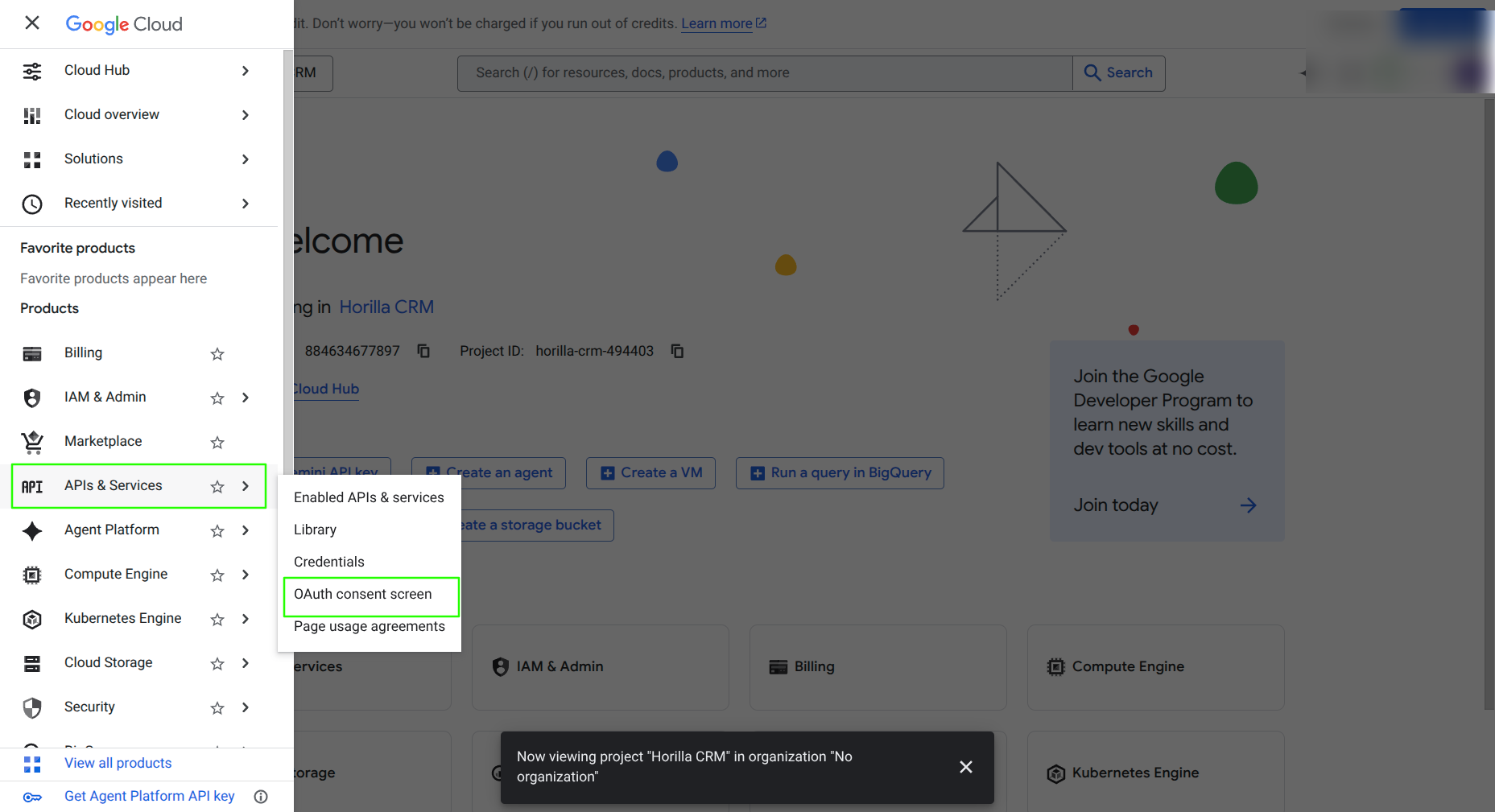
- Choose "External" (or "Internal" for Google Workspace), fill in App name, support email, and developer contact. Save.
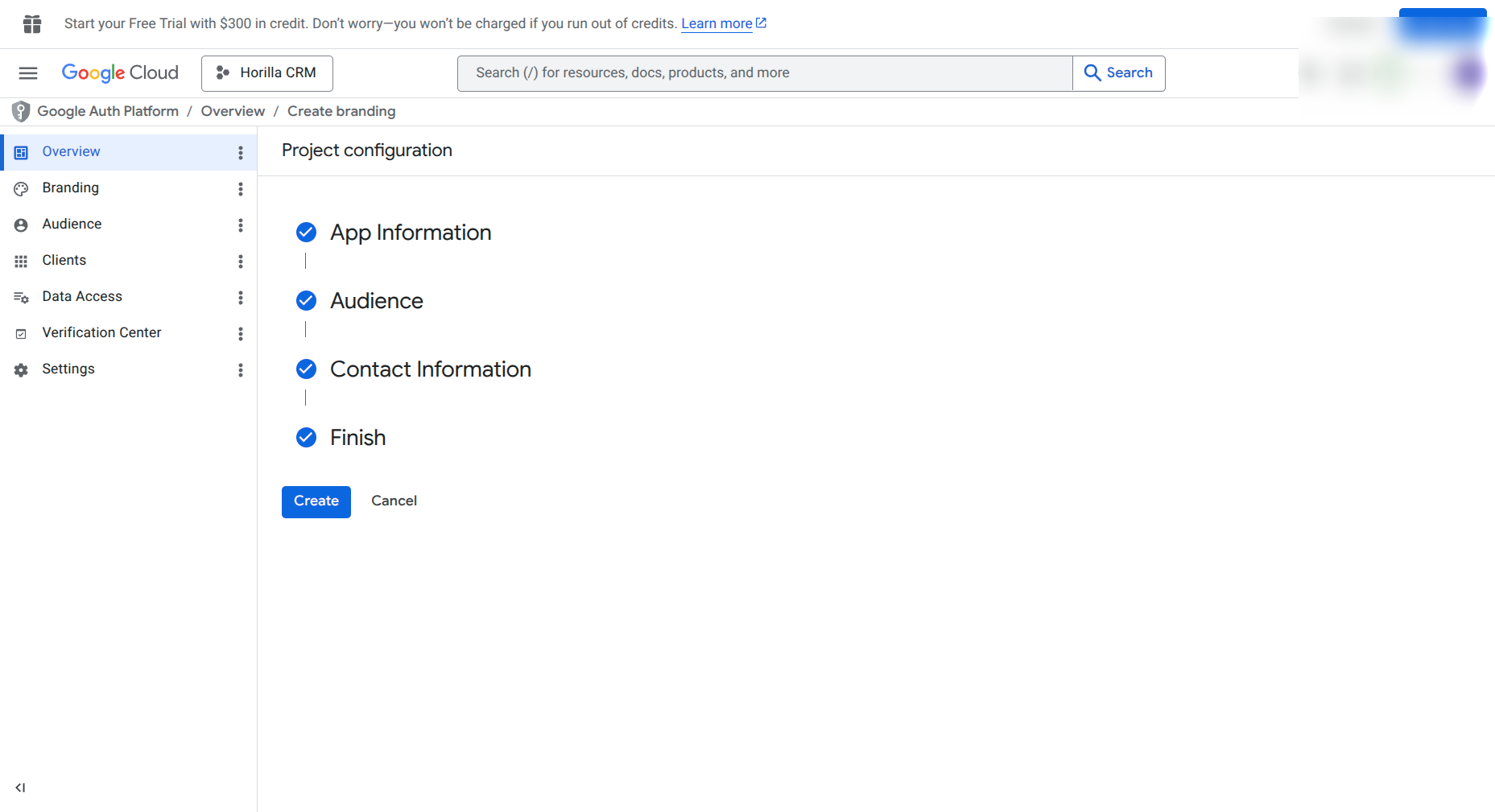
Create OAuth 2.0 credentials —
- Go to "APIs & Services" → "Credentials" → "+ Create Credentials" → "OAuth client ID".
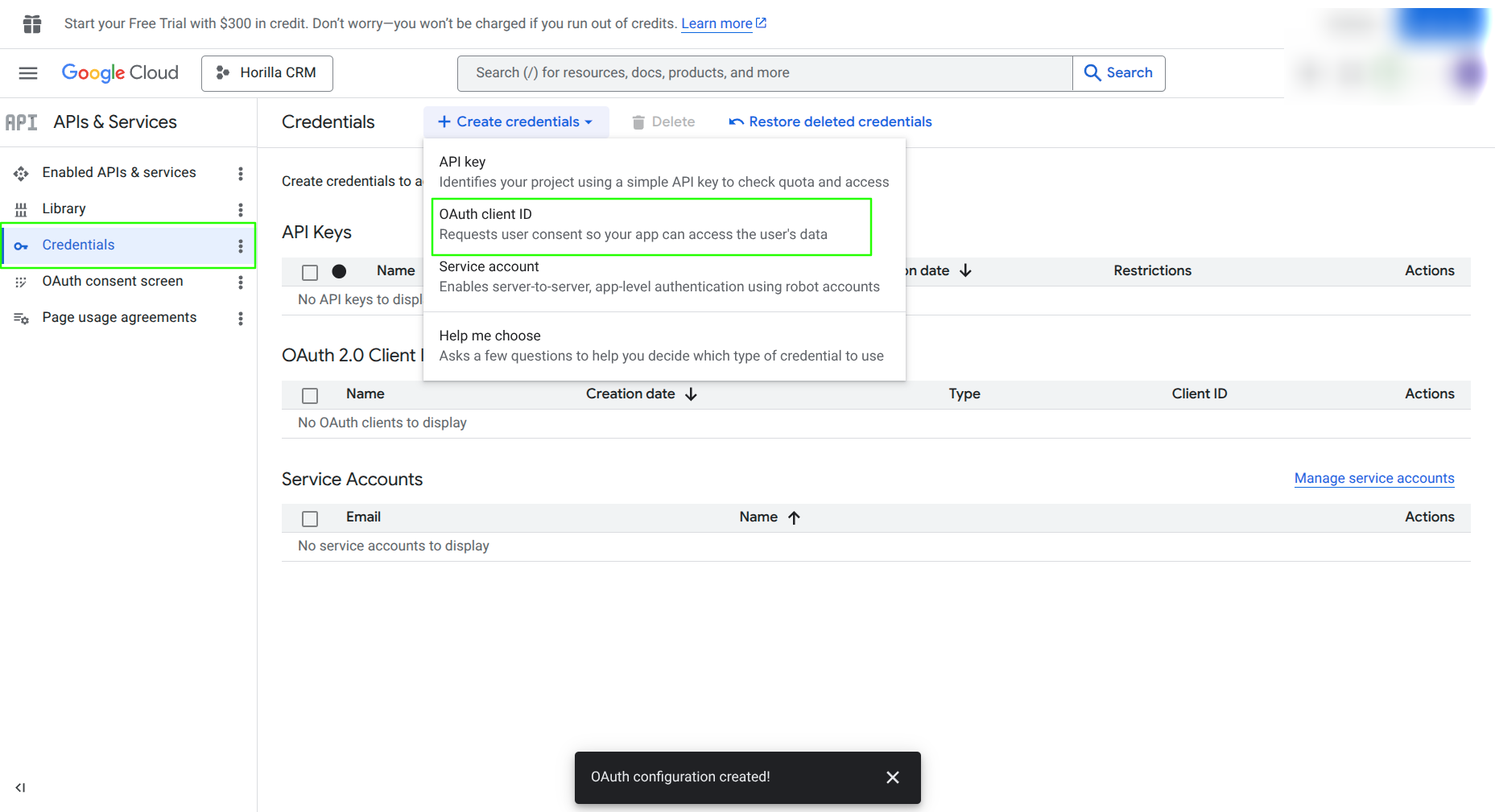
- Select Application type: Web application. Under "Authorized redirect URIs".
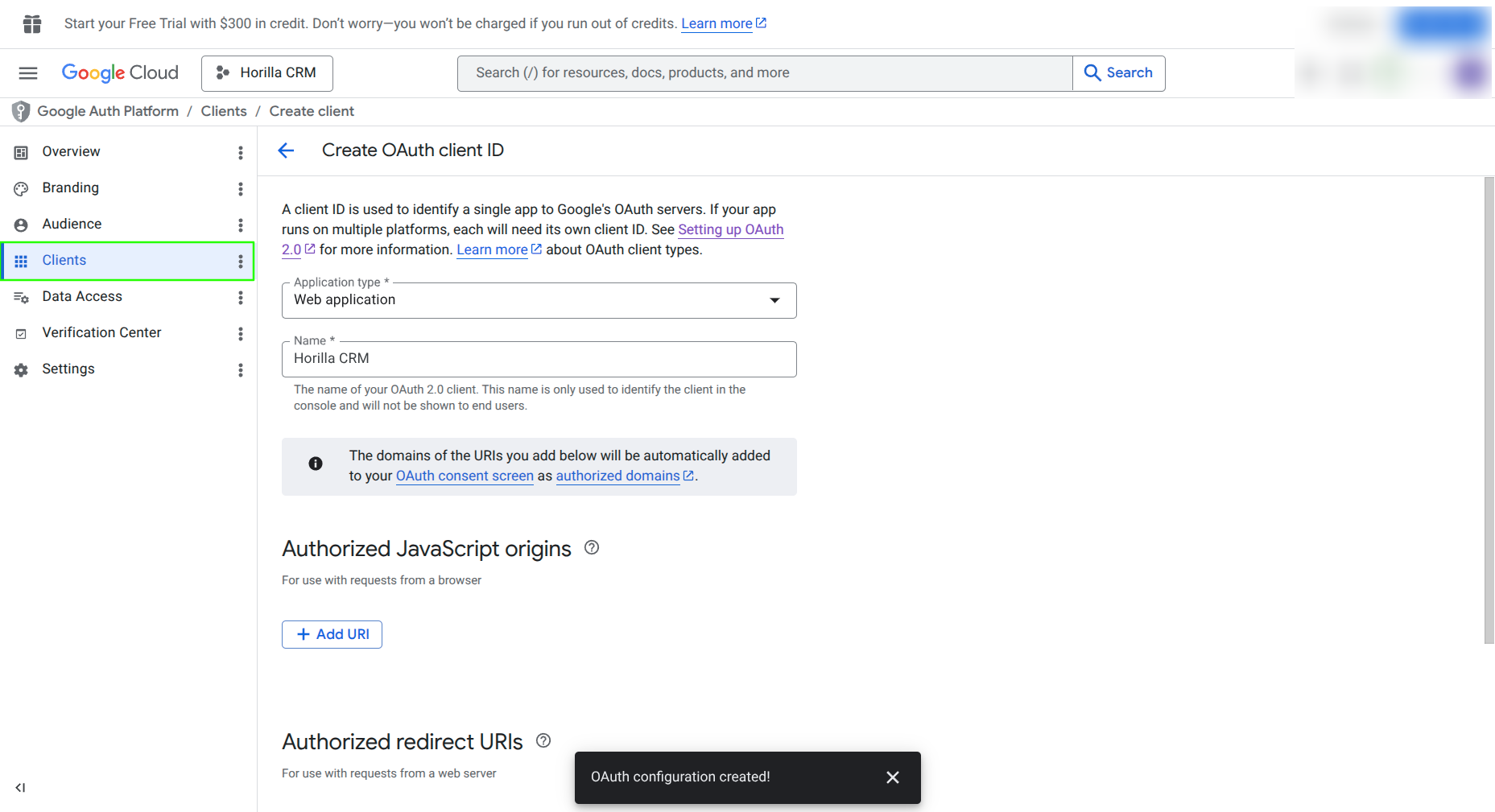
- Configure Redirect URI:Add the callback URL from Horilla eg:https://yourdomain.com/calendar/google-calendar/callback/
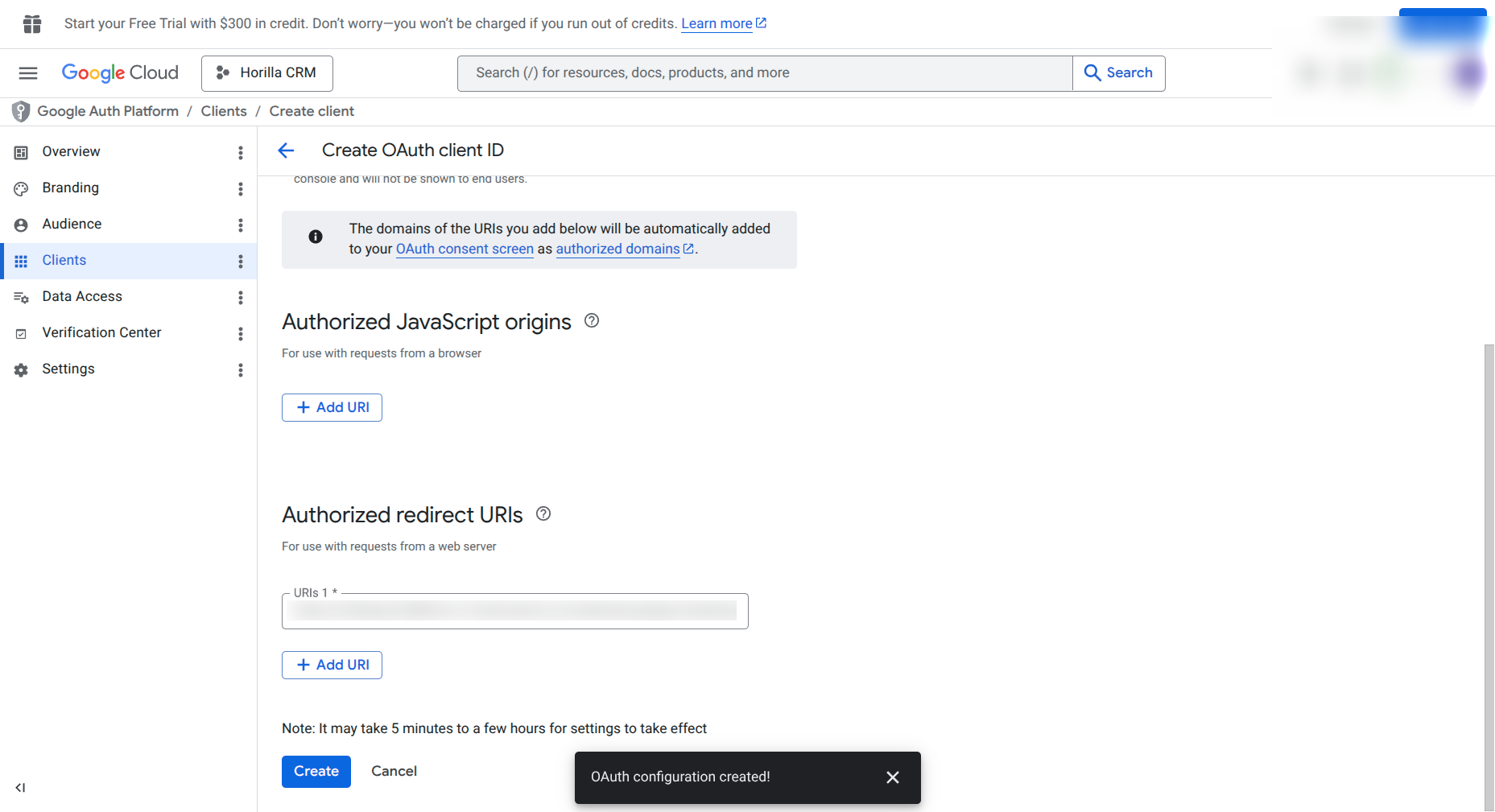
Final Steps:
Download the generated
client_secret_*.jsonfile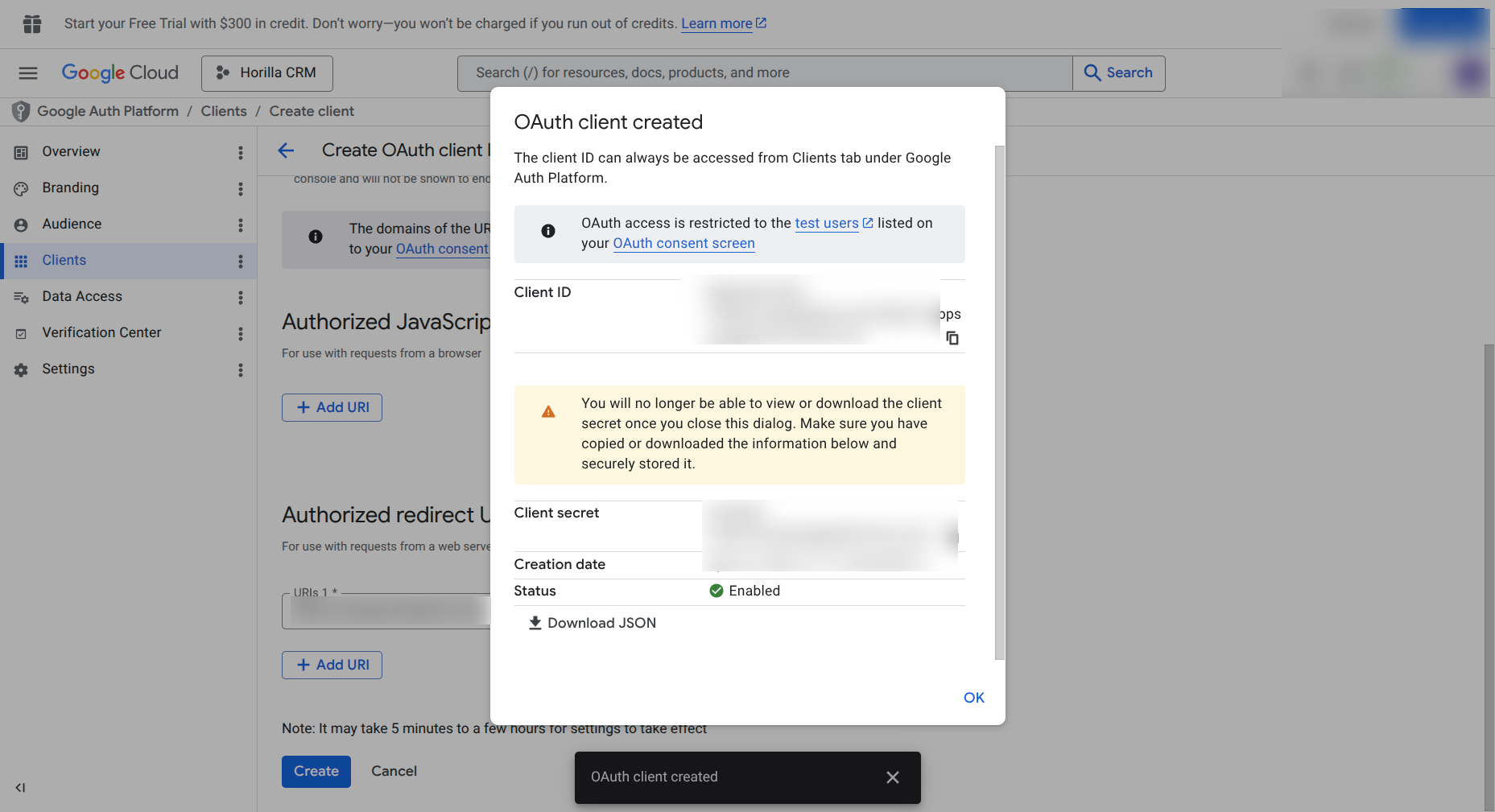
User: Connect Google Calendar
Path: My Settings → Google Calendar
Step 1 — Upload Credentials
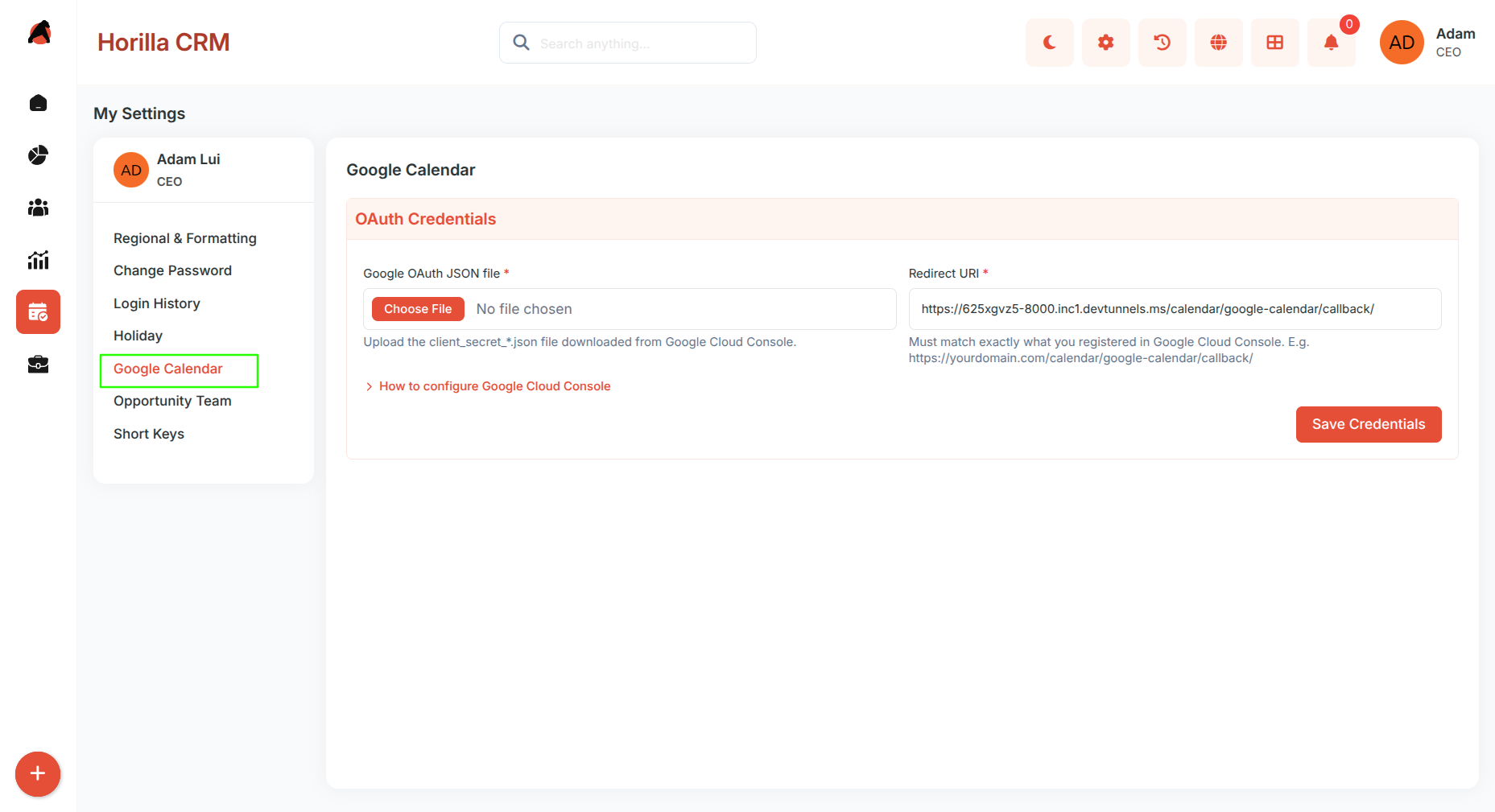
Navigate to My Settings → Google Calendar
Upload the
client_secret_*.jsonfileEnsure the Redirect URI matches the one configured in Google Cloud
Click Save Credentials
Step 2 — Authorize
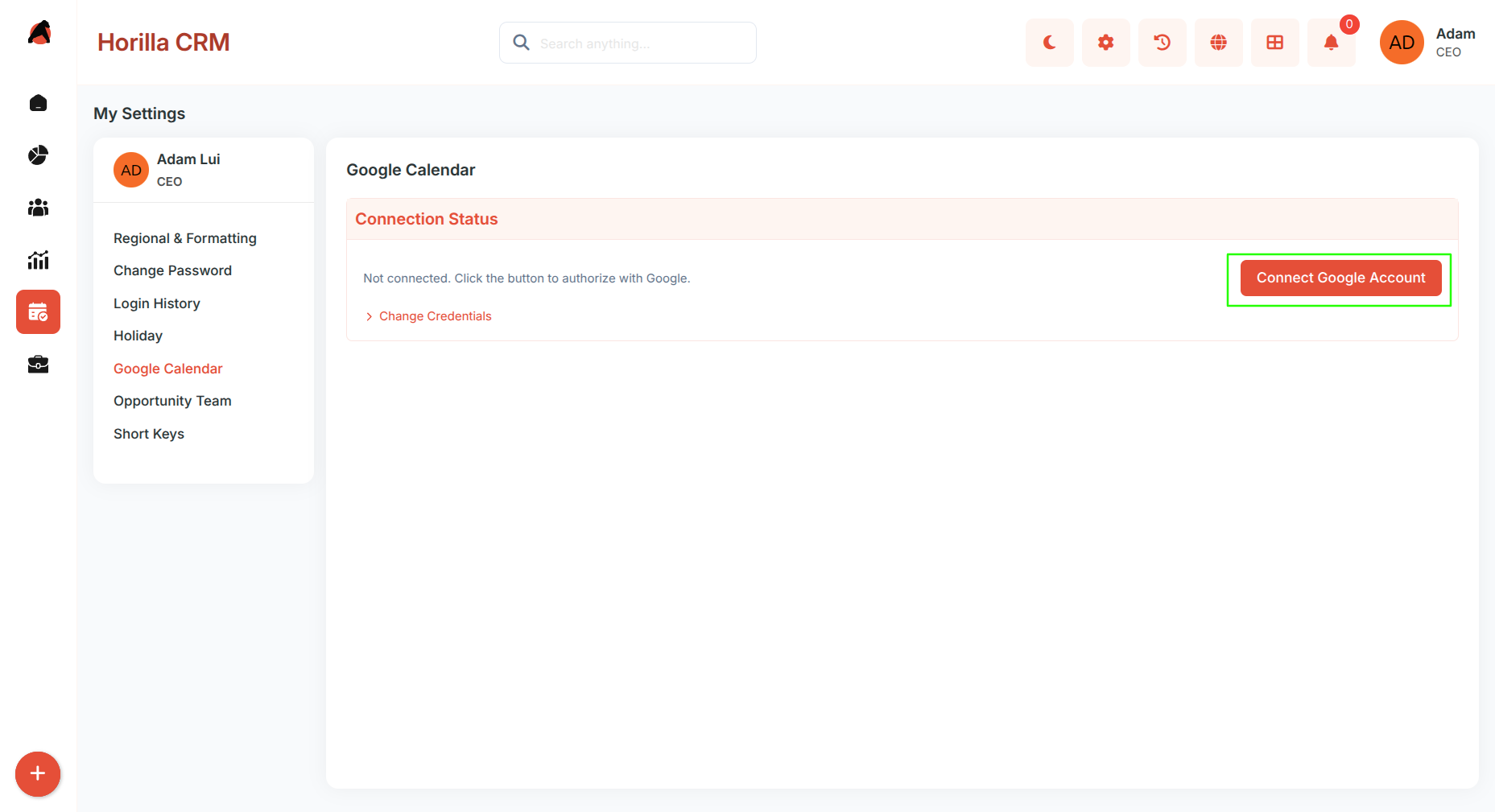
Click Connect Google Account
Complete Google OAuth consent
Grant permissions:
- Calendar
- Tasks
After successful authentication, you will be redirected back
A confirmation message will display the connected email
Step 3 — Set Sync Direction
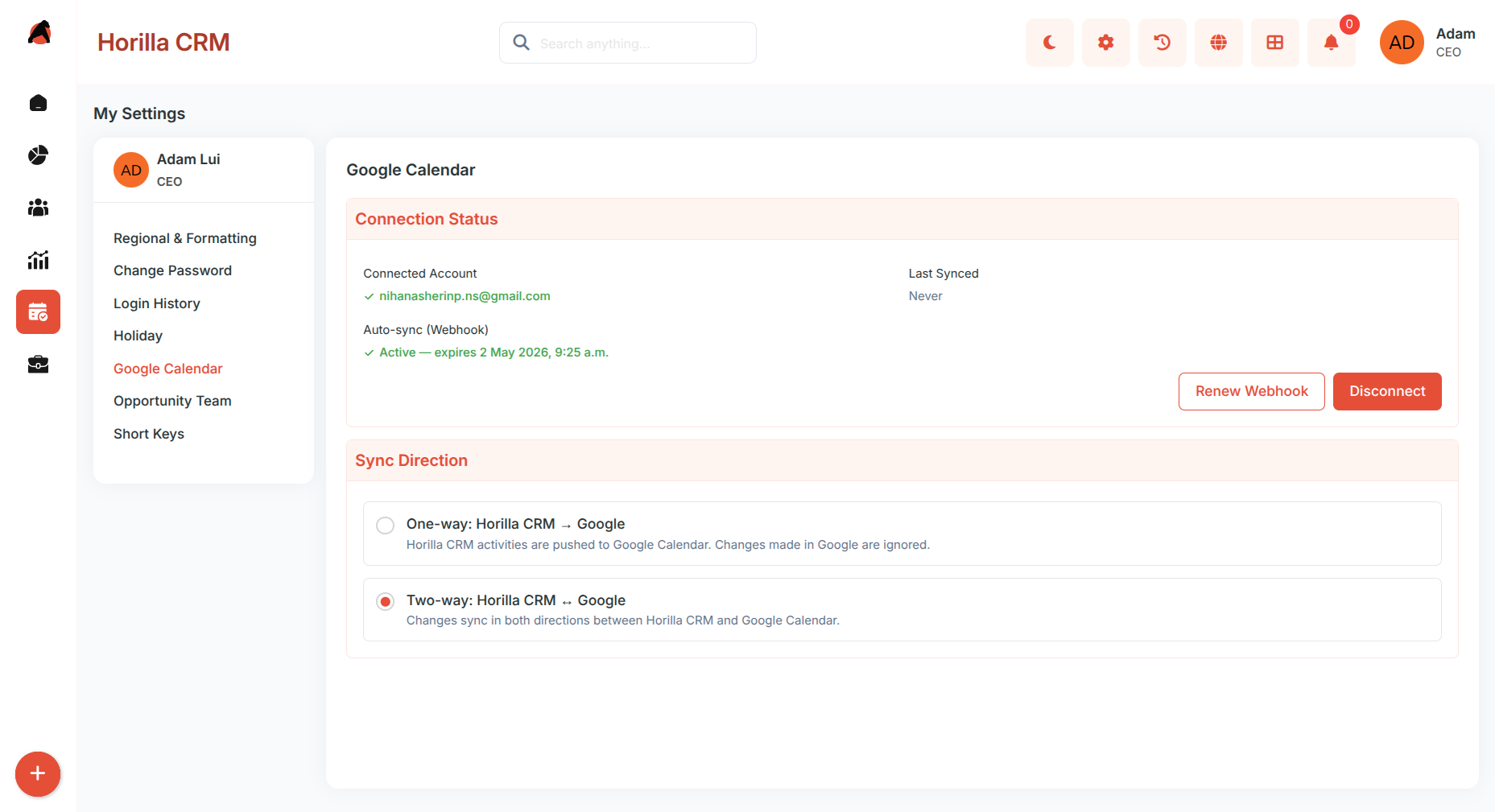
Choose one sync mode:
One-way: App → Google Calendar
Horilla pushes data to Google Calendar only. Changes made in Google Calendar will not reflect back in Horilla.Two-way: App ↔ Google Calendar (default)
Data syncs in both directions. Changes made in either Horilla or Google Calendar will automatically update in the other system.What Gets Synced
Activity — Task → Google Tasks (default list)
Activity — Event / Meeting → Google Calendar event
Unavailability block → Google Calendar event
In two-way sync:
- Google Calendar changes (new, update, delete) sync back to Horilla
- Excludes Horilla-created events and Google system events (like birthdays)
Real-Time Push Notifications
Enabled automatically with HTTPS
Sync happens within seconds
Watch Active shows webhook is working
Auto-renews on page load and after notifications
Can manually click Register Webhook
Not supported on HTTP or localhost (use HTTPS or tunnel)
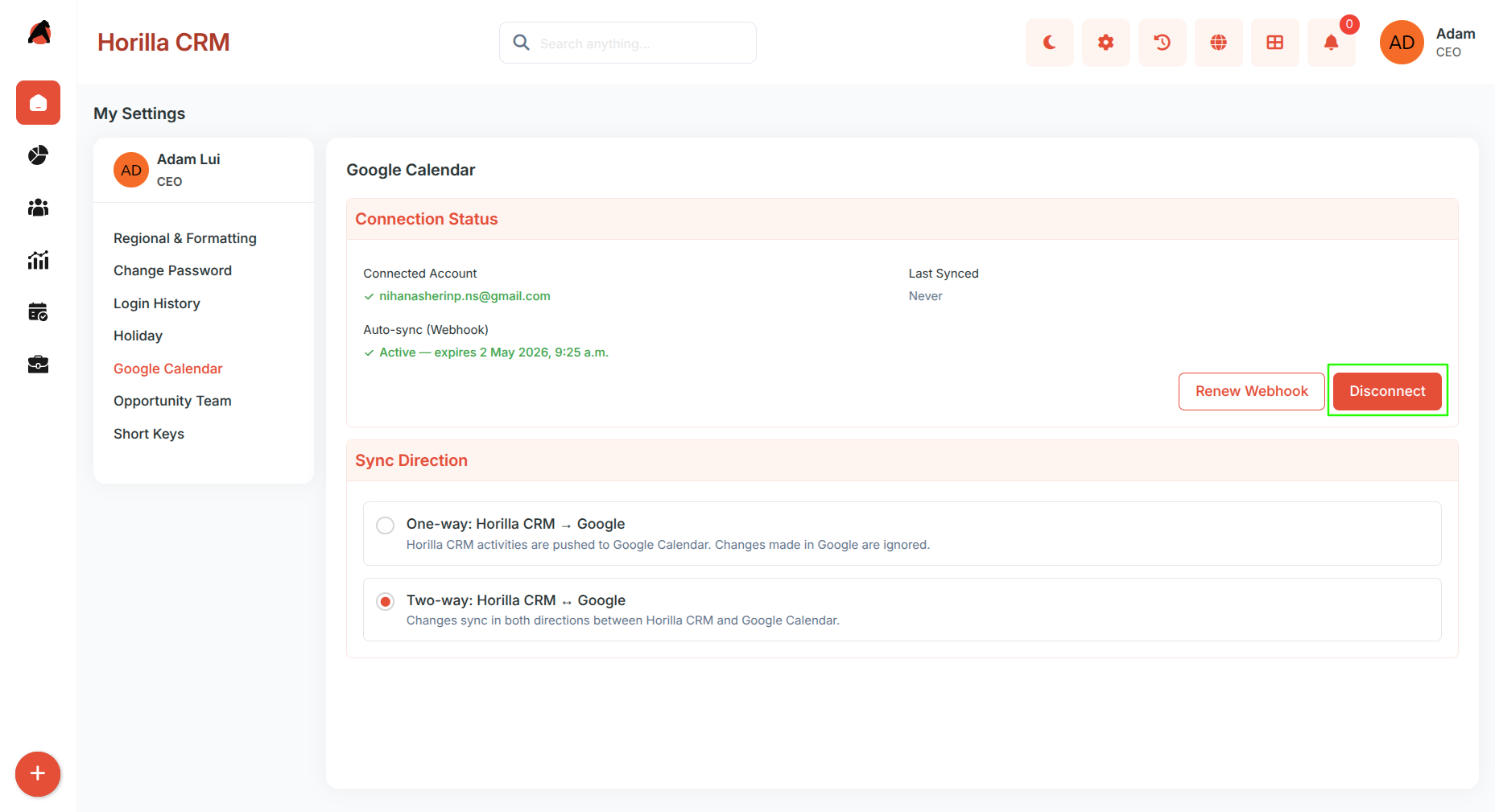
- Stops push notification channel
- Clears OAuth tokens
- Resets sync state
- Keeps uploaded credentials file for quick reconnection
Additional Recommendations
- Use two-way sync only when needed; for better control and to avoid unintended overwrites, one-way sync is often safer.
- Avoid manually creating duplicate events in both systems—let the integration handle synchronization to maintain consistency.
- Keep the
client_secret_*.jsonfile secure and do not share it; regenerate credentials if there is any risk of exposure. - Always use HTTPS in production and check the “Watch Active” status regularly to ensure real-time sync is functioning properly.