

Appearance

Web to Lead — Functional Guide
Introduction
The Web to Lead feature in Horilla CRM lets you capture leads directly from any external website. You can create a form inside the CRM, embed it on your website, and each submission automatically creates a Lead record — no login required.
Access Web to Lead
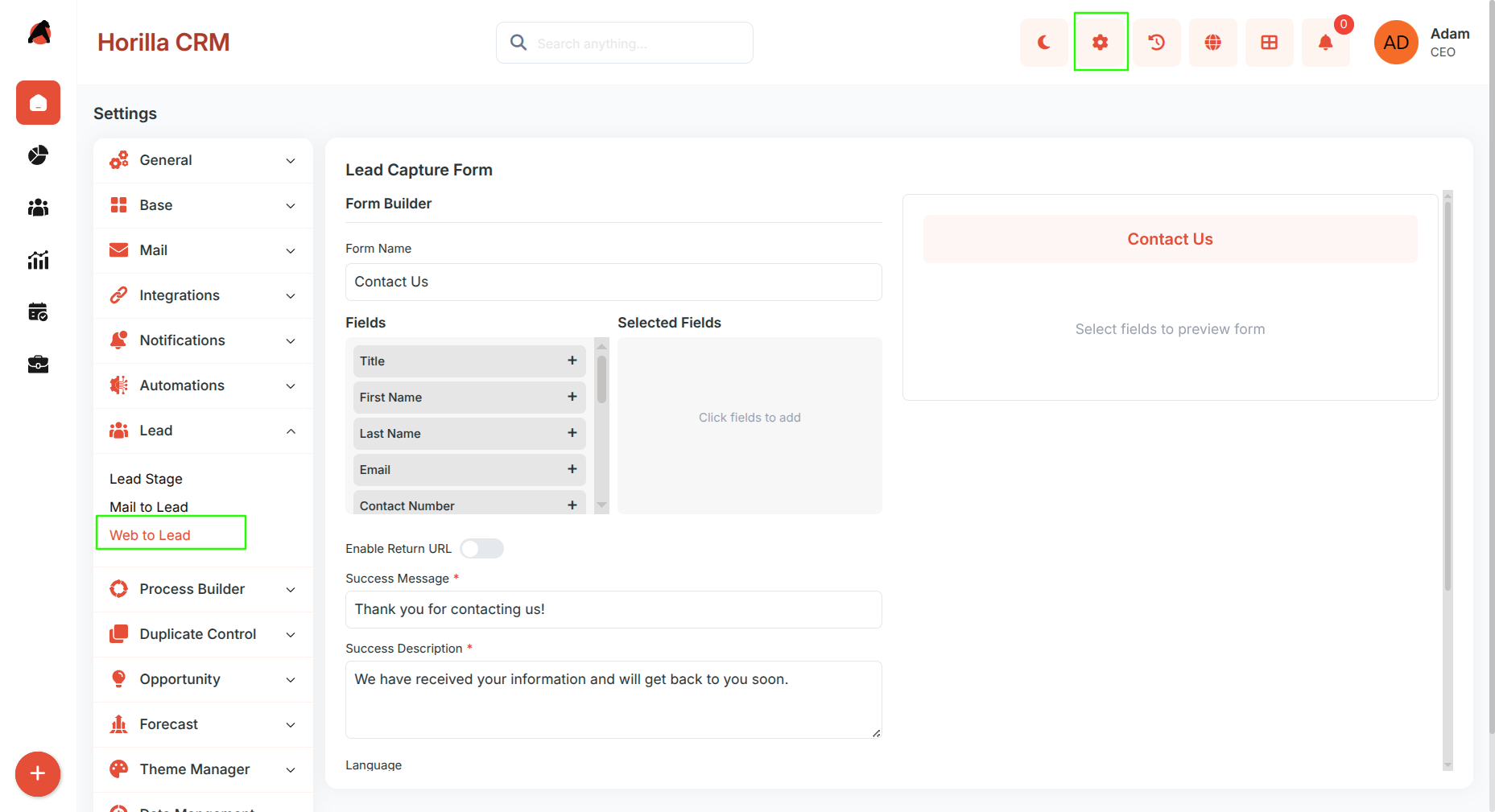
Go to Settings → Web to Lead to open the form builder.
Configure the Form
Form Heading
Enter a Form Name (shown as the form title)

Select Fields
Click fields from the left panel to add them
Remove fields using the remove icon
The preview updates instantly
Common fields:
First Name, Last Name, Email, Phone,Company Name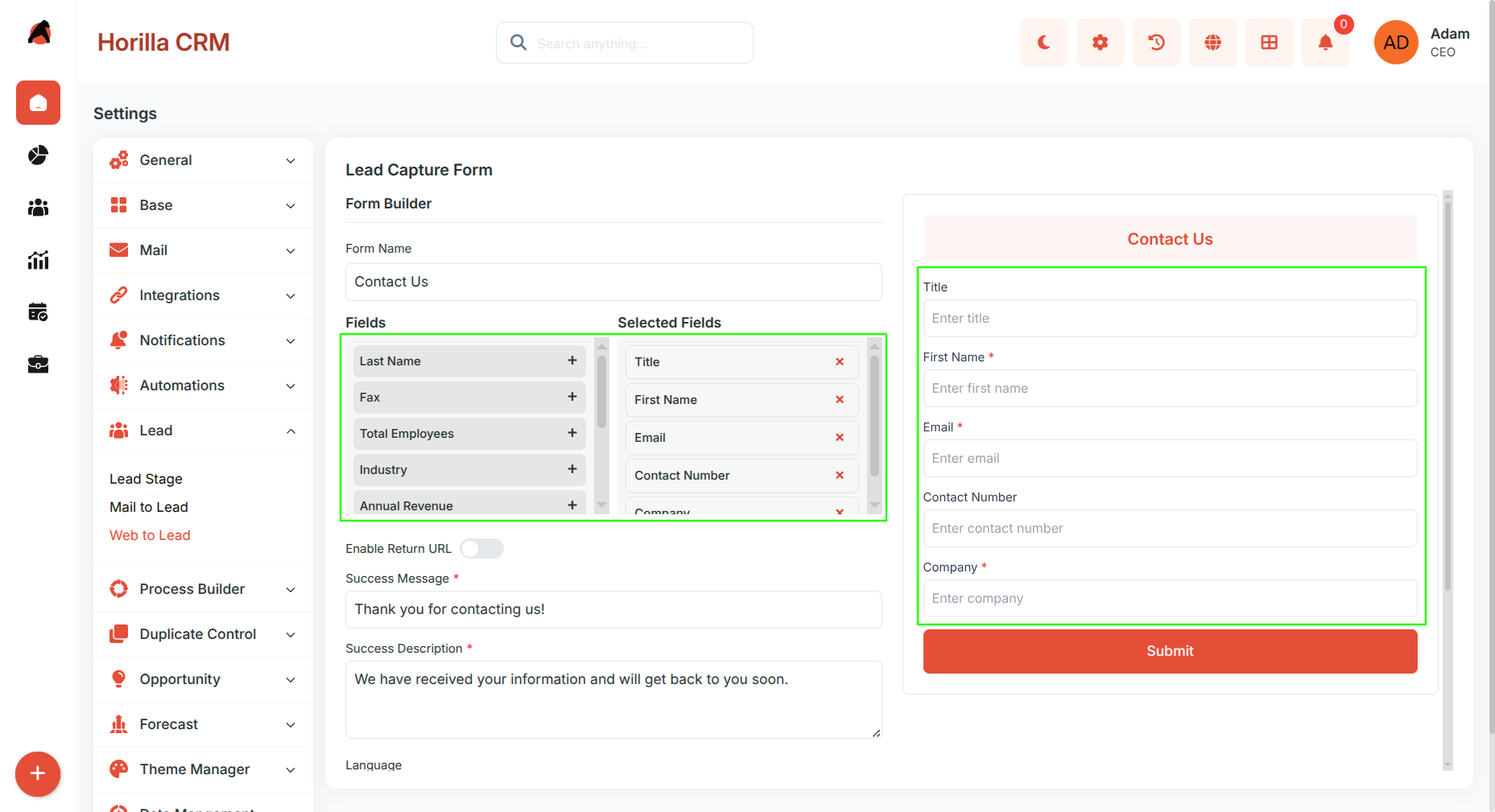
After Submission
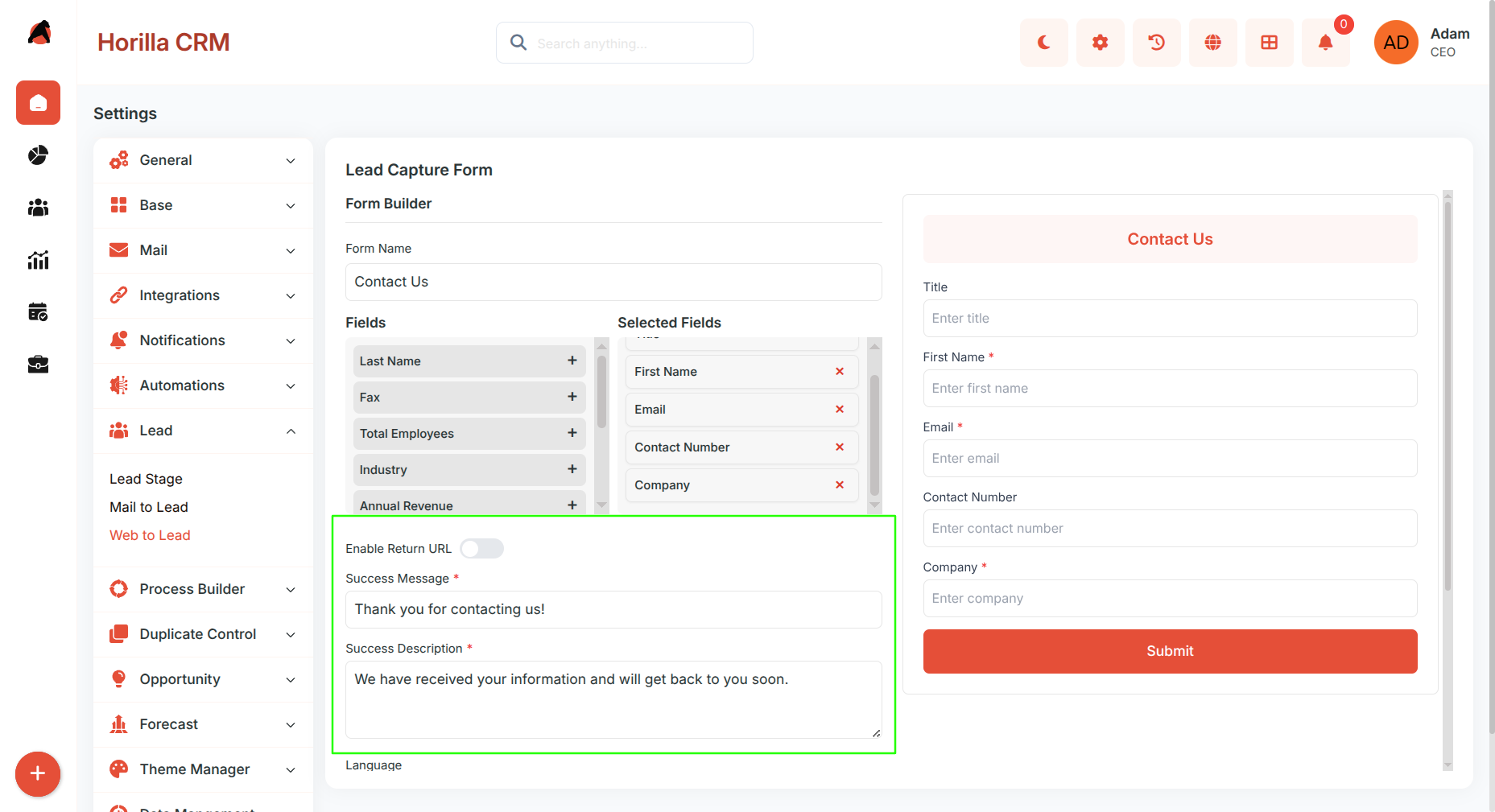
Choose what happens after form submission:
Success Message → Show a custom message on the same page
Return URL → Redirect to another page (like a thank-you page)
Language
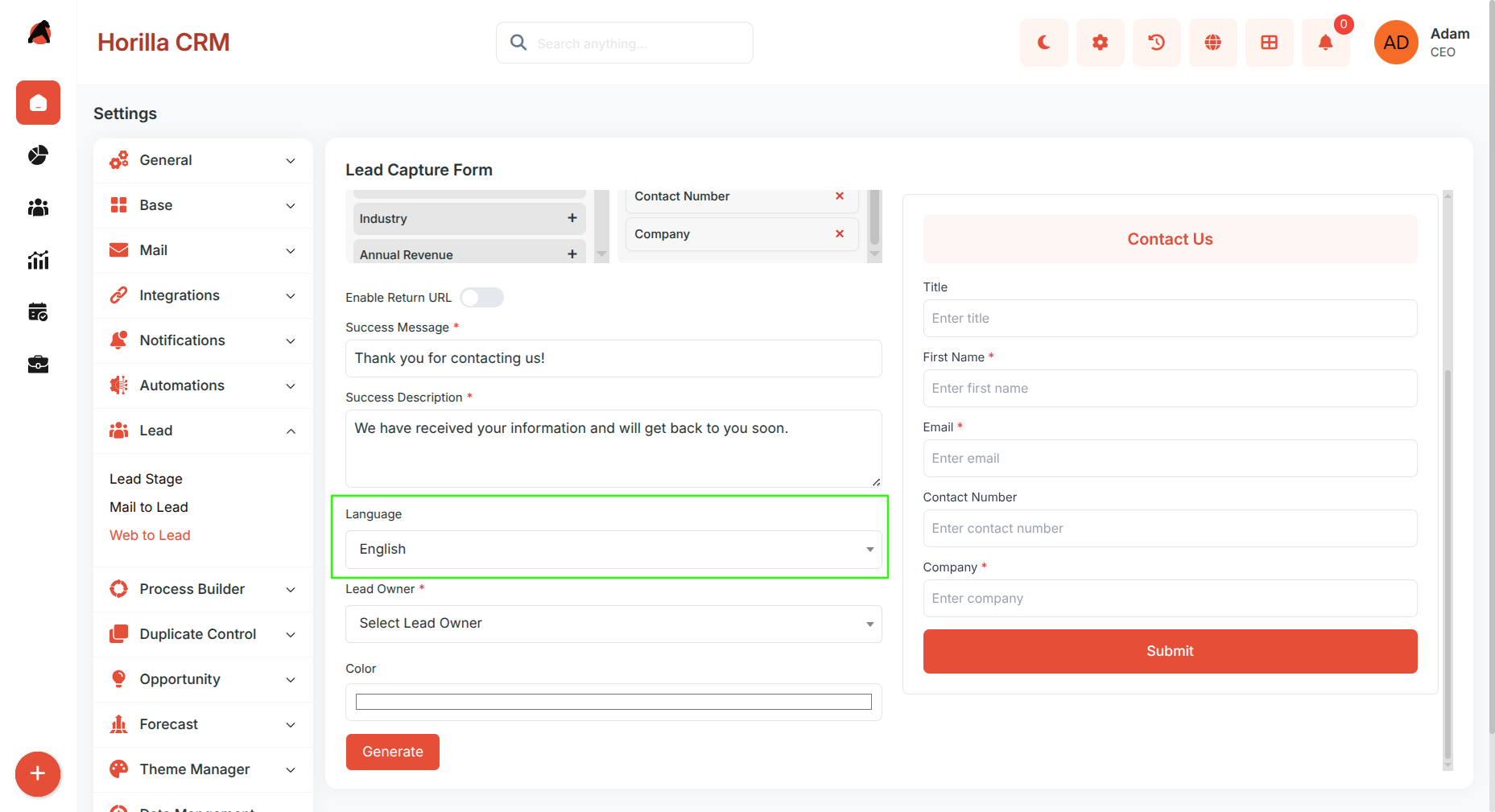
Choose the form language:
English
Arabic
German
French
Lead Owner
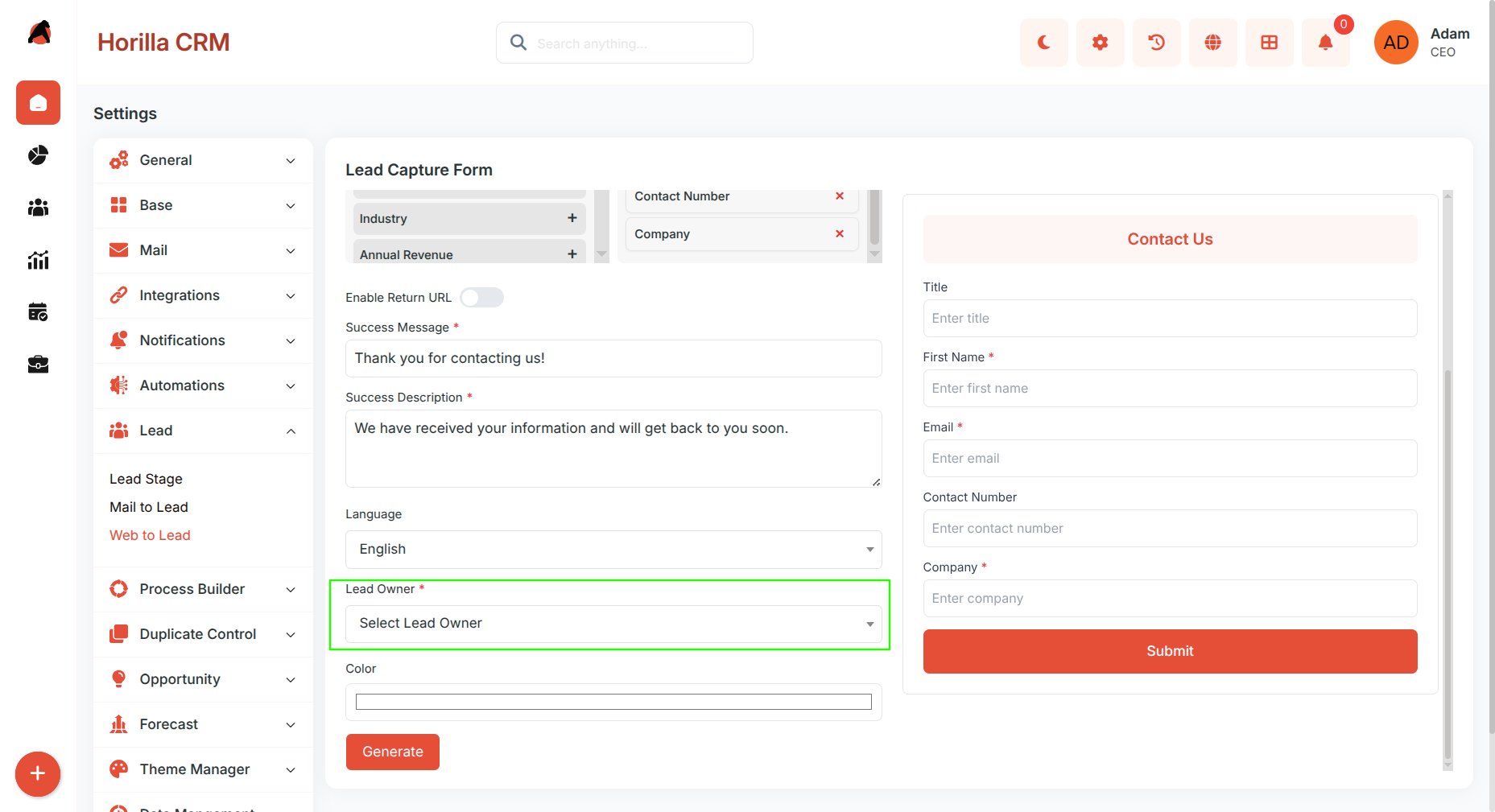
Select a user
All captured leads will be assigned to this user
Form Color
Choose a Header Color to match your brand
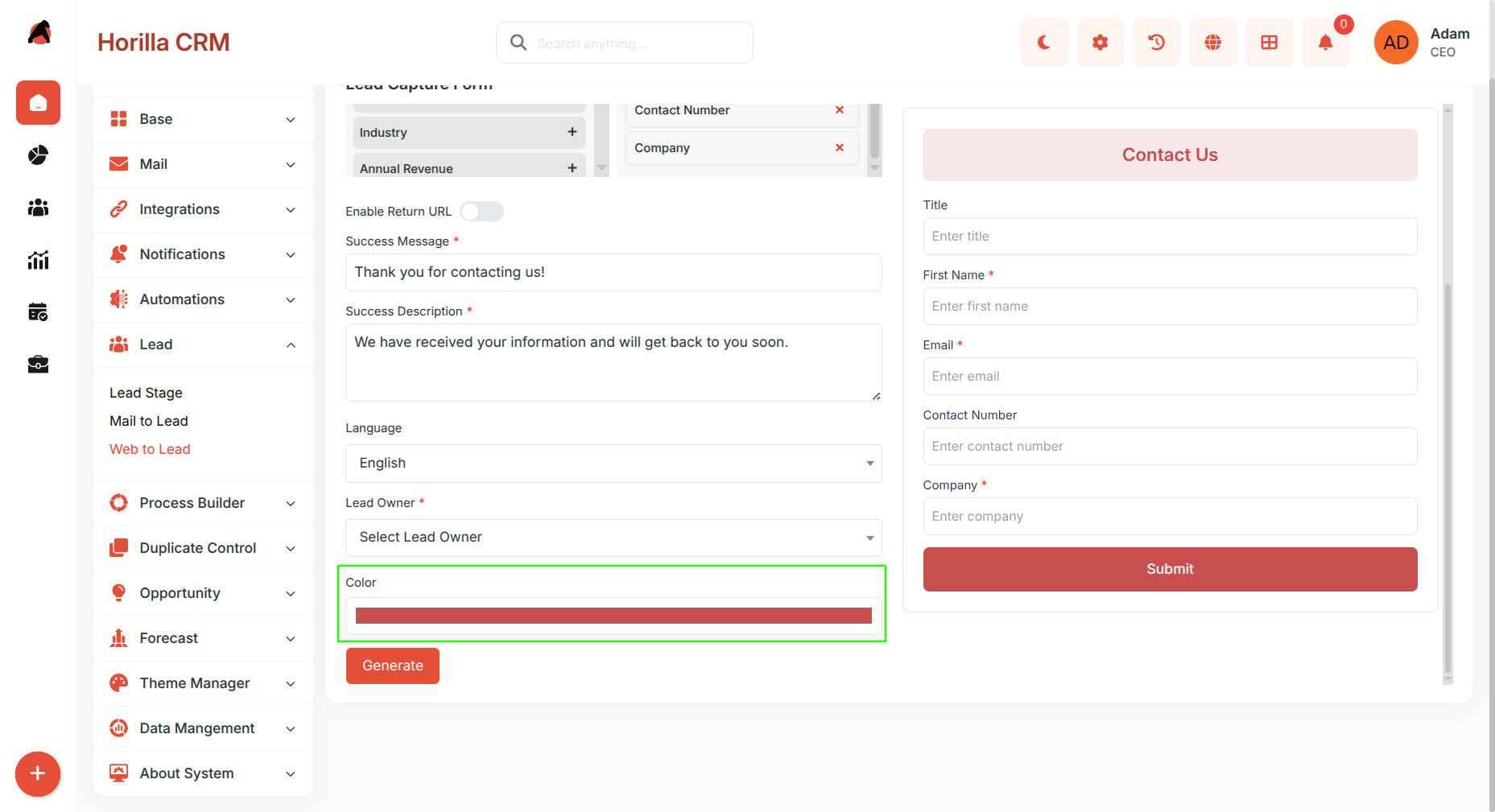
Save
- Click Generate to apply the configuration
Embed the Form
After saving, a public URL is generated:
https://yourdomain.com/leads/capture/\<form_id>/
You can:
- Share the link directly
- Embed it using an
<iframe>on your website
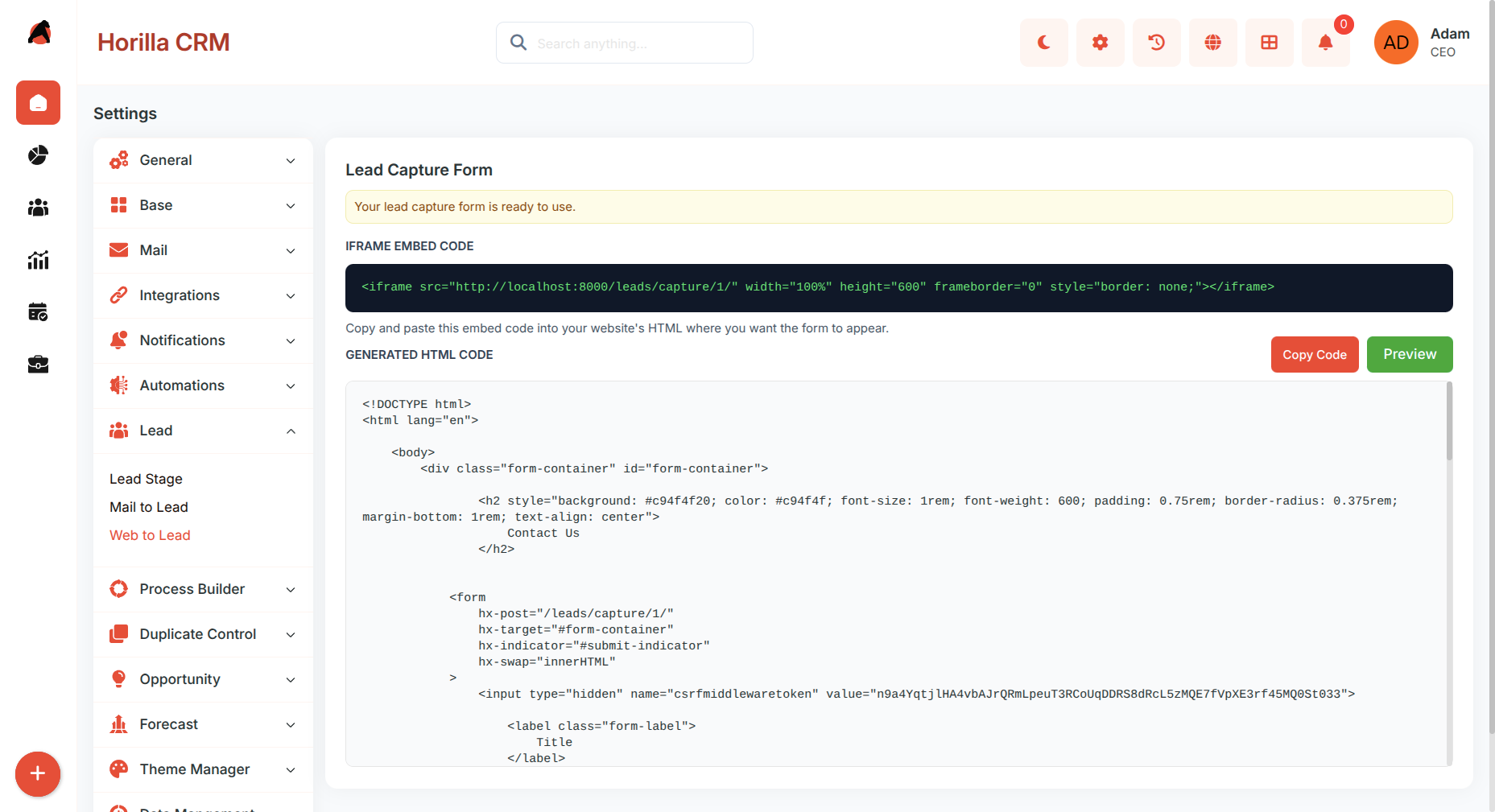
How Lead Capture Works
When a visitor submits the form:
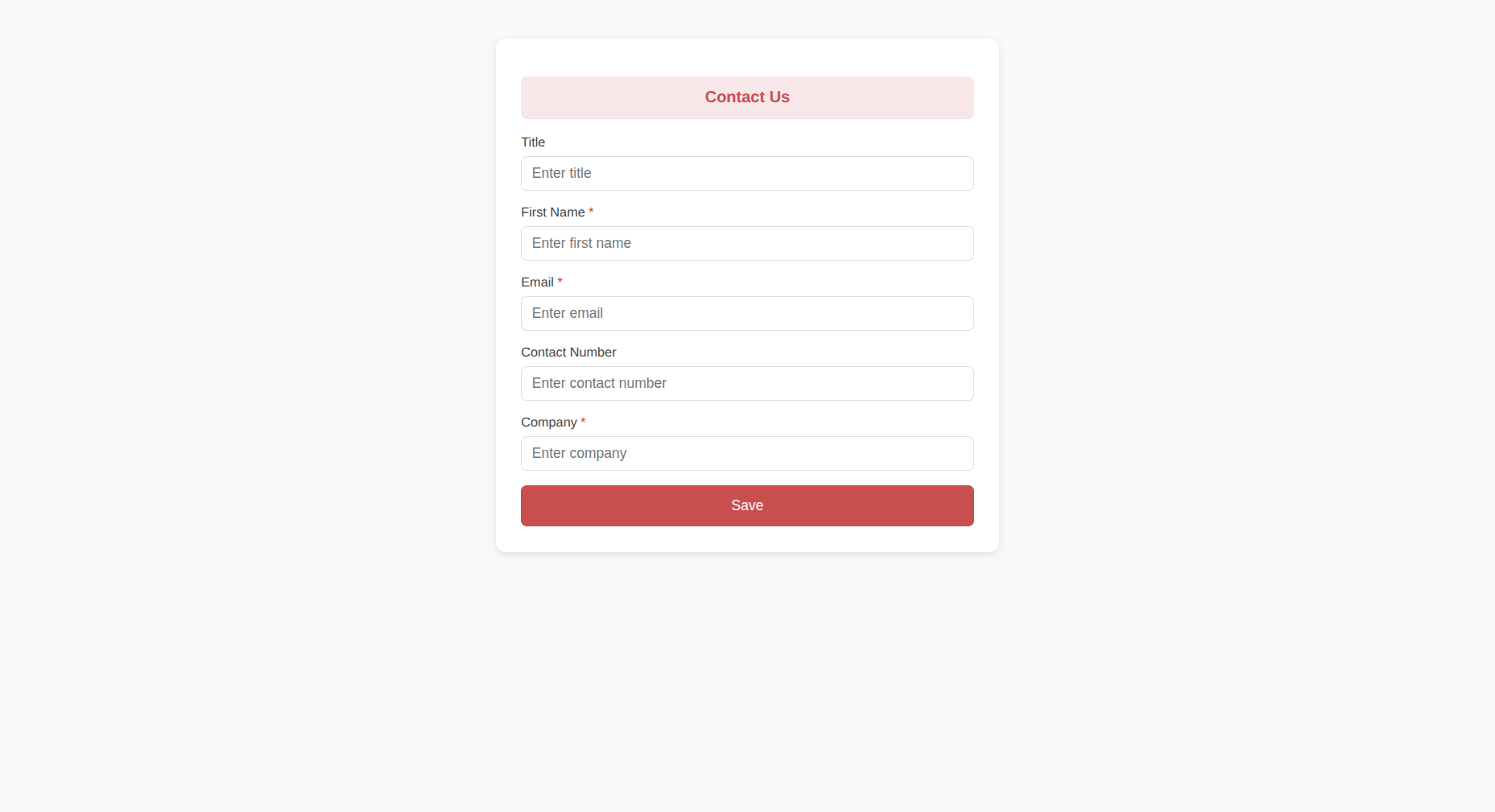
- A new Lead is created in Horilla CRM
- Lead Source → automatically set to Website
- Lead Status → set to the first active pipeline stage
- Lead Owner → assigned based on form settings
- User sees success message or gets redirected
Additional Recommendations
- Keep the form simple; too many fields can reduce submissions
- Use clear labels and required fields only when necessary
- Match form design (colors, wording) with your website branding
- Test the form after embedding to ensure proper lead creation
- Regularly review captured leads to maintain data quality