

Appearance

Horilla CRM Colour Theme – Functional Guide
1. Introduction
The Horilla CRM Colour Theme module allows administrators to personalise the visual appearance of the entire application by selecting from a set of pre-built colour themes. The chosen theme is applied company-wide and affects all UI elements including navigation, buttons, icons, forms, and background surfaces. An administrator can also designate a theme as the default for the login page.
2. Key Features and Functionalities
2.1 Colour Theme Overview
Purpose: Display all available colour themes in a grid view and allow administrators to activate or manage them.
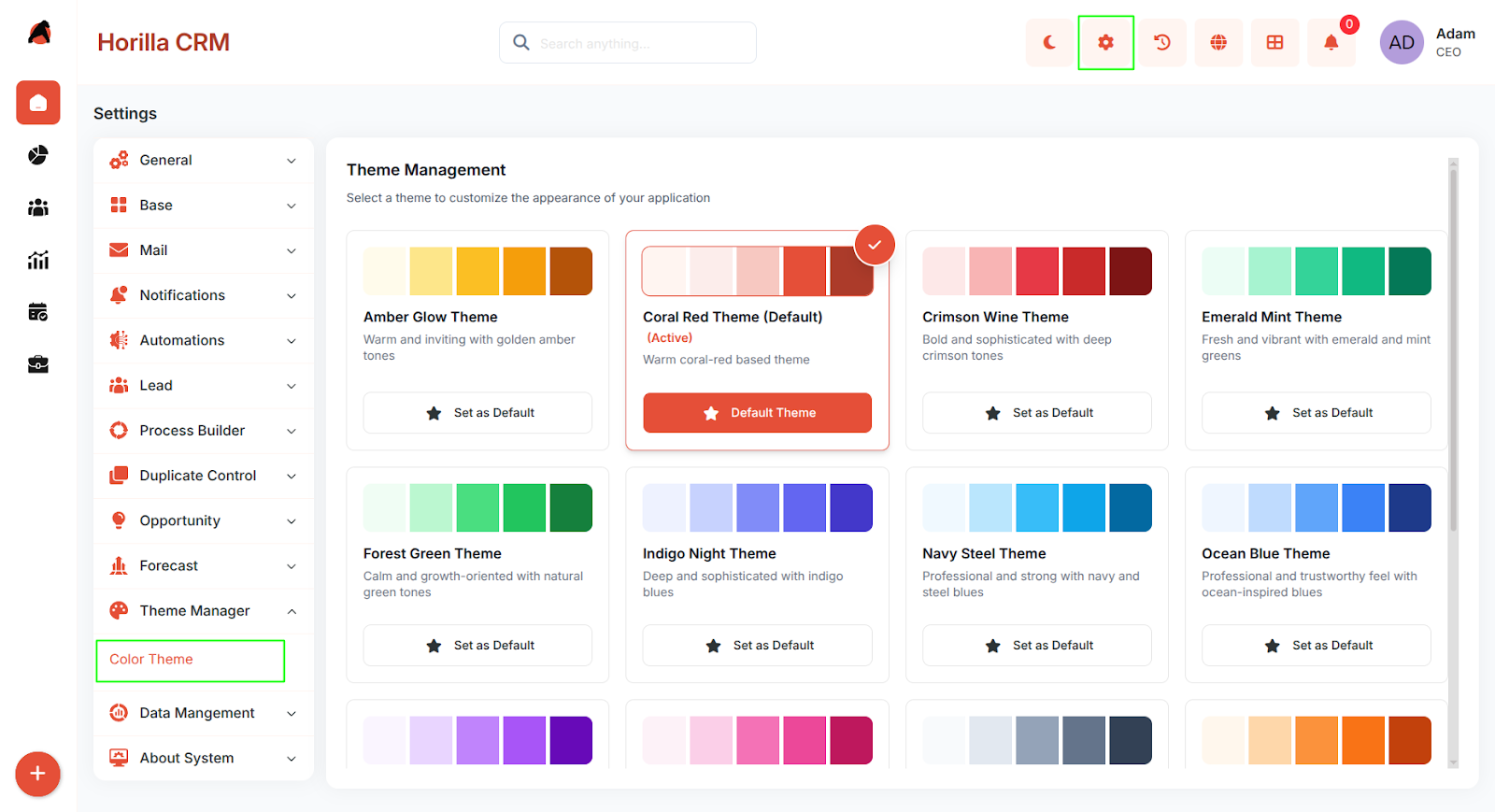
- Navigate to Settings in the header and select Theme Manager > Colour Theme to open the theme selection page.
- The page displays a grid of theme cards, each showing:
- A colour preview strip with sample swatches from the theme's palette.
- The theme name with an (Active) label on the currently applied theme.
- A short description of the theme's style.
- An Activate button to apply the theme company-wide.
- A Set as Default / Remove as Default button to control the login page appearance.
2.2 Available Themes
Horilla CRM ships with 14 pre-built colour themes. Each theme defines a complete palette covering primary, secondary, dark, and surface colour scales.
- Coral Red Theme (Default)
- Ocean Blue Theme
- Forest Green Theme
- Purple Professional Theme
- Slate Gray Theme
- Indigo Night Theme
- Sunset Orange Theme
- Crimson Wine Theme Deep crimson
- Teal Corporate Theme
- Amber Glow Theme
- Navy Steel Theme
- Rose Gold Theme
- Emerald Mint Theme
2.3 Activating a Theme
Purpose: Apply a colour theme to the entire application for all users in the company.
- On the Colour Theme page, browse the available theme cards.
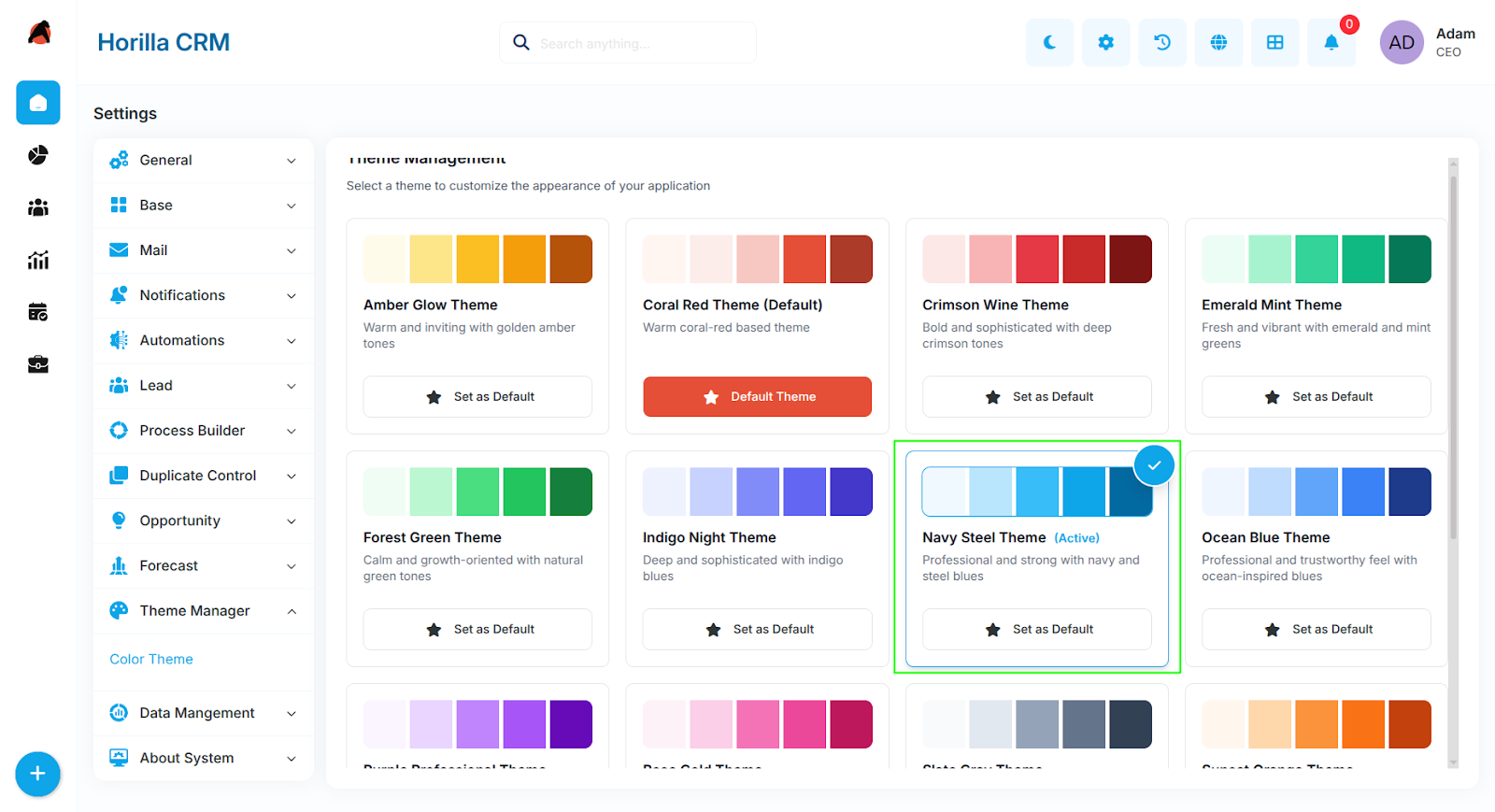
- Click the Activate button on the desired theme card.
- The page reloads automatically and the new theme is applied immediately across all pages, navigation, and UI components.
- The activated theme card is labelled (Active) to indicate it is currently in use.
- Activating a theme applies it company-wide. All users logged in under the same company will see the updated theme on their next page load.
2.4 Setting a Default Theme for the Login Page
Purpose: Control the colour theme displayed on the login screen before a user authenticates.
- On the Colour Theme page, locate the theme to be used on the login page.
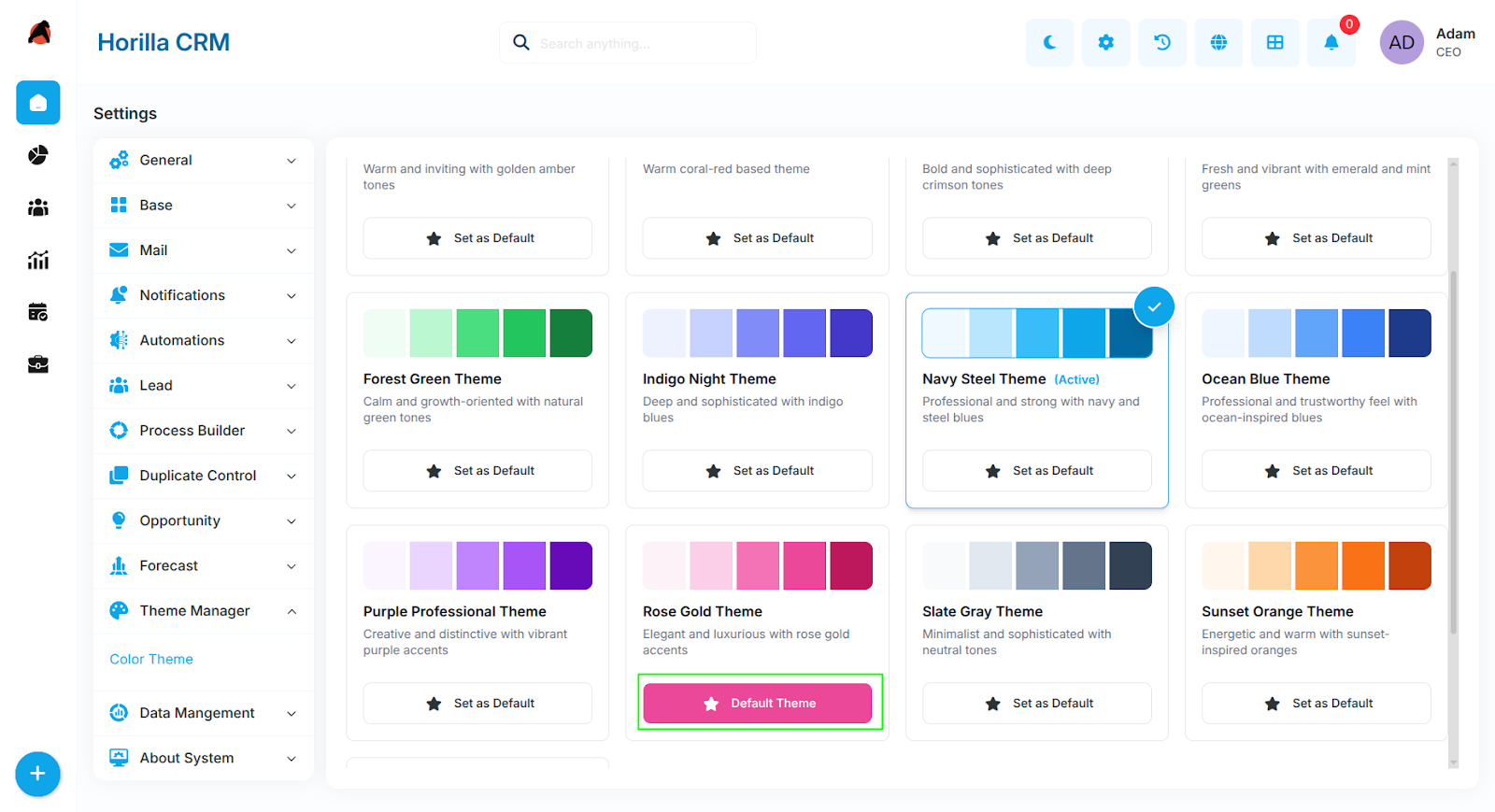
- Click the Set as Default button on that theme card.
- The selected theme will now be applied to the login page for all visitors.
- Only one theme can be marked as the login page default at a time. Setting a new default automatically removes the flag from the previously designated default.
- To remove the default designation without setting another, click Remove as Default on the currently active default theme.
- The login page theme is independent of the company's active application theme. A user's last active theme is also saved locally in their browser so the login screen reflects their previous session's theme until overridden by the global default.
3. Best Practices
- Review all major screens (dashboard, Kanban, forms, calendar) after activating a new theme to confirm readability and visual consistency.
- Use the Set as Default option to ensure the login page reflects the organisation's brand colours.
- Only one theme can be active at a time — activating a new theme immediately replaces the previous one for all users.
- Coordinate theme changes with your team to avoid confusion from sudden visual changes during business hours.
- The Coral Red Theme (Default) is the system baseline and will be applied automatically if no company theme has been configured.