

Appearance

Complete Guide to Cadences – Horilla CRM
Overview
Cadences define automated, multi-stage outreach workflows for CRM records. A cadence triggers a sequence of tasks, calls, and emails based on configured conditions.
Each stage progresses automatically when the previous stage’s activity reaches a defined status. Cadences support branching, allowing different follow-up actions based on different outcomes.
Cadences can be applied to:
- Lead
- Contact
- Account
- Opportunity
Navigation
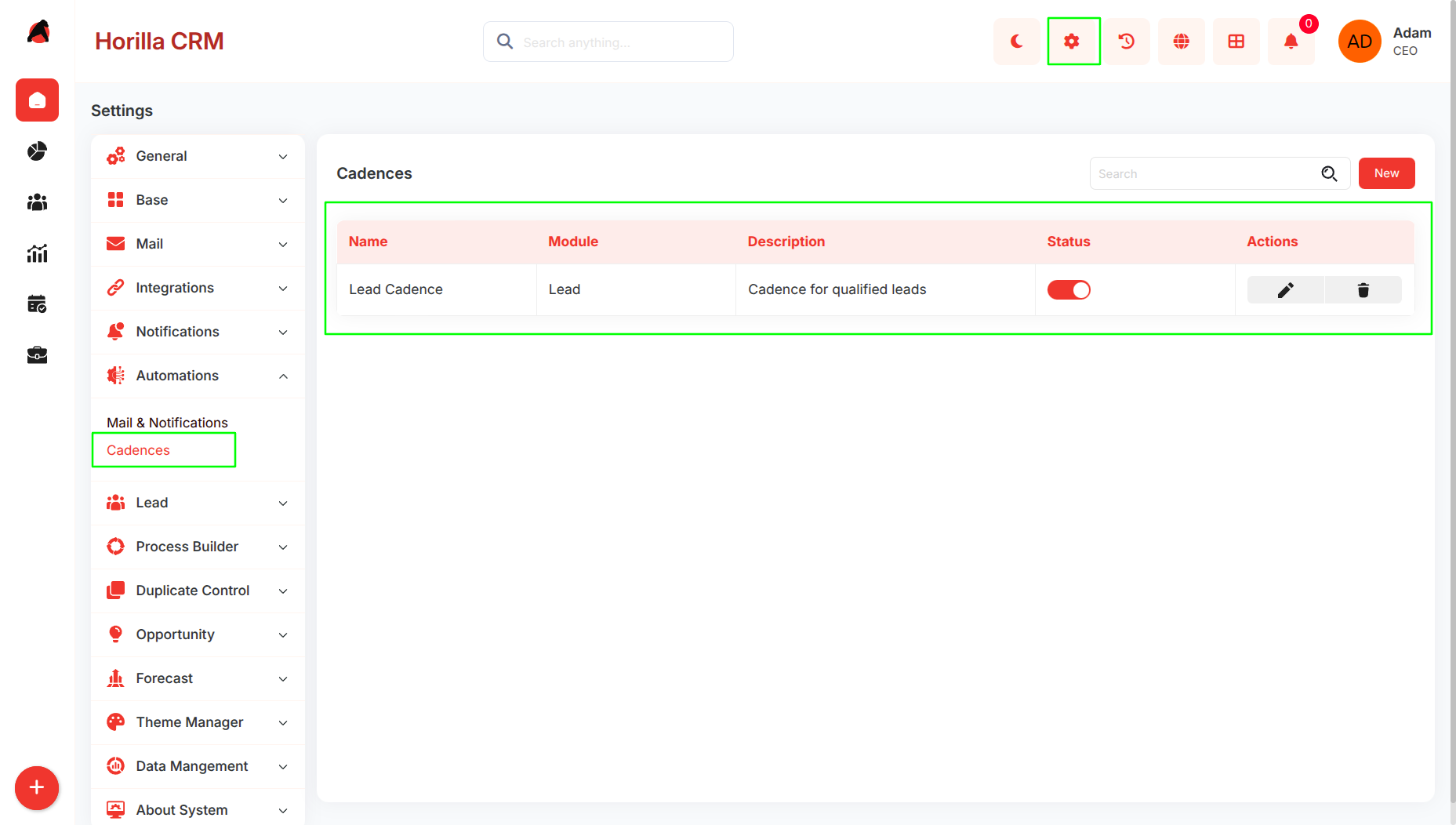
Settings → Automation Settings → Cadences
Cadence List
Displays all created cadences with:
- Name
- Module
- Description
- Is Active status
- Edit/Delete actions
Create Cadence
Click New to open the creation form.
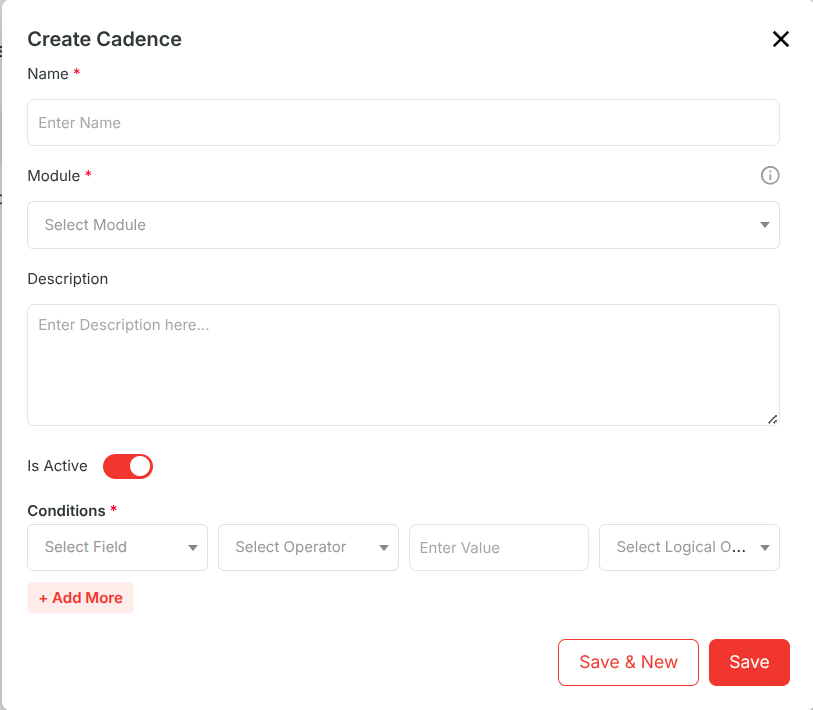
Fields
- Name : Name of the cadence.
- Module : The module this cadence applies to (Lead, Contact, Account, Opportunity).
- Description : Optional description.
- Conditions : which records are enrolled in the cadence
- Is Active: Enables or disables the cadence.
Cadence Detail View
Click the cadence name to open its detail view.
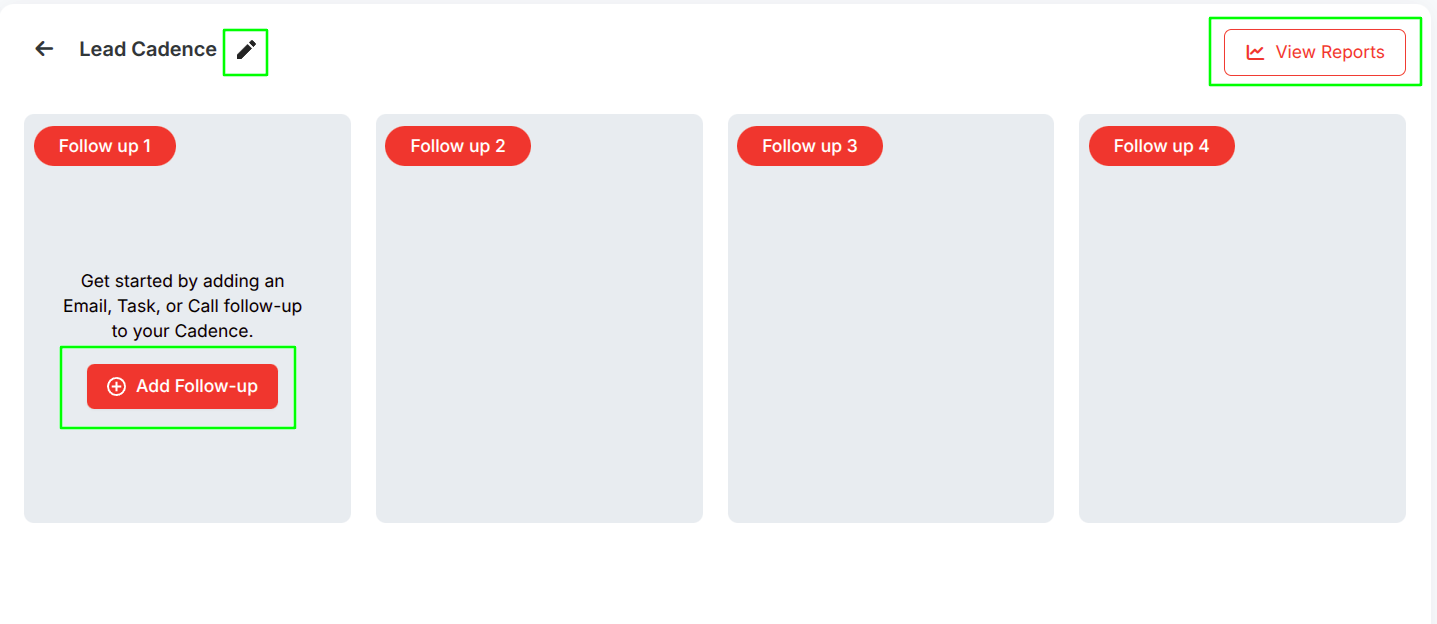
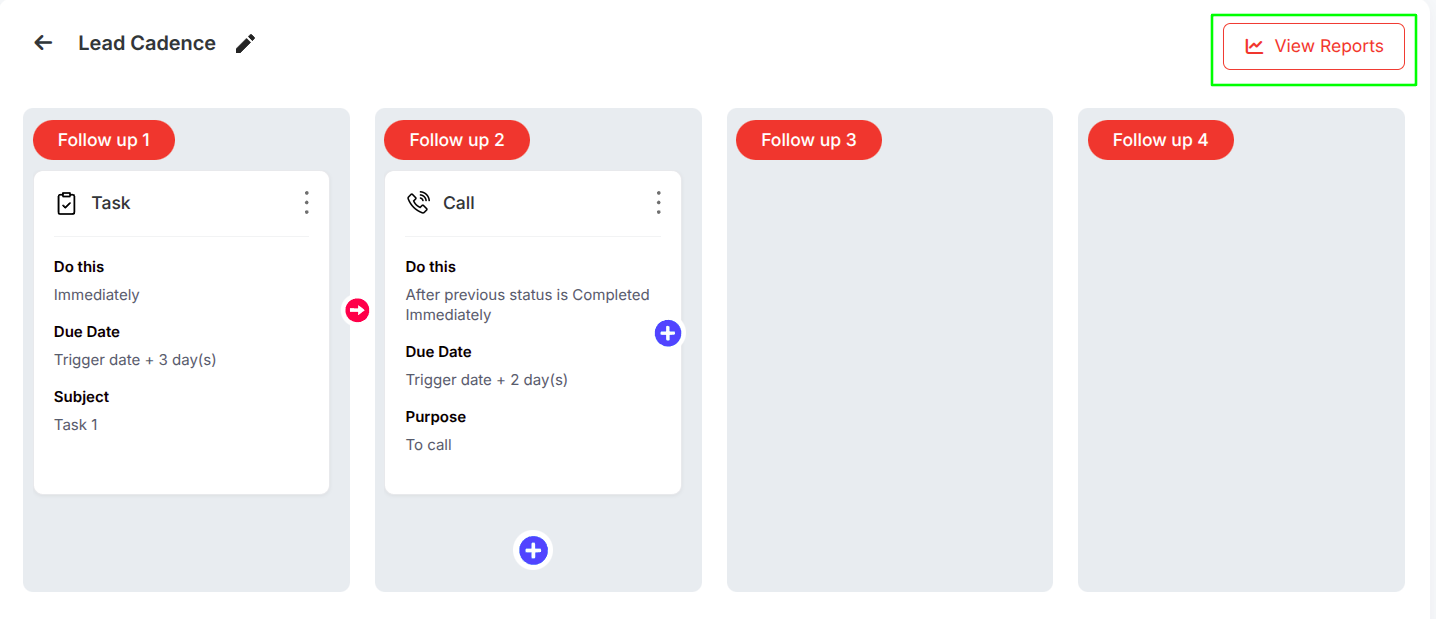
Displays follow-ups in a kanban-style layout with stages:
- Follow up 1,2 etc
Available Actions
- Add Follow-up
- Edit Cadence
- View Reports
Follow-Ups
Follow-ups are actions executed within a cadence.
Each follow-up belongs to a stage and can be:
- Task
- Call
Click + in the detail view to add a follow-up.
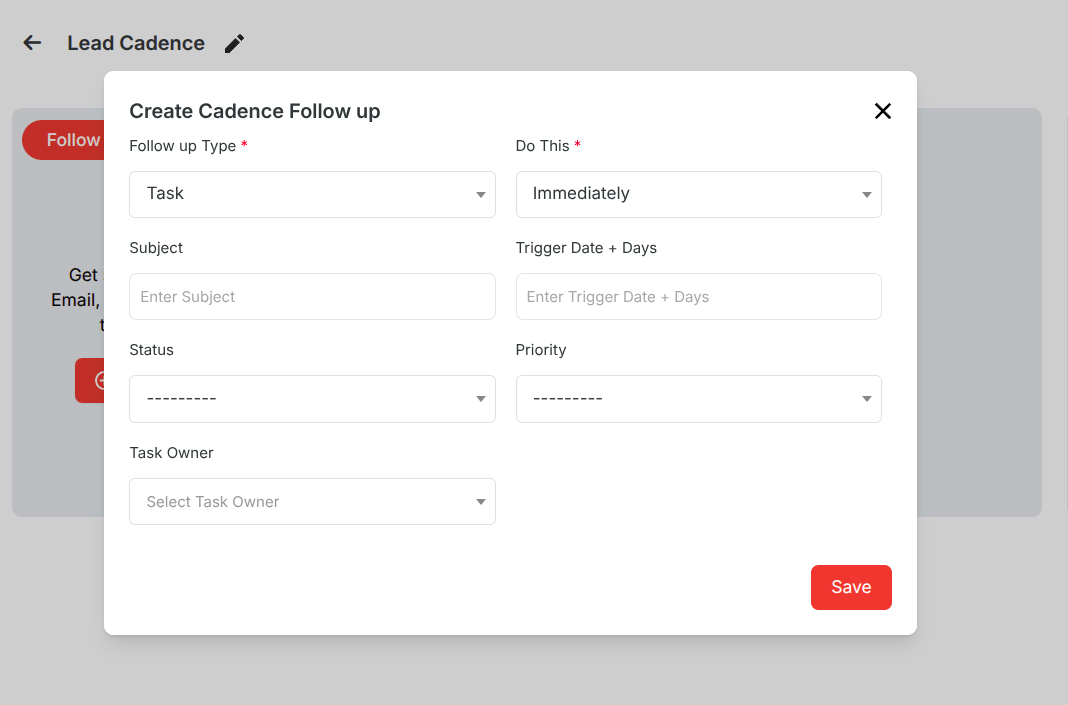
Common Fields
- Follow up Type : Task, Call, or Email.
- Do This : When to execute (Immediately, Minute, Hour, Day, Month).
- Do This Value : Delay value (not required if Immediately).
- After Previous Status Is : Required from Follow up 2 onwards.
Note: Requires configured mail server to add email followup.
Follow-Up Stages
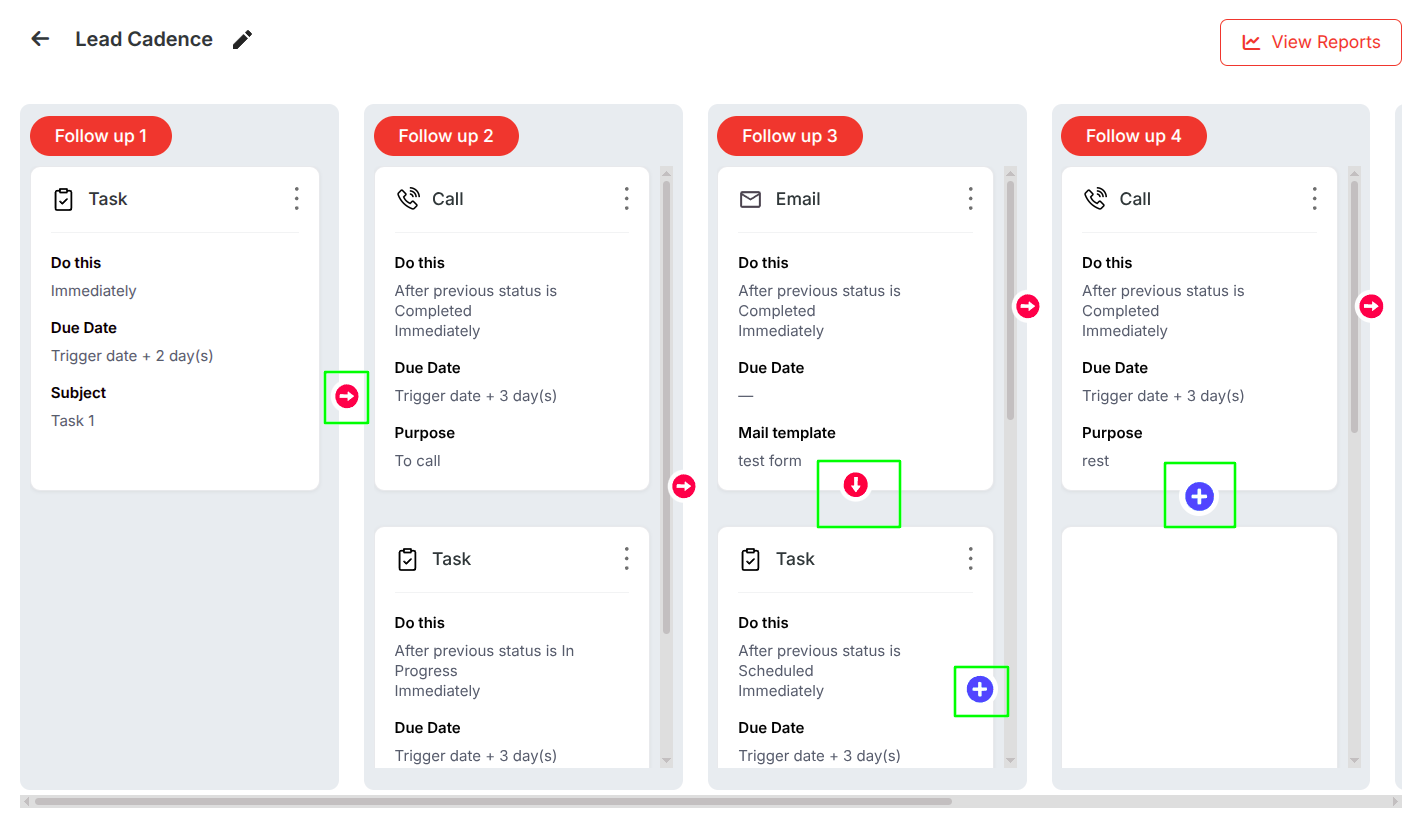
Follow up 1 (Initial Stage)
- Only one follow-up allowed
- Triggered when record matches conditions
- No previous status required
Follow up 2+ (Subsequent Stages)
- Triggered based on previous stage status
- Requires “After Previous Status Is”
Branching Workflows
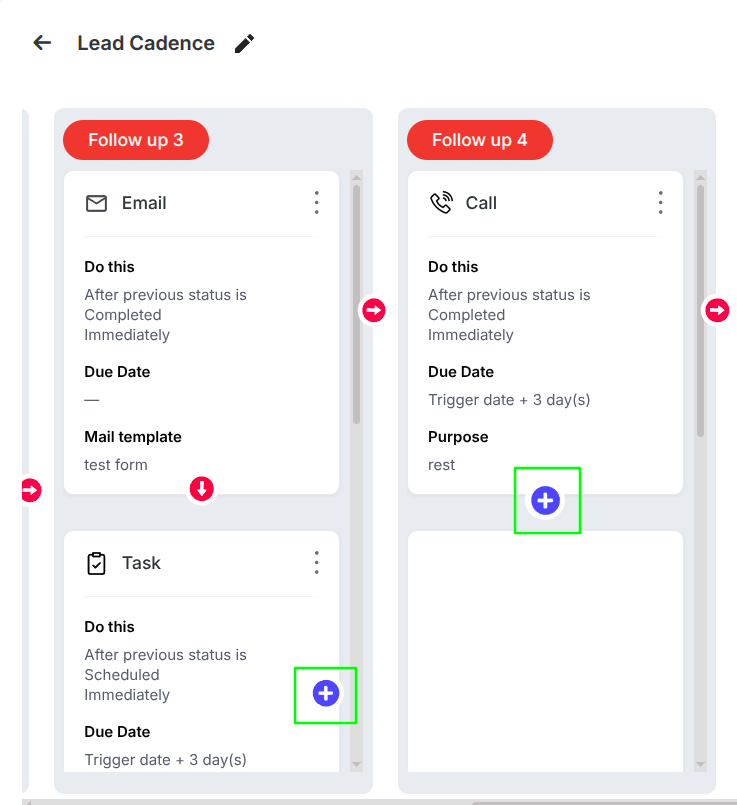
From Follow up 2 onwards, cadences support branching.
Multiple follow-ups can be created from one parent based on different statuses.
Example
Follow up 1 → Task
- Completed → Follow up 2 (Email)
- Overdue → Follow up 2 (Call)
Only the matching branch is executed.
Adding Follow-Ups
- + (right side) → Add next stage
- + (below) → Add same stage (FU3+)
Note:
A follow-up cannot be deleted if it has child branches.
Cadence Execution
Record Enrollment
When a record is created or updated:
- Active cadences are evaluated
- Matching records trigger Follow up 1
Stage Progression
When an activity status changes:
- Next-stage follow-ups are triggered
- Only matching branch is executed
Backfill
- On activation → Follow up 1 is applied to existing records
- On update → Pending activities are synced
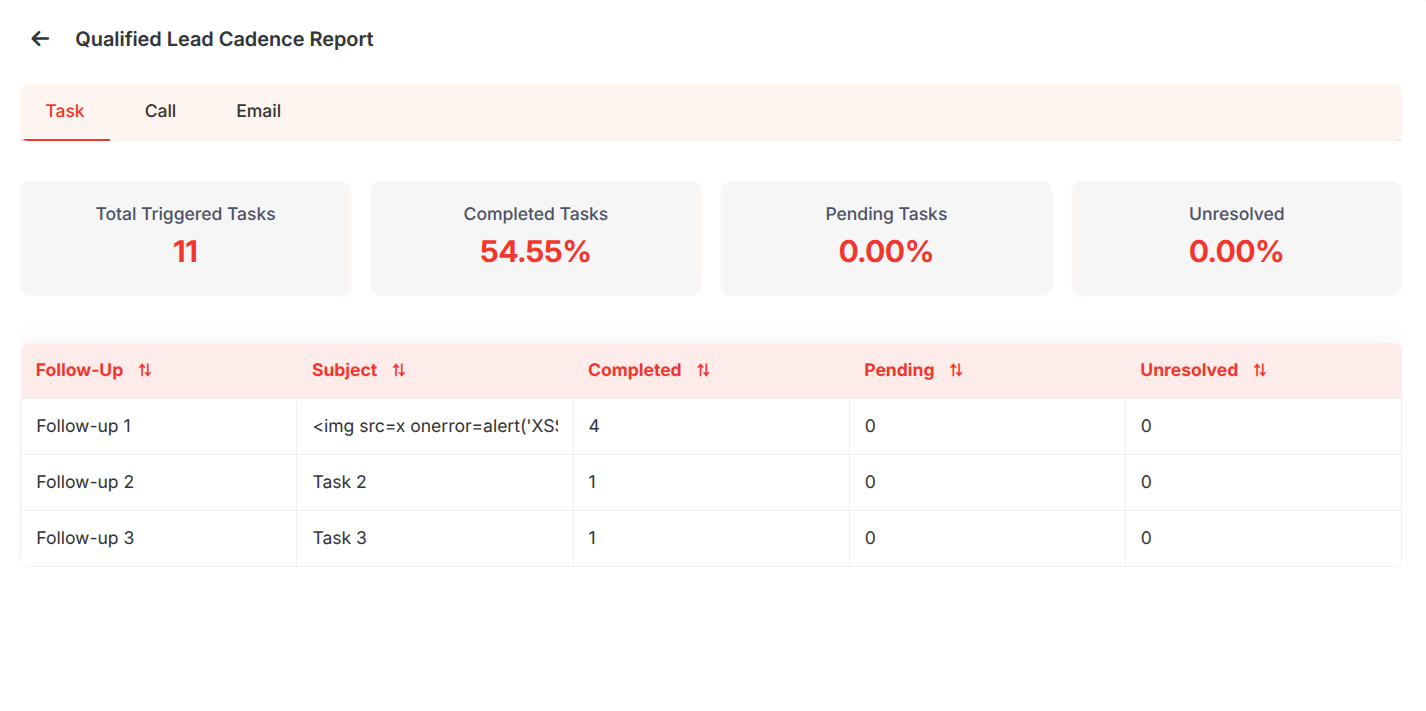
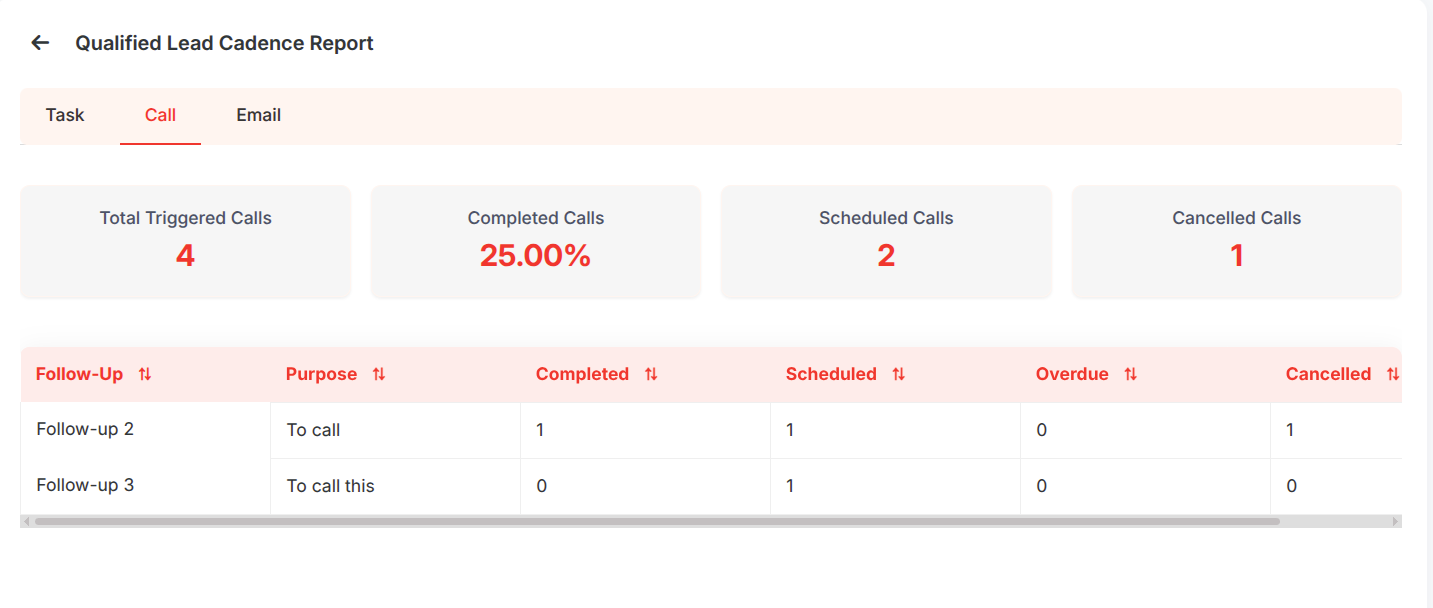
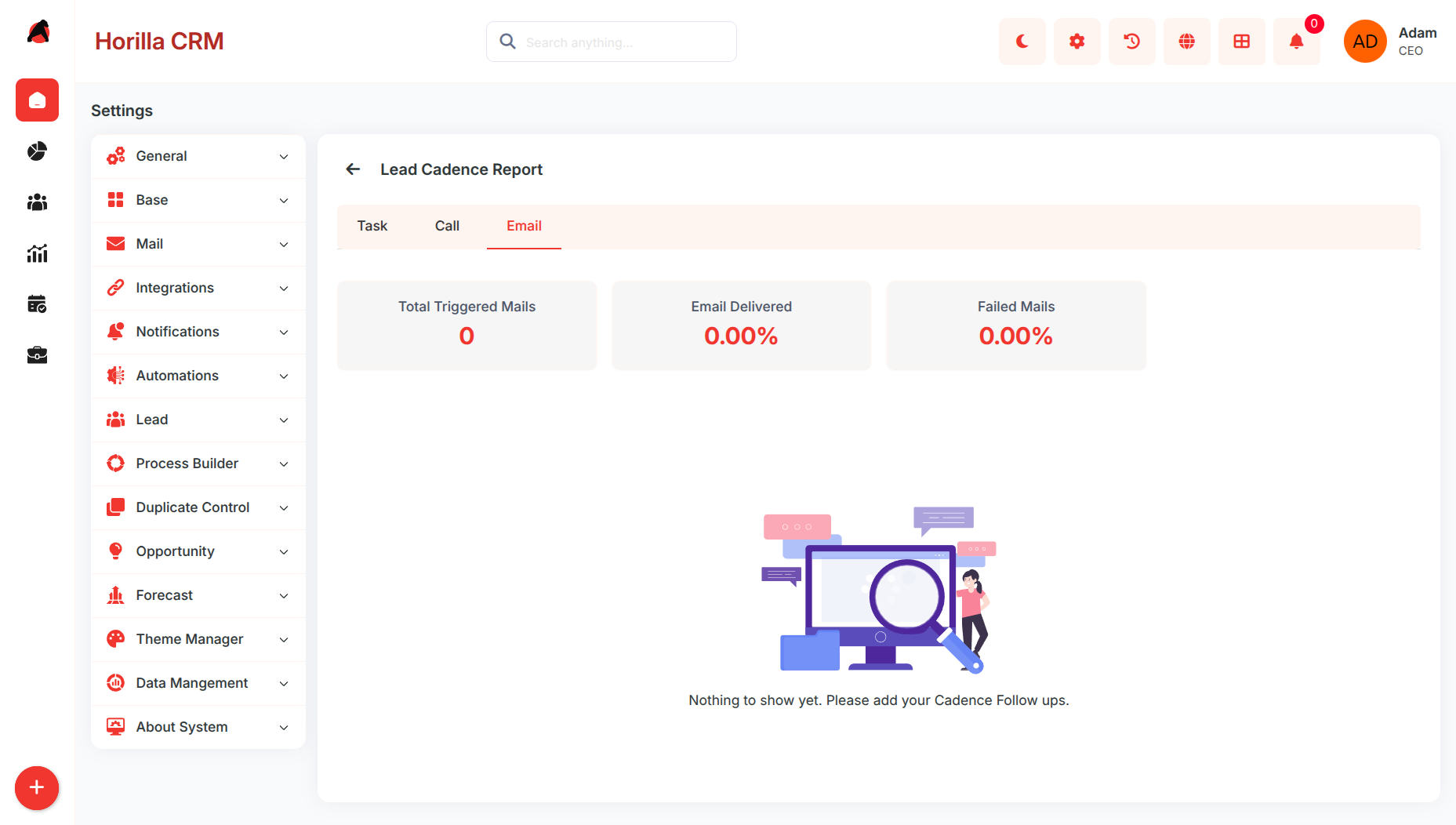
Cadence Reports
Accessible from the detail view.
Task Report
Call Report
Email Report
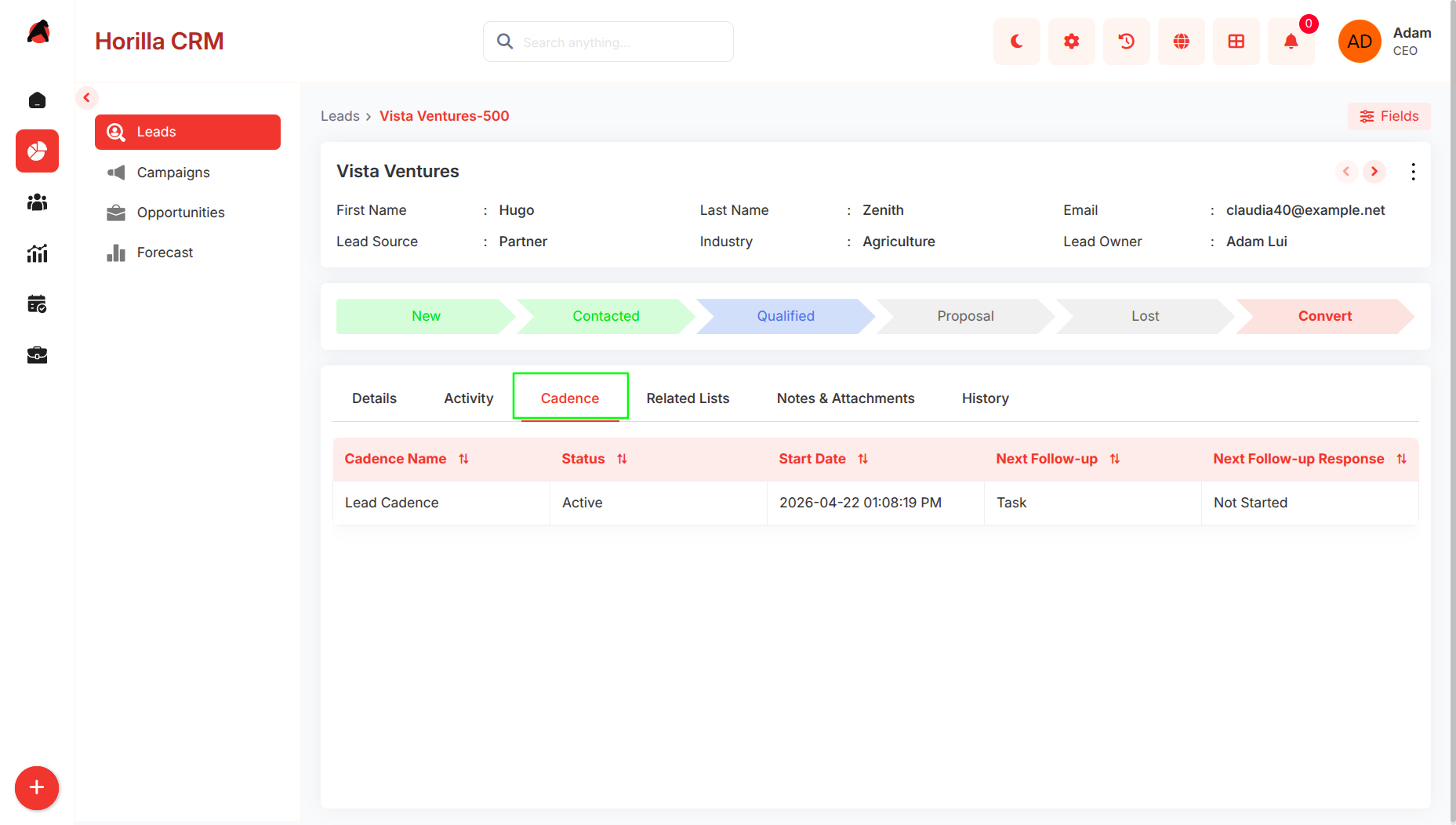
Cadence Tab on Record
Available in CRM record detail view.
Editing and Deleting
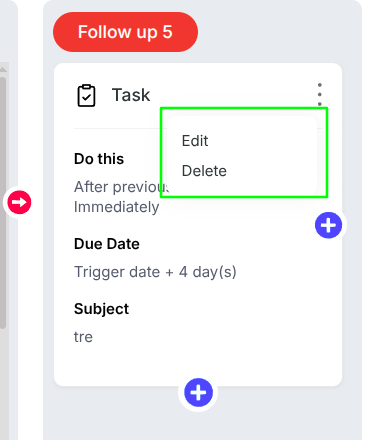
- Edit Cadence : From list or detail view.
- Edit Follow-Up : From follow-up card menu
- Delete Follow-Up : Blocked if child branches exist.
- Delete Cadence : Removes all follow-ups and conditions.
Activate / Deactivate
Active
- Cadence runs automatically
Inactive
- Execution stops
Reactivation
- Re-applies Follow up 1 to matching records
Expected Behavior
- Users can create cadences for any supported module
- Conditions determine record enrollment
- Follow up 1 triggers automatically
- Follow up 2+ depend on previous status
- Branching allows multiple outcome paths
- Tasks and calls create activities
- Emails send using templates
- Activation backfills existing records
- Updates sync pending activities
- Reports show execution metrics
- Record view displays cadence progress
- Follow-ups with children cannot be deleted
- Execution is fully automated via system triggers